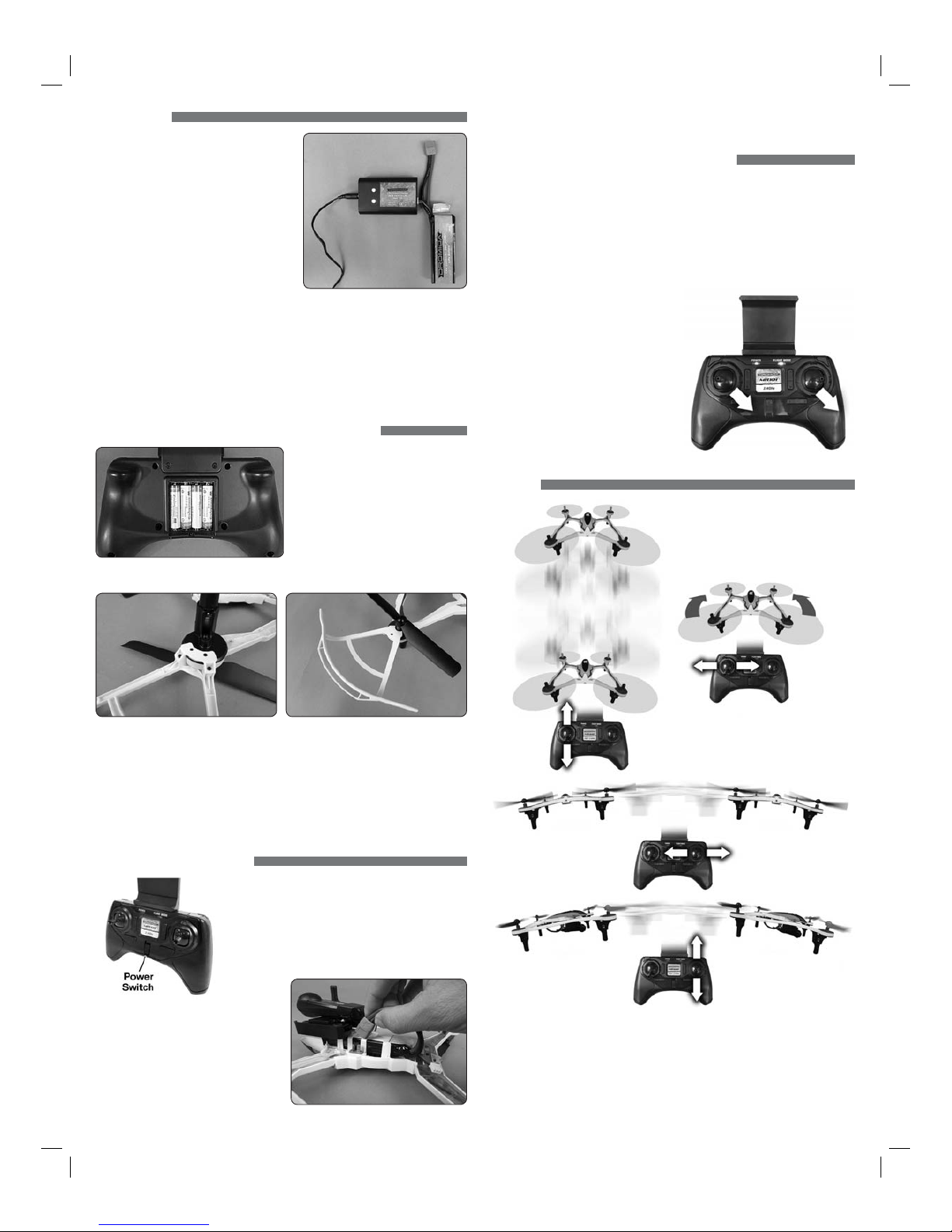
3. Connect the camera
wire to the camera
and to the quad
as shown. The
connectors can only
t in one direction.
Do not force them.
RECORDING VIDEO & PICTURES WITHOUT THE APP
FPV Version Only
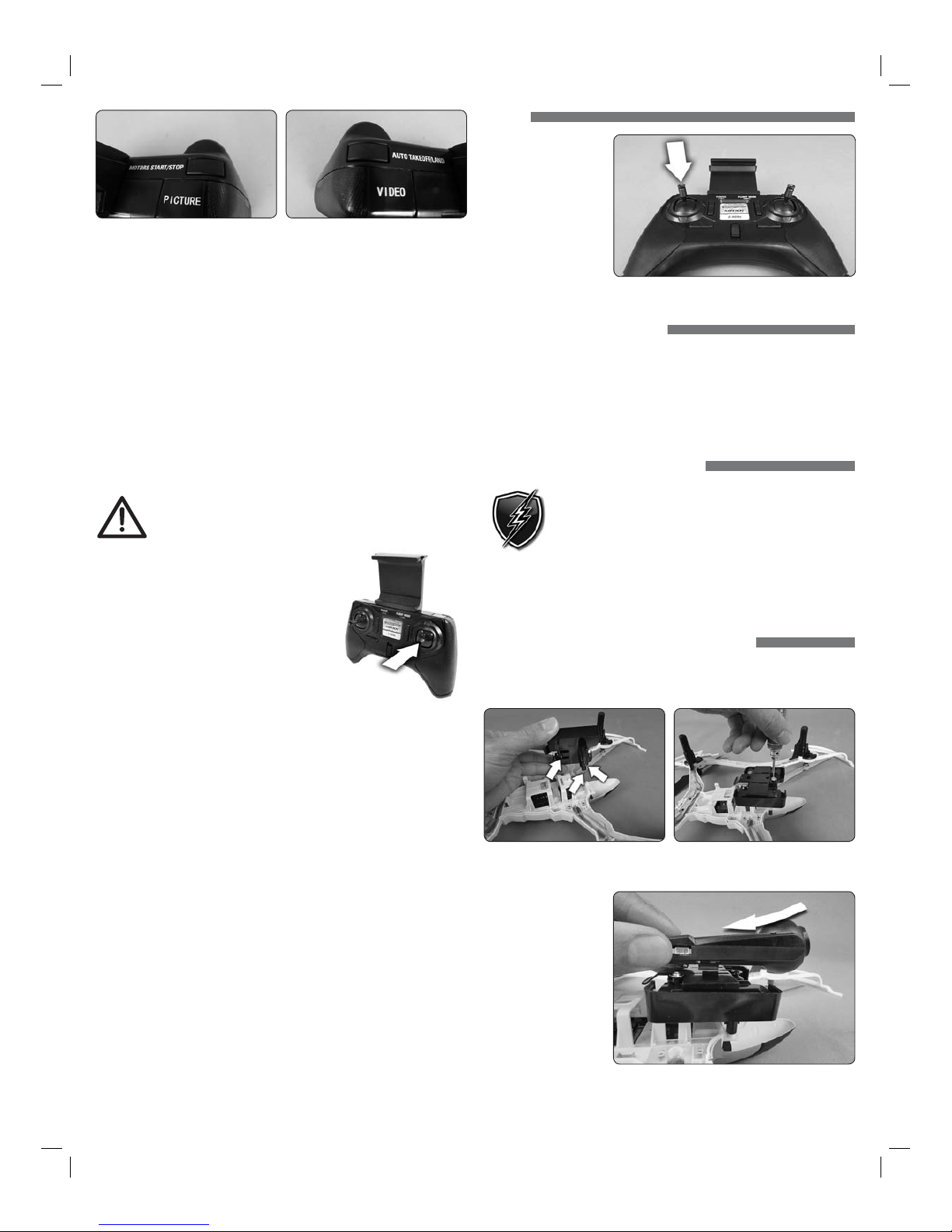
1. If you remove or
need to replace the
memory card in the
camera, insert it as
shown with the gold
contact points facing
down, away from the
Dromida XL. Push the
card in until it clicks
into place. To release the card, push in until it clicks and the card will spring
out of position to be removed. The memory card should never be inserted or
removed from the camera when the battery is plugged in. When inserting
the card, be sure to align the card correctly into the card slot.
2. Turn on the controller and connect the battery to the Dromida XL. Before taking
pictures or video you must allow the camera 30 seconds to initialize. Pictures
or video taken before the camera has initialized may not be saved to the card
or the file(s) will be corrupted.
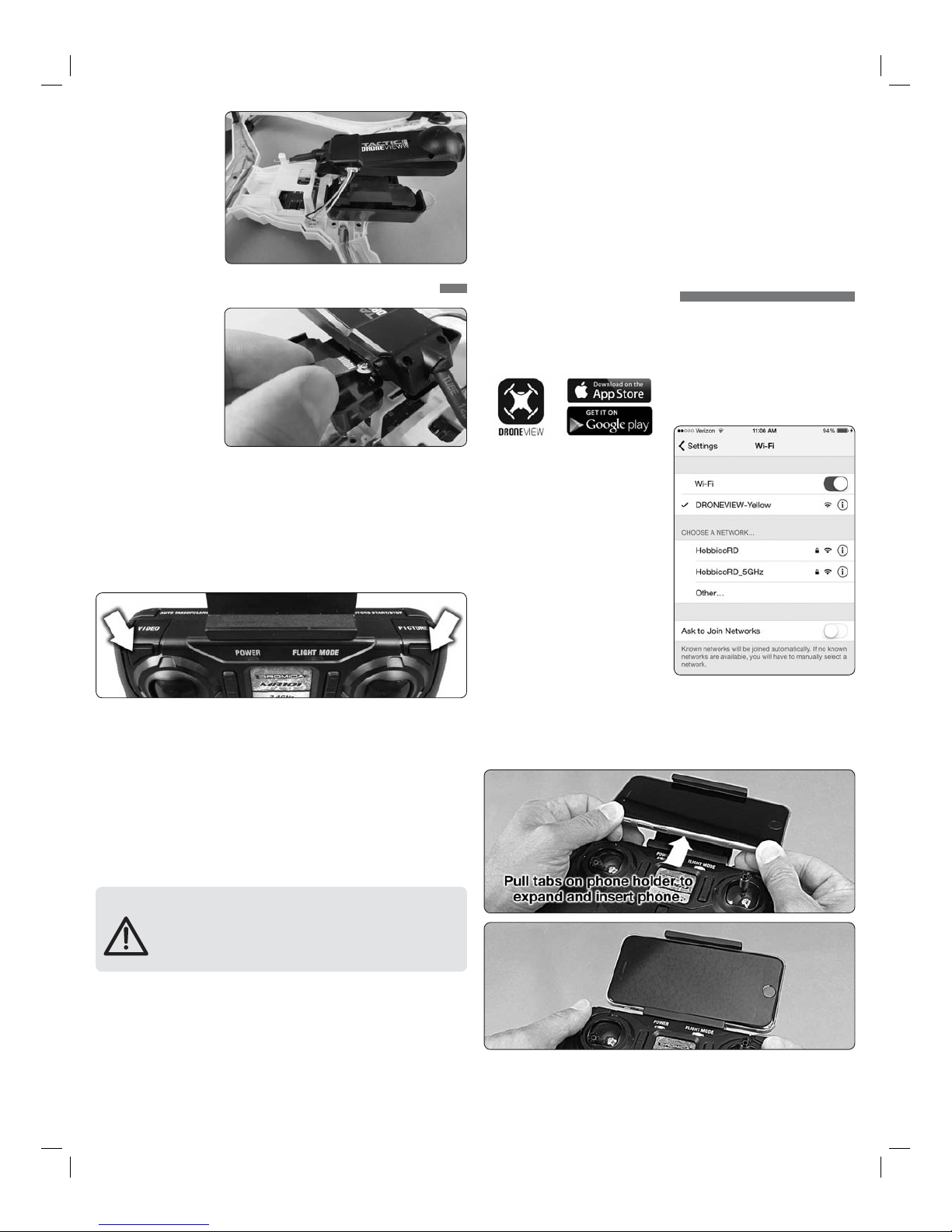
3. Use the PICTURE and VIDEO buttons on the controller to take still images and
video recordings. Pressing and releasing the VIDEO button will start video
recording indicated by a long ‘beeeep’ from the controller. Pressing and
releasing the button again will stop recording, indicated by a short ‘beep’
from the controller, and the LEDs on the Dromida XL will flash. Pressing and
releasing the PICTURE button on the controller will take a photo indicated by a
short ‘beep’ from the controller. Photos can be taken using the PICTURE button
on the controller even if the DroneView camera is recording video. Allow at
least 2 seconds after taking a picture before taking another picture.
NOTE: Avoid pressing and holding the video and picture buttons. A quick ‘press
and release’ is sufficient to activate the camera.
BEFORE DISCONNECTING THE BATTERY FROM THE DROMIDA XL
AND REMOVING THE MEMORY CARD, YOU MUST ALLOW
AT LEAST 30 SECONDS FOR THE DRONEVIEW CAMERA
TO CLOSE THE FILES. FAILURE TO DO SO MAY RESULT IN
MISSING OR UNREADABLE FILES.
4. Wait at least 30 seconds following the end of the last video recorded.
Disconnect the battery from the Dromida XL, THEN remove the memory
card from the camera.
5. Insert the card into a memory card reader (not included) for use with a PC,
or tablet. Pictures are saved as .JPG files and videos are saved as .AVI files.
Pictures and videos can be viewed or edited using software that was bundled
with your PC or tablet, or there is a wide variety of software available from
third parties both free and for purchase.
NOTE: The DroneView camera’s maximum video length is 5 minutes. If video
is recorded for longer than 5 minutes the DroneView camera will automatically
close the video file and start a new file.There may be a short loss of video footage
during this switch to a new file. The DroneView will continue to create new video
files every 5 minutes of continuous recording until the memory card becomes
full or the battery is disconnected. Corrupt or missing files may result in video
recording being stopped in this way.
6. After you have retrieved your files from the memory card (copy the files you
wish to keep to a safe location) you can delete the files on the memory card.
The DroneView camera will create the sub folders it needs if they are deleted
from the card.
USING THE DRONEVIEW APP
The DroneView app is free software for your WiFi-capable Apple or Android device
that allows you to connect to the DroneView camera to use the FPV (First Person
View) function as well as to take videos and pictures and upload and view them
directly to your device.
1. Install the “DroneView” app
from Google Play (Android) or
the App Store (Apple).'
2. Insert the memory card into the
camera and connect a charged LiPo
battery to the Dromida XL.
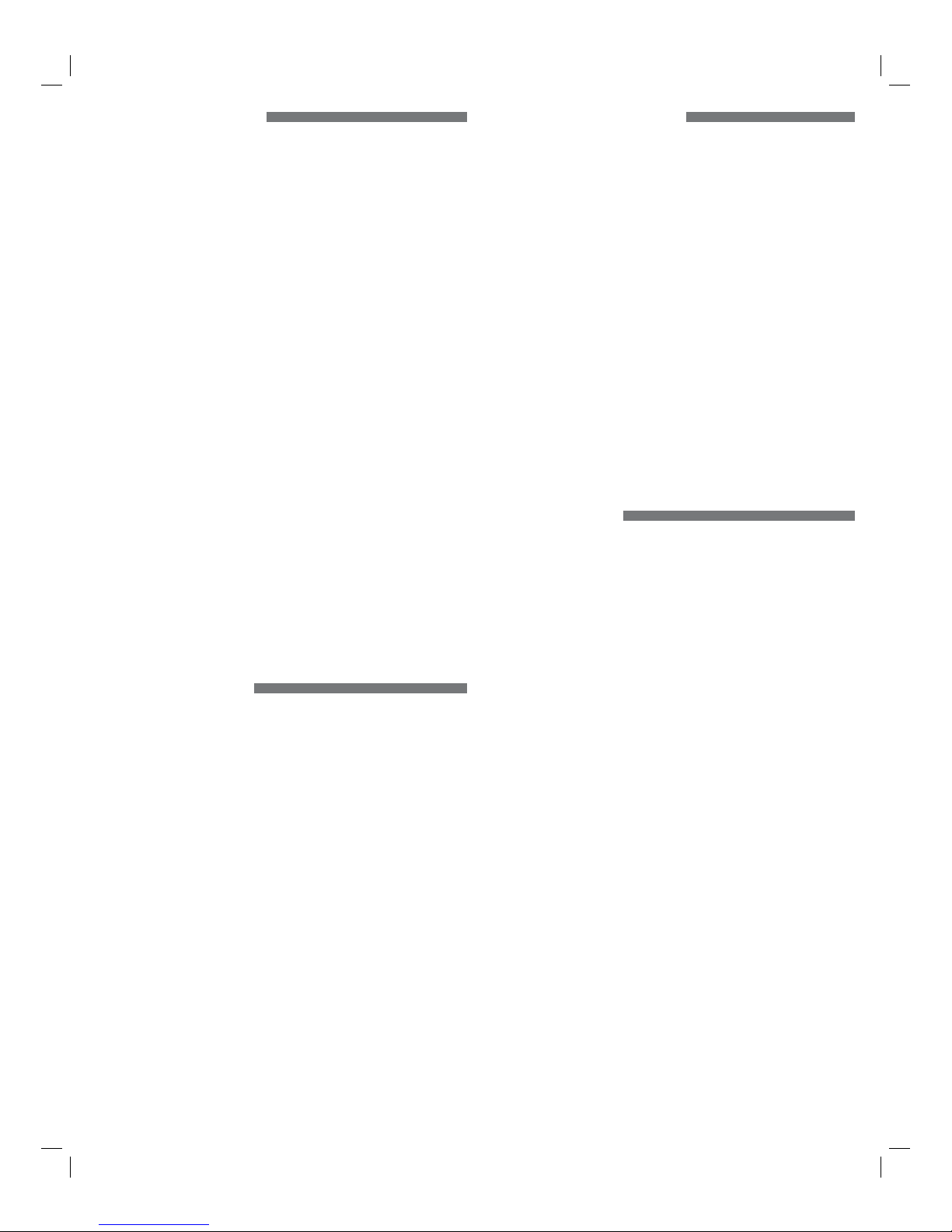
3. iOS Only - Go to the WiFi setting
options in your device and select
the DroneView network. The actual
name of the DroneView network will
vary from the photo shown here. It
may take several seconds for the
DroneView network to appear in the
available network list in proximity
to your device. No password is
needed to connect to the DroneView
network. NOTE: Android devices
will automatically connect to the
DroneView WiFi network when the DroneView app is opened.
Apple and the Apple logo are trademarks of Apple Inc., registered in the U.S. and
other countries. App Store is a service mark of Apple Inc. Android™ and Google
Play are trademarks of Google Inc.
Wi-Fi®are Wi-Fi Alliance®are registered trademarks of the Wi-Fi Alliance.
4. Grasp your device as shown and attach it to the phone mount on the controller
by pushing up on your phone against the spring loaded top clip until you can
fit the other side into the bottom clip.
4