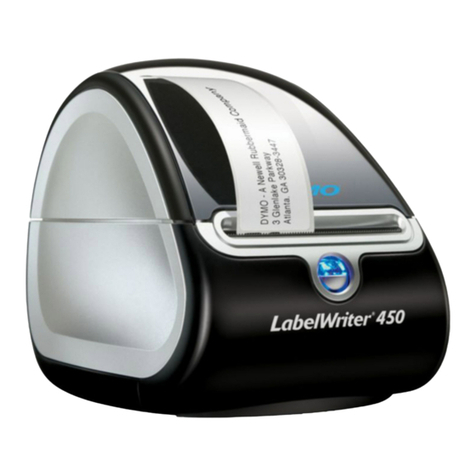
Dymo File User manual

English
Follow these steps to install and configure the DYMO File software.
1Download and install the software.
2Activate the software.
3Set up your printer and scanner.
4Scan your first document.
NOTE If you have a version of OMEGA File installed on your computer, uninstall
OMEGA File prior to installing DYMO File.
1. Installing the Software
NOTE To print barcode labels on a label printer, you must have DYMO Label Software
and a LabelWriter printer installed before installing DYMO File software.
To install the software
1Click the link to download the DYMO File Installer.
2Click Save to save the installation file to your computer.
3Double-click DYMO_File_setup.exe.
4Follow the onscreen instructions.
Quick Start Guide

2
2. Activating the Software
The first time you start DYMO File, you are asked to activate the software. You will
need the Product Key located on the outside of the DYMO File CD envelope.
To activate the software
1Double-click on your desktop.
2When the activation dialog box appears, select Activate DYMO File with
Product Key.
3Do one of the following:
•Select Activate automatically over the Internet. and proceed to step 3.
•Select Activate manually by phone and follow the instructions. Proceed
to 3. Setting Up Your Printer and Scanner.
4Enter your product key in the Product Key field and click Submit. Your
product key is included in the email you received when you purchased
DYMO File.
5Click OK when the Activation successful message appears.
3. Setting Up Your Printer and Scanner
The first time DYMO File starts, the DYMO File First Run wizard appears. The First
Run Wizard will guide you through the following steps:
•Selecting your printer
•Selecting a folder for your scanned documents
•Setting up your scanning software
•Testing your configuration

3
To set up your printer and scanner
1Follow the onscreen instructions to set up your printer and scanner, and test
your configuration.
2At the end of the Wizard, watch the one minute Getting Started video.
4. Scanning Your First Document
Follow the steps in this section to scan your first document. You can also view the
Getting Started video or read the Getting Started section in the Online Help.
To scan your first document
1Select a folder to file your document under Filing Location.
2Enter the document name in the File name field under Document
Information.
3Select one of the following under Reservation:
•Label to print a barcode label on your LabelWriter printer.
•Cover sheet to print a cover sheet with a barcode on your regular printer.
4Click Create Reservation. A barcode label or cover sheet is printed and a
document reservation file is created in the folder you selected.
5Attach the barcode label to your document or place the cover sheet on top
of your document.
6Scan the document on your scanner.
After a few moments, the document reservation file is replaced with your
scanned document.

4 © 2007 Sanford, L.P. All rights reserved.
ABBYY™ FineReader™ 8.x Engine © ABBYY Software House 2005. OCR by ABBYY Software House.
DYMO File, LabelWriter, and DYMO are trademarks or registered trademarks of Sanford, L.P.
The following figure highlights some of the major features available in DYMO File.
For complete details on using the software, refer to the DYMO File Online Help.
Step 1. Choose your
filing location.
Use filing templates to
quickly create a set of folders
and document reservations.
Step 2. Name your
document.
See which documents are
waiting to be scanned.
Step 3. Print a barcode
label or cover sheet to
create a document
reservation.
Find documents previously
filed on your computer.
Quickly file a single
document in a few
easy steps.
Step 4. Attach the
barcode and scan your
document, now or later.
Table of contents
Other Dymo Software manuals
Dymo
Dymo Label v.8 User manual

Dymo
Dymo LabelWriter 450 User manual
Dymo
Dymo Label v.8 User manual
Dymo
Dymo Label Safety guide

Dymo
Dymo LabelWriter 450 Turbo User manual
Dymo
Dymo LabelManager Series User manual
Dymo
Dymo LabelWriter DUO User manual

Dymo
Dymo GuestGuard User manual
Dymo
Dymo Label v.8 User manual
Dymo
Dymo Version 7.5 User manual