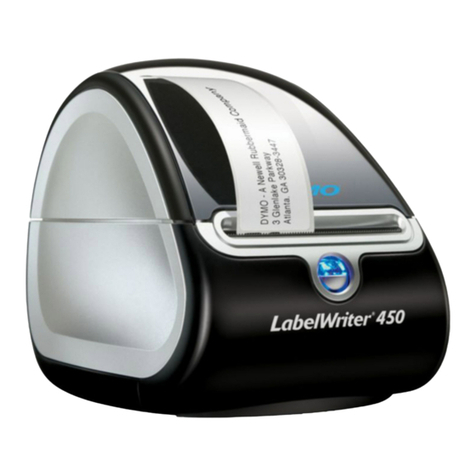
Dymo LabelWriter 450 User manual

!
KeepnTrack Badge Printer!
Installation Guide!
!
!
!
!
!
1831 Fort Union Blvd, Salt Lake City, Utah 84121 !
800-347-6439 • 801-943-7277!
www.companioncorp.com!
!
!
!
!
Copyright ©2013 Evelyn Manufacturing, All Rights Reserved. !
Distributed under license by COMPanion Corporation. Under the copyright laws, this document may not be copied, in whole or in part without
written consent of Evelyn Manufacturing. The same proprietary and copyright notices must be a"xed to any permitted copies as were a"xed to
the original. KeepnTrack™, and the associated logo and icons are registered trademarks of Evelyn Manufacturing. Other trade names are the
property of their respective corporations. Printed in the United States of America.!
!
IG0080.8 - v6010 Badge Printer! of 115

!
COMPanion supports the two most recent versions of Internet Explorer, FireFox, and
Safari. If you are uncertain that your system meets the current requirements, please
contact COMPanion Technical Support at 1-800-320-5830 or
!
Setting up the printer!
When unpacking, verify that you have received the printer, manual, installation CD,
power supply, power cord, and a USB cable.!
!
Connect the “D”-shaped end of the USB interface cable to the connector on the rear
panel of the printer. When prompted by the installation software connect the
rectangular end of the cable to an available USB port on your computer.!
!
NOTE: DO NOT CONNECT THE PRINTER TO A USB KEYBOARD OR OTHER HUB AS THE
POWER SUPPLIED BY THESE DEVICES IS INSUFFICIENT.!
!
Connect the power cable to the AC adapter; next, connect the AC adapter to the!
connector on the printer. Plug the power cable into a properly protected AC outlet.!
!
NOTE: ONLY USE THE ADAPTER AND CORD THAT CAME WITH YOUR PRINTER.!
!
The printer will automatically turn on when the power adapter is plugged into both
the printer and an AC outlet.!
!
Loading the Labels or Paper!
•Use only COMPanion part number V6101 (Yellow Badge labels) or V6301
(Continuous Wide Student Pass Paper).!
•Press the form-feed button to eject the protection labels.!
•Open the printer by lifting the cover and remove any packing materials.!
System Requirements
Windows
Macintosh!
Minimum
Windows XP SP2!
(32-bit)!
1 GB Free Hard Drive Space, 1
GB RAM, USB 2.0 connection!
Internet Explorer 8
OS 10.6!
(Intel Processor) !
1 GB Free Hard Drive Space, 1
GB RAM, USB 2.0 connection!
Safari 5.1.10
Recommended
Windows 7 or Windows 8 !
(32 or 64 bit)!
20 GB+ Free Hard Drive Space,
2 GB+ RAM, USB 2.0
connection!
Internet Explorer 10 or Latest
version of FireFox
OS 10.7 or 10.8!
(Intel Processor)!
20 GB+ Free Hard Drive Space,
2 GB+ RAM, USB 2.0
connection!
Safari 6 or Latest version of
FireFox
!
IG0080.8 - v6010 Badge Printer! of 215

•Following the directions listed on the inside of the printer, load the labels onto the
spool with the labels feeding from below, making sure that the roll is positioned
tightly on the spool with no gap between the roll and the spool.!
•Feed the labels into the printer, aligning the labels with the left wall of the printer
and against the label guide, and press the form-feed button on the front of the
printer.!
•Gently close the lid.!
•An error light will blink if paper nears its end or is incorrectly installed.!
!!
!Solid Blue - Power is ON and printer is ready!
!Dimmed Blue - Printer is in power-saving mode!
!Flashing Blue - Labels are not loaded properly or the label roll is empty!
!
NOTE: LABELS ARE HEAT SENSITIVE! DO NOT EXPOSE TO HEAT, DIRECT!
SUNLIGHT, OR MOISTURE WHILE STORING.!
!
Summary of Installation Steps!
In order to use your badge printer with KeepnTrack, you must first properly install
the hardware and device drivers before configuring the printer software:!
!
1. On your computer, install the required printer software and then plug in the
printer.!
!
NOTE: DO NOT PLUG THE PRINTER INTO THE COMPUTER UNLESS PROMPTED BY THE
SOFTWARE OR THE INSTALLATION PROCESS IS COMPLETE.!
!
2. Configure the KeepnTrack Administration Settings to use a badge printer.!
!
3. Finally, configure the KeepnTrack Kiosk to use your printer.!
!
These steps will be covered comprehensively below.!
!
Installing the Printer Software on Windows!
!
Before using your badge printer, you must first install the printer software. The
software can be found on the installation CD provided. Locate and Run the file
labeled DLS8Setup.8.x.x.exe (Image 1).!
!
NOTE: THE SOFTWARE COMPONENTS MAY ALSO BE DOWNLOADED FROM:!
http://www.keepntrack.com/support_downloads.html!
!!
!
!
!
IG0080.8 - v6010 Badge Printer! of 315

!
!
Image 1!
!
After reviewing the License Agreement, click I Agree to continue (Image 2).!
!
Image 2!
!
!
!
IG0080.8 - v6010 Badge Printer! of 415

!
Select to perform an Express Installation and click Next (Image 3). !
Image 3!
!
When the installation is complete, select Finish (Image 4).!
Image 4!
!
Installation for Windows is now complete. Connect the USB cable from your
printer to the computer and then power ON your printer. You can confirm the
printer is available and installed correctly by selecting Devices and Printers in the
!
IG0080.8 - v6010 Badge Printer! of 515

Windows Control Panel (Image 5). Proceed to the KeepnTrack Configuration
section.!
!
NOTE: IT IS ESSENTIAL THAT THE NAME OF THE PRINTER REMAIN AS IT WAS WHEN
INSTALLED. DO NOT CHANGE IT. SUPPORTED NAMES ARE:!
DYMO LabelWriter 400, DYMO LabelWriter 450, DYMO LabelWriter Twin Turbo!
Image 5!
!
!
Installing the Printer Software on Macintosh!
Before using the label printer, you must first install the printer software. The
software can be found on the installation CD provided. Locate and Open the file
labeled DLS8Setup.8.x.x.dmg. Double-Click on the DYMO Label v.8.pkg file within to
begin the installation (Image 6).!
!
NOTE: THE SOFTWARE COMPONENTS MAY ALSO BE DOWNLOADED FROM:!
http://www.keepntrack.com/support_downloads.html
!
!
IG0080.8 - v6010 Badge Printer! of 615

!
Image 6!
!
After reviewing the Readme file and License Agreement, click Continue and Agree
(Image 7).!
!
Image 7!
!
!
If prompted, you will need to enter the Name and Password for an Administrator to
complete installation (Image 8).!
!
!
!
IG0080.8 - v6010 Badge Printer! of 715

!
Image 8!
!!
When prompted, connect the USB cable from your printer to the computer and
power ON the printer (Image 9).!
!
Image 9!
!
!
Installation for Macintosh is now complete. You can confirm the printer is
available and installed correctly by checking the Print & Fax settings found by
!
IG0080.8 - v6010 Badge Printer! of 815

selecting System Preferences from either the dock icon or from Apple drop down
menu (Image 10). Proceed to the KeepnTrack Configuration section.!
!
!
Image 10!
!
NOTE: IN SOME VERSIONS OF OSX IT MAY BE NECESSARY TO SELECT TO ‘ADD A
PRINTER’ FOLLOWING INSTALLATION OF THE SOFTWARE. IF THE PRINTER IS NOT
LISTED IN PRINT AND FAX SETTINGS CLICK THE ‘+’, CHOOSE THE APPROPRIATE
MODEL OF DYMO LABELWRITER FROM THE LIST AND CLICK ‘ADD’.!
!
NOTE: IT IS ESSENTIAL THAT THE NAME OF THE PRINTER REMAIN AS IT WAS WHEN
INSTALLED. DO NOT CHANGE IT. SUPPORTED NAMES ARE:!
DYMO LabelWriter 400, DYMO LabelWriter 450, DYMO LabelWriter Twin Turbo!
!
KeepnTrack Configuration!
!
You will need to make a couple of changes in the KeepnTrack software to start
printing badges or student slips. Begin by logging in to KeepnTrack Administration.!
!
•To configure settings for the facilities in your account:!
Click on Preferences -> Account. In the Classification section you will see options
for Volunteer, Student, Sta", Vendor, and Visitor. For all the types of people that
you wish to print badges for, check the “Show Print Badge checkbox in Kiosk” box
then click Save (Image 11).!!
!
IG0080.8 - v6010 Badge Printer! of 915

Image 11!
!
•To configure settings for a single facility in your account:!
Click on Preferences ->Facilities and select the desired facility in the list on the
left. In the Classification section you will see options for Volunteer, Student, Sta",
Vendor, and Visitor. For all the types of people that you wish to print badges for,
check the Show Print Badge checkbox in Kiosk box then click Save (Image 12).!
!
Image 12!
!
Next, log out of Administration and sign into the Kiosk. Click the blue link at the
bottom of the page that says Printer Settings (Image 13). If the Kiosk is running in
Self-Service mode, you will be prompted for the kiosk operator password in order
to access the printer settings. !
!
IG0080.8 - v6010 Badge Printer! of 10 15
Other manuals for LabelWriter 450
4
This manual suits for next models
1
Table of contents
Other Dymo Software manuals

Dymo
Dymo GuestGuard User manual
Dymo
Dymo Label Safety guide
Dymo
Dymo File User manual
Dymo
Dymo Label v.8 User manual

Dymo
Dymo LabelManager Series User manual

Dymo
Dymo LabelWriter 450 Turbo User manual
Dymo
Dymo LabelWriter DUO User manual
Dymo
Dymo Label v.8 User manual
Dymo
Dymo LabelWriter DUO User manual
Dymo
Dymo Label v.8 User manual