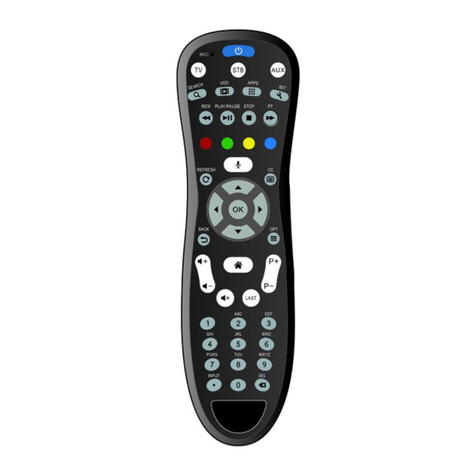
Entone Nova User manual

NOVA
Remote Control Guide (EMEA)

COPYRIGHT
©2014 Entone, Inc. All rights reserved. This document contains proprietary information protected by
copyright. No part of this publication may be reproduced, stored in a retrieval system, or transmitted in
any form or by any means, electronic, mechanical, photocopying, recording or otherwise, without the
prior written consent of Entone, Inc., 20863 Stevens Creek Blvd, Suite 300, Cupertino, CA 95014, U.S.A.
DISCLAIMER
IF THIS PRODUCT DIRECTS YOU TO COPY MATERIALS, YOU MUST HAVE PERMISSION FROM THE COPY-
RIGHT OWNER OF THE MATERIALS TO AVOID VIOLATING THE LAW WHICH COULD RESULT IN DAMAGES
OR OTHER REMEDIES.
TRADEMARKS
Entone and the tagline“Connecting the Home”are trademarks of Entone, Inc. All other trademarks or
registered trademarks belong to their respective owners.
CHANGES
The material in this document is for information only and is subject to change without notice. While rea-
sonable eorts have been made in the preparation of this document to assure its accuracy, Entone, Inc.
assumes no liability resulting from the use of the information contained herein. Entone, Inc. reserves the
right to make changes in the product design without reservation and without notication to its users.
P/N: 99-709801-05 - V1.0

REMOTE CONTROL GUIDE EMEANOVA
1
Table of Contents
OVERVIEW
2 Remote Control
5 Controlling Your Devices
6 Program Remote to Control Your Devices
7 Auto Search Procedures
8 Setup Keys Punch Through Procedures
8 Reset Punch Through Procedures
8 Reset Procedures
POWERING UP
9 Setting up Remote Control
APPENDIX
10 Troubleshooting
11 Device Codes: Audio-Amplier
11 Device Codes: Audio-Accessory
12 Device Codes: Audio-Receiver
15 Device Codes: Television
31 Device Codes: Video-DVD
40 Declaration of Conformity

REMOTE CONTROL GUIDE EMEA NOVA
2
OVERVIEW REMOTE CONTROL
1
2
3
4
5
6
7
8
9
10
11
12
13
14
15
16
17
19
18
20
21
22
23
24
25

REMOTE CONTROL GUIDE EMEANOVA
3
Availability of certain features is dependent on your service provider
Button(s) Description
1
POWER Switches the power on/o for the currently selected device
Switches STB to power on or standby mode
2
SET UP Set up remote for TV
3
TV/ INPUT Changes the current A/V input of the selected device
programmed (i.e. TV or AUX)
4
DEVICE
CONTROL
TV: Select to control TV (if programmed)
STB: This button is pre-programmed to control the Entone
device
DVD: Select to control DVD (if programmed)
AUX: Select to control another device (if programmed)
5
TRANSPORT
KEYS
Controls video program for LIVE TV / DVR / VOD
REPLAY: Goes back approx. 30 seconds
REW: Rewinds video
FF: Fast forwards video
SKIP: Advances ahead in 30 second increments
PAUSE: Pauses video
PLAY: Plays video or resumes a paused program
STOP: Stops playback of video
6
REC Starts or stops recordin g a program
7
OPTIONS Provides additional options for certain on-screen menu or
highlighted item*
8MENU Displays on-screen menu or home screen
9INFO Displays on-screen information about the current
TV / VOD / DVR program
10 BACK Goes back one level within menus *
11 NAVIGATION ARROW KEYS: Navigates within the on-screen guide/menus
OK: Executes the currently selected menu option
LEFT/RIGHT: Rewinds/Fast forwards video
12 VOD Feature enabled by your service provider (contact service
provider for details)
13 EXIT Exits the current menu item or back to LIVE TV
14 GUIDE Displays the on-screen program guide

REMOTE CONTROL GUIDE EMEA NOVA
4Availability of certain features is dependent on your service provider
Button(s) Description
15 SHORTCUT Color-code buttons correspond to features that are enabled
by your service provider (contact service provider for
details)
16 LAST Changes channel to the previously viewed channel
17 CH/PG Changes channel up/down or pages up/down within the
on-screen program guide
18 VOL + /- Increases or decreases TV volume
19 MUTE Turns TV volume on/o
20 NUMBER
KEYS
Allows direct access to specic channels and menu items
21 TT Toggles Teletext on/o
22 DOT Used when entering a period in certain channels
Displays on-screen keyboard for certain applications
23 MEDIA Feature enabled by your service provider (contact service
provider for details)
24 LIVE TV Feature enabled by your service provider (contact service
provider for details)
25 DVR Feature enabled by your service provider (contact service
provider for details)

REMOTE CONTROL GUIDE EMEANOVA
5
CONTROLLING YOUR DEVICES
The Nova remote control can be used to control other devices
(e.g. TV) as well. It uses InfraRed (IR) light signals to control
other devices. IR signals travel only short distances (10 meters
or less), and cannot go through walls or other solid objects.
You must point the remote directly at these devices, with no
objects blocking the line of sight.
10 m or 40 ft

REMOTE CONTROL GUIDE EMEA NOVA
6
PROGRAM REMOTE TO CONTROL YOUR DEVICES
You can program the Nova to control other devices by
1. Locate the device code for your device in the Device Codes
table provided in the Appendix starting on page 11. If
you cannot nd the device code for your device or it does
not work after trying the listed device codes for your de-
vice brand, then you can try the auto search on page 7.
2. Turn on your device.
3. On the remote control, press the Device Control key (TV /
STB / DVD / AUX) to choose the device mode.
4. Press and hold the “SETUP” key until the LED light blinks
twice.
5. Enter the ve-digit device code for your device. If you
perform this procedure correctly, the LED will brink twice.
Otherwise, it has a long blink.
6. Press “Power” key. If your device turns o, setup is com-
plete.
7. If your device does not turn o, repeat this procedure us-
ing the next code for your device brand.
Record working codes here
TV code
DVD code
AUX code

REMOTE CONTROL GUIDE EMEANOVA
7
AUTO SEARCH PROCEDURES
If your device does not respond to the remote control after
trying all device codes listed for your brand, or if your brand is
not listed, try searching for your device code as follows:
1. Turn on your device.
2. On the remote control, press the corresponding Device
Control key (TV / DVD / AUX) to choose the device mode.
3. Press and hold the “SETUP” key until the LED light blinks
twice.
4. Press number keys “9” - “9” - “1”.
5. Press “Power” key.
6. Press “CH +”key repeatedly until your device turns o.
7. Press and hold “SETUP” key until LED blinks twice to save
the working code.

REMOTE CONTROL GUIDE EMEA NOVA
8
KEYS PUNCH THROUGH SETUP PROCEDURES
By default, a key pressed on the remote control is sent to the
selected device mode only. The punch through function al-
lows specic keys to be sent to a particular device. (For exam-
ple, the volume +/- key may need to be sent to the AUX device
instead of the TV).
1. On the remote control, press and hold the “SETUP” key
until the LED blinks twice.
2. Press number keys “9” - “7” - “8”.
3. Press source device mode, e.g. TV.
4. Press keys to punch through, e.g. VOL + / -, MUTE.
5. Press target device modes, e.g. STB, DVD.
6. Press and hold the “SETUP” key until the LED blinks twice.
7. LED has a long blink in case of error.
RESET PUNCH THROUGH PROCEDURES
1. Press and hold the “SETUP” key until the LED blinks twice
2. Press keys “9” - “7” - “8”
3. Press and hold the “SETUP” key until the LED blinks twice.
4. LED has a long blink in case of error.
RESET PROCEDURES
1. Press and hold the “SETUP” key until the LED blinks twice
2. Press keys “9” - “7” - “7”
3. Press and hold the “SETUP” key until the LED blinks twice.
4. LED has a long blink in case of error.
Other manuals for Nova
1
Table of contents
Other Entone Remote Control manuals
Entone
Entone 3 mode User manual
Entone
Entone Stylus User manual
Entone
Entone URC 4 (US Edition) User manual

Entone
Entone Nova User manual
Entone
Entone URC plus User manual

Entone
Entone GVTV User manual
Entone
Entone v4 Series User manual
Entone
Entone Hydra User manual
Entone
Entone URC 4 (EMEA Edition) User manual
Entone
Entone URC 4 User manual