5
This button is also used to reduce other settings such as CONTRAST and SPEED.
TICKER SPECIFIC BUTTON FUNCTIONS
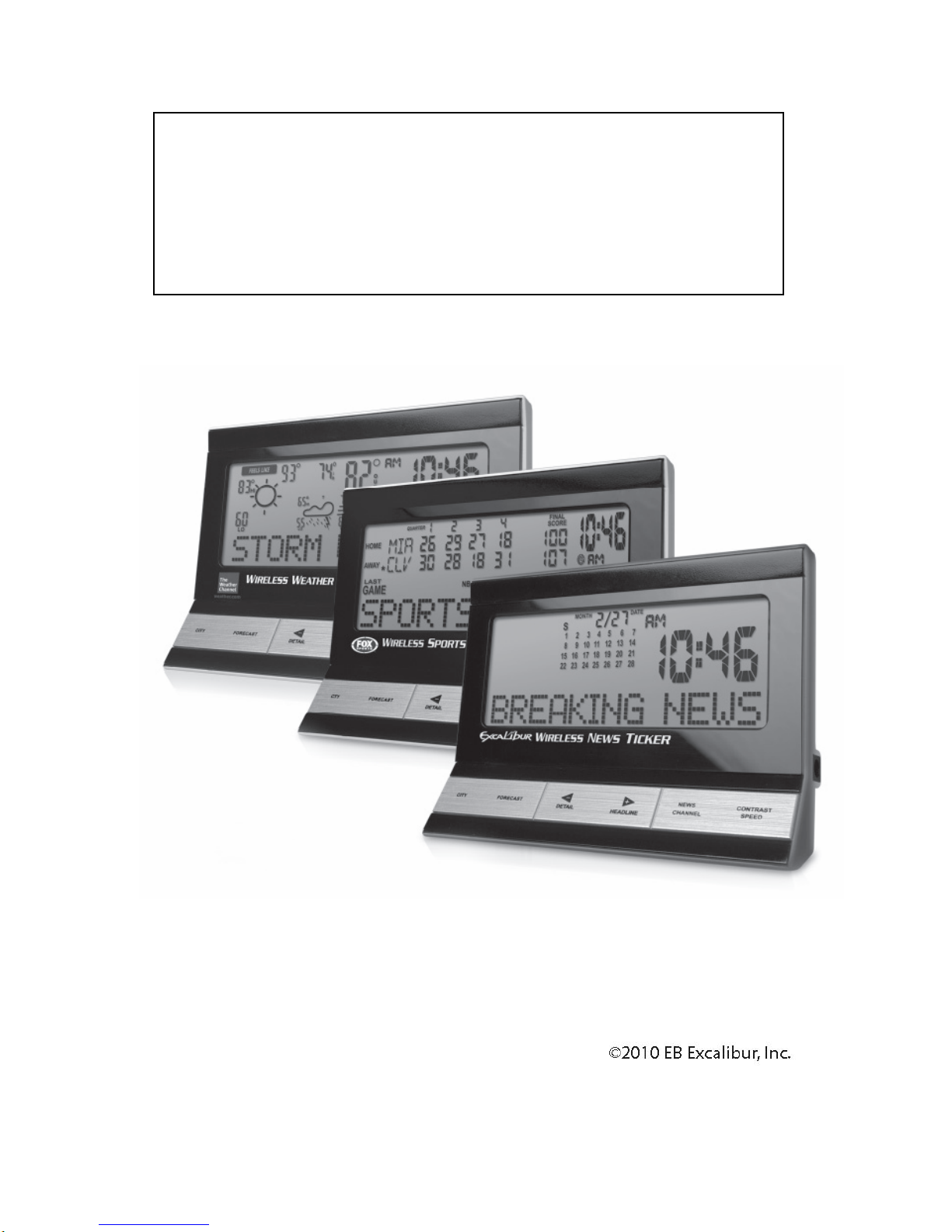
Calendar News Ticker
CONTRAST
Press this button once to view the current contrast setting. Repeatedly press this button to
change the contrast setting.
Note: Version 06 also permits the shown contrast setting to be changed with the (-) and
(+) buttons.
SPEED
Press this button once to view the current scroll (ticker) speed setting. Repeatedly press
this button to change the scroll (ticker) speed setting.
Note: Version 06 also permits the shown scroll (ticker) speed setting to be changed with
the (-) and (+) buttons.
MONTH
Press this button to enter the Perpetual Calendar mode. The current year will be displayed
on the clock digits, and the current month will flash. You may now press the (-) button
once or repeatedly to go back to the previous month or months, to view the calendar for
that month. You may press the (+) button once or repeatedly to advance to the next
month or months, to view the calendar for that month.
Press the Month button a second time will cancel the Perpetual Calendar mode and
restore the current time display.
Sports News Ticker
CONTRAST SPEED
Press this button once to view the current LCD screen contrast setting. While the current
contrast setting is being displayed, use the (-) and (+) buttons to change the contrast
setting.
If this button is pressed again while the current LCD screen contrast setting is shown, the
“USE + OR – KEYS TO ADJUST TICKER SPEED “message will scroll across the
screen. If the (+) or (-) button is not pressed, the scrolling screen will return to the current
news headline.
VIEW
Press this button to change the view to the next view. There are three sports data views,
which are Next Game, Last Game, and Standings.
The Next Game view shows the date and time for when your selected favorite team is
going to play. It also shows how many days, hours, and minutes until game time.
Example: dA 01 15:20 means 1 day 15 hours and 20 minutes. When the game actually
starts, the word Next will disappear and just Game will be displayed along with the
current live game score.
The Last Game view shows the results of the last game played by your favorite team.