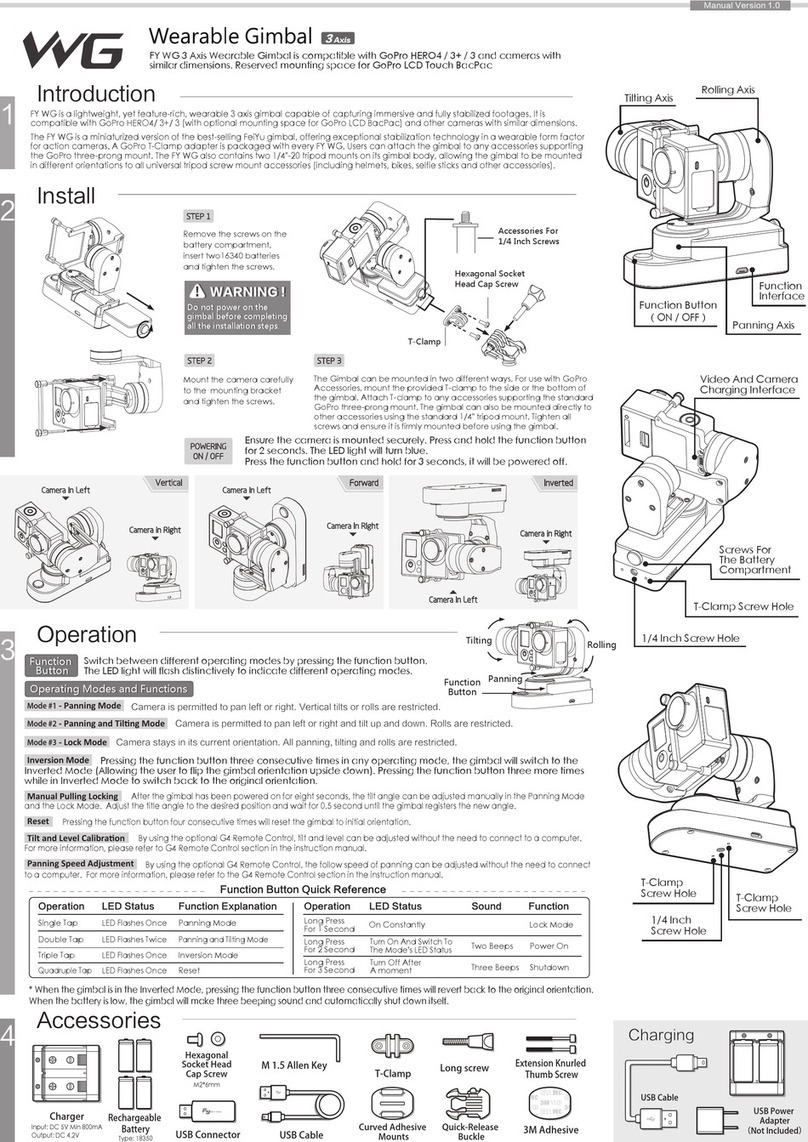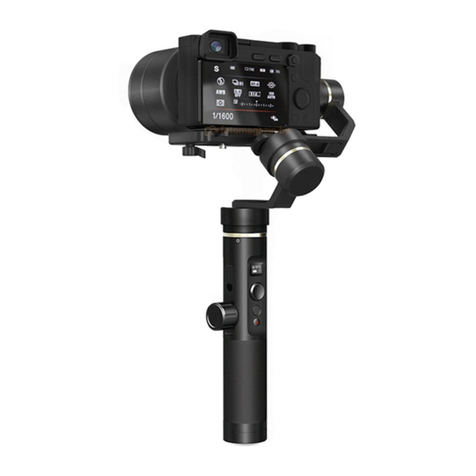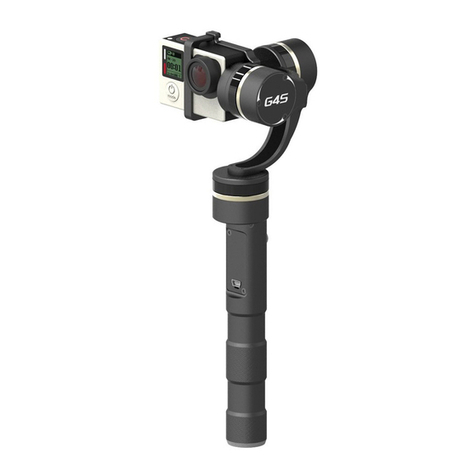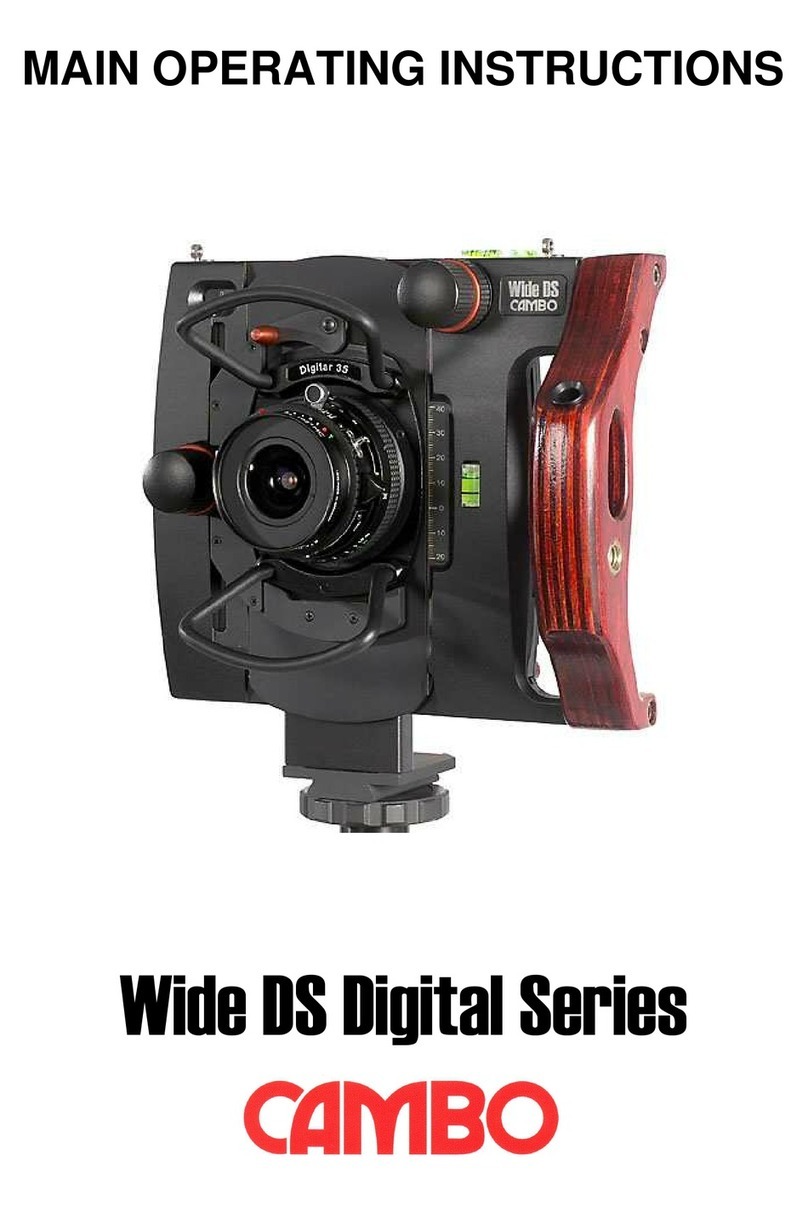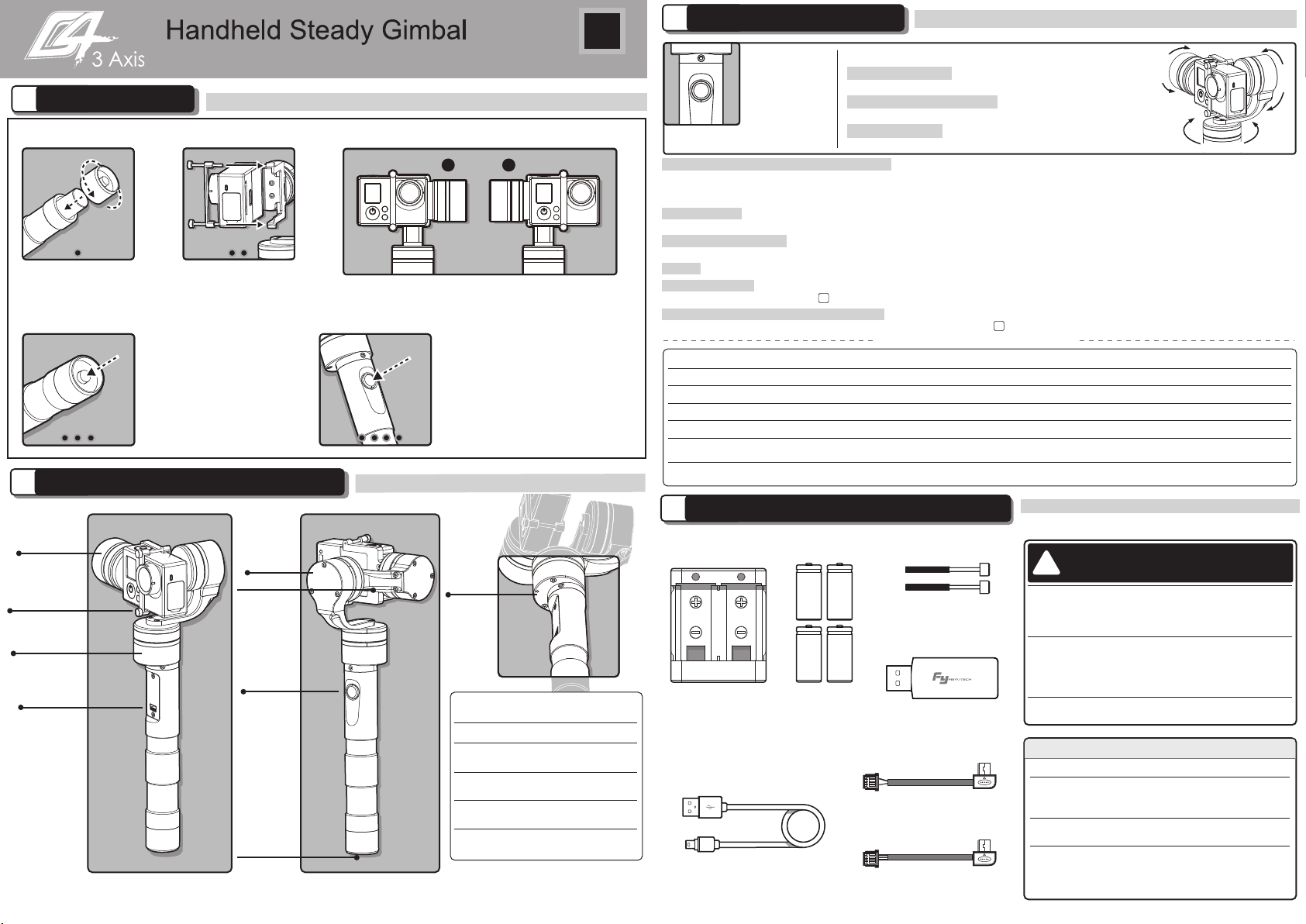
FY G4 3-Axis Handhled Gimbal is a feature-rich camera stabilizer,
yet lightweight and portable.
DISCLAIMER ATTENTION
Please visit the official website of Feiyu Tech
to get related information: www.feiyu-tech.com
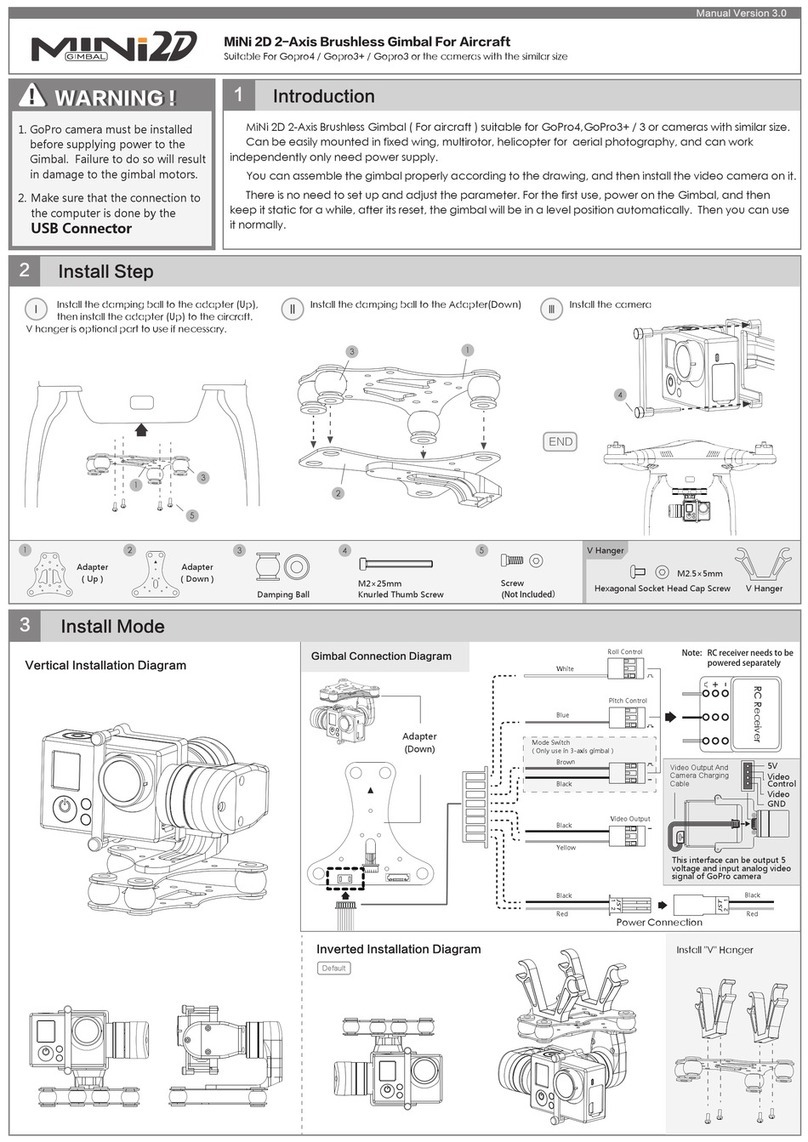
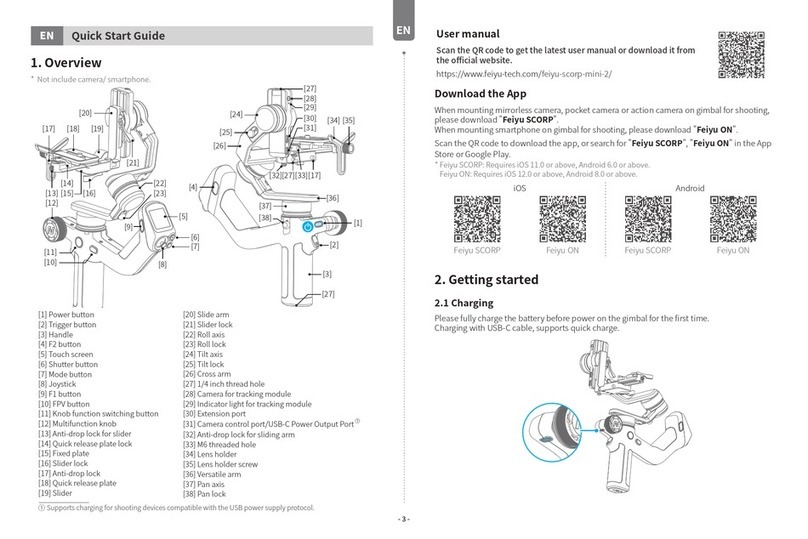
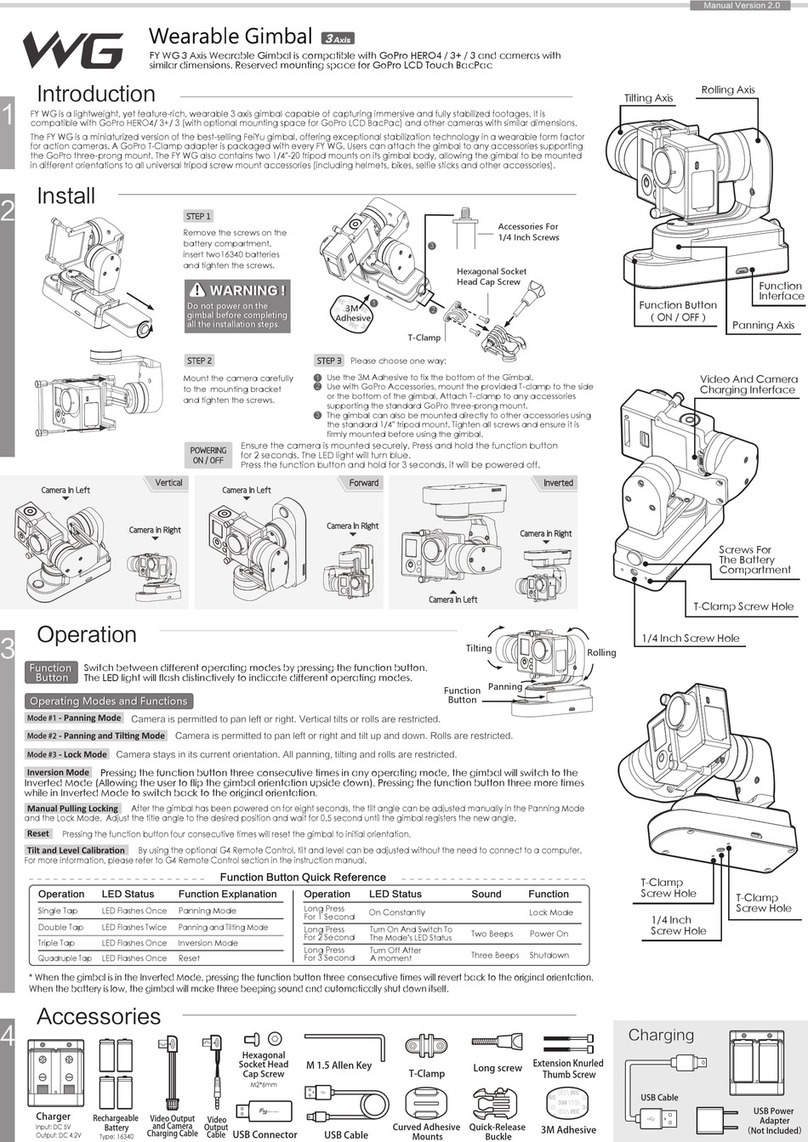
Please assemble the gimbal in accordance to the diagram provided .
Please upgrade the firmware and configuration settings with the
provided USB data cable.
Please charge the battery with the provided battery charger.
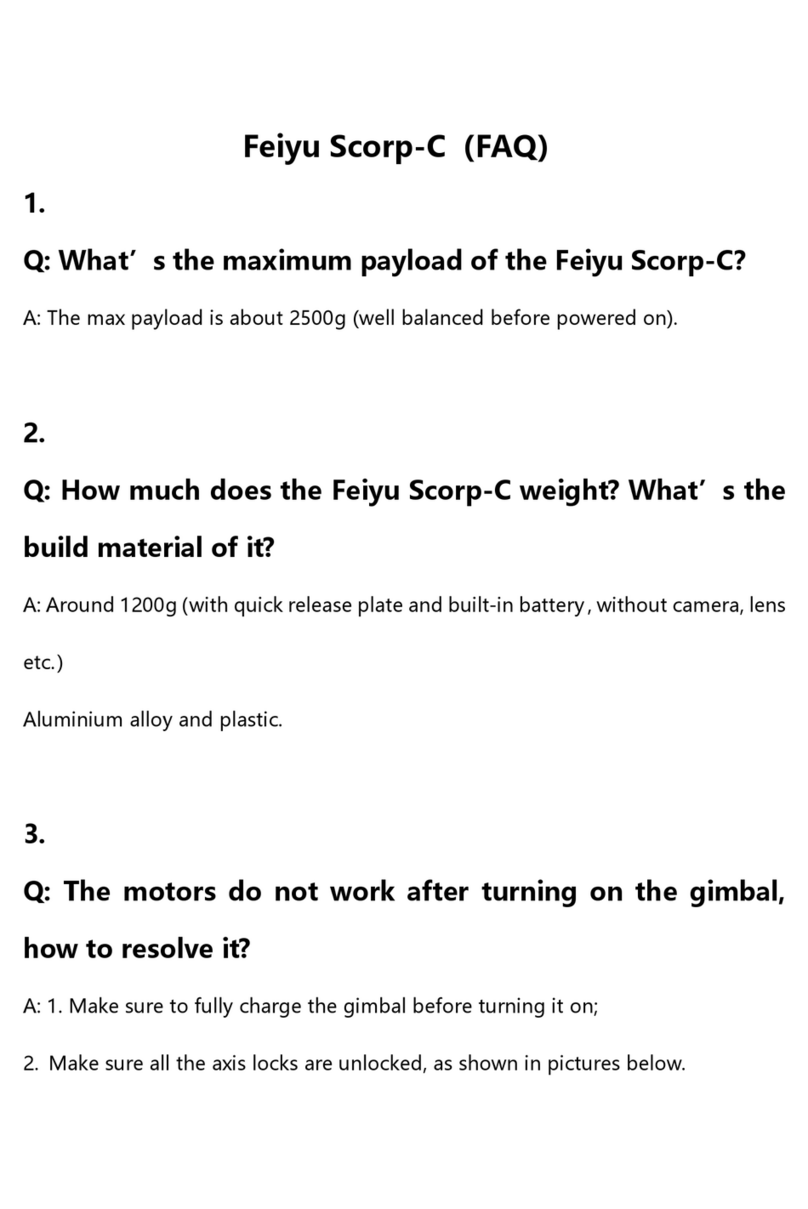
Please install the camera securely before powering on the gimbal.
When the gimbal is not in use or placed on the table, please
ensure it is powered off.
Prohibit any user for any illegal purpose. Users will be responsible for
all behaviors of purchase and use products.
The Company assumes no liability for any risks related to or resulting
from the debug and use of this product (including the direct, indirect or
third-party losses).
For any unknown sources of using, we will not be at any services.
Feiyu Tech reserves the right to amend this manual and the terms and
conditions of use the gimbal at any time.
Everyone
Can Make a Movie
7Video And Camera Charging Interface
9Initialize The FY-G4 Gimbal
5
Function Interface Instructions
6G4 Remote Control Instructions (Optional Item)
8Extension Bar Instructions (Optional Item)
10 Specification
Working Voltage
Static Attitude Tracking Accuracy
Motion Attitude Tracking Accuracy
Overload Current Protection
Pitch Angle
Roll Angle
Heading Angle
Heading Angle
Pitch Following Rate
Heading Following Rate
Weight
Gimbal In Static Mode
Motor Overload<2G
Handheld In Horizontal
Handheld In Horizontal
Handheld In Vertical
Without Batteries & Camera
6.0V
0.01
0.1
-160(Down)
-50
-160(Left)
-50
2°/ Sec
3°/ Sec
265g
8.4V
0.02
0.2
800mA
0(Horizontal)
0(Horizontal)
17.0V
0.05
0.5
+160(Up)
+50
+160
+50
75°/ Sec
150°/ Sec
Motionless Flat Surface
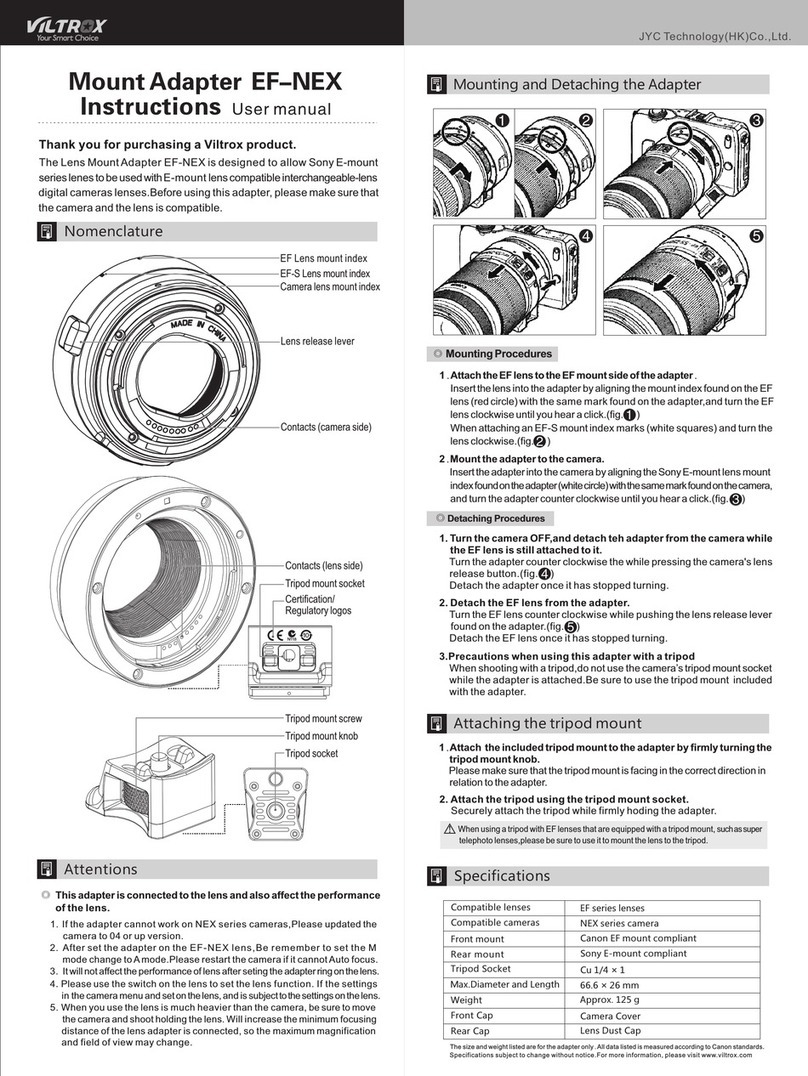
1. Install the camera properly.
2. Place the Gimbal on stationary flat and keep motionless.
3. Power on the Gimbal.
4. The Gimbal is activated and it will be initialized automatically.
Afterward pick up the Gimbal and start working with it.
Initialization Instructions
FY-G4 needs to be initialized whenever the
following situations appear after power on
Function
Interface
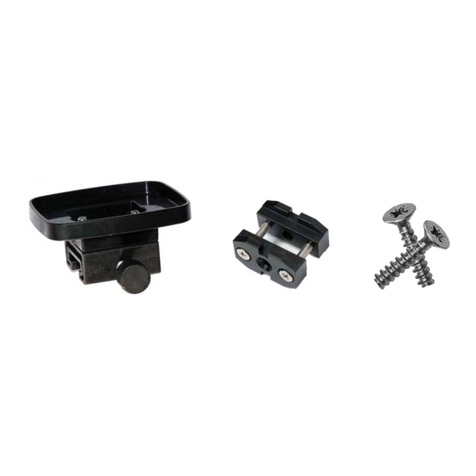
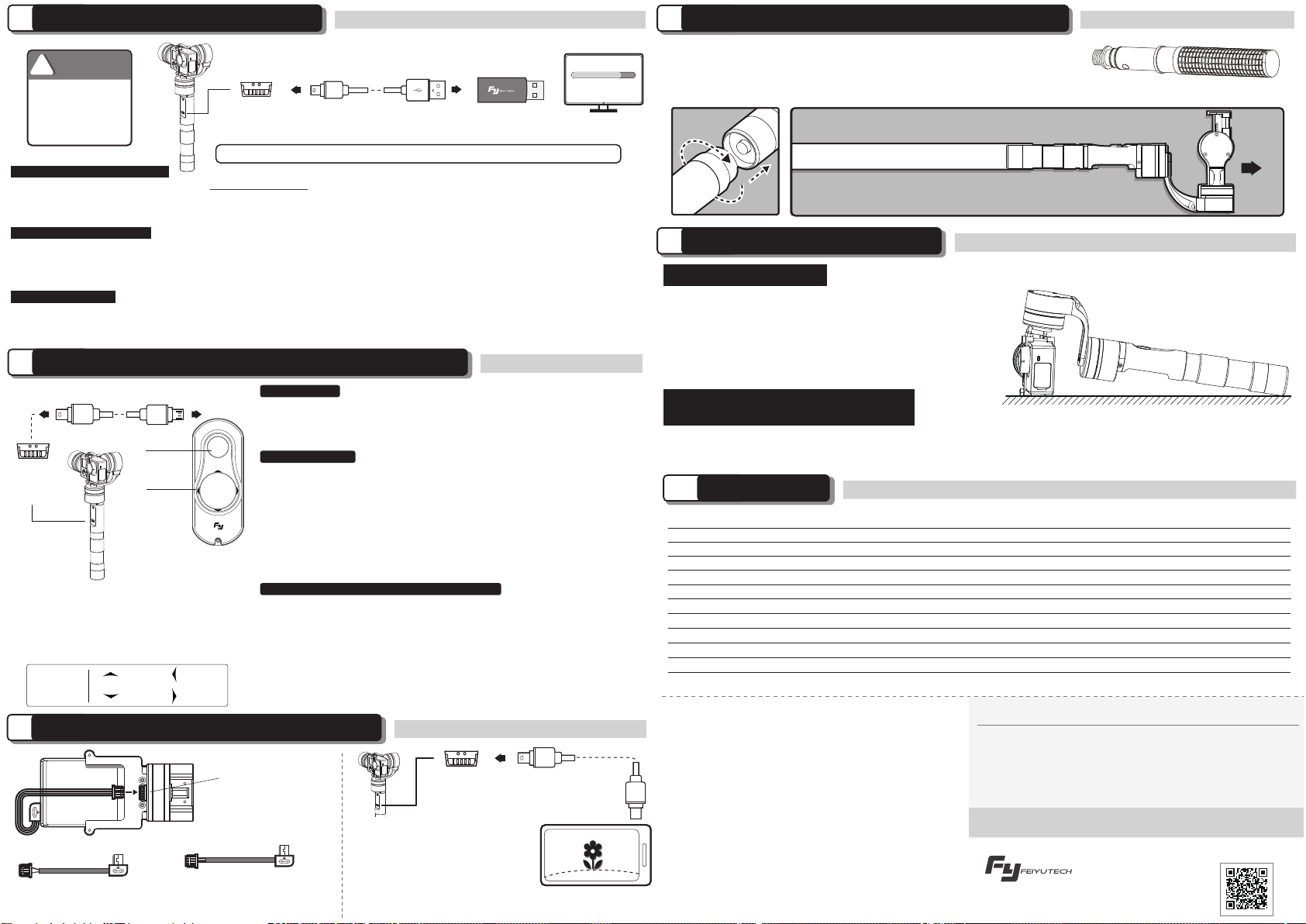
With the special designed switch, the extension bar can be added directly.
Allows to shoot the distance images more easily.
Special design allows for flexible extension.
Items Min Standard Max Remarks
Please Remove
The Batteries
Before
Upgrading
USB Cable USB Connector
Aenon: Make sure that the connecon to the computer is done by the USB connector
1. After power on, the angle of pitch is not level with the horizon line.
2. After power on, the angle of roll is not parallel with the horizon line.
3. When the gimbal is in heading lock, the angle of heading moves frequently (heading is not stationary).
Extension Bar Diagram
Analog Monitor Cable
( Equipped by users )
Analog Monitor
( Equipped by users )
Function
Interface
This interface can be
output 5 voltage and
input analog video
signal of GoPro
WARNING WARNING
!
Upgrade........
PC
Remote
Control
Function
Interface
USB data cable for RC
Connect the G4 Remote Control to the
function interface, heading & pitch angle
adjustment and mode switching can be
operated from a distance.
Function
Button
Direction
Button
Note: The function button on the Gimbal will
be disabled after connect the G4 Remote Control
Connect the video output cable,
input analog video signal of GoPro
camera and output via the function
interface on the gimbal.
Connect the camera charging
cable, power supply for the
GoPro camera.
Note: The analog monitor is
equipped by users.
After connect the video output cable,
the analog monitor can be connected
to the function interface for displaying.
The LED of the function button will fast flashing
if the initialization succeed.
Note:
UP LEFT
RIGHTDOWN
Direction
Button
Connecting the G4 remote control , the gimbal can make level calibration by
G4 RC without connect to the computer. Six press the function button in
succession in any working mode, Gimbal will enter the Level Calibration Mode.
The pitch angle can be adjusted by the“UP”and“DOWN”button, the
heading angle can be adjusted by the “LEFT” and “RIGHT” button.
After finish the level calibration , single press the function button on the RC, the
Gimbal will exit the level calibration mode then enter the standby mode and
save the parameters automatically. Single press the function button on the RC
again the gimbal will be awakened immediately.
Level Calibration
Angle Control
Hold the“RIGHT”button and four press the function button in succession at
the same time, the Gimbal will accelerate the heading follow speed.
Hold the“LEFT”button and four press the function button in succession at the
same time, the Gimbal will slow down the heading follow speed. When
successfully configurate the heading follow mode the Gimbal will enter the
standby mode and save the parameters automatically. Single press the function
button on the RC again the Gimbal will be awakened immediately.
There are three heading follow speed modes for optional: “SLOW”mode,
“NORMAL”mode , “FAST” mode. Default setting is“NORMAL” mode.
Configuration can be done within any working mode.
Heading Following Speed Mode Configurate
Within the Heading Follow Mode and Heading Lock Mode, pitch angle can be
controlled by the“UP”and “DOWN”button on the G4 Remote Control.
Within the Heading Lock Mode, Heading angle can be controlled by the“LEFT”
and“RIGHT”button .
Note: Please make sure that Gimbal initialized successfully.
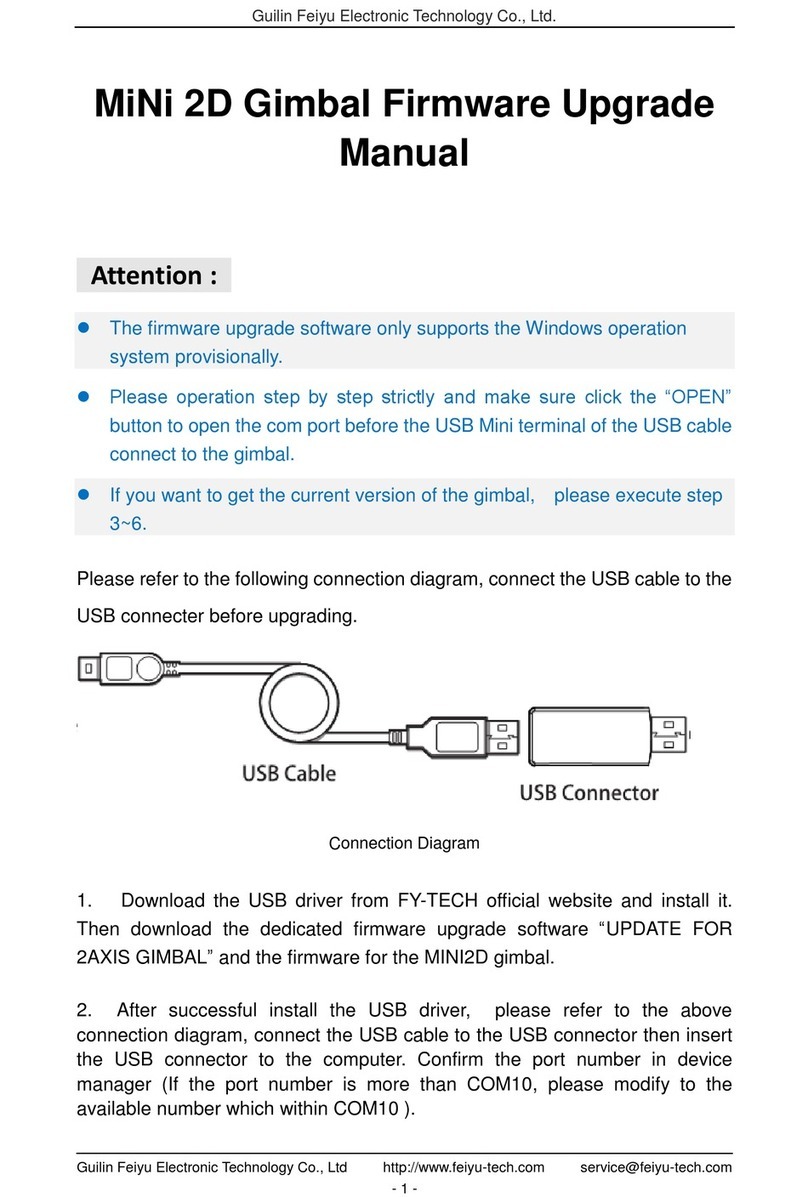
Please visit the official website of Feiyu Tech: www.feiyu-tech.com to download the USB driver, firmware upgrade software and the latest
firmware then unzip the RAR file. Remove the batteries and refer to the connection diagram to connect the gimbal with the computer.
Please refer to the manual of update operation to upgrade, otherwise the Gimbal can not work normally.
The heading follow speed can be configurated through parameter setting software. Users can adjust to the desired following speed mode
according to the requirements of filming scene. Three modes for optional: “SLOW” mode, “NORMAL” mode , “FAST” mode.
Default setting is “NORMAL” mode.
The Gimbal attitude can be calibrated through parameter setting software. Users can adjust the pitch and roll in a small angle to achieve more
accuracy filming scene. Please insert the batteries then refer to the connection diagram to connect the gimbal with the computer for calibration.
Firmware Upgrade Instruction
Parameters Configuration
Gimbal Calibration
Attention : Please make sure that the connection to the computer is done by the USB connector.
Attention : Please make sure that the connection to the computer is done by the USB connector.
Attention : Please make sure that the connection to the computer is done by the USB connector.
Camera charging cable Video output cable
Optional adjustable extension bar like the right picture. Adjustable Extension Bar
mini port
(mini port)
(mini port)