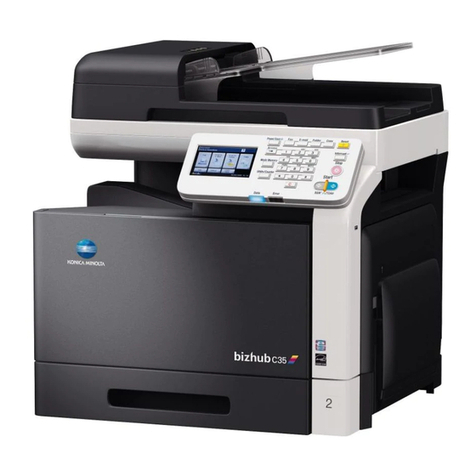
Fuji Xerox DocuPrint CM415 AP User manual
Other Fuji Xerox All In One Printer manuals
Fuji Xerox
Fuji Xerox 1015S Series User manual
Fuji Xerox
Fuji Xerox DocuCentre-III 2007 Service manual
Fuji Xerox
Fuji Xerox DocuPrint M118 w User manual
Fuji Xerox
Fuji Xerox DocuPrint M105 f User manual
Fuji Xerox
Fuji Xerox apeosport-v c7785 User manual
Fuji Xerox
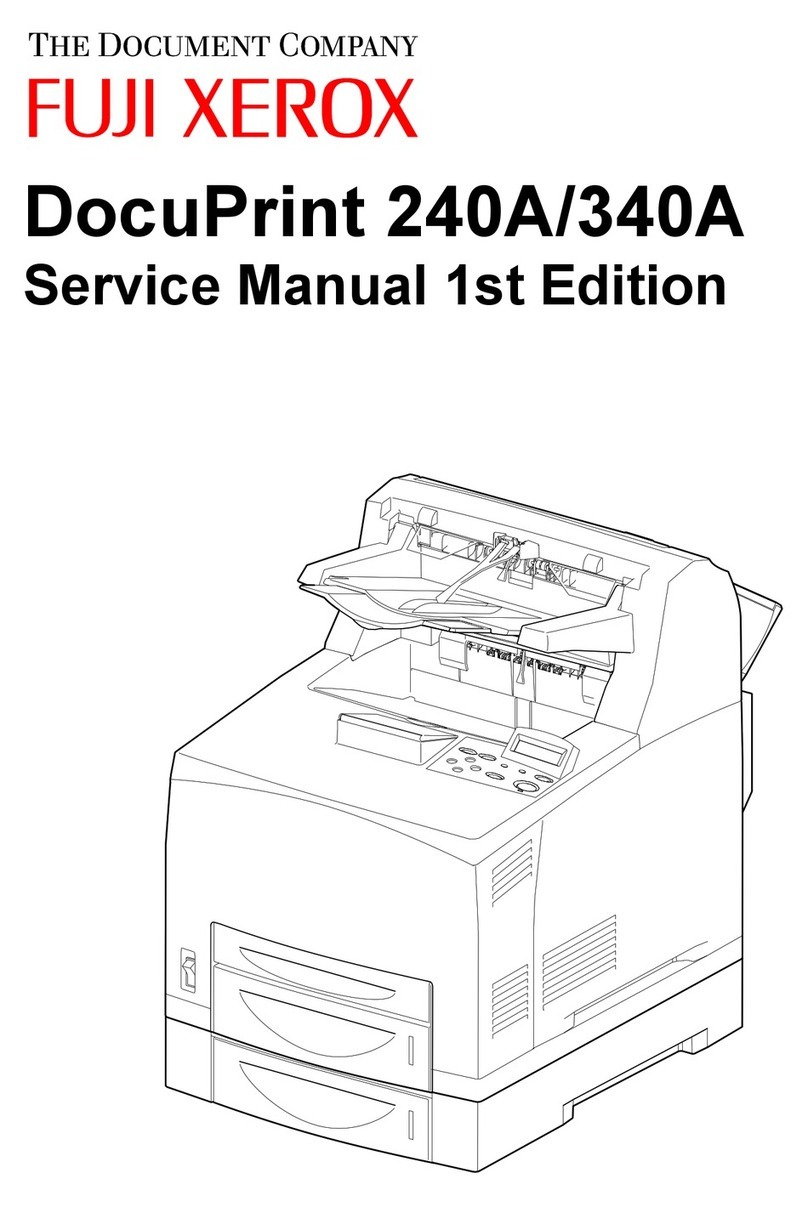
Fuji Xerox Docuprint 240a User manual
Fuji Xerox
Fuji Xerox DocuCentre-VI C2264 User manual
Fuji Xerox
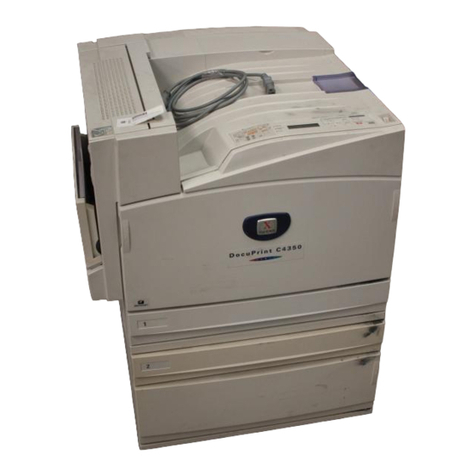
Fuji Xerox DocuPrint C4350 User manual
Fuji Xerox
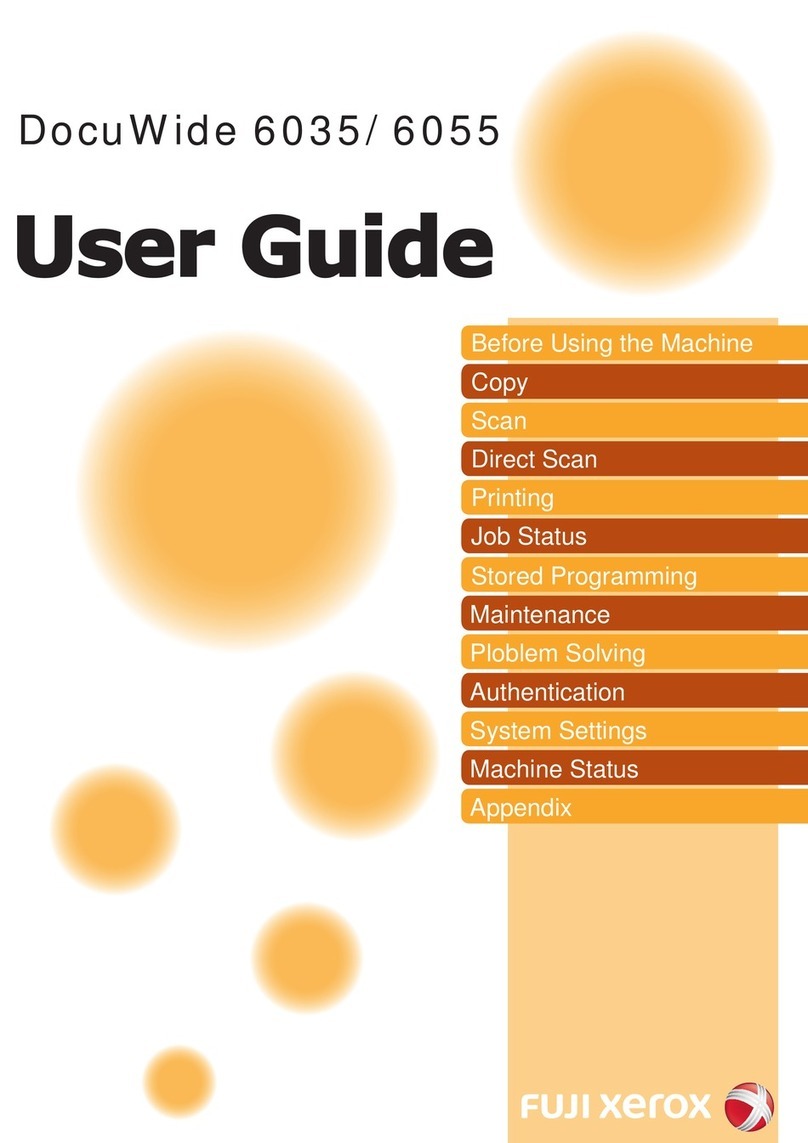
Fuji Xerox DocuWide 6035 User manual
Fuji Xerox
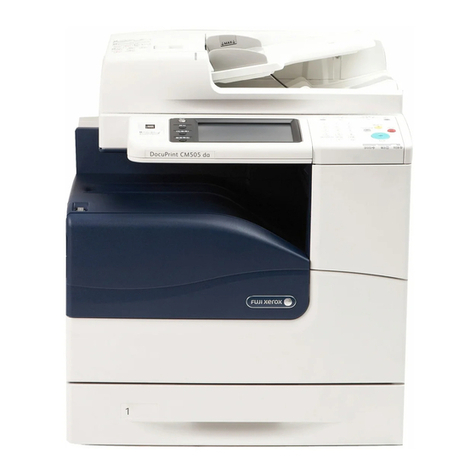
Fuji Xerox DocuPrint CM505 da Service manual
Fuji Xerox
Fuji Xerox DocuPrint P105 b User manual

Fuji Xerox
Fuji Xerox DocuCentre-IV C2260 Service manual
Fuji Xerox
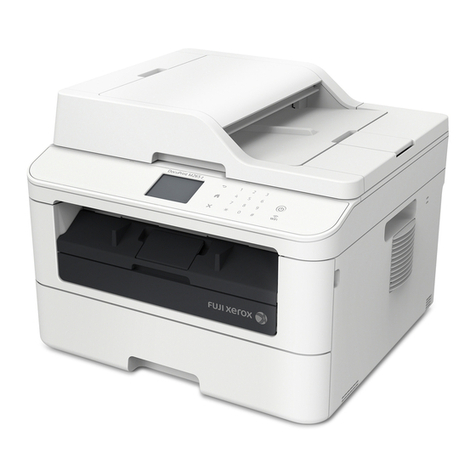
Fuji Xerox DocuPrint M265 z Operating and maintenance manual
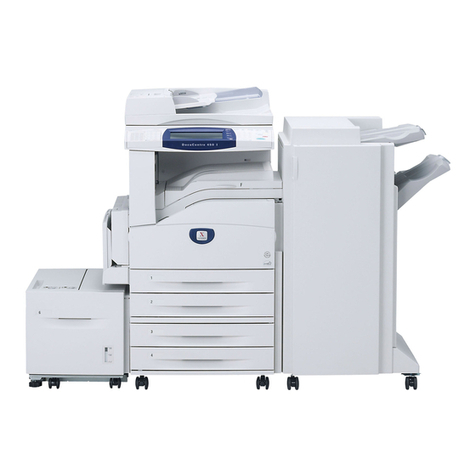
Fuji Xerox
Fuji Xerox Document Centre C360 User manual
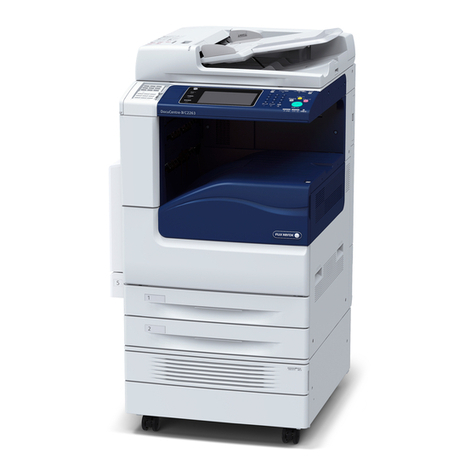
Fuji Xerox
Fuji Xerox DocuCentre-IV C2263 User manual
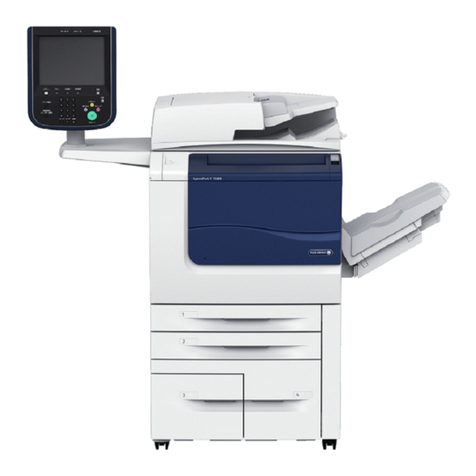
Fuji Xerox
Fuji Xerox ApeosPort-V 7080 Service manual
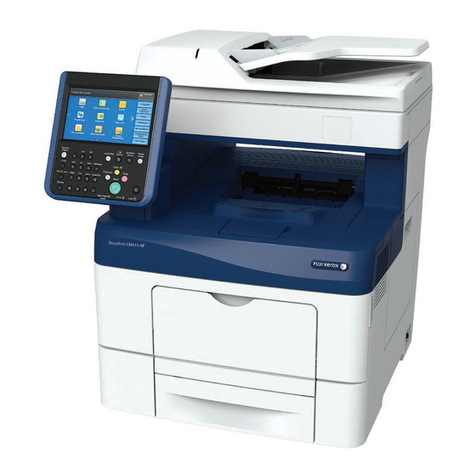
Fuji Xerox
Fuji Xerox ApeosPort-V 4020 User manual
Fuji Xerox
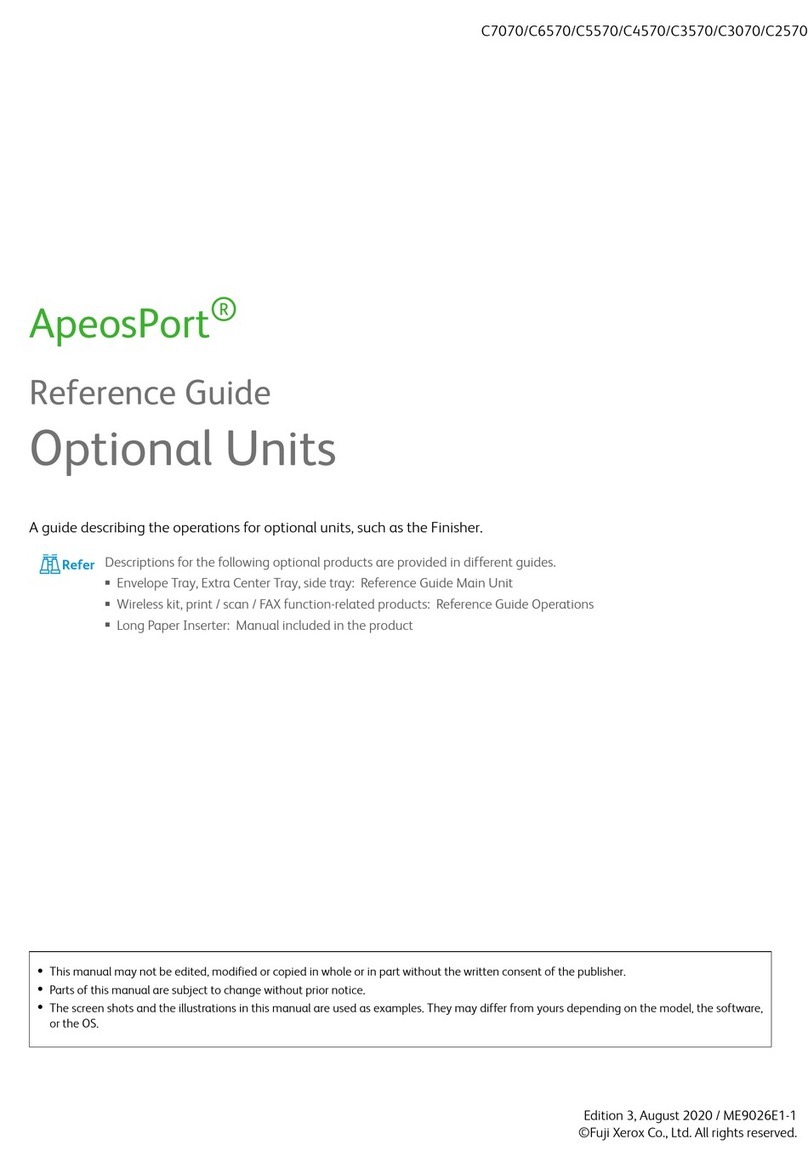
Fuji Xerox ApeosPort C7070 User manual
Fuji Xerox
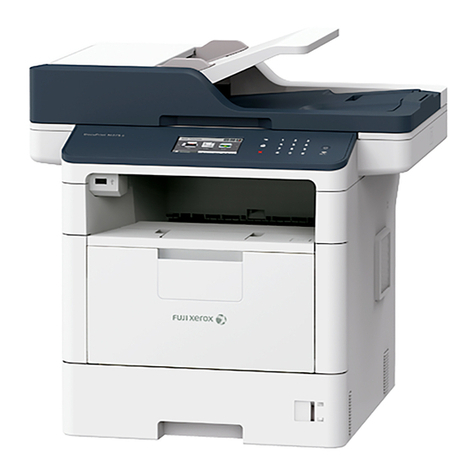
Fuji Xerox DocuPrint M375 z User manual
Fuji Xerox
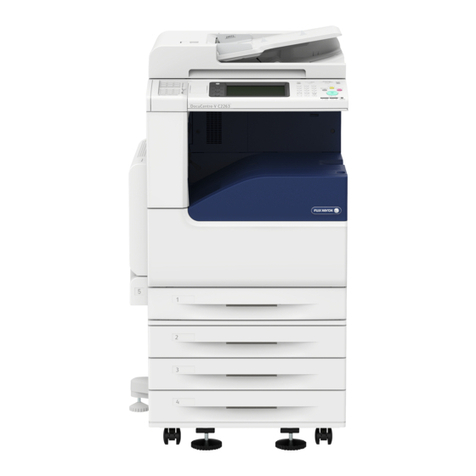
Fuji Xerox DocuCentre-V C2263 User manual