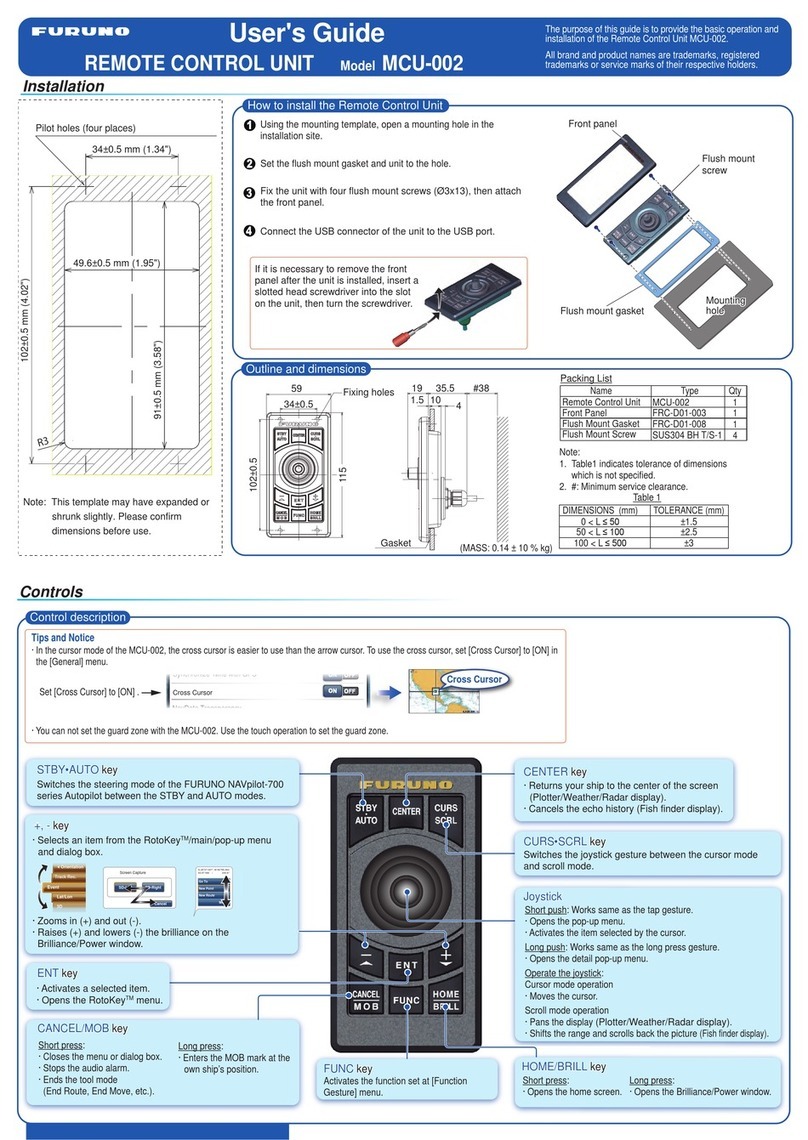
Display selection
HOME
BRILL ENT
Select a display.Select a display.
RotoKeyTM menu operation
ENT
Lat/Lon
3D
Event
Track Rec.
◄
Chart
Select an item.Select an item.
ENT
Activate the selected item.Activate the selected item.
Go To
New Point
New Route
More...
N 26°27.027'; W 80°56.264'
53.97 NM / 230.6°
Pop-up menu operation
Select an item.Select an item.
ENT
Activate the selected item.Activate the selected item.
Main menu operation
HOME
BRILL
Select the [Menu] icon
with the cursor.
Select the [Menu] icon
with the cursor.
Select a main menu item.Select a main menu item. Select a sub menu item
with the cursor.
Select a sub menu item
with the cursor.
Activate the selected item.Activate the selected item.
Open the home screen.Open the home screen.
How to operate the menus
Open the home screen.Open the home screen.
Open the RotoKeyTM menu.Open the RotoKeyTM menu.
The pop-up menu appears.The pop-up menu appears.
Push the joystick.Push the joystick.
Push the joystick.Push the joystick.
Open the selected display.Open the selected display.
Basic operation
Zoom in and out
Zoom in Zoom out
The +, - keys zoom in or out the chart scale (Plotter/Weather display) and select
the range (Radar/Fish finder display).
The +, - keys zoom in or out the chart scale (Plotter/Weather display) and select
the range (Radar/Fish finder display).
Scroll mode operation
You can pan the display (Plotter/Weather/Radar display), shift the range and scroll back the
picture (Fish finder display) with the joystick. To switch to the scroll mode, press the CURS•SCRL
key. In the scroll mode, the cursor disappears.
You can pan the display (Plotter/Weather/Radar display), shift the range and scroll back the
picture (Fish finder display) with the joystick. To switch to the scroll mode, press the CURS•SCRL
key. In the scroll mode, the cursor disappears.
CURS
SCRL
•
Switch to the scroll mode.Switch to the scroll mode.
Operate the joystick.Operate the joystick.
CENTER
Center Vessel
Center Radar
Cancel Hist.
How to put a point, How to go to a point How to put an event mark
How to put a point
Select the position to set
as a point.
Go To
New Point
New Route
More...
N 26°27.027'; W 80°56.264'
53.97 NM / 230.6°
The point is put
on the screen.
[New Point] is selected.
How to go to a point
Select the point or position
to set as a point to go.
Go To
New Point
New Route
More...
N 26°27.027'; W 80°56.264'
53.97 NM / 230.6°
Select [Go To].
ENT
Event
Lat/Lon
Track Rec.
◄
Orientation
3D
Select [Event].Select [Event].
Cancel
Creating Event
Select an event mark. The selected event mark
is put on the screen.
30
40
50
60
70
80
90
100
110
120
130
140
150
210
220
230
240
250
260
270
280
290
300
310
320
330
Note: In the cursor mode, you can pan the display by moving the cursor to the edge of the screen.
This function is available in the full screen Plotter/Weather/Radar display.
Note: In the cursor mode, you can pan the display by moving the cursor to the edge of the screen.
This function is available in the full screen Plotter/Weather/Radar display.
Push the joystick.Push the joystick.
Push the joystick.Push the joystick.
or
ENT
ENT
Open the RotoKeyTM menu.Open the RotoKeyTM menu.
or
Activate [Go To].
ENT
Start to go to a point.
The pop-up menu appears.The pop-up menu appears.
The pop-up menu appears.The pop-up menu appears.
Yes No
Do you want to navigate using the NAVpilot?
Select [Yes] or [No] in
the dialog box*.
Select [Yes] or [No] in
the dialog box*.
ENT
Activate [Event].Activate [Event].
ENT
Zoom in Zoom out
*: Appears when the NAVpilot-700 series Autopilot is installed in the TZT network.*: Appears when the NAVpilot-700 series Autopilot is installed in the TZT network.
Push the joystick.Push the joystick.