26
25
24
23
22
21
20
19
18
17
16
15
Environment
Used equipment must be disposed of in compliance with
current environmental protection regulations. You should
return it to you reseller or dispose of it in an approved
recycling center.
Do not attempt to open the batteries as they contain
chemical substances. In the event of leakage, avoid
contact with the skin, eyes and mouth. In the event
of contact, rinse the aected part for several
minutes in running water. Clean the product with
absorbent paper or a dry cloth and contact your
reseller for replacement batteries.
THE LIGHTNING
FLASH AND ARROW
HEAD WITHIN
THE TRIANGLE IS
A WARNING SIGN
ALERTING YOU
OF “DANGEROUS
VOLTAGE” INSIDE
THE PRODUCT.
CAUTION
RISK OF ELECTRICAL SHOCK, DO NOT OPEN
CAUTION: TO REDUCE THE
RISK OF ELECTRICAL SHOCK,
DO NOT REMOVE COVER (OR
BACK). NO USER SERVICEABLE
PARTS INSIDE. REFER
SERVICING TO QUALIFIED
SERVICE PERSONNEL.
THE EXCLAMATION
POINT WITHIN
THE TRIANGLE IS
A WARNING SIGN
ALERTING YOU
OF IMPORTANT
INSTRUCTIONS
ACCOMPANYING
THE PRODUCT.
WARNING: TO PREVENT
FIRE OR ELECTRICAL
SHOCK HAZARD, DO
NOT EXPOSE THIS
PRODUCT TO RAIN OR
MOISTURE.
Cannot dial
out
• Make sure the T/P dialing mode is set to the
type of phone service you are subscribed to.
General Product Care
• Avoid putting the phone near heating appliances and
devices that generate electrical noise (for example, motors or
uorescent lamps).
• Avoid dropping the phone and other rough treatment.
• Clean the phone with a soft cloth.
• Never use strong cleaning agents, paint thinner, abrasive
powder, alcohol, or other chemical products to clean the unit.
Doing so may damage the nish.
• Retain the original packaging in case you need to ship the
phone at a later date.
• DO NOT expose to direct sunlight or moisture.
Troubleshooting guide
Problem Cause/solution
No dial tone • Check all cabling to make sure that all
connections are secure and not damaged.
• Check the hook switch. Make sure it fully
extends when the handset is lifted from the
cradle of the base.
No display • Replace batteries.
• Make sure the batteries are properly installed.
No
information
is shown
after the
phone rings
• In order to receive Caller ID records, you must
subscribe to the standard name and number
Caller ID service available through your local
telephone company.
• Be sure to wait until the second ring before
answering.
Phone does
not ring
• Make sure the ringer switch is not set to
silent.
• You may have too many extension phones on
your line. Unplug some extension phones.
• Check for a dial tone. If there is no dial tone,
see solutions for No dial tone.
Other party
cannot hear
you
• Make sure the telephone line cord is securely
plugged in.
• Make sure extension phones are not in use
at the same time you are using the phone.
It is normal for the volume to drop when
additional extension phones are used at the
same time.
2. Press the dial key, a 10 second timer also starts in the upper
right side of the display, letting you know the time remaining
time the unit returns to the Summary Screen. If you adjust
the number to be dialed, the timer automatically resets itself.
3. To dial the displayed number, pick up the handset before the
timer reaches 0.
If you did not program your local area code in the Set up menu
1. Press rev or to scroll through the call log when the
telephone is in idle mode to go to the number you want to
dial. You will only see digit numbers (e.g., 234-555-1234).
2. Repeat steps 2 and 3 in the above section.
NOTE: If PICKUP PHONE shows on the display, no other changes to the number
can be made. The information sent from the telephone company is known to
be a valid number to dial back (available only in limited areas). Once you pick up
the phone, the number is automatically dialed.
Visual message waiting indicator
When you have a message in the centralized voice mail system,
this indicator will be lit. You need to contact your services
provider for more details.
Caller ID display messages
The following special message indicate the status of a message
or the unit:
Battery power level is low. Please replace the batteries as
soon as possible in order to maintain Caller ID operation.
• Press rev repeatedly to scroll through the call records from
the most recent to the oldest.
• Press rev repeatedly to scroll through the call records from
the oldest to the newest.
• The screen displays START/END when the call log reaches the
end.
Deleting a caller ID record
• Press rev or to scroll through the call log, press del
when the desired entry is displayed on the screen.
Deleting all the caller ID records
• To delete all caller ID records, press and hold del when
reviewing the call log. The screen then displays DELETE ALL?
Press del again to conrm.
Dialing back
1. Press rev or to scroll through the call log when the
telephone is in idle mode to review the Caller ID records.
2. Press the dial key to dial back the phone number shown on
the display.
If you programmed your local area code in the Set up menu
1. Press rev or to scroll through the call log when the
telephone is in idle mode to go to the number you want to
dial.
• If you see a number with 7 digits (e.g., 555-1234), then the call
was received from within your area code. However, this does
not guarantee the call is a local call.
• If you see a number with 11 digits (e.g., 1-234-555-1234), then
the call received was not from your area code.
Caller ID
IMPORTANT: To use the Caller-ID capabilities of this telephone
system, you must subscribe to Caller-ID services from your service
provider. Check with your telephone service provider for details.
Summary Screen
The Summary Screen shows the current time, date, and number
of new calls to be reviewed. It displays until any key is pressed.
Within 60 seconds of receiving a new call, the Summary Screen
appears.
Receiving and storing CID records
The unit receives and displays CID information transmitted
by your local phone company. This information can include
the phone number, date, and time. The unit stores call records
for later review. When the memory is full, a new call record
automatically replaces the oldest call record in memory. NEW
appears on the display for calls received that have not been
reviewed. REP appears on the display for calls received more
than once which have not been reviewed.
Reviewing CID records
Press rev or to review your Caller ID records. Caller ID
records are stored in the order they are received.
Caller’s name
Call Waiting
Indicator
Call lock icon
Caller ID sequence number
Low battery
indicator
Caller’s phone number
DateTime
To review a number stored in memory
1. Lift the handset, then press the dial key.
2. Press rev or to select the desired memory location. The
number shows on the display.
To erase a stored number
1. Press rev or to select the desired memory location.
-OR-
Press the store key and then press the desired memory
location (0-9) to locate the record.
2. Press the del key. The screen displays “ERASE MEM ?”
3. Press the del key again to erase the stored number.
To erase all stored numbers
1. Press the store key or dial key. The screen displays
LOCATION ?
2. Press and hold the del key until ERASE ALL MEM ? appears
on the screen.
3. Press the del key again. The screen displays EMPTY ! All
stored numbers are erased.
2. Press the desired memory location (0-9, A, Bor C), or press
rev or to scroll to the desired memory location, and then
press store again.
3. Press redial/pause to display the last number dialed, and
then press store again.
4. Return the handset to the telephone base. The last number
dialed is now stored in the memory location you specied.
To copy caller ID memory to user memory
1. Lift the handset, then press store. The screen then displays
LOCATION ?
2. Press rev or to scroll to display the number you want to
copy, and then press store again.
3. Press the desired memory location (0-9, A, Bor C), or press
rev or to scroll to the desired memory location. If the
memory location is occupied, the displayed number ashes.
4. Press store again to save the number, the screen displays
SAVED!
5. Return the handset to the telephone base. The caller ID
memory is copied to user memory.
To dial a number from memory
1. Lift the handset, then press the dial key.
2. Press the desired memory location (0-9) to call, or press A, B,
C keys directly.
-OR-
1. Press dial when the handset is on the base.
2. Press rev or to select the desired memory location.
3. Lift the handset to call.
Memory
You can store up to 13 numbers in memory for quick dialing.
You can store 10 numbers in the dial pad keys (0-9) and 3
numbers in the one-touch dialing buttons (A, Bor C). Each
memory location can store number up to 32 digits.
To store a number in memory
1. Lift the handset, then press store. The screen then displays
LOCATION ?
2. Press a desired memory location (0-9, A, Bor C), or press rev
or to scroll to the desired memory location, and then
press store.
3. Enter the number using the dial pad keys (up to 16 digits) and
then press store.
4. Return the handset to the telephone base.
To add a pause to a memory location
You can insert a dialing pause in the dialing sequence when storing
a number that requires a pause. In step 3 of the section To store a
number in memory above, you can add a pause in the dialing sequence
by pressing the redial/pause key. The pause time is approximately four
seconds.
To change a stored number
You can change a stored number by simply writing over it. Follow the
steps in the section To store a number in memory above, and the new
number will overwrite the existing number.
To store a redial number to memory
1. Lift the handset, then press store. The screen then displays
LOCATION ?
8. Press 0to 9 on the dial key pad to re-enter the new PIN. The
screen displays PIN SAVED! The PIN code is changed.
Setting the dialing mode
You can choose between touch-tone dialing or pulse (rotary)
dialing for your telephone. The telephone is preset for touch-
tone dialing.
1. Place the handset in the cradle of the telephone base.
2. Press menu. The screen displays DATE/TIME.
3. Press rev or until T/P DIAL MODE appears.
4. Press menu to show the current dialing mode.
5. Press rev or to select either TONE DIAL or PULSE DIAL.
6. Press menu again to store your new dialing mode.
Setting the ash time
Flash time is the value used by either the local telephone
company or PBS system to identify a soft “on-hook” signal. You
can set the ash time for your phone.
1. Place the handset in the cradle of the telephone base.
2. Press menu. The screen displays DATE/TIME.
3. Press rev or until FLASH TIME appears.
4. Press menu to show the default ash time setting.
5. Press rev or to change the ash time value (100 MS to
900 MS, each increment is 100 MS).
6. Press menu again to store your new ash time.Ocultis cont
viris, publica; C. munique viviri sulica dum nox se culto
consupiorum inulintim mo haciendam se cotanum iam vit, C.
Ur, unum supiem tum intentimus impra? Otatiliceps, Palibul
egerdius, usquis? Foris vereto et? Ex nium publini scerfex
movis addum quam tus bonis ad conlos maximorbefex se
5. Press menu again. The screen displays CALL LOCK ON ! The
call lock icon appears at the corner.
To deactivate call lock
1. Place the handset in the cradle of the telephone base.
2. Press menu. The screen displays DATE/TIME.
3. Press rev or until LOCK appears.
4. Press menu. The screen displays CALL LOCK OFF ?
5. Press menu again. The screen displays ENTER PIN CODE. The
rst digit ashes.
6. Press 0to 9 on the dial key pad to complete the entry for PIN
code. The default is 0000.
7. If the PIN code is correct, the screen displays CALL LOCK OFF
! If the PIN code is incorrect, the screen displays INCORRECT
PIN ! and the deactivation fails.
NOTE: If you make a mistake, press the del key to reset your entries.
Changing PIN
You can change the PIN on your phone.
1. Place the handset in the cradle of the telephone base.
2. Press menu. The screen displays DATE/TIME.
3. Press rev or until CHANGE PIN ? appears.
4. Press menu. The screen displays ENTER PIN CODE. The rst
digit ashes.
5. Press 0to 9 on the dial key pad to complete the entry for PIN
code. The default is 0000.
6. After a correct PIN is entered, the screen displays ENTER
NEW PIN.
7. Press 0to 9 on the dial key pad to enter the new PIN. The
screen displays RE-ENTER PIN.
CAUTION: Disconnect the phone cord from the wall outlet before
installing or replacing the batteries.
• Never install telephone wiring during a lightning storm.
• Never touch un-insulated telephone wires or terminals,
unless the telephone line has been disconnected at the
network interface.
• Install or modify telephone lines with caution.
• Never install a telephone in a wet or damp location.
14
13
6. Press rev to select the rst digit (0 to 9). When the desired
number is ashing, press rev to conrm and advance to
the next digit.
7. Repeat steps 5 and 6 until you have entered all the digits for
your area code.
-OR-
Press 0to 9 on the dial key pad directly to enter the local
area code. The cursor moves to the next digit automatically.
8. Press menu again to store your new local area code.
NOTE: If you make a mistake, press the del key to reset your entries.
Setting the long distance code
You can congure your phone to store a 1-digit long distance
code.
1. Place the handset in the cradle of the telephone base.
2. Press menu. The screen displays DATE/TIME.
3. Press rev or until LONG DIST CODE appears.
4. Press menu to show the current long distance code.
5. Press rev or to select 1, 0, or <space> (default).
6. Press menu again to store your new long distance code.
Activating or deactivating call lock
You can activate or deactivate call lock on your phone.
To activate call lock
1. Place the handset in the cradle of the telephone base.
2. Press menu. The screen displays DATE/TIME.
3. Press rev or until LOCK appears.
4. Press menu. The screen displays CALL LOCK ON ?
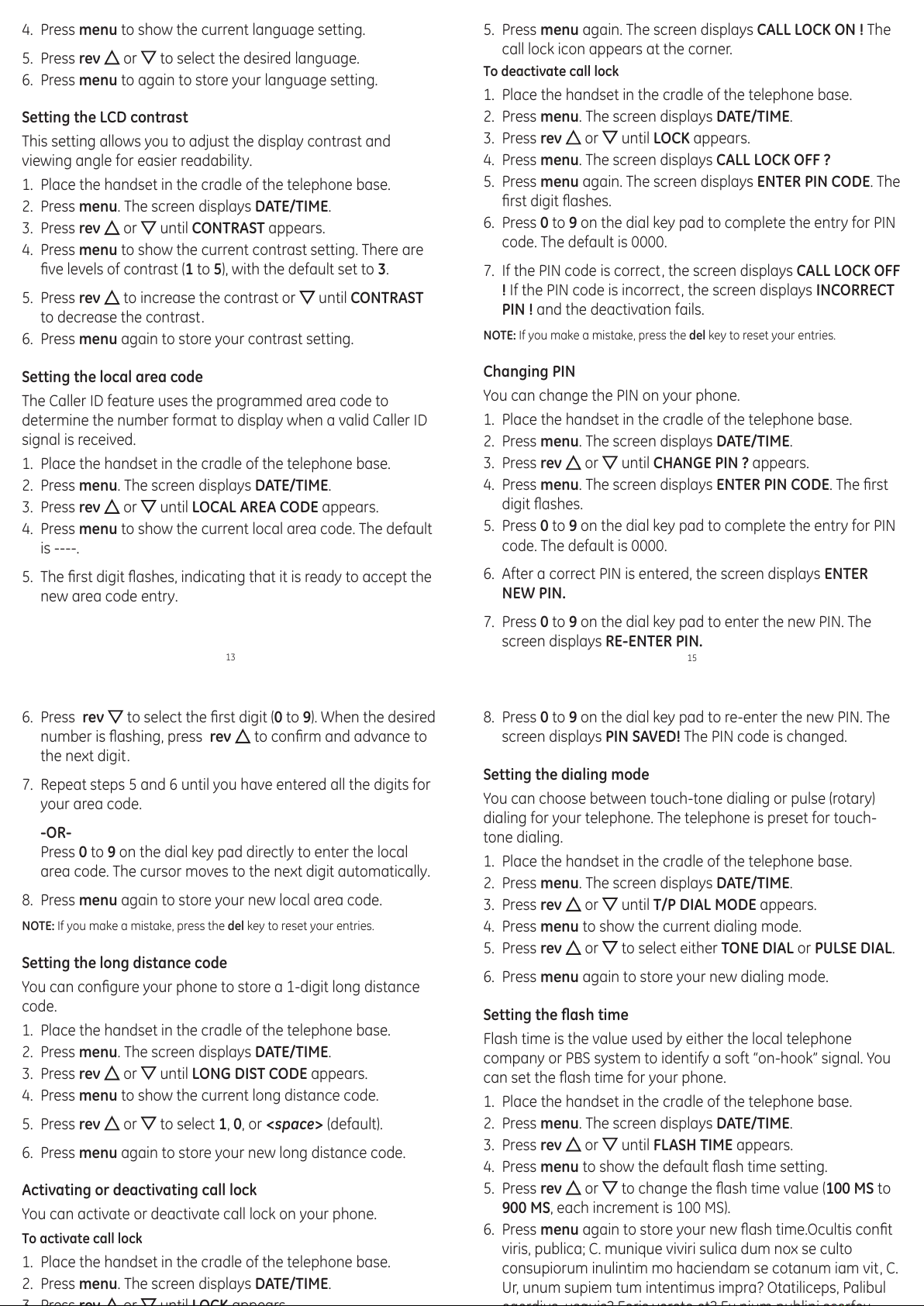
4. Press menu to show the current language setting.
5. Press rev or to select the desired language.
6. Press menu to again to store your language setting.
Setting the LCD contrast
This setting allows you to adjust the display contrast and
viewing angle for easier readability.
1. Place the handset in the cradle of the telephone base.
2. Press menu. The screen displays DATE/TIME.
3. Press rev or until CONTRAST appears.
4. Press menu to show the current contrast setting. There are
ve levels of contrast (1to 5), with the default set to 3.
5. Press rev to increase the contrast or until CONTRAST
to decrease the contrast.
6. Press menu again to store your contrast setting.
Setting the local area code
The Caller ID feature uses the programmed area code to
determine the number format to display when a valid Caller ID
signal is received.
1. Place the handset in the cradle of the telephone base.
2. Press menu. The screen displays DATE/TIME.
3. Press rev or until LOCAL AREA CODE appears.
4. Press menu to show the current local area code. The default
is ----.
5. The rst digit ashes, indicating that it is ready to accept the
new area code entry.
All manuals and user guides at all-guides.com