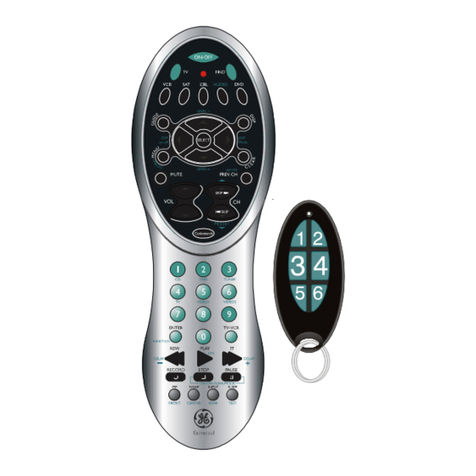
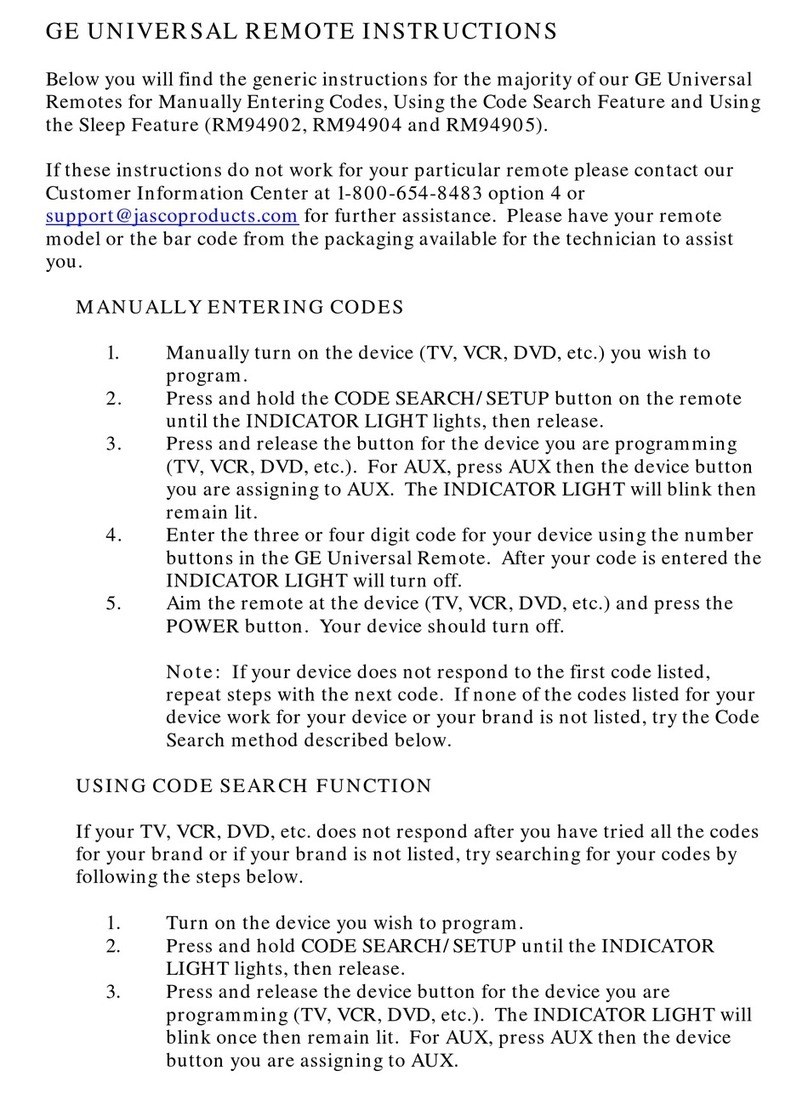
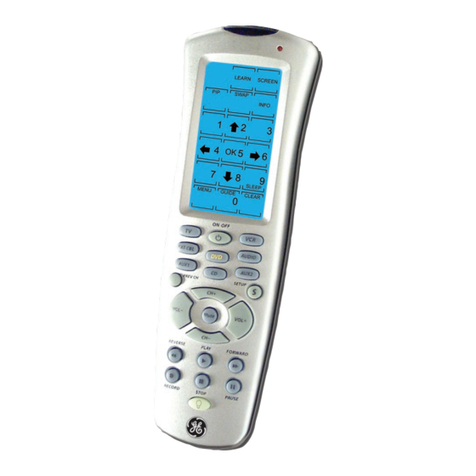
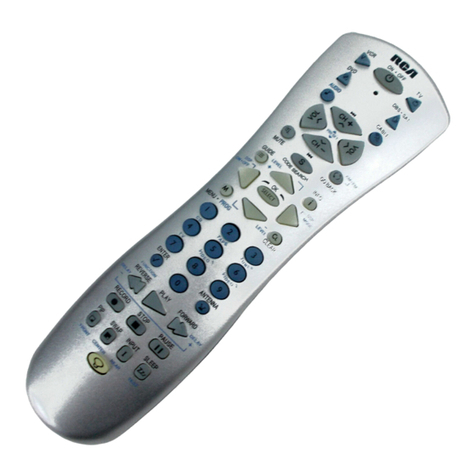
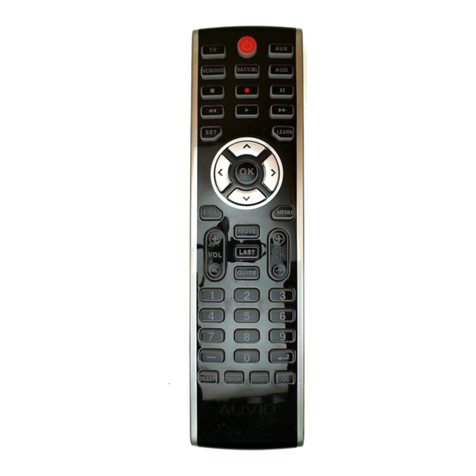
GE HO97685 User manual

Universal Remote
with PC Control
HO97685
User’s Manual
www.jascoproducts.com

FCC Caution
THIS DEVICE COMPLIES WITH PART 15
OF THE FCC RULES.
OPERATION IS SUBJECT TO THE FOL-
LOWING TWO CONDITIONS:
(1) THIS DEVICE MAY NOT CAUSE
HARMFUL INTERFERENCE, AND
(2) THIS DEVICE MUST ACCEPT ANY
INTERFERENCE RECEIVED, INCLUD-
ING INTERFERENCE THAT MAY
CAUSE UNDESIRED OPERATION.
This equipment generates and uses
radio frequency energy, and if not
installed and used properly, that is, in
strict accordance with the manufactur-
ers instructions, it may cause interfer-
ence to radio and television reception.
It has been type tested and found to
comply with the limits for remote con-
trol devices in accordance with the
specifications in Sub-Parts B and C of
Part 15 of FCC Rules, which are
designed to provide reasonable protec-
tion against such interference in a resi-
dential installation. However, there is
no guarantee that interference will not
occur in a particular installation. If this
equipment does cause interference to
radio or television reception, which can
be determined by unplugging the equip-
ment, try to correct the interference by
one or more of the following measures.
•Reorient the antenna of the radio/TV
experiencing the interference.
•Relocate the product with respect to
the radio/TV.
•Move the product away from the
radio/TV.
•Plug the product into an outlet on a
different electrical circuit from the
radio/TV experiencing the interfer-
ence.
•If necessary, consult your local
Dealer for additional suggestions.
NOTE: Modifications to this product will
void the user’s authority to operate this
product.

Contents
Introduction . . . . . . . . . . . . . . . . . . . .1
Button Descriptions . . . . . . . . . . . . . . .2
Setting up the Remote . . . . . . . . . . . .4
Setting up the Software . . . . . . . . . . .4
Setting up the Receiver . . . . . . . . . . .5
Using the PC Controls . . . . . . . . . . . . .5
Setting up for TV, DVD, VCR, Cable, or
Satellite . . . . . . . . . . . . . . . . . . . . . . . . .7
Searching For Codes . . . . . . . . . . . . . .8
Identifying Codes found using
the Search Procedure . . . . . . . . . . .9
Troubleshooting . . . . . . . . . . . . . . . .10
IMPORTANT NOTE-PC Code . . . . . .11
Warranty . . . . . . . . . . . . . . . . . . . . . .11
Other Products . . . . . . . . . . . . . . . . . .12

Introduction
Congratulations on your purchase of
the GE branded HO97685 remote and
receiver.
This remote lets you play MP3 files
DVDs and CDs in your PC. Now you
don’t have to be sitting at your PC to
play your MP3 files. Just a click of a
button on the remote from across the
room does the trick!
The HO97685 remote is also a Universal
Remote so you can use it to control
your TV, DVD, cable box, etc.
It’s easy to set up. Within minutes, you
can be using your Remote to play your
favorite MP3 files and relax to your
favorite music.
Here are just some of the things you
can do with your HO97685 Remote...
•Play your favorite MP3 files on your
PC without having to be in the same
room.
•Play DVDs on your PC from the com-
fort of your armchair.
•Play CDs in your PC at the touch of a
button.
•Control all your A/V equipment, TVs,
VCRs, cable boxes, etc.
Use this manual to become familiar
with your HO97685 Remote....
First, it explains how to set up your
HO97685 remote to play MP3 files,
DVDs, music CDs or control your TV
tuner on your PC.
Next, it shows you how to set up the
remote to control your TV, cable box,
etc.
Lastly, the manual shows you how you
can expand your system with some of
the additional GE branded products you
can buy.
1

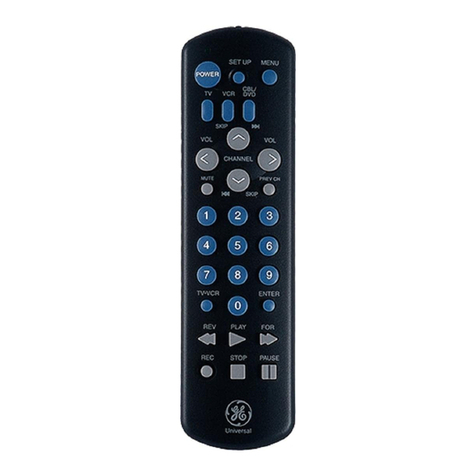
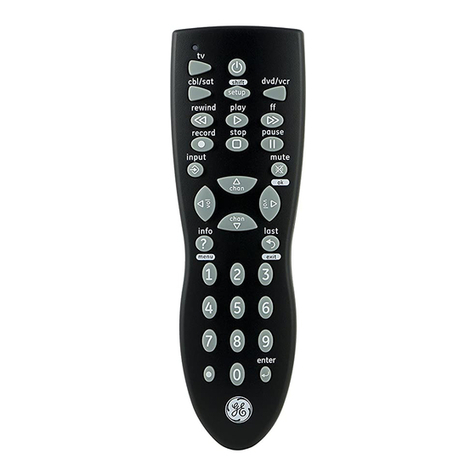
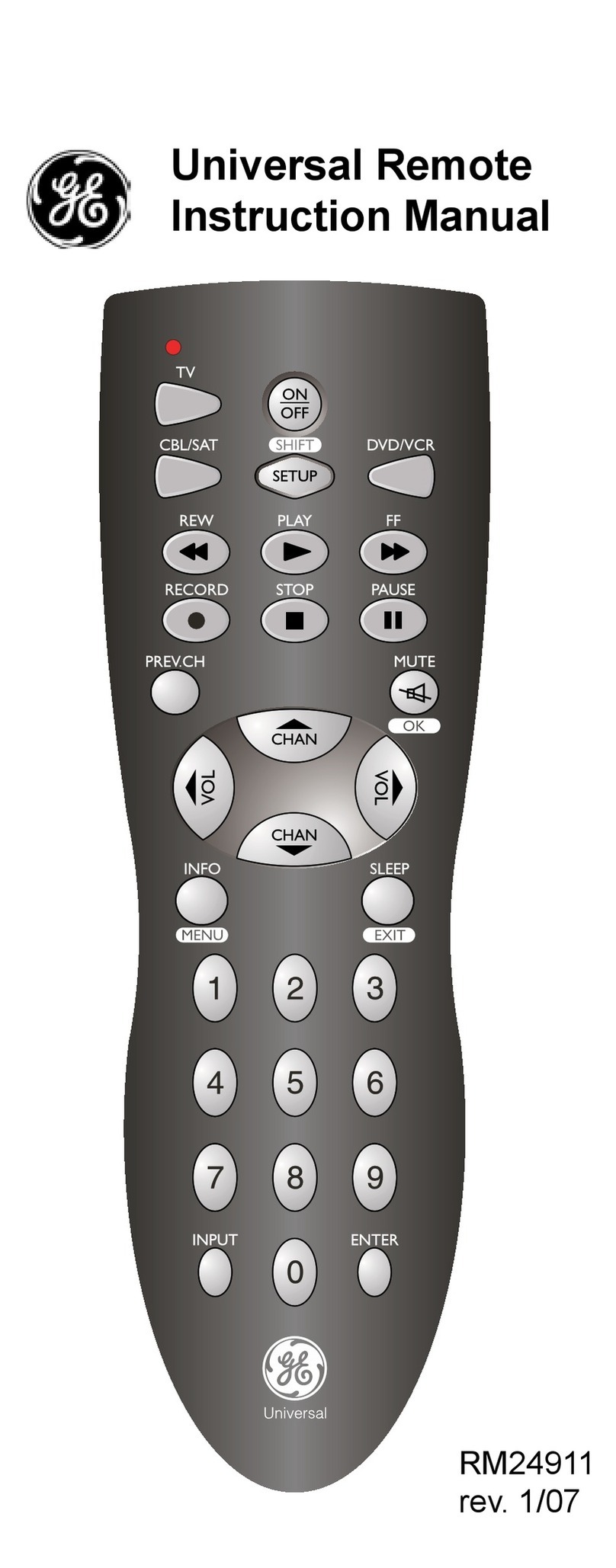
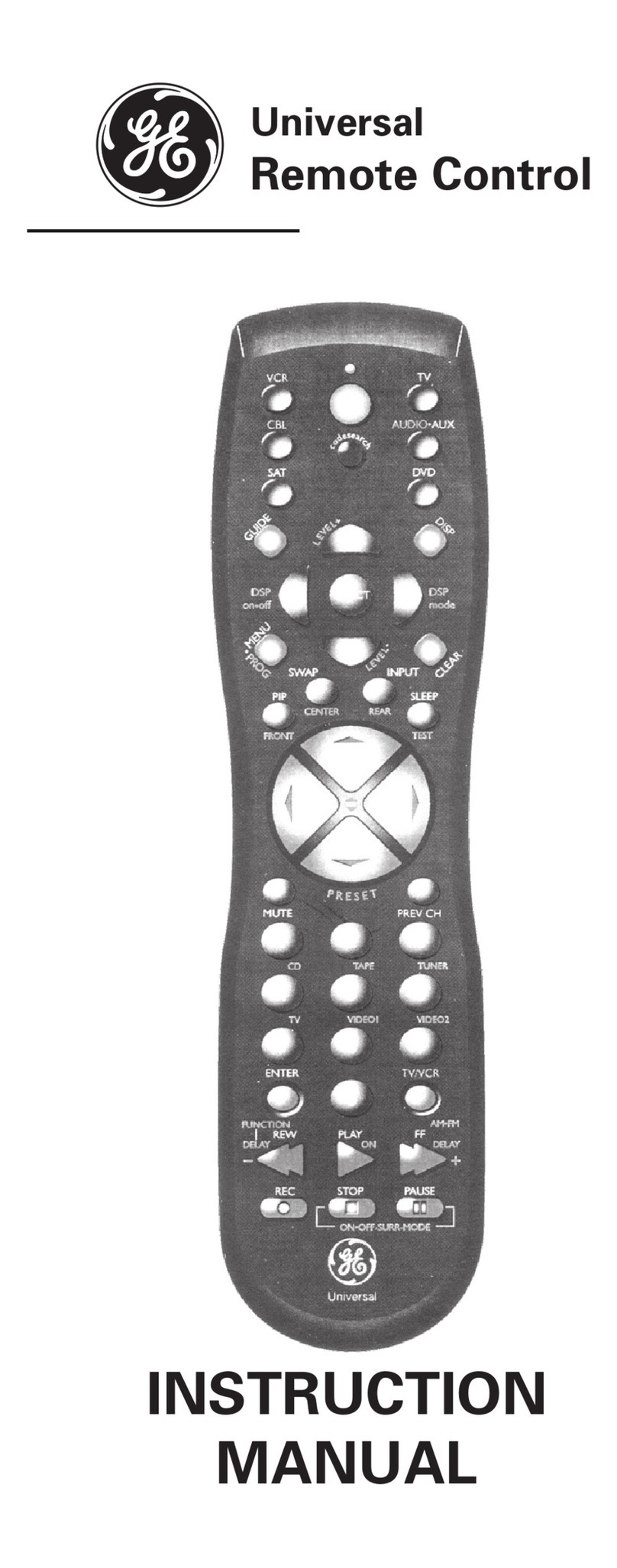
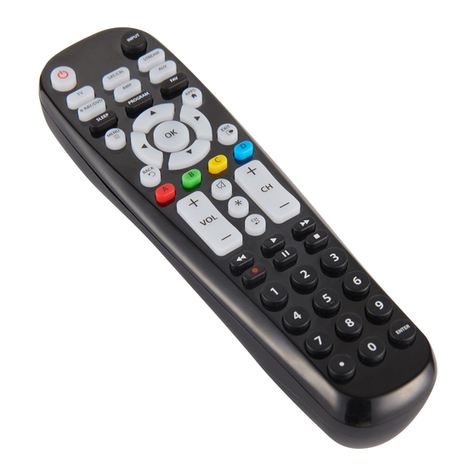
Button Descriptions
Indicator Light
The indicator light flashes when you
press any button.
Power
Works the same as your original
remote.
TV, DVD, VCR, CBL/SAT, PC
Used to select the device to control. PC
lets you select an MP3, DVD, CD or TV
tuner on your PC, when used with the
wireless receiver and PC software.
Setup
Used for programming the remote.
Last
Selects the last channel viewed on
your TV, VCR, or Cable Box.
Volume +/-
Works like your original remote. Also,
after you first press PC followed by but-
ton 1, 2, or 3, VOL+ increases volume
and VOL- decreases volume on your
PC’s MP3, DVD, CD player or TV tuner,
when used with the wireless receiver
and PC software.
Channel +/-
Works like your original remote. Skips
to the next or previous track in PC
mode depending on which application
you use.
Mute
Works the same as your original
remote. Also, after you first press PC
followed by button 1, 2, or 3 mutes the
volume in your PC’s MP3, DVD, CD
player, or TV tuner when used with the
wireless receiver and PC software.
0-9
Used as with your original remote.
Also, after you first press PC, buttons 1,
2, and 3 perform as function buttons to
select MP3, DVD/CD or TV tuner
respectively when used with the wire-
less receiver and PC software.
2

Enter
Same as your original remote.
A-B
Toggles between TV and Video Mode.
Menu
Access the Menu function of the
device you are controlling (if available).
Exit
Used to exit Menu functions.
Navigation Arrows
Used to navigate and adjust menu
items of the device you are controlling.
OK
Selects menu items of the device you
are controlling.
PLAY, REW, FF, STOP, PAUSE, REC
Work the same as on your original
remote. You must press the REC button
twice to begin recording. Also, after
you first press PC followed by button 1,
2, or 3, controls your PC’s MP3, DVD
player, CD player, or TV tuner when
used with the wireless receiver and PC
software.
A, B, C, D
Used for extra functions in certain
modes.
3

Setting up the Remote
1.Push the tab and lift off the
battery cover.
2.Fit four AAA batteries, taking
care to match the + and -
marks in the compartment.
Battery Saver
Your remote automatically “times-out”
if the keys are pressed for more than
30 seconds. This will save your batter-
ies should your remote get stuck in a
place where the keys remain
depressed (e.g., between the sofa
cushions).
Code Saver (Important)
You have up to 90 seconds to change
the batteries in your remote without
losing codes you have programmed.
However, do not press any buttons until
batteries are installed in the remote. If
buttons are pressed without batteries
in the remote, all codes will be lost.
Setting up the software
NOTE: BOOM™ software lets you con-
trol an MP3 player application from the
remote. It works with WinAmp™,
RealOne™, MusicMatch®, Windows
Media® Player, etc., which you must
previously have installed. It also con-
trols a DVD player, CD player, or TV
tuner on your PC.
1. Download the BOOM software. Point
your web browser (Explorer,
Netscape, etc.) to:
www.jascoproducts.com/boom.html
Click on “Download Boom Software
Now.” Select “Save” to download to
your computer. You will then be
asked where you want to save the
document. Select Desktop, or other
location you will remember and then
click “Save.”
2. Close your web browser, then launch
the installer by double clicking on
“boom” in the location you choose to
save it.
4

3. It is recommended that you install
into the default “Program Files” loca-
tion and that you choose to run Boom
at start-up. Restart your computer to
complete set up.
4. Open Boom. If you choose to have
Boom run at start-up, click on the
green “Boom” icon in the system tray
in the lower right corner of your
screen. If you choose not to open
Boom at start-up, open by selecting
Boom from the programs section in
your start menu.
5. Right-click on the BOOM window,
select “Players”, then choose your
favorite applications for each of the
modes (i.e. MP3, CD/DVD, and TV).
6. Click the OK button to save the
choices.
Setting up the Receiver
You must install BOOM Software before
connecting the receiver to your PC.
Plug the cord on the receiver into the
USB port on your PC. Locate the receiv-
er as far away from your PC and your
monitor as its cord allows. The red LED
power indicator on the receiver should
be on.
Using the PC Remote
To use the PC Remote features, Boom
must be running. If you opted not to run
Boom at start up when you installed
Boom, you will need to open Boom from
the “Programs” section of the “Start
Menu.”
To launch the application you have
chosen:
1. Press the PC button.
2. Select the appropriate mode (MP3,
DVD/CD or TV) by pressing 1, 2, or 3.
The Media shown in the Boom win-
dow changes to MP3, DVD/CD, or TV
depending on which button you
pressed.
3. Press the Power button to launch the
application you have chosen.
5

You can press Play, Stop, FF, Rew,
Pause, Mute, Vol Up, Vol Down, etc.,
on the remote and it operates your on-
screen MP3 player, PC-DVD player, PC-
CD player, or PC-TV Player, just as if
you were clicking the buttons on your
monitor screen. Note: buttons work dif-
ferently depending on which applica-
tion you are attempting to control with
the remote. For example, in Windows®
Media Player “Chan +” skips to next
track and “Chan -” skips to previous
track.
In addition to letting you control an
MP3 player installed in your PC, the
BOOM program also lets you control a
DVD, CD player, or TV tuner installed on
your PC.
Boom automatically recognizes media
applications that are installed on your
computer and displays them as options
in the “Select Players” menu. However,
if your preferred media application is
not shown, you can configure it as a
custom application by right clicking on
the Boom window, selecting “cus-
tomize”, assigning your application a
name, and specifying the path to locate
the application on your PC.
For more information on using the
remote and Boom with your PC, right
click on Boom and select “Help.”
The HO97685 Remote is also a
Universal Remote so you can use it to
control a TV, DVD, VCR, cables box,
etc. To do this see the following sec-
tion.
6

Setting up for TV, VCR, Cable , or Satellite
1.Turn on the device you want to con-
trol (TV, VCR, cable box, etc.).
2.Press and hold SETUP until the LED
indicator lights steadily. Release the
SETUP button.
3.Press and release mode button for
the device you want to control (TV,
DVD, VCR, Cable or Satellite). The
LED blinks once. (See notes on next
page).
4.Enter the 3 digit Code from the Library
Code Table (separate sheet). The LED
turns off after the last digit entered.
5.Point the remote at the device and
press the POWER button. Your device
should turn off.
6.Turn your device on and press
CHAN+. If the device responds, setup
is complete.
5
6
3
2
4
7
Table of contents
Languages:
Other GE Universal Remote manuals