GPS Mouse User’
5. USING / TESTING YOUR GP
Once the
GPS receiver’s driver and your personal mapping software have been
installed and configured properly, you can begin to use your navigation system by
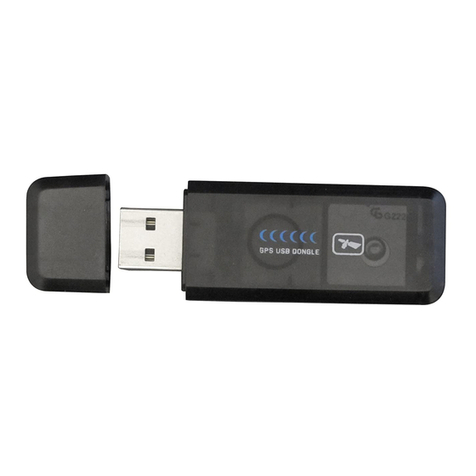
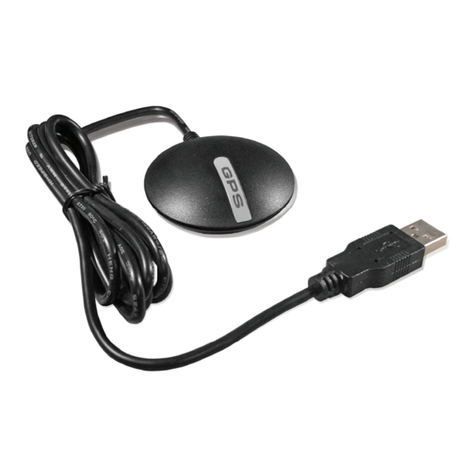
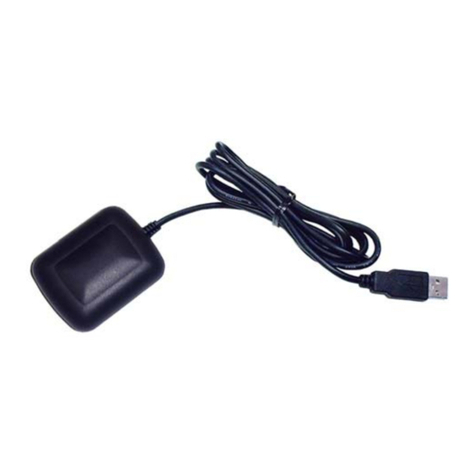
plugging the receiver
software, we’ve include
d a GPS test utility called “GPS
confirming your installation and configuration.
This utility ca
n be installed by executing “GPS
downloaded from our website
Recommended installation location
Always select an area in the vehicle where the GPS unit will be secure and not
obstruct normal driving, visibility and safety, b
in order to receive satellite data.
GPS information function test setting
1. Run GpsInfo.exe
2.
Enter the proper COM port for your GPS device (see COM Port
above)
3. Set COM port to
4.
If no errors have been made in configur
displayed in the window, which is
between the GPS device and the “GPSinfo” software is working properl
5. If there is n
o GPS data displayed (or dat
exit the software and
unplug the GPS receiver from USB port and reinsert it after
10 seconds to reset the device.
NOTE: The correct
mapping
software must be completed
8
5. USING / TESTING YOUR GP
S RECEIVER
GPS receiver’s driver and your personal mapping software have been
installed and configured properly, you can begin to use your navigation system by
.
If you don’t have a mapping, or navigation
d a GPS test utility called “GPS
i
confirming your installation and configuration.
n be installed by executing “GPS
info.exe”
file in Windows and can be
downloaded from our website
, https://www.globalsat.com.tw/ .
Recommended installation location
of the receiver:
Always select an area in the vehicle where the GPS unit will be secure and not
obstruct normal driving, visibility and safety, b
ut still maintaining a “view to the sky”
in order to receive satellite data.
GPS information function test setting
:
Enter the proper COM port for your GPS device (see COM Port
If no errors have been made in configur
ation, there should be GPS data
displayed in the window, which is
the conf
irmation that the communication
between the GPS device and the “GPSinfo” software is working properl
o GPS data displayed (or dat
a with multiple zeros in them),
unplug the GPS receiver from USB port and reinsert it after
10 seconds to reset the device.
configuration between
software must be completed
before using the
software for the first time.
GPS receiver’s driver and your personal mapping software have been
installed and configured properly, you can begin to use your navigation system by
If you don’t have a mapping, or navigation
file in Windows and can be
Always select an area in the vehicle where the GPS unit will be secure and not
ut still maintaining a “view to the sky”
Enter the proper COM port for your GPS device (see COM Port
ation, there should be GPS data
irmation that the communication
between the GPS device and the “GPSinfo” software is working properl
y.
a with multiple zeros in them),
unplug the GPS receiver from USB port and reinsert it after
and
software for the first time.