Five success tips when using the voice prompt
“*” shifts down to the next menu option and “#” returns to the main menu
“9” functions as the ENTER key in many cases to confirm or toggle an option.
All entered digit sequences have known lengths – 2 digits for menu option and 12 digits for IP address. For IP address,
add 0 before the digits if the digits are less than 3 (i.e. – 192.168.0.26 should be key in like 192168000026. No decimal is
needed).
Key entry cannot be deleted but the phone may prompt error once it is detected.
Dial *98 to announce the extension number of the port.
Configuration via Web Browser
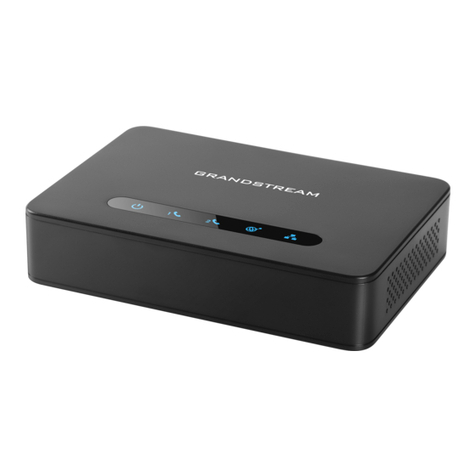
The HT812/HT814 embedded Web server responds to HTTP GET/POST requests. Embedded HTML pages allow a user to
configure the HT812/HT814 through a web browser such as Google Chrome, Mozilla Firefox and Microsoft’s IE.
Microsoft Internet Explorer: version 10 or higher.
Google Chrome: version 58.0.3 or higher.
Mozilla Firefox: version 53.0.2 or higher.
Safari: version 5.1.4 or higher.
Opera: version 44.0.2 or higher.
Accessing the Web UI
Via WAN port
For the initial setup, the Web access is by default enabled when the device is using private IP and disabled when using public
IP, and you cannot access the Web UI of your HT812/HT814 until it’s enabled, the following steps will show you how to enable
it via IVR.
1. Power your HT812/HT814 using PSU with the right specifications.
2. Connect your analog phone to phone ports (FXS) of your HT812/HT814.
3. Press *** (press the star key three times) to access the IVR menu and wait until you hear “Enter the menu option “.
4. Press 12, the IVR menu will announce that the web access is disabled, press 9 to enable it.
5. Reboot your HT812/HT814 to apply the new settings.
Please refer to steps below if your HT812/HT814 is connected via WAN port:
1. You may check your HT812/HT814 IP address using the IVR on the connected phone.
Please see Obtain the HT812/HT814 IP address via the connected analogue phone
2. Open the web browser on your computer.
3. Enter the HT812/HT814’s IP address in the address bar of the browser.
4. Enter the administrator’s password to access the Web Configuration Menu.
Note: The computer must be connected to the same sub-network as the HT812/HT814. This can be easily done by connecting
the computer to the same hub or switch as the HT812/HT814.
Via LAN port
Please refer to steps below if your HT812/HT814 is connected via LAN port:
1. Power your HT812/HT814 using PSU with the right specifications.
2. Connect your computer or switch directly to your HT812/HT814 LAN port.
3. Open the web browser on your computer.
4. Enter the default LAN IP address (192.168.2.1) in the address bar of the browser.
5. Enter the administrator’s password to access the Web Configuration Menu.
6. Make sure to reboot your device after changing your settings to apply the new configuration.
Web UI Access Level Management
There are three default passwords for the login page:
The password is case-sensitive and must contain 8-20 characters, at least one number, one uppercase, and one lowercase
letter. When changing any settings, always submit them by pressing Update or Apply button at the bottom of the page. After
submitting the changes in all the Web GUI pages, if a reboot is required, the web page will prompt the user to reboot by
Please make sure to reboot the device after changing network settings (IP Address, Gateway, Subnet…) to apply the new
configuration.
Please make sure that your computer has a valid IP address on the range 192.168.2.x so you can access the web GUI of your
HT812/HT814.