manuals.online logo
Brands
  1. Home
  2. •
  3. Brands
  4. •
  5. Haier
  6. •
  7. TV
  8. •
  9. Haier 34FV6H User manual

Haier 34FV6H User manual

Other Haier TV manuals

Haier HTF20-A User manual

Haier

Haier HTF20-A User manual

Haier LE46T3 User manual

Haier

Haier LE46T3 User manual

Haier LT32R3B User manual

Haier

Haier LT32R3B User manual

Haier L37K30B User manual

Haier

Haier L37K30B User manual

Haier DTA-1518 User manual

Haier

Haier DTA-1518 User manual

Haier HL19D2a User manual

Haier

Haier HL19D2a User manual

Haier HT-3718 User manual

Haier

Haier HT-3718 User manual

Haier DX-LDVD22-10A User manual

Haier

Haier DX-LDVD22-10A User manual

Haier RGBTV-21TA User manual

Haier

Haier RGBTV-21TA User manual

Haier HL26B-A User manual

Haier

Haier HL26B-A User manual

Haier HL42B-B User manual

Haier

Haier HL42B-B User manual

Haier 25FV6H User manual

Haier

Haier 25FV6H User manual

Haier D29FA11-AM User manual

Haier

Haier D29FA11-AM User manual

Haier 29F3A User manual

Haier

Haier 29F3A User manual

Haier 29F6B-T User manual

Haier

Haier 29F6B-T User manual

Haier DTA-2196PF User manual

Haier

Haier DTA-2196PF User manual

Haier WSD-1416 User manual

Haier

Haier WSD-1416 User manual

Haier HT-2599 User manual

Haier

Haier HT-2599 User manual

Haier LE32C430 User manual

Haier

Haier LE32C430 User manual

Haier MSD318 User manual

Haier

Haier MSD318 User manual

Haier HP-2999 User manual

Haier

Haier HP-2999 User manual

Haier 25FV6 User manual

Haier

Haier 25FV6 User manual

Haier 34T9B User manual

Haier

Haier 34T9B User manual

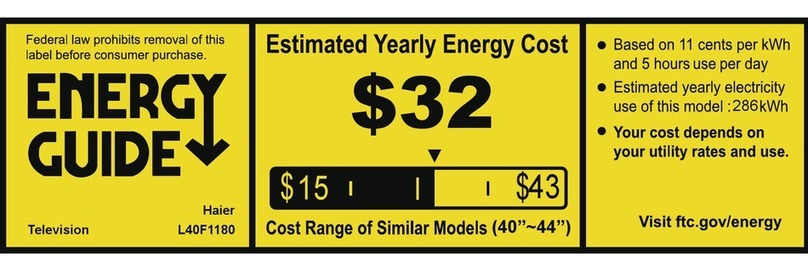
Haier L40F1180 Assembly instructions

Haier

Haier L40F1180 Assembly instructions

Popular TV manuals by other brands

IKEA UPPLEVA user manual

IKEA

IKEA UPPLEVA user manual

Toshiba 19A20 Service manual

Toshiba

Toshiba 19A20 Service manual

Sony XBR-100Z9D reference guide

Sony

Sony XBR-100Z9D reference guide

Sony Trinitron KV-HR36M90 Service manual

Sony

Sony Trinitron KV-HR36M90 Service manual

JVC AV-14AG16 instructions

JVC

JVC AV-14AG16 instructions

Loewe Table Stand Reference 55 user guide

Loewe

Loewe Table Stand Reference 55 user guide

Panasonic Genus TX-G10 operating instructions

Panasonic

Panasonic Genus TX-G10 operating instructions

Samsung LN26C350D1D Service manual

Samsung

Samsung LN26C350D1D Service manual

BBK LT1516D Service manual

BBK

BBK LT1516D Service manual

Samsung 55S9 B Series Quick setup guide

Samsung

Samsung 55S9 B Series Quick setup guide

Sharp LC-40FI5012E user manual

Sharp

Sharp LC-40FI5012E user manual

Evervue BN185 Operation manual

Evervue

Evervue BN185 Operation manual

North State TV2GO user guide

North State

North State TV2GO user guide

Toshiba CX35F70 owner's manual

Toshiba

Toshiba CX35F70 owner's manual

Magnavox PS1980 owner's manual

Magnavox

Magnavox PS1980 owner's manual

Philips 20HF5335D manual

Philips

Philips 20HF5335D manual

Panasonic QuintrixF TX-29AS1D operating instructions

Panasonic

Panasonic QuintrixF TX-29AS1D operating instructions

Samsung 4 Series Quick setup guide

Samsung

Samsung 4 Series Quick setup guide

manuals.online logo
manuals.online logoBrands
  • About & Mission
  • Contact us
  • Privacy Policy
  • Terms and Conditions

Copyright 2025 Manuals.Online. All Rights Reserved.

34FV6H34FV6H
COLOUR TELEVISION
OPERATING
INSTRUCTIONS
2
◆Digital I C bus control
◆Auto search tuning & 250 programs stored
◆Full infrared remote control
◆Multi-picture modes selection
◆Multi-function timer, appointing program
0090508165
2
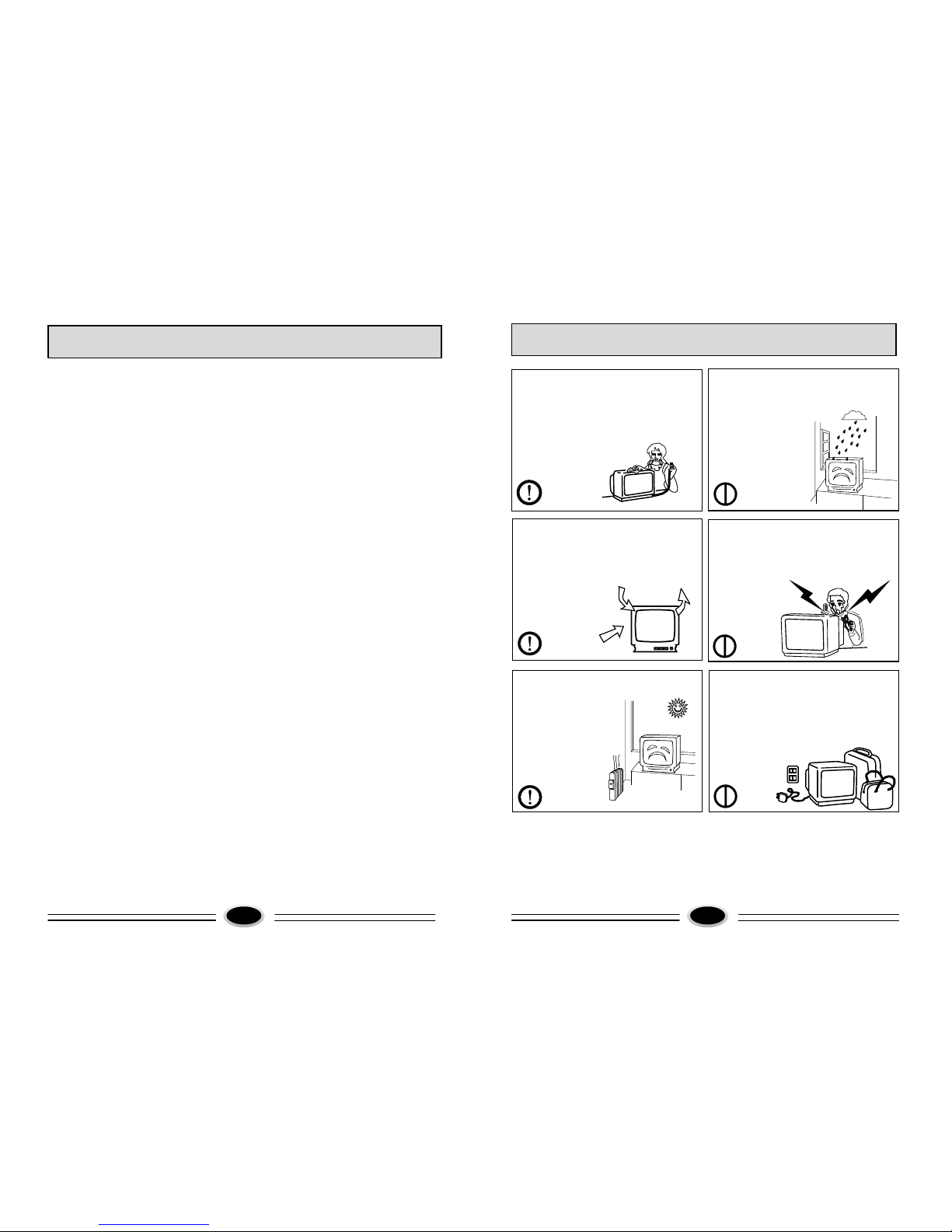
WARNING AND CAUTIONS
1. When you clean the TV set, please pull
out the power plug from AC outlet.
Or may result in electric shock, fire or
damage to the TV set. Don't clean the
cabinet and the screen with benzene,
petrol and other chemicals.
4. Do not place the TV set near rain
or moisture as it may cause an electric
shock, or the TV set to catch fire. The TV
set must only be used
in dry indoor location.
2. In order to prolong the using life of the
TV set, please place it at a well ventilated
location.
5. The back cover must only be removed
by a registered electrical service person.
Removing the back cover may result in
electric shock, fire or damage to
the TV set.
3. Don't place the TV
set in direct sunlight
or near heat source.
6. If the TV set is not going to be used for
a long time, or there is a severe thunder &
lightening storm, it is recommended that
the TV set be disconnected from the AC
power outlet and the aerial plug
removed.
Explanation on the display tube
When the picture tube requires cleaning, please disconnect the power and use a
dry soft cotton cloth. Do not use any cleaner or abrasive cloth.
1
CONTENTS
Contents.................................................................................................................................1
Warning and Cautions...........................................................................................................2
Basic Feature.........................................................................................................................3
Technical Specifications........................................................................................................3
Function Buttons and External Sockets.................................................................................4
AV Connection.......................................................................................................................5
Remote Controller .................................................................................................................6
Control Your TV.....................................................................................................................7
Tuning Procedure.................................................................................................................10
Menu Operation...................................................................................................................11
Teletext Operation...............................................................................................................14
Television Installation.........................................................................................................17
Connecting Other External Devices....................................................................................18
Trouble Shooting ................................................................................................................19
3
BASIC FEATURE
2
◆Digital I C bus control
◆Auto search tuning & 250 programs stored
◆Full infrared remote control
◆Multi-Picture modes selection
◆Multi-function timer, appointing program
4
TECHNICAL SPECIFICATIONS
1.POWER SUPPLY: See rating plate
2.COLOUR SYSTEM: PAL SECAM N TSC4.43/3.58(AV)
3.AUDIO SYSTEM: B/G D/K
4.CRT: 29
5.ANTENNA INPUT : 75Ω Standard Coaxial Cable
6.SOUND OUTPUT POWER: 5W+5W
7.POWER CONSUMPTION: See rating plate
8.NET WEIGHT(kg): .
9.NET DIMENSION(mm):
"
64 5
898 x 567 x 669
Supplied accessories:
Infrared remote control handset 1
Battery(AA) 2
Operating instruction 1
Design and specifications are subject to change without notice.
FUNCTION BUTTONS AND EXTERNAL SOCKETS
2. The rear panel
1.Front panel
(1)Remote sensor: let the remote
controller aim here, the TV set
can receive remote control signal.
(2)Power switch: press the button to
turn on the TV set ,press the button
again to turn off the TV set.
(3)Power indicator: the indicator lights
in standby status .The indicator
glints when you use remote
controller.
(4)Menu button
(5)Program up/down button
(6)Volume up/down button
(7)TV/AV switch button
(4)
(7)
(6)
(5)
(3)
(2)
(1)
MENU - +VOL
TV/AV
-CH+
VIDEO
L
AUDIO
R
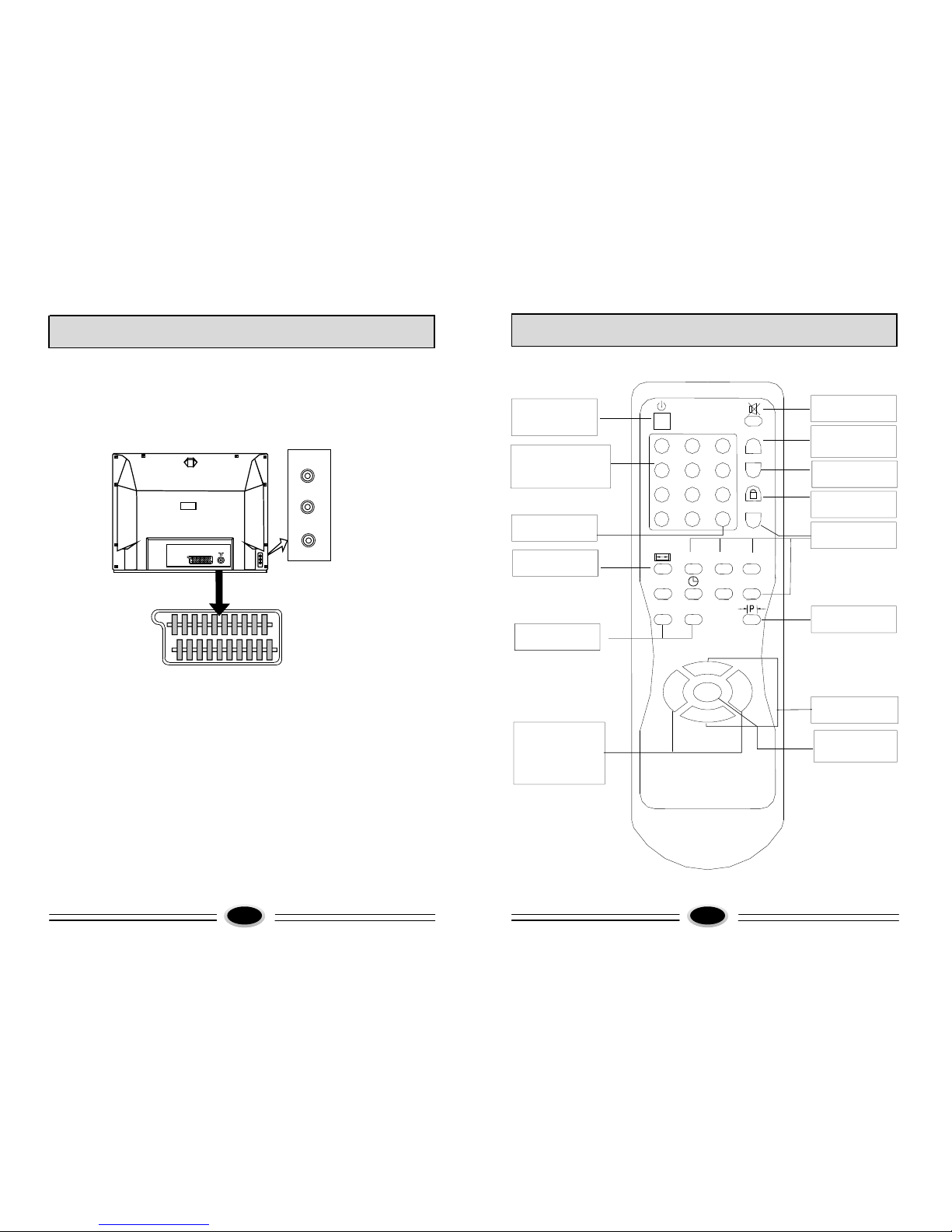
REMOTE CONTROLLER
65
TV/AV Select
(P8)
Sound Volume
Up/Down
(Ref. P7 )
Power/Standby
(Ref. P7 )
Program Up/Down
(Ref.
P7
.)
MENU
(Ref.P11.)
Mute
(Ref.P
8
)
Child Lock
(Ref.P9)
Call
(Ref.P8)
Direct Access Numeric
Keys
(Ref.P7)
Quick View
(Ref.P8)
ZOOM/Teletext
(Ref.P7/Ref.P15)
?
-/--
2
1 3
4 5 6
7 8 9
0 QV
MIX CANCEL
V+
V-
P+
MENU
P-
TEXT
TV/AV
Teletext
(Ref.P14, 15)
Ref.
INPUT AND OUTPUT TERMINALS
5
AV CONNECTION
TIMER SOUND
SUBCODE
PICTURE
REVEAL HOLD
Teletext
(Ref.P14)
Picture Effect
(Ref.P9)
It can be connected to the following appliances:
video-tape recorder, video camera, tape recorder
and audio amplifier, etc......
*Please keep AC cord unplugged when connecting
TV system.
VIDEO
L
AUDIO
R
You can select your video source
by the [TV/AV] key.
7. MUTE
By pushing this key, sound
output will be muted.
Push [MUTE] again or Volume
Up/Down, and sound Volume
will return.
8. Quick View
9. CALL
Program No.
Colour system
Clock
Sleep
TV/AV MODE
This key will call the on
screen display.
Push again to remove the
on screen display.
Menu MODE
Pressing the [?]key,
current menu will
exit directly.
7 8
TV/AV
6. TV/AV Selection
MUTE
QV
2
AV
?
1
PAL
B/G
15:15
SLEEP 120
CONTROL YOUR TV
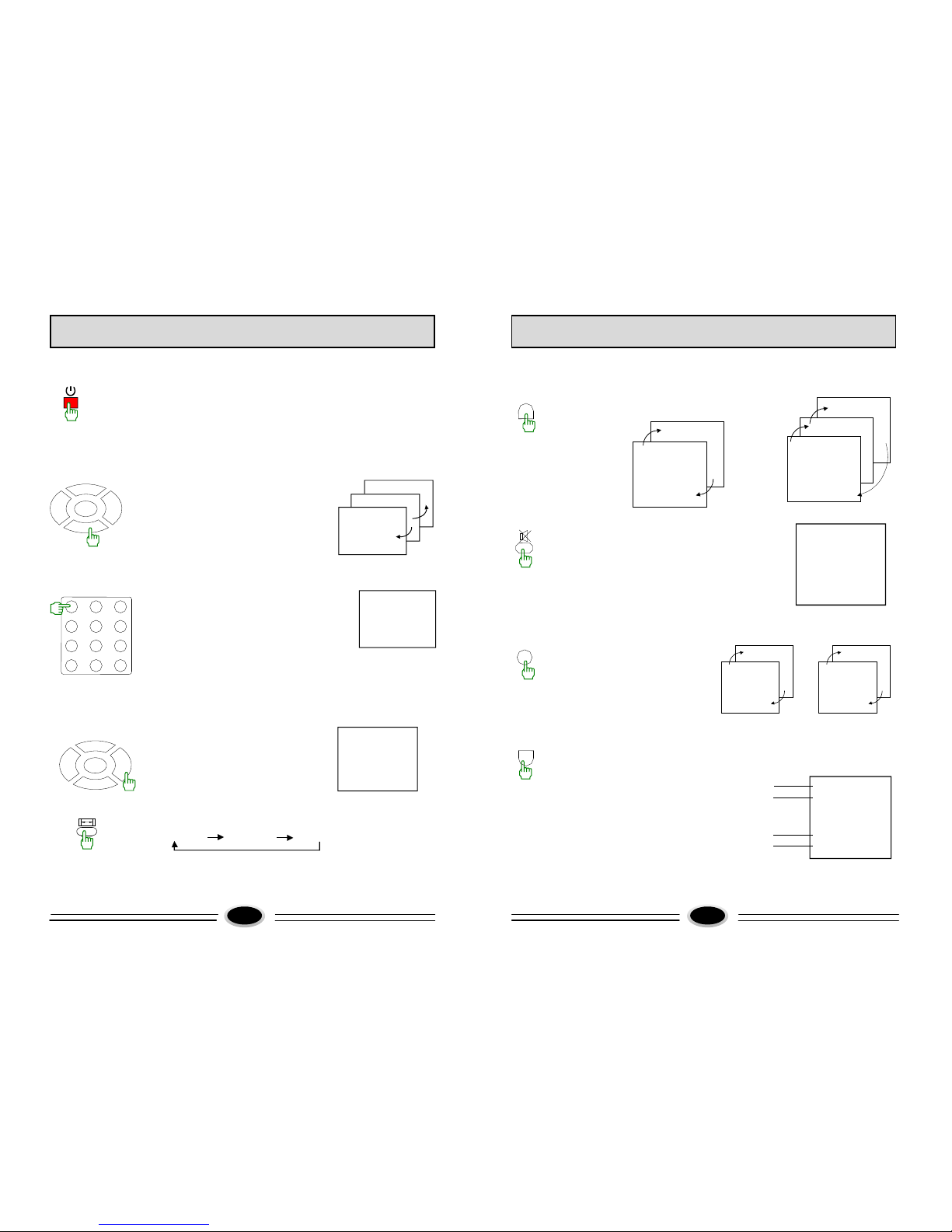
1. Power/Stand-By ON/OFF
With Mains status On, you can also turn off using Remote Control Hand Set.
This status is called Stand-By mode. In this mode, You can also turn on the
TV bu pushing the Channel Up/Down keys on the front controls.
There is an Automatic Power OFF function in the TV. With No
Signal condition,
the TV will automatically turn off after 10 minutes.
2. Program Up/Down
Push [P+] key to change Program Up.
Push [P-] key to change Program Down.
CONTROL YOUR TV
3
2
1
1
VOLUME 15
|||||||------------
V-
V+
P+
MENU
P-
-/--
2
1 3
4 5 6
7 8 9
0
V- V+
P+
MENU
P-
3.
Direct Access Tuning
Using the numeric keys on Remote
Control Hand Piece, channel can be
selected directly from 0 to 249 channels.
Or repeatedly press the -/-- button to
select the desired mode then press numeric buttons.
“-” 1 digit mode
“ ”-- 2 digit mode
“--- ” 3 digit mode(Max Ch. 249)
Volume Control
Push [V+] key for Volume Up.
Push [V-] key for Volume Down.
ZOOM
Push [ZOOM] key to change as follows:
NORMAL WIDE ZOOM
W ID E p icture height is reduce, ZOOM picture height is expand.
__
4.
__
5.
“ ”
10
2
TV Mode: Program will quick
back to the previous
program being watched.
AV Mode: Back to TV channel.
3
EURO AV
AV
3
or
EURO AV
9
CONTROL YOUR TV
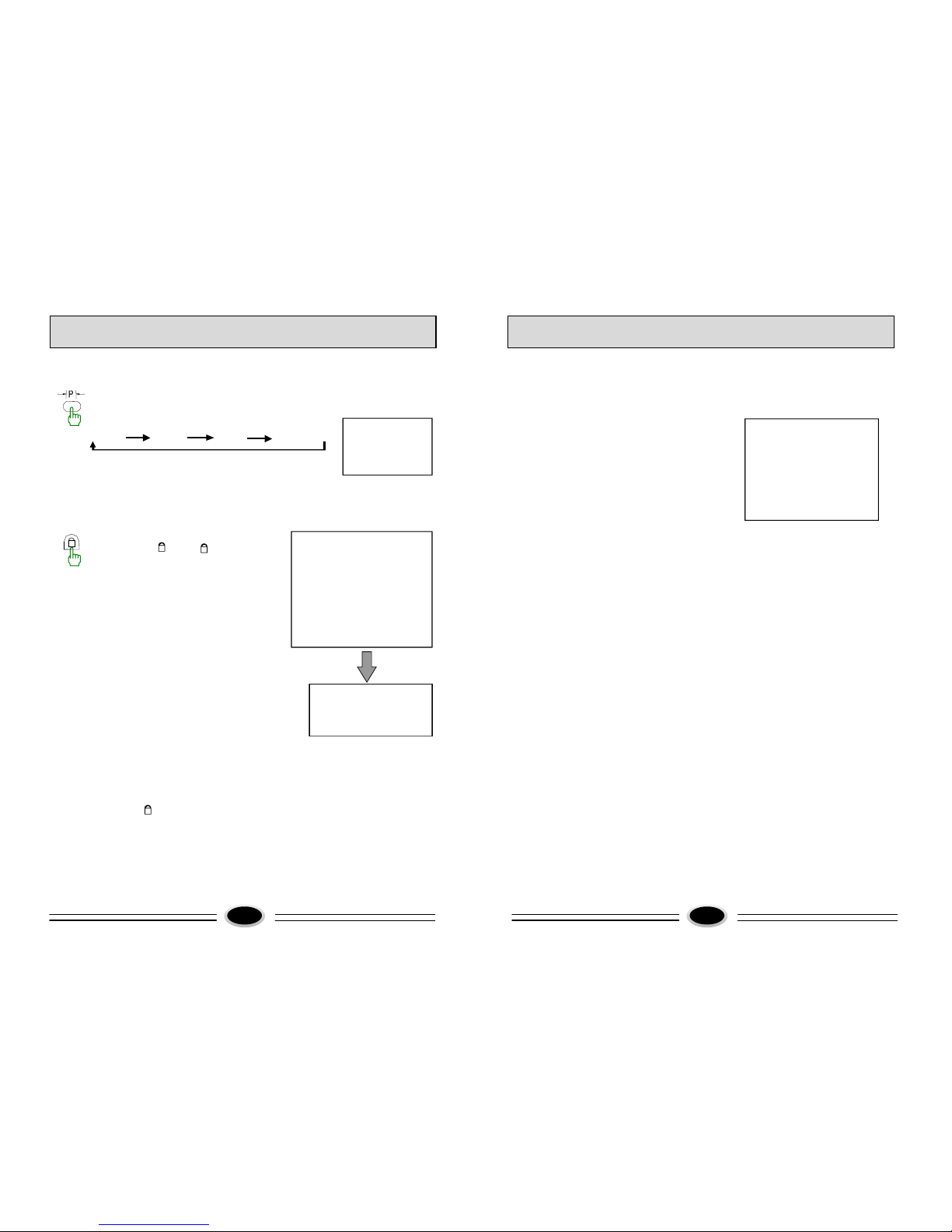
10. Picture Effect
By repeatedly pushing this key, picture effects will change as follows.
DYNAMIC USER
MILD STANDARD
TINT setting is not included user is the last setting made by
you.
11. LOCK
By pushing the [ ] key, ----
will appear on the screen.
Pressing the password the
digits that you defined yourself
correctly, the lock menu will appear.
A. Select each function by using the
[P+] [P-] keys.
B. Each value can be changed by the
[V+] [V-] keys.
C. When general lock is on, other locks
may be locked.
D. Child lock will be locked or unlocked
for current program.
E. AV LOCK will be locked or unlocked
for AV function.
F. VOL LIMIT SW will be switched on or off.
G. When you will change the password, you may be selected
NEW PASSWORD item, then push [V+] [V-] keys, the
CHANGE PASSWORD menu will appear
NEW PASSWORD: input 4 digits you like.
CONFIRM: again input above new password 4 digits correctly.
H. Press the [ ] key or [?] key, lock menu will disappear.
Note:
The tune menu will not appear when any program would be locked.
After new password was set, the basic password 7038 still is available.
STANDARD
“ ”
CHANGE PASSWORD
NEW PASSWORD 0 0 0 0
CONFIRM - - - -
LOCK
GENERAL LOCK ON
PROGRAM NO. 25
CHILD LOCK ON
AV LOCK ON
VOL LIMIT SW ON
VOL LIMIT 32
CHANGE PASSWORD
- -- -
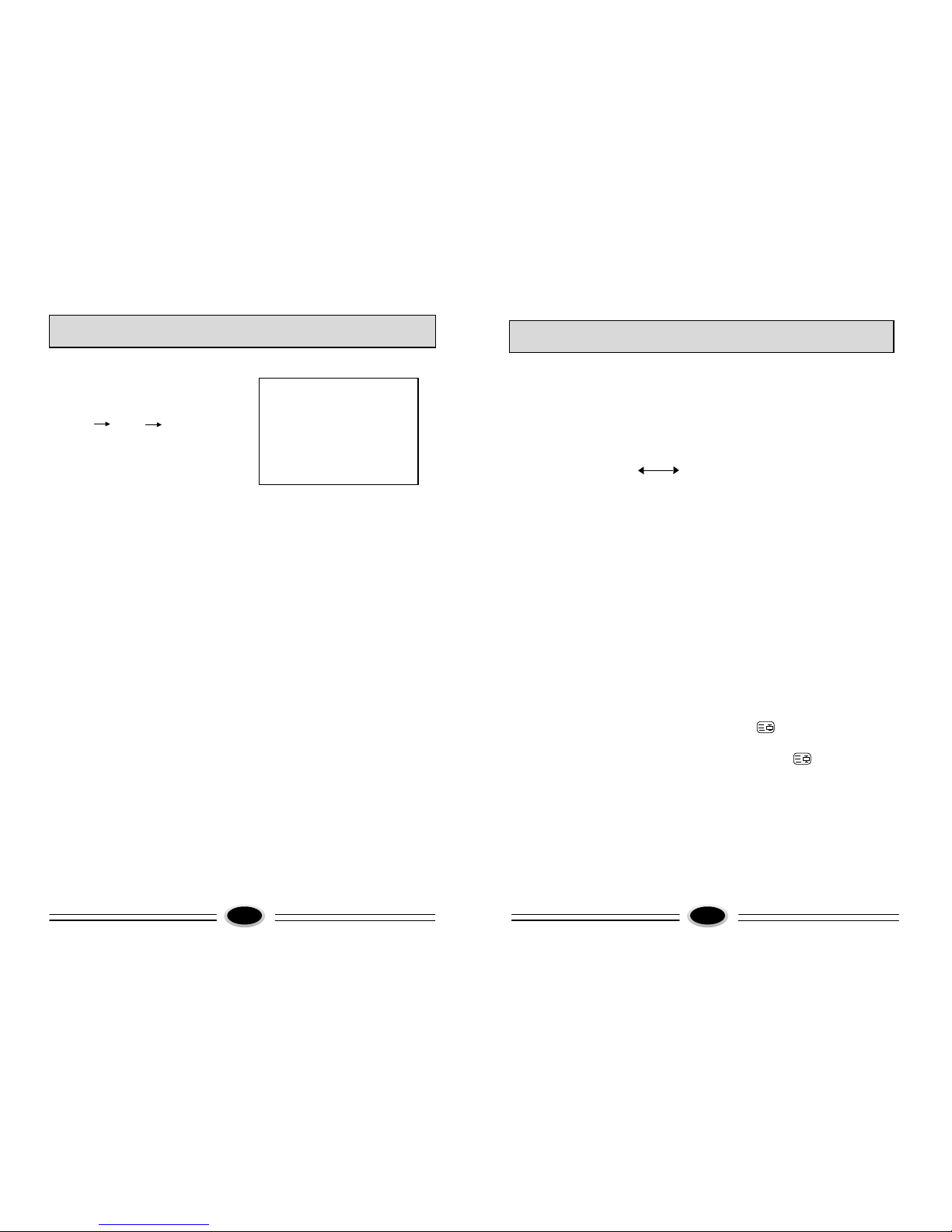
TUNING PROCEDURE
1. AUTO SEARCH Function: Automatic Search and Memory (ASM) is
available for program installation from
Antenna input.
Using [MENU] key on the front or
[MENU] key on the Remote for ASM.
A. Push [MENU] key repeatedly to
select TUNE.
B. Push [P+] or [P-] key to select
AUTO SEARCH.
C. Push [V+] or [V-] key to start ASM
and memorize into program list (0~249).
D. Wait until function has finished.
2. SEARCH Function: Manual Search for Antenna input.
A. Push [MENU] key repeatedly to select TUNE.
B. Using [P+] or [P-] key, select PROGRAM. Using [V+] or [V-] key or numeric
keys to change Program Number.
C. Push [P+] or [P-] key to select BAND. Push [V+] or [V-] key to
change BAND.
D. Push [P+] or [P-] key to select SEARCH.
E. Push [V+] or [V-] key to start search.
F. Wait until function has finished.
G. Push [P+] or [P-] key to select STORE. Push [V+] or [V-] key to store.
3. FINE TUNING Function: Fine Tuning for current setting.
A. Push [MENU] key repeatedly to select TUNE.
B. Using [P+] or [P-] key to select PROGRAM. Using [V+] or [V-] key to change
Program Number.
C. Using [P+] or [P-] key to select FINE TUNE.
D. Using [V+] or [V-] key to adjust for best tuning.
E. Push [P+] or [P-] key to select STORE. Push [V+] or [V-] key to store.
4. SKIP Function: Use to SKIP channels. After setting to ON, the channel will
not be selected by channel up/down keys.
A. Push [MENU] key repeatedly to select TUNE.
B. Using [P+] or [P-] key to select PROGRAM. Using [V+] or [V-]
key to change
Program Number.
TUNE
BAND UHF
SKIP OFF
PROGRAM 3
SEARCH
FINE TUNE
STORE
AUTO SEARCH
10
MENU OPERATION
EXCHANGE
PROGRAM1 10
PROGRAM2 14
EXCHANGE
TIME
CLOCK --:--
ON TIME --:--
ON PROG 2
OFF TIME --:--
SLEEP TIMER 0
REMIND TIME --:--
REMIND PROG 1
11 12
5. EXCHANGE Function: number and channel exchange.
A. Push [MENU] key repeatedly to select EXCHANGE.
B. Using [P+] or [P-] key to select
PROGRAM 1. Using [V+] or [V-]
key to change Program 1 Number.
C. Using [P+] or [P-] key to select
PROGRAM 2. Using [V+] or [V-]
key to change Program 2 Number.
D. Using [P+] or [P-] key to select
EXCHANGE. Using [V+] or [V-] key,
exchange is over.
MENU OPERATION
1. [MENU] key
Push [MENU] key continually to scroll through the MENU selection as
follows:
PICTURE SOUND TIME SETUP TUNE EXCHANGE
2. PICTURE MENU Function: Brightness, Contrast, Colour, Sharpness, Tint
A. Select each function using the [P+]
or [P-] key.
B. Each value can be controlled by the
[V+] or[ V-] key.
C. Repeat any functions if required.
NOTE: TINT control will be appeared
only if a NTSC signal is being
received.
3. SOUND MENU Function: Volume
A. Press SOUND menu, the volume will appear.
B. Each value can be controlled by the [V+]or [V-]
key .
C. Using [P+] or [P-] key to select SKIP. Using [V+] or [V-] to
select ON or OFF. 4. TIME MENU Function: Time and Timer setting
A. Select TIME with the [MENU] key.
Using the [P+] or [P-] key to select
the item.
B. Using the [P+] or [P-] key to select
CLOCK, ON-TIME, OFF-TIME,
SLEEP TIMER or REMIND TIME.
C. Press [P+] or [P-] key to select minutes,
then using [V+] or [ V-] key, minutes
will change from 00 to 59. Press [P+] or
[P-] key to select hours, then using
[V+] or [ V-] key, hours will change
as follows: 0,1,..23--:--.
D. For ON-TIME, OFF-TIME or
REMIND TIME setting, using [P+]
or [P-] key to select ON PROG,
using [V+] or [ V-] key to change
On-Program number.
E. Using [P+] or [P-] key to select
SLEEP TIME, Using [V+] or [ V-] key,
sleep timer will change as follows:
0 10 20 30 40 ...160 170 180 0
5. SETUP Function: other function setting.
A. Using the [P+] or [P-] key to select
the item.
Using the [V+] or [V-] key to change
the item.
B. Using the [P+] or [P-] key to select
the COLOR SYS.
Using the [V+] or [V-] key, color sys
will change as follows:
AUTO PAL NTSC3.58 NTSC4.43 SECAM
C. Using the [P+] or [P-] key to select the AVL, AVL is auto volume level.
Using the [V+] or [V-] key, AVL will be turned OFF and ON.
PICTURE
BRIGHTNESS 48
CONTRAST 48
COLOUR 32
SHARPNESS 32
TINT

SOUND
VOLUME 20
MENU OPERATION
SETUP
LANGUAGE ENGLISH
COLOR SYS AUTO
SOUND SYS DK
BLUE BACK ON
BLACK STRETCH ON
AVL ON
EURO RGB
TEX LANGUAGE W-TR
CALENDAR
GAME
.............
.............
13 14
D. Using the [P+] or [P-] key to select
the TEXT LANGUAGE.
Using the [V+] or [V-] key, TEXT
LANGUAGE will change as follows:
W-TR EAST1 EAST2
E. Using the [P+] or [P-] key to select
the CALENDAR.
Using the [V+] or [V-] key,
CALENDAR will appear.
After CALENDAR is appeared on the
screen:
Using the [P+] or [P-] key to change
the month.
Using the [V+] or [V-] key to change
the year.
F. Using the [P+] or [P-] key to select the GAME.
Using the [V+] or [V-] key, GAME will be appeared.
In game mode, the box will be moved to specific dot.
Push [P+] or [P-] key to move the box for up or down.
Push [V+] or [V-] key to move the box for right or left.
Push [?] key to exit game.
TELETEXT OPERATION
1. SELECT TELETEXT MODE
Select the program which is broadcasting the TELETEXT you want to watch.
Press [TEXT] key on the remote controller and enter to TELETEXT mode.
By this key, mode will be changed as
TV TELETEXT
The overview station page or the last page viewed (in case you already watched
TELETEXT at this channel previously) appears.
If you need to return to TV mode, press again the [TEXT] key on the remote
controller.
2. PAGE SELECTION
You can enter directly desired page number with the remote controller numeric
keys 0...9 buttons.
You can sequentially select page by pressing [P+] or [P-] key.
3. HOLD
Some TELETEXT information is contained on more than one page, the pages
automatically changing after a given reading time.
Press [HOLD] key to stop the page changing (the symbol will appear on the
page heading).
Press [HOLD] key again to allow the page to change (the symbol will appear).
4. REVEAL
Some TELETEXT pages contain quiz or game question with hidden answers.
Press the [REVEAL] key to see the answers.
Press the [REVEAL] key again to hide the answers.
- - - - - - - - - - - - - - -
- - - - - - - - - - - - - - -
- - - - - - - - - - - - - - -
- - - - - - - - - - - - - - -
2004 1
Su Mo Tu We Th Fr Sa
1 2 3
4 5 6 7 89 10
11 12 13 14 15 16 17
18 19 20 21 22 23
24
25 26 27 28 29 30 31
- - - - - - - - - - - - - - -
MENU OPERATION
5. ZOOM(T/B/F Top/Bottom/Full)
To enable easier reading (larger display).
Press the [ ] key to display the TOP HALF of the page.
Press again to display the BOTTOM HALF of the page.
Press again to return to a FULL PAGE display.
Note: Changing pages reverts to a FULL PAGE display.
6. CANCEL
When a page is selected in TELETEXT mode it may take some time before it
become available, pressing the [CANCEL] key will switch to the TV mode.
When the required page is found, the page number will appear at the top of the
TV picture, press the [CANCEL] key to return to the selected TELETEXT page.
Note: You cannot change TV program while in this mode.
7. TIME
TELETEXT broadcasts sometimes transmit certain pages of information at
particular times.
To automatically display these pages when they are transmitted , select the
required page number then press [ ] key the symbol T**** are displayed
at the top of the screen, now enter the time of the broadcast Timed Page.
Example: - for 3:30 PM select 1-5-3-0 in order (24HR clock)
Press the [CANCEL] key to view a normal TV picture.
When the timed page is transmitted (15:30) it automatically displays the selected
page in the TV picture.
Note: To cancel, press [ ] key.
8. FAST TEXT (For possible future reference)
The RED, GREEN, YELLOW & CYAN keys are used for quick access to color
coded pages transmitted by FAST TEXT broadcast.
TELETEXT OPERATION
TELETEXT OPERATION
Example:- RED selects CITY INFORMATION
CYAN selects TRAVEL INFORMATION
GREEN selects WEATHER INFORMATION
YELLOW selects TV PROGRAMING
9. SUBCODE
Periodically revised NEWS FLASHES can be obtained from TELETEXT
broadcasts.
Select the NEWS FLASH page in TELETEXT mode then press the
[SUBCODE] key.
You can now watch the TV program and every time the News Flash page
is updated it will be automatically displayed in the TV picture.
Press the [SUBCODE] key to cause the news flash to disappear.
※ Teletext is option.
15 16
17
TELEVISION INSTALLATION
Connect antenna or video facility
1. Use 75 coaxial cable plug or 300-75 impedance converter to plug in antenna
input terminal on the rear of the cabinet.
2. Connect the video facility to the radio, video in jack on the rear of the cabinet.
Battery installation and replacement for remote control unit
The remote control uses two 1.5V AA
batteries. For installation and replacement
are as following:
1 Turn the remote control unit upside
down. Press down the grip of battery
compartment and slide the color in
the direction of the arrow.
2 Install two new batteries, make sure
that battery polarity matches with the
+,- marks inside the battery. Or not it
could damage the unit.
3 Close the battery compartment covers.
-

VHF antenna UHF antenna
Mixer 75 Co-axis cable Input terminal of antenna
Co-axis antenna plug
Antenna in jack 75 Co-axis antenna plug


18
CONNECTING OTHER EXTERNAL DEVICES
To connect signal from the player,
scart-cable would be connected
correspondingly. The device may
be to provide RGB or VIDEO or
Y/C output, you must change
EURO signal setting
correspondingly on setup menu.
VCR or DVD player or other
device for playing
SETUP
LANGUAGE ENGLISH
COLOR SYS AUTO
SOUND SYS DK
BLUE BACK ON
BLACK STRETCH ON
AVL ON
EURO RGB
TEX LANGUAGE W-TR
CALENDAR
GAME