8
Note –Google Assistant
•The Google Assistant is only available on suitable terminal devices
with Android 5.0 or higher,Google Play Services, >1.5 GB of
free memory and aminimum screen resolution of 720P.
•The Google Assistant app must be available on your terminal
device and set as the default voice assistant.
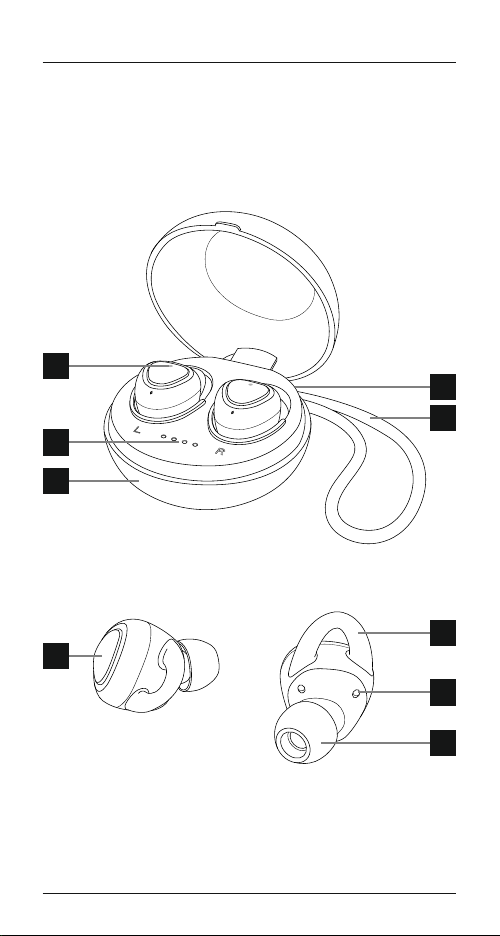
Brieypress the Multifunction button (5) on the left earphone while
the earphones areconnected via
Bluetooth
®
to start communication
with your Siri or Google Assistant.
As soon as you hear an acoustic
signal, your voice assistant is ready to help you.
•Example 1:
Brieypress the Multifunction button (5) on the left earphone.
Avoice says, ‘Voice dial’. Then speak into your earphones: ‘What’s
the weather like today?’ The voice assistant will answer as follows,
for example: ‘Mainly cloudy with some showers’
•Example 2:
Brieypress the Multifunction button (5) on the left earphone.
Avoice says, ‘Voice dial’. Then speak into your earphones: ‘What
time is it?’ The voice assistant will answer as follows, for example:
‘It is 8pm’
•Other examples: Set an alarm for tomorrow at 7am.
Play music.
What’sinthe news?
5.6. Volume control
•The volume is controlled using the Voice Assistant function.
•Brieypress the Multifunction button (5) on the left earphone. A
voice says, ‘Voice dial’. Then speak into your earphones: ‘Increase
the volume by 50%’ or ‘Decrease the volume by 30%’ or ‘Maximum
volume’. Your voice assistant adjusts the volume as requested.
•Alternatively,you can control the volume using your smartphone.
5.7. Audio playback
•Press the Multifunction button (5) on the left earphone twice to
go to the previous track.
•Press the Multifunction button (5) on the right earphone twice to
go to the next track.
•Brieypress the Multifunction button (5) on the right earphone
to start or stop audio playback.
5.8. Disconnecting the earphones
•Switch off the earphones by placing them back in the charging box.