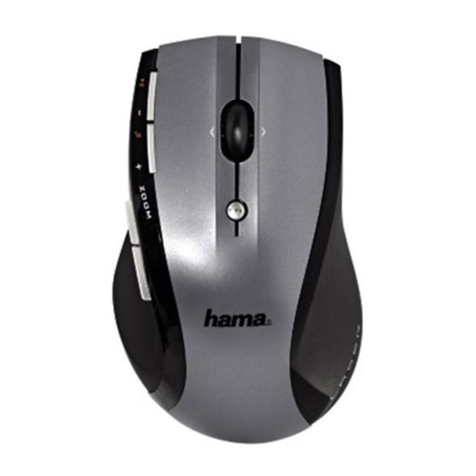
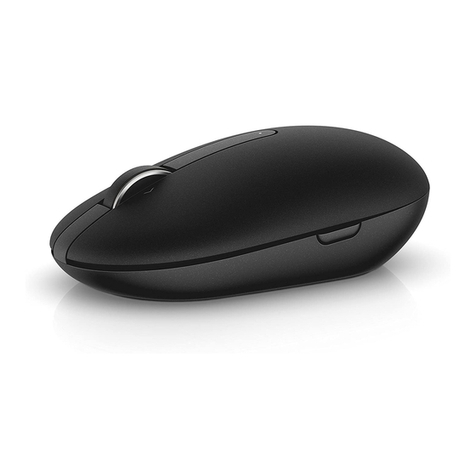
Hama 20898 User manual

00020898-08.09
»Easyline«
by Hama,
D-86651 Monheim/Germany
l
Dieses Gerät darf nur in den folgenden Ländern betrieben werden:
Dieses Gerät darf nur in Deutschland und Österreich
betrieben werden.
Die Konformitätserklärung nach der R&TTE Richtlinie 99/5/EG finden Sie unter www.hama.com
LThis operation of this device is only allowed in the following countries:
See www.hama.com for declaration of conformity according to R&TTE Directive 99/5/EC
guidelines
0470
Hinweis zum Umweltschutz:
Ab dem Zeitpunkt der Umsetzung der europäischen Richtlinien 2002/96/EG und 2006/66/EG in
nationales Recht gilt folgendes:
Elektrische und elektronische Geräte sowie Batterien dürfen nicht mit dem Hausmüll ent-
sorgt werden. Der Verbraucher ist gesetzlich verpflichtet, elektrische und elektronische Geräte
sowie Batterien am Ende ihrer Lebensdauer an den dafür eingerichteten, öffentlichen
Sammelstellen oder an die Verkaufsstelle zurückzugeben. Einzelheiten dazu regelt das jeweilige
Landesrecht. Das Symbol auf dem Produkt, der Gebrauchsanleitung oder der Verpackung weist auf
diese Bestimmungen hin. Mit der Wiederverwertung, der stofflichen Verwertung oder anderen
Formen der Verwertung von Altgeräten/Batterien leisten Sie einen wichtigen Beitrag zum Schutz
unserer Umwelt.
Note on environmental protection:
After the implementation of the European Directive 2002/96/EU and 2006/66/EU in the national
legal system, the following applies:
Electric and electronic devices as well as batteries must not be disposed of with household
waste. Consumers are obliged by law to return electrical and electronic devices as well as batte-
ries at the end of their service lives to the public collecting points set up for this purpose or point of
sale. Details to this are defined by the national law of the respective country.
This symbol on the product, the instruction manual or the package indicates that a product is sub-
ject to these regulations.
By recycling, reusing the materials or other forms of utilising old devices/Batteries, you are making
an important contribution to protecting our environment.
00020898bda 11.08.2009 8:08 Uhr Seite 2

00020898
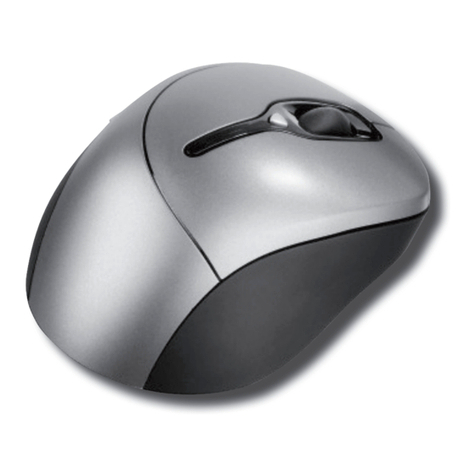
Optische Funkmaus
Wireless Optical Mouse
00020898bda 11.08.2009 8:08 Uhr Seite 3

1. Verpackungsinhalt
• Kabellose, optische 3-Tasten Maus
• Mini USB Empfänger
• zwei 2 AA Batterien
• Software CD-ROM
• Kurzanleitung
2. Hardware Installation
2.1 Einlegen der Batterien
a) Zum Einlegen der Batterien drücken Sie den Batteriedeckel der Maus nach hinten.
b) Legen Sie die beiden AA-Batterien polrichtig in das Batteriefach.
Die richtige Polarität ist dort aufgezeichnet.
llChallenger Wireless Optical Mouse
-
-
+
+
-
-
+
+
00020898bda 11.08.2009 8:08 Uhr Seite 4

2.2 Anschließen des Mini USB Empfängers / Maus und Empfänger verbinden
a) Verbinden Sie den Mini USB Empfänger mit einem freien USB Anschluss am PC.
b) Falls Ihr Computer ausgeschaltet ist, schalten Sie ihn ein und warten bis er
hochgefahren ist.*
c) Der Empfänger wird nun vom Windows-Betriebssytem erkannt und die
erforderlichen Treiber werden automatisch installiert.
d) Betätigen Sie nun kurz (maximal 1 Sekunde) die Verbindungstaste am
Empfänger, anschließend an der Maus**.
* Der Mini-USB Empfänger kann sowohl bei ausgeschaltetem als auch bei
eingeschaltetem PC verbunden werden.
** Wird die Verbindungstaste länger als 2 Sekunden betätigt, schaltet sich die
Maus aus. Siehe dazu auch Punkt 5.
• Die Maus arbeitet nun als Standard 3-Tasten Maus. Um der 3. (Rad) -Taste
eine bestimmte Funktion zuordnen, ist es notwendig die beigelegte Software
zu installieren. (Siehe Punkt 3)
3. Software Installation
• Deinstallieren Sie zunächst eventuell bereits vorhandene Maussoftware.
• Die Software unterstützt Windows 98/ME/2000/XP/Vista/Windows7.
a) Legen Sie die beigelegte CD in Ihr CD-ROM oder DVD-ROM Laufwerk. Warten
Sie einen Moment, und die Installation wird automatisch gestartet. Sollte dies
nicht geschehen, klicken Sie auf Start =>Ausführen, geben "X:\Mouse/Setup"
ein (wobei "X" für den Laufwerksbuchstaben Ihres CD-ROM Laufwerks steht)
und bestätigen mit Enter.
b) Wählen Sie die gewünschte Sprache aus und klicken auf „Weiter“.
c) Starten Sie zum Abschluss der Installation Ihren PC neu.
d) Nach erfolgreicher Installation erscheinen das Maussymbol in der
Taskleiste.
Verbindungstaste
Verbindungstaste
00020898bda 11.08.2009 8:08 Uhr Seite 5

Hinweis:
Während der Installation unter Windows XP/Vista/Windows7 kann eine Meldung
bezüglich eines nicht signierten Treibers erscheinen.
Die Funktion der Maus oder Software wird dadurch nicht beeinträchtigt.
Fahren Sie mit der Installation fort.
• Durch einen Doppelklick auf das Maus-Symbol können Sie die
Rad- und Tasteneinstellungen Ihren persönlichen Bedürfnissen anpassen.
4. Maus Aus/Einschalten
Die Maus läßt sich komplett ausschalten, um z.B. die Batterien zu schonen
falls die Maus längere Zeit nicht benötigt wird. Betätigen Sie dazu die
Verbindungstaste für mindestens 2 Sekunden. Das Ausschalten wird durch ein kurzes
Aufleuchten des optischen Sensors signalisiert. Um die Maus wieder
einzuschalten, betätigen Sie wiederum kurz die Verbindungstaste.
5. Sonstiges
• Bei Störungen durch andere Funkmäuse oder bei Batteriewechsel müssen
Maus und Empfänger neu abgestimmt werden.
Gehen Sie dazu wie in Punkt 2.2 d beschrieben vor.
• Während des Mausbetriebs blinkt die Statusanzeige am Empfänger.
Verbindungstaste
Statusanzeige
00020898bda 11.08.2009 8:08 Uhr Seite 6

1. Package contents
• Wireless, optical 3-button mouse
• Mini USB receiver
• Two AA batteries
• Software CD-ROM
• Quick reference guide
2. Hardware Installation
2.1 Inserting of batteries
a) Press the battery cover of the mouse backwards in order to insert the batteries.
b) Insert the two AA batteries correctly in the battery compartment. The correct
polarity is drawn on there.
LLChallenger Wireless Optical Mouse
-
-
+
+
-
-
+
+
00020898bda 11.08.2009 8:08 Uhr Seite 7

2.2 Connecting the mini USB receiver / connecting mouse and receiver
a) Connect the mini USB receiver to a free USB connector at the PC.
b) If your computer is switched off, switch it on and wait until it has started up.*
c) The receiver is now detected by the Windows operating system and the
required drivers are automatically installed.
d) Press now the connecting button at the receiver for a short time
(maximally 1 second), afterwards the one at the mouse**.
*The mini USB receiver can be connected when the PC is switched off or on.
** If the connecting button is pressed for more than 2 seconds, the mouse switches
off. See point 5.
• The mouse works now as a standard 3-button mouse. You have to install the
enclosed software if you want to assign a certain function to the third (wheel)
button.
3. Software Installation
• Uninstall the mouse software which is eventually already installed.
• The software supports Windows 98/ME/2000/XP/Vista/Windows7.
a) Insert the enclosed CD in your CD-ROM or DVD-ROM drive. Wait a moment,
the installation starts automatically. If this is not the case, click on Start =>
Run, enter “X:\Mouse/Setup” (“X” stands for the drive letter of your CD-ROM
drive) and confirm with Enter.
b) Select the desired language and click on “Next”.
c) Restart your PC to terminate the installation.
d) After a successful installation, the mouse symbol appears in the task line.
Connecting button
Connecting button
00020898bda 11.08.2009 8:08 Uhr Seite 8

Note:
During the installation under Windows XP, a message concerning a non-signed driver
may appear. The function of the mouse or of the software is not affected by this.
Continue with the installation.
• You can adapt the wheel and button settings to your personal demands by
double-clicking on the mouse symbol.
4. Switching the mouse on/off
The mouse can be switched off completely to save e. g. the batteries if the mouse is
not used for a longer period of time. Press the connecting button
for at least 2 seconds. A short lighting up of the optical sensor indicates that
the mouse is now switched off. Press the connecting button to switch on the mouse
again.
5. Other matters
• In case of disturbance through other wireless mice or in case of change of
the batteries, the mouse and the receiver have to be adjusted anew.
Proceed as described under point 2.2 d.
• During the mouse operation, the status indicator at the receiver flashes.
Connecting button
Status indicator
00020898bda 11.08.2009 8:08 Uhr Seite 9
This manual suits for next models
1
Table of contents
Languages:
Other Hama Mouse manuals