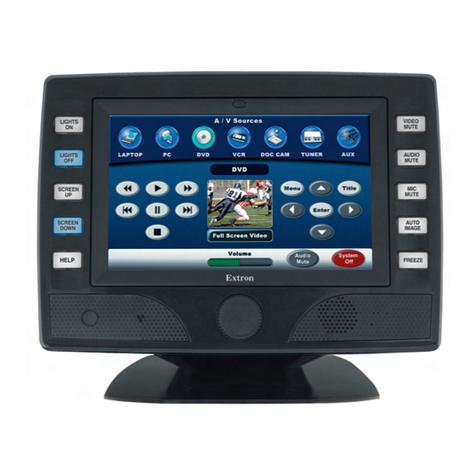
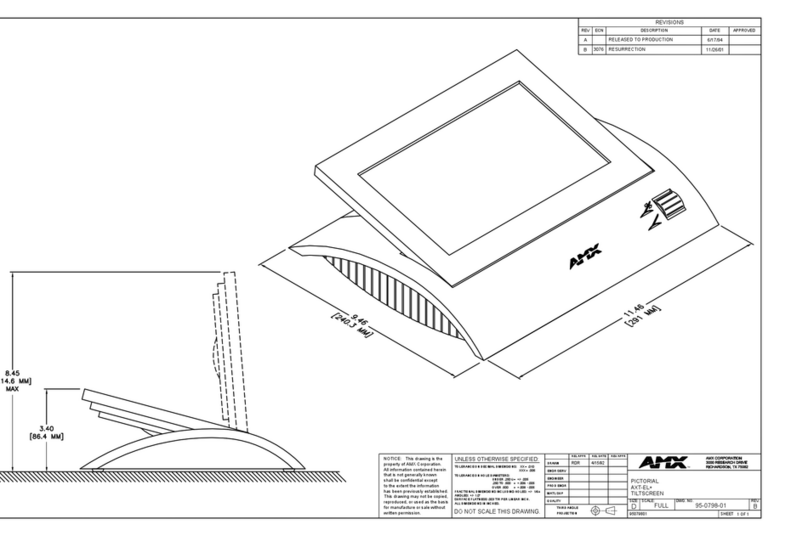
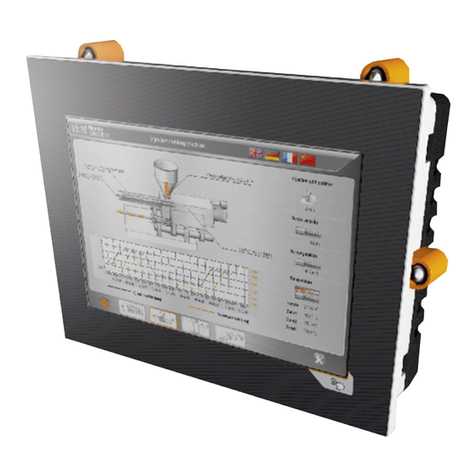
Figure 3
1 foot extension – Part Number 15663NOS
4 foot extension – Part Number 15665NOS
8 foot extension – Part Number 15666NOS
12 foot extension – Part Number 15644NOS
NOTE: Do NOT use a Holley Avenger Handheld controller in conjunction with the touch screen LCD. Use only one or the other. Do
NOT have both connected to the CANbus wiring at the same time.
USB Connections – There is a standard USB connection on the back of the touch screen as well as a mini USB connection on the
side. These are NOT used at this time and are for future upgrades.
4.0 SD Memory Card
The SD memory card supplied with the touch screen (in the lower right side of the case) are a “SDHC” type (HC = High Capacity). If
you have a problem reading these cards, make sure your card reader can read the “HC” type. If you have problems, either procure a
newer card reader that can, or use a non-HC memory card. The Memory card is used for the following:
Saving Global Folders
Downloading Internal ECU Data Logs
Downloading new firmware to the ECU
5.0 Main Windows Screen
The Holley touch screen LCD operates on a Microsoft Windows CE platform. However, do not install applications other than what is
already installed as delivered. The basic operation on the main windows screen is the same with a windows PC. The “Start” bar allows
access to typical functions, such as “Settings” and “Programs”. Other than changing the power settings mentioned elsewhere in this
manual, there should be no need to access any of these functions.
The three Holley EFI programs loaded on the touch screen are:
HEFI Config – Tuning application for all tuning parameters
HEFI Flasher – Allows for ECU firmware flashing/updating (once version 330 or higher has been installed via a laptop)
HEFI Gauges – A gauge program.
NOTE: Only one of these applications can be opened at the same time.
The “My Device” icon in the top left, allows access to files located in the TSLCD hard drive or the SD storage card. There should be no
need to perform any changes in these areas. Files on the SD card are located under “Storage Card”.
Should the system “lock up” – It is not an impossibility that something in the operating system can cause the Configuration
Application to “lock up”. If this is the case, you may need to perform a “suspend” operation. To do this, click on the “Start Bar” in the
lower left and select “Suspend”. This will turn off the unit. Then cycle the switched power (ignition key) and the unit will reboot.
5.1 Power Scheme –
The touch screen has a configurable time parameter such that when the ignition power is turned off and turned back on, the touch
screen will come back up to the same screen as when the power was shut off (for example if you want to always have a gauge screen
appear). After this time expires, the system will completely suspend/turn off, and when the unit is turned back on, it reboots back to the
main windows screen. The unit will draw a very small amount of current in this mode. This value can be changed between 1 second
and up to 7 days. The default value is 24 hours. To change this, select “Start”, “Settings”, “Control Panel”, the “Power” icon, then
“schemes”. You will see a parameter called “Power Scheme”. You can select between “Ignition ON” and “Ignition OFF” for the power