5
If you are unable to complete the WiFi connection process, or your device was previously connected and
operating normally, attempt the following before proceeding:
• Power cycle your WiFi Router (unplug for 30 seconds and then plug back in).
• Power cycle your thermostat (unplug for 30 seconds and then plug back in).
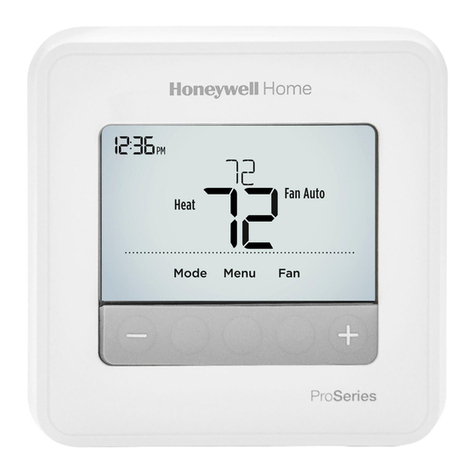
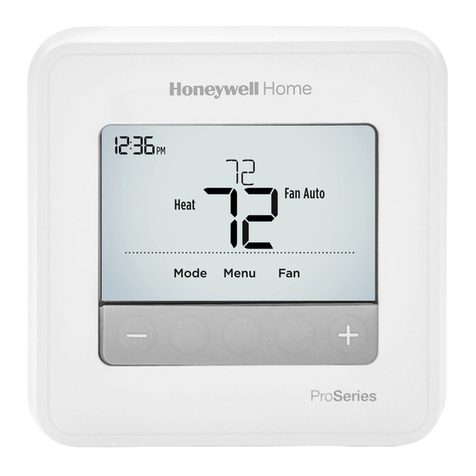
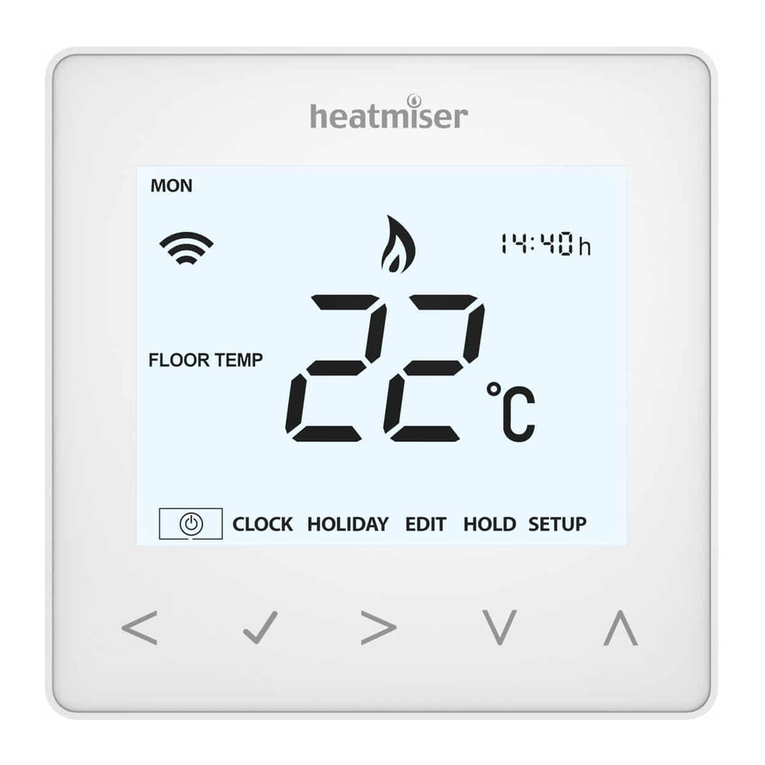
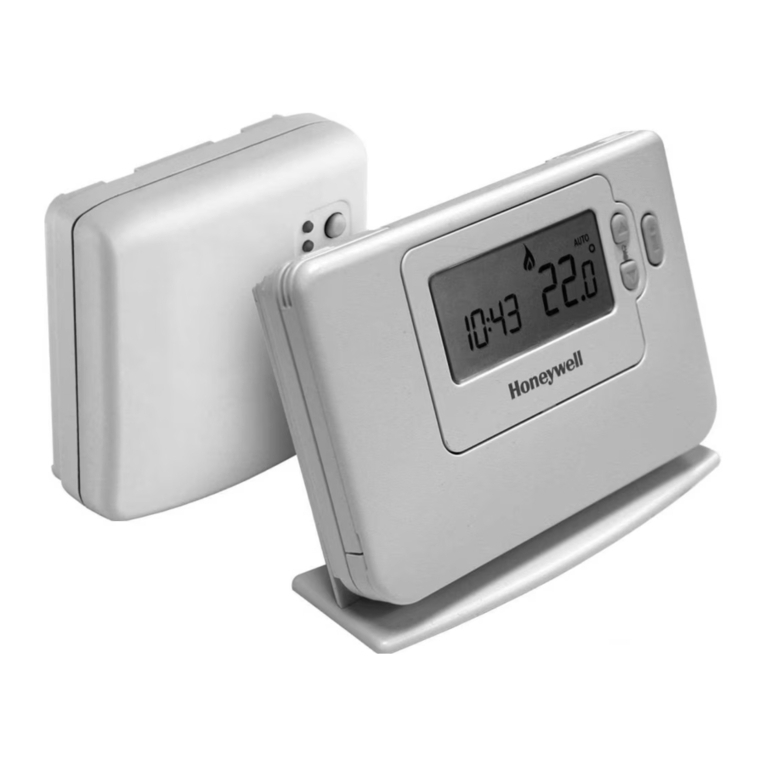
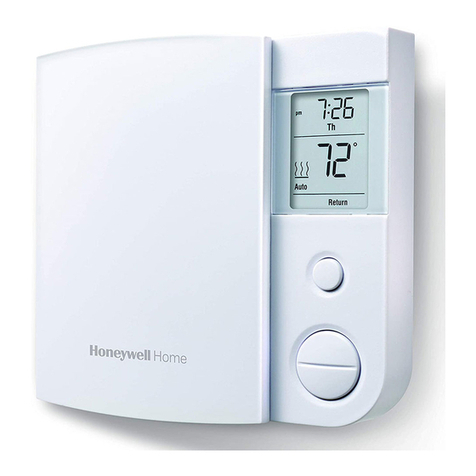
• Check the thermostat screen. If a WiFi signal strength icon is visible and not “crossed through” your
device reconnected to the WiFi successfully. If it did not, continue.
1 Connect your mobile device directly to the thermostats WiFi network (named New_Thermostat xxxxxx).
2 Using a web browser on your mobile device, access the thermostats “WiFi Setup” page and select your
home network and enter the password.
3 On your mobile device, open an internet browser (Safari, Chrome, etc.). If you are not automatically routed
to a “Thermostat WiFi Setup” page, enter 192.168.1.1 in the browser’s address bar.
If the “Thermostat WiFi Setup” page does not appear, navigate to Settings on your mobile device and verify
you are still connected to the “New Thermostat xxxxxx” network. Your mobile device must remain connected
to this network until the home WiFi is selected from the “Thermostat WiFi Setup” page and the password
is entered. Some features like “smart switch” (or any feature that allows the phone to disconnect/reconnect
to alternate networks automatically) may need to be disabled until the thermostat connection process is
complete. You may require support from your phone manufacturer to verify these settings are disabled, or
alternatively, try connecting with another mobile device model.
4 From the list of available WiFi networks, select your home WiFi network and enter the password.
If your home WiFi network is not listed, verify it is broadcasting a 2.4Ghz signal, and that it is not a hidden,
business (enterprise), or guest network. You may need assistance from your ISP or router support to verify the
network and security type.
5 Go to your thermostat screen and select the message displayed on your mobile device. Once “Success” is
shown, the thermostat has been successfully connected to the local WiFi network.
6 Log in to mytotalconnectcomfort.com and register your product for remote use.*
*If your device was previously registered to your account (You could control it previously from the web portal/
mobile app), skip this step. Log into the web portal or Total Connect Comfort app and control your thermostat
normally.
If you receive an error that “the thermostat is already registered,” contact the previous owner and ask that they
delete the thermostat from the web portal, or contact Resideo Customer Care for assistance unregistering your
device.
Wi-Fi setup not displayed
If “WiFi Setup” was not displayed on the front of your thermostat, your thermostat may have been previously
connected to another WiFi network. Perform the following to “forget” the previous network:
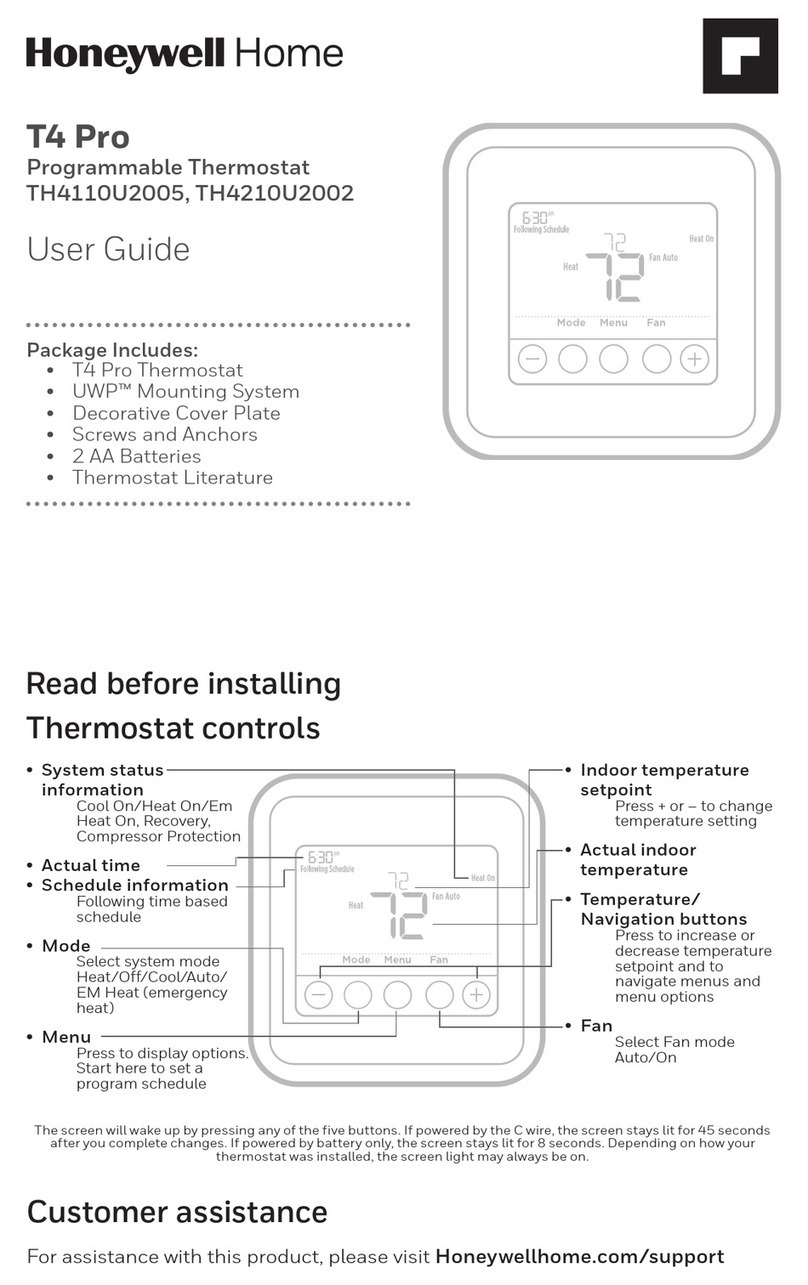
• Press and hold the Fan and sbuttons simultaneously arrow until the screen changes.
• Press Next until “39” is displayed on the left side of the screen.
• Press the sor tbuttons until the 1 on the right side of the screen changes to 0.
• Press Done. (Allow 2 minutes for “WiFi Setup” to appear on the thermostat screen.)
On your mobile device, turn on Airplane mode, then turn on your WiFi, then select and connect to the
New Thermostat_123456 (numbers will vary) network. In cases where your phone can connect to multiple
networks, we recommend “forgetting” all other network except the WiFi network that the thermostat will be
connecting to.
If you receive a pop-up or notification that “this network does not have access to the internet,” this is normal.
Select “stay connected” to remain connected to the thermostats WiFi connection for this step.
If still unsuccessful, attempt to connect and register the thermostat to a mobile hotspot or alternate WiFi
network. This allows the registration data to bypass any network security that may be causing the connection
failure. Once successfully registered, a WiFi reset can be performed to move the thermostat to the home
WiFi network.
Advanced WiFi setup