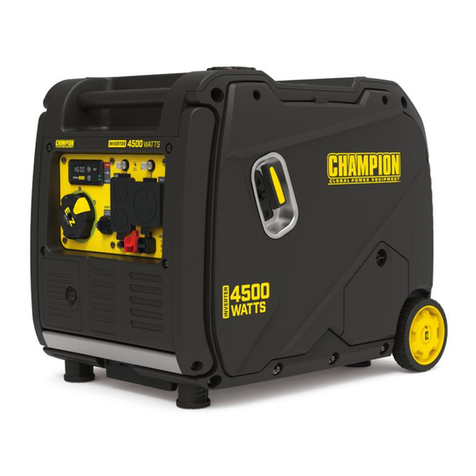
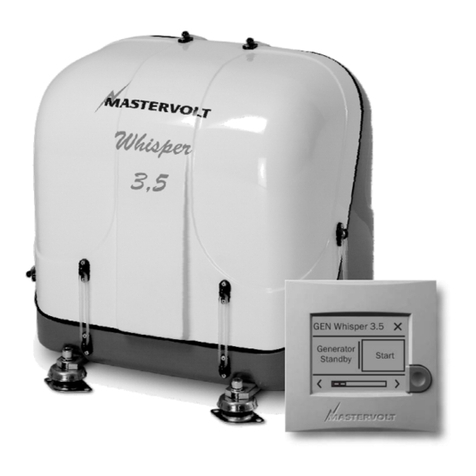
HuntKey Nature's Generator User manual

Nature's Generator
User Manual

Nature's Generator
Contents
Important Safety Instrucons
Warning
Cauon
Introducon
Unpack Your Nature's Generator
Get to Know Your Nature's Generator
Using Your Nature's Generator
How to Recharge Your Nature's Generator
How to Use Your Nature's Generator
How to Read the LCD Display
How to Use Your Nature's Generator Smart Key
Troubleshoong
Technical Specificaons
Limited Warranty
The Nature’s Smartest, Infinitely Expandable
Generator System
How to Expand the Capacity of Your Nature's Generator
How to Maintain and Store Your Nature's Generator
1
1
2
3
3
4
6
6
7
8
9
9
9
10
11
12

1
Important Safety Instrucons
1. Read these instrucons.
2. Keep these instrucons.
3. Take care of all warnings.
4. Follow all instrucons.
5. Do not use this apparatus near water.
6. Do not block any venlaon openings.
7. Do not use near flammable gases or fumes or other apparatus that produce a large amount of
heat.
8. Only use aachments/accessories specified by the manufacturer.
9. Use only with the cart specified by the manufacturer, or sold with the apparatus. When a cart is
used, use cauon when moving the cart/apparatus combinaon to avoid injury from p-over.
10. Refer all servicing to qualified service personnel. Servicing is required when the apparatus has
been damaged in any way, such as power-supply cord or plug is damaged, liquid has been spilled or
objects have fallen into the apparatus, the apparatus has been exposed to rain or moisture, does not
operate normally, or has been dropped.
11. The apparatus should not be exposed to dripping or splashing, and no objects filled with liquids,
such as vases, should be placed on the apparatus.
Warning
Electric shock hazard
Keep away from children. Nature's Generator generates the same potenally lethal AC power as
a normal household wall outlet. To reduce the risk of fire or electric shock, do not remove any
cover or expose the device to rain or moisture. Do not insert foreign objects into the AC Outlet
or the venlaon holes.
Explosion hazard
Do not burn or incinerate this item. This item may explode, causing personal injury or damage. Do
not use near flammable gases or fumes or other apparatus that produces large amounts of heat.
Lightning hazard
For added protecon for your device during a lightning storm, unplug it from the power outlet and
disconnect the cables. This helps to prevent property damage and personal injury from lightning
and power line surges.
Energy and burn hazard
Nature's Generator has a sealed lead acid baery, which can present a risk of burn from high current
because of short-circuit.
Replacement parts
When replacement parts are required, make sure that the service technician uses replacement parts
specified by the manufacturer that have the same characteriscs as the original part. Unauthorized
substuons may result in fire, electric shock, personal injury, or other hazards.
Visit Naturesgenerator.com for More Information

2
Cauon
Damage requiring service
Stop using the Nature's Generator and refer servicing to qualified service personnel under the
following condions:
• If liquid has been spilled or objects have fallen into your Nature's Generator.
• If your Nature's Generator has been exposed to rain or water.
• If your Nature's Generator has been dropped or damaged in any way.
• When your Nature's Generator exhibits a disnct change in performance.
Cold weather
Cold temperatures can impact Nature's Generator performance. If you’ll be living below freezing,
we recommend keeping your Nature's Generator in an insulated locaon and connected to a
solar panel.
End of life direcves
Your Nature's Generator may contain materials that are regulated for environmental reasons. Your
Nature's Generator also contains materials that can be recycled and reused. To help protect the
environment, contact your local authories for informaon about disposal or recycling and about
finding a recycler in your area before you dispose of your Nature's Generator.
Safety check
Aer compleng any service or repair to this device, ask the service technician to perform roune
safety checks to determine that your Nature's Generator is in correct operang condion.
Servicing
These servicing instrucons are for use by qualified service personnel only. To reduce the risk of
electric shock, do not perform any servicing other than that contained in the operang instrucons
unless you are qualified to do so.
Visit Naturesgenerator.com for More Information

3
Introducon
Congratulaons on your new Nature's Generator, a state-of-art generator that provides reliable
power for emergencies, off grid living, or wherever power is needed. With Nature's Generator
app NaturesPulse, you can proacvely diagnose the system, track the usage and communicate
the issues.
Unpack Your Nature’s Generator
1. Nature's Generator
2. AC Power Cord (In the storage compartment)
4. This user guide
3. Nature's Generator Smart Key
Visit Naturesgenerator.com for More Information

4
Get to Know Your Nature’s Generator
Front Panel
AC Outlet Ports: Three pure sine wave AC outlets.
12V Port: 12V DC port is designed to
provide up to 240 was of power.
AC Input: To connect the wall outlet using the included power cord or any household
power extension cord.
Solar Input: To connect with solar panel(s). This Anderson port is designed to
be used with up to 200 was of solar power.
Wind Input: To connect with wind turbine. This Anderson port is designed to be used with
up to 300 was of wind power.
LCD Display: LCD display shows the informaon of the system.
LCD Display Buon: Press it to light up LCD display
for 30 seconds.
Main Power Switch: Turn on or off the
main power of your Nature's Generator.
USB Ports: Both USB ports can recharge
the smart phones or other mobiles
devices that are powered by USB. Top
USB port with Bluetooth icon is
specifically for the Smart Key.
AC Outlets Switch: Turn on or off the AC outlets.
Visit Naturesgenerator.com for More Information
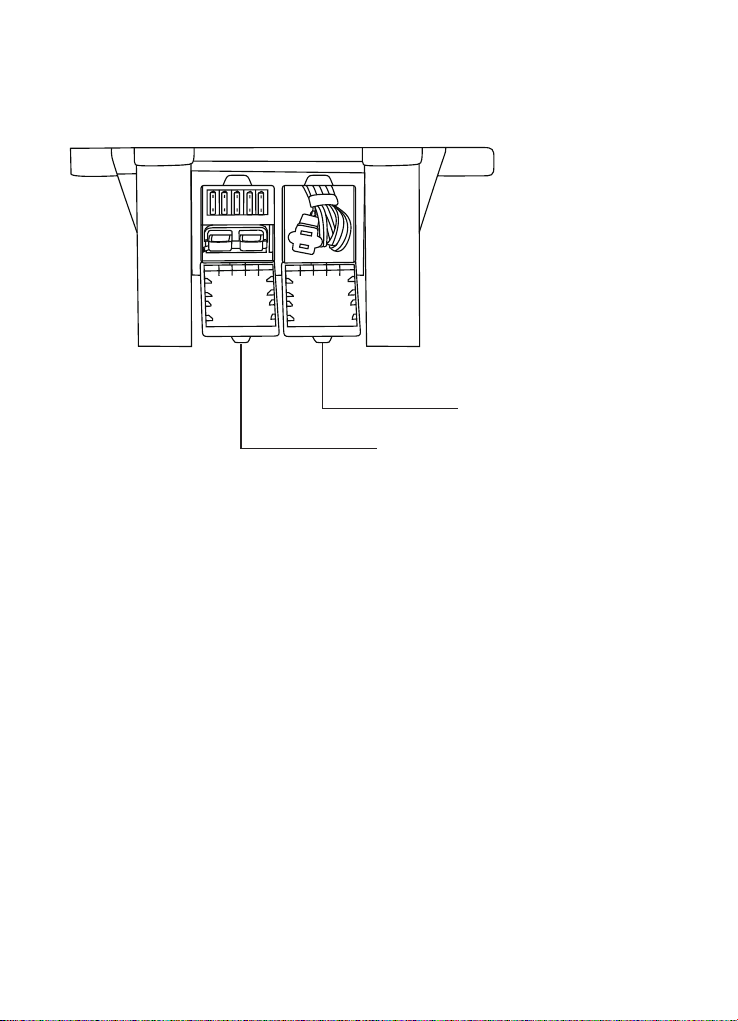
Back Panel
Expansion cord:
Daisy chaining fuses and Daisy chain connector.
Storage: For storing the power cord.
5
Visit Naturesgenerator.com for More Information

How to Recharge Your Nature’s Generator
Recharging from Solar
1. Place your solar panel where it will get as much direct sunlight as possible. While direct sunlight
in always preferred, solar panels should be connected at all mes to provide a consistent trickle
charge to your baery. Solar panels will also send a charge to your unit while in hazy or overcast
skies.
2. Insert solar panel plug into Solar Input port on the front of Nature's Generator. You will know
it is recharging when LCD display lights up, solar panel icon is illuminated and baery bar starts
running. The baery bar stops running when the baery is full or there is not enough power
from solar panel.
3. It takes about 10 to 15 hours to recharge Nature's Generator if using 100 wa solar panel,
depending on the strength of the sunlight.
4. To increase the recharging speed, you can chain mulple solar panel in parallel connecon.
The Solar Input port can handle up to 200 wa solar panel. Visit Naturesgenerator.com for
informaon on purchasing addional solar panels.
Recharging from Wind
1. Place your wind turbine where it will get as much wind as possible.
2. Insert wind turbine plug into wind Input port on the front of Nature's Generator. You will know
it is recharging when LCD display lights up, wind turbine icon is illuminated and baery bar starts
running. The baery bar stops running when the baery is full or there is not enough power
from wind turbine.
3. The recharging speed depends on wind turbine power rang and the strength of the wind. The
wind input port can handle up to 300 wa wind turbine. Visit Naturesgenerator.com for more
informaon about wind turbine.
Recharging from AC Power
1. Locate the power cord in the storage compartment on the back of the Nature's Generator.
2. Insert the power cord to the AC Input Port of the Nature's Generator.
3. Plug the other end of power cord to the wall outlet. You will know it is recharging when LCD
display lights up, AC input icon is illuminated and baery bar starts running. The baery bar stops
running when the baery is full.
Recharging from the Car
You can use DC extension cord (not included in the box) to recharge the Nature's Generator by
using 12C DC port. This method is not recommended because it recharges much slower and the
LCD display doesn’t light up.
Using Your Nature’s Generator
6
Visit Naturesgenerator.com for More Information

7
How to Use Your Nature’s Generator
1. Press the Main Power Switch to turn on your Nature's Generator. USB port will be on
automacally when Main Power Switch is on.
2. Press the AC Outlet Switch to turn on the AC outlets. When not using AC outlets, make sure to
turn off AC outlet switch to conserve power.
3. You’ll know the port is turned on when the icon is illuminated on LCD display.
4. Plug in any of your device for power.
Uninterrupted Power Supply (UPS) Mode
1. You can recharge your Nature's Generator and recharge your devices at the same me.
2. If you recharge your Nature's Generator at the same me when you power your AC devices
from AC Outlet Ports, your Nature's Generator turns into Uninterrupted Power Supply (UPS)
Mode. Your AC devices will receive power directly from the AC outlet. If power goes out, your
Nature's Generator will instantly kick on supplying the power for your AC devices.
3. LCD display shows UPS when it is in UPS mode.
Visit Naturesgenerator.com for More Information

8
How to Read the LCD Display
Baery Bar: 5 segment baery bar indicates charge in 20% increments. Once your Nature’s
Generator is fully recharged, all baery segments will remain solid.
Wind Turbine Icon: Indicates that your Nature’s Generator is being recharged by
wind turbine.
Solar Panel Icon: Indicates that your Nature’s Generator is recharged
by solar panel(s).
AC Input Icon: Indicates that your Nature’s Generator is recharged by the wall.
Bluetooth Icon: Indicates that your Nature’s Generator is connected with
your smart phone by the Nature’s Generator Smart Key.
Expansion (Chain Link) Icon: Indicates when your Nature’s Generator is
daisy chained to the Nature’s Generator Pod by the expansion port. Visit
NaturesPowerPod.com to purchase the Nature’s Power Pod.
AC Outlet Icon: Indicates when the AC outlet switch is turned on.
Waage Display: Indicates how much power is being used.
Uninterrupted Power Supply Mode, will show UPS.
USB Icon: Indicates when your Nature’s Generator is
turned on and USB port works normally.
12V DC Icon: Indicates when your
Nature’s Generator
is turned on and 12V
DC port works normally.
Baery Fail Icon: Indicates
when the baery needs
replacement.
Baery Low Icon: Indicates
when the baery voltage
is low.
Temperature Warning Icon:
Indicates when the internal
temperature is too high.
FUSE Icon: Indicates when
the fuse is blown.
AC! Icon: It is illuminated
when the AC inverter is
being protected and stops
working.
Output Bar:5 segment
output bar indicates the
usage of the power. The
segment runs from the
boom to the up, indicang
light, medium light, medium,
medium heavy and heavy
power usage.
Visit Naturesgenerator.com for More Information
Table of contents