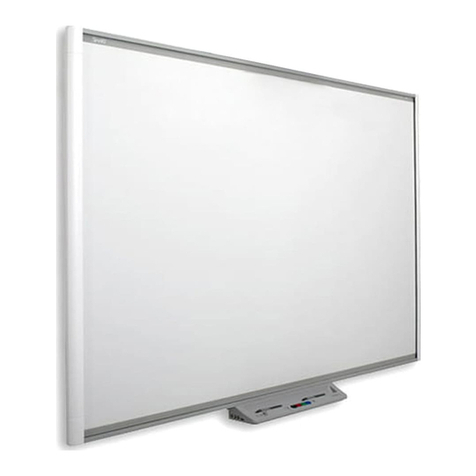
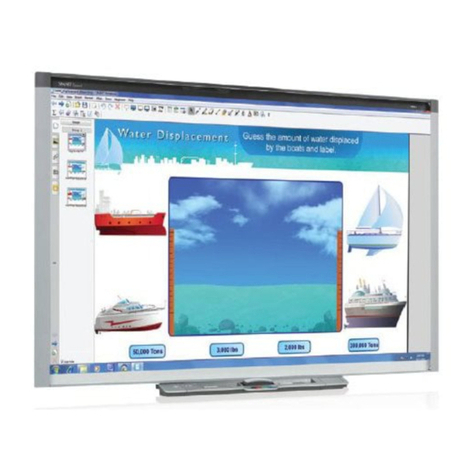
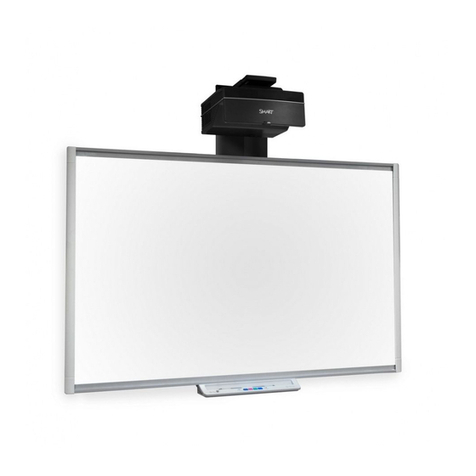
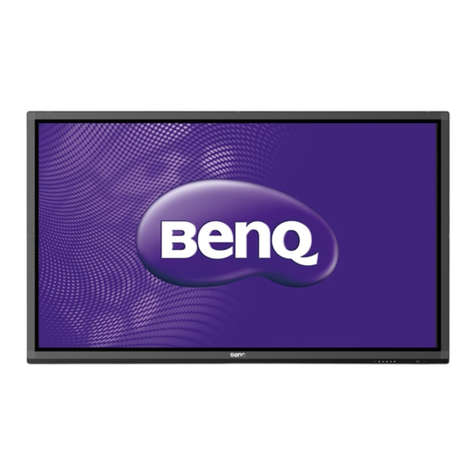
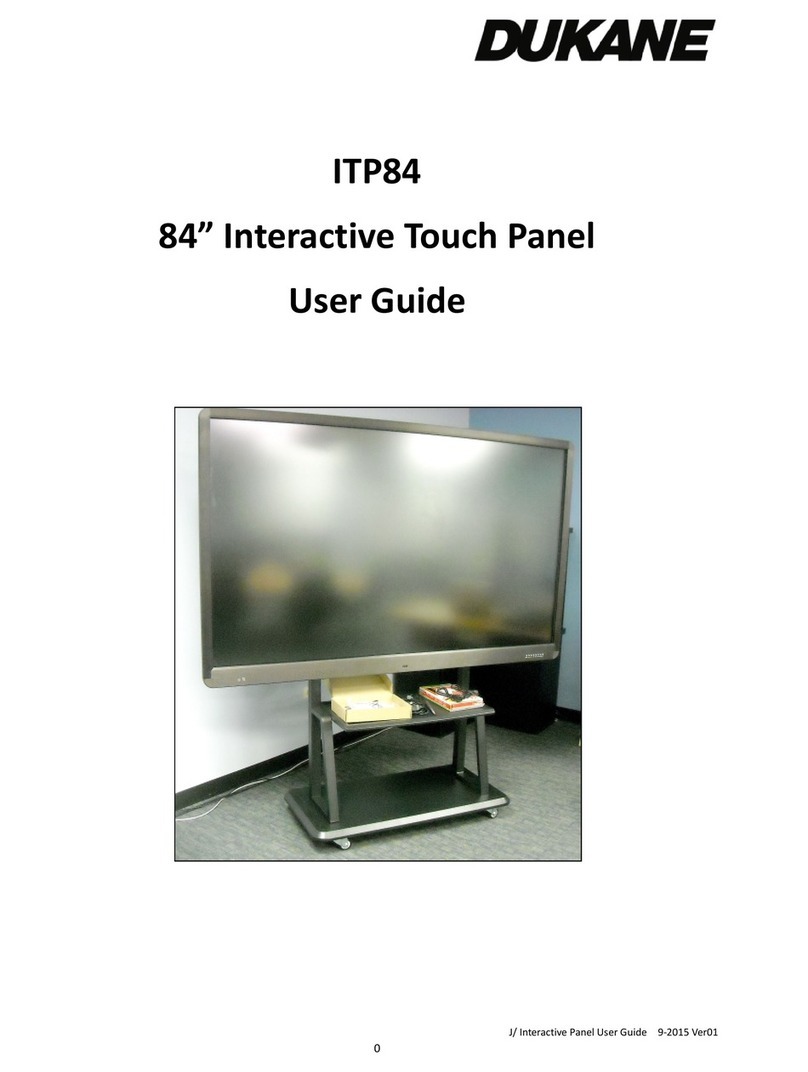
iBoard 9065 User manual

Interactive Tools for Knowledge & Communication
USA and Canada, Toll free: 1-888-426-2730 | International: 1-619-367-1401 [email protected] www.iboard.ca
iBoard 9000 Series
User’s Guide

2
iBoard 9000 Series - User’s Guide
Welcome
Thank you for choosing iBoard Interactive Tools for Knowledge & Communication. Please read carefully, the
user guide provided will help you set up your product for proper functioning and provide you with years of
trouble free service. We trust you will be able to make the most of this product.

3
Table of Contents
About your Interactive Display Panel 4
Introduction 4
iBoard Features and Benets 4
Listed Contents 5
Interactive Display Components 6
Important Information 8
Safety Precautions 8
Setup Procedures 8
Calibration 8
Area settings 10
Touch Settings 12
Time Settings 13
Wheel/ Zoom Sensitivity Settings 13
Sensor Settings 13
Enable/Disable Touch Screen 14
Buzzer 14
Short cut Keys 14
General Settings 16
Language 16
Tray Icon 16
Using your iBoard Interactive Display 17
Turning your iBoard Interactive display on / o 17
Using Windows 8 18
Touch gestures 19
Using your remote control 20
Touch commands that your touch system recognizes 21
Touch actions that the touch system recognizes 21
Tips on using your iBoard 22
How to reset or restart the unit 22
How to connect an external computer 22
Using gesture control 22
Using Chalkbox 23
Drawing Pane 24
The Color and Thickness Pane 25
Accessories Pane 26
Right Tab 27
Maintenance and cleaning 27
Troubleshooting for your interactive display 28
iBoard 9000 Series - User’s Guide

4
iBoard 9000 Series - User’s Guide
About your Interactive Display Panel
Introduction
The iBoard 9065 sets a new precedent in interactive board technology. Maximizing content and information
delivery for academic, corporate, and other professional and learning environments. The iBoard performs a
myriad of functions using high performance technology; ranging from simple presentations to interactive
presentations using touch inputs to
iBoard Features and Benets:
Premium class Full HD LED-LCD display creates stunning visuals in high quality for increased
engagement.
Anti-reective glass eliminates unwanted reections and glare, accommodating for observers
situated at dierent angles and distances from the screen.
Latest Intel developed technology permits ecient interconnection between digital video and
audio systems, minimizing maintenance and upgrades.
Multi-touch features enable recognition of dierent touch inputs on the screen, while the touch
gestures function dierentiates touch actions taken on the screen, such as: zoom, erase, rotate,
ick, and others.
Integrated multi-touch sensors system provide personalized solutions such as:
• Using the multi-touch features on many programs without the need to use an input device
such as a mouse or a keyboard.
• Customizing touch actions on the screen to personalize them in a unique way.
Open system compatibility allows it to run Microsoft Windows or various versions of Linux.

5
Listed Contents
Verify that the listed parts below are included when unpacking your iBoard:
1. iBoard 9065
2. Remote Control
3. Power Cord
4. User’s manuals
iBoard 9000 Series - User’s Guide
1 2
3 4

6
iBoard 9000 Series - User’s Guide
Interactive Display Components
Front View
Number Function
1 Front Control Panel
2 Left Speaker
3 LED Status Indicator
4 Right Speaker
5 IR Control Sensor
Front Control Panel
Number Function
1Power
2 Volume -
3 Volume +
4 Up Arrow
5 Input/Source
6Down Arrow
7 Menu

7
Side View
Number Function
1 (OPS) Open Plugable System Computer
2 Firmware Upgrade USB Port
3 HDMI Port
4 USB 3.0 Ports
5 On/O Switch
6 Power Outlet
OPS Computer
Number Function
1 HDMI Port
2 USB 3.0 Ports
3 Ethernet Ports
4 2.5 “ Hard Drive
iBoard 9000 Series - User’s Guide

8
iBoard 9000 Series - User’s Guide
Important Information
Safety Precautions
Proper caution should be taken at all times, since the 80 kg weight of the iBoard may be
overwhelming.
When installing or relocating the equipment, it is strongly advised to have at least two strong
people to lift and move the iBoard.
Proper installation that secures the iBoard in place is essential to avoid any undesired movements
and/or accidents. Be sure to:
• Secure screws correctly that will bear the weight of the iBoard
• Install only to a strong and sturdy wall
Make sure to place cabling in a secure place to avoid any accidents.
Setup Procedures
If your iBoard was installed by an iBoard authorized service technician the initial touch system calibration will
be performed for you, however from time to time you may notice that the pointer and cursor do not perfectly
coincide which is an indication that your system may need to be recalibrated. It should also be noted that if
the screen resolution should ever change that you will need to recalibrate the system.
Calibration
Calibrating your iBoard is a quick and simple task that can be done at any time. To calibrate the system, start
by either connecting a USB mouse into an available USB port on the side of the iBoard or use your nger to
click and launch the installed T3K Congurator software. By default, a link to the program can be found on the
Desktop as shown below.
`

9
Once the program is launched, the following window will appear where you will see a list on the left side of
the window. To begin calibrating the touch system, click on the Calibration key.
The following window will appear where you can customize the time delay between a double click or the
amount of time your nger must touch the screen for to be recognized as a single click.
For touch calibration, click on the Calibration button.
iBoard 9000 Series - User’s Guide

10
iBoard 9000 Series - User’s Guide
Next, the following window will appear prompting you to press a pointer accurately in the center of each red
blinking cross. The system will emit a sound when the pointer is recognised and a second cross will begin
blinking once the pointer is removed from the screen. Once all four points are recognised, the system will be
calibrated and the calibration utility will close automatically.
Area settings
Here you can customize the way you interface with the iBoard’s touch system in terms of the % area of the
screen the pointer must stay within to be recognized for such functions as single click, double click, put & tap,
and palm gestures. The values are measured in % of the active screen area and can be changed depending on
user preference.
When a person taps on the touch surface, there are two things that the touch system recognizes. One is the
initial touch and the other is the lifting of the pointer from the touch surface. The table below oers a visual
representation of how the touch system validates a user’s input.
Table of contents