Icidu NI-707524 User manual

M A N U A L N I- 7 0 7 5 2 4
CARDBUS ADAPTER
WIRELESS 300N
300 MBPS

ENGLISH
-CONTENTS OF THE PACKAGE 4
-TECHNICAL SPECIFICATIONS 4
-RANGE OF APPLICATIONS 4
-HARDWARE INSTALLATION 5
-INSTALLING THE SOFTWARE 6
-SOFTWARE UTILITY FOR THE ADAPTER 7
-WPS CONFIGURATION 10
-WARRANTY 10
-CE/FCC 11
2

Thank you for buying this wireless product. If you want to interconnect several
PC’s for shared wireless Internet acces, you will need an additional component
for the connection between your PC and/or laptop.
3
CARDBUS ADAPTER
WIRELESS 300N
300 MBPS

ENGLISH
CONTENTS OF THE PACKAGE
Before starting your installation rst check that all necessary parts are present.
The box should contain:
CARDBUS ADAPTER NI-707524
- Wireless Cardbus adapter
- CD with drivers and full manual
- User manual
TECHNICAL SPECIFICATIONS
- 802.11n wireless protocol.
- Compatible with the IEEE802.11g and IEEE802.11b standard.
- Supports WPA/WPA2 data security, IEEE802.1x authentication,
TKIP/AES encryption.
- Supports 150/54/48/36/24/18/12/9/6Mbps or 11/5.5/3/2/1Mbps wireless LAN
data transfer rates.
- 64/128/152 bit WEP encryption.
- High Speed Data Rate max. 300Mbps.
- Supports Windows 2000, XP and Vista.
RANGE OF APPLICATIONS
This wireless product allows you to connect seamlessly with the ICIDU Wireless router.
This enables you to use a wireless Internet connection, among other things, and share
les and/or printers.
4
HARDWARE INSTALLATION
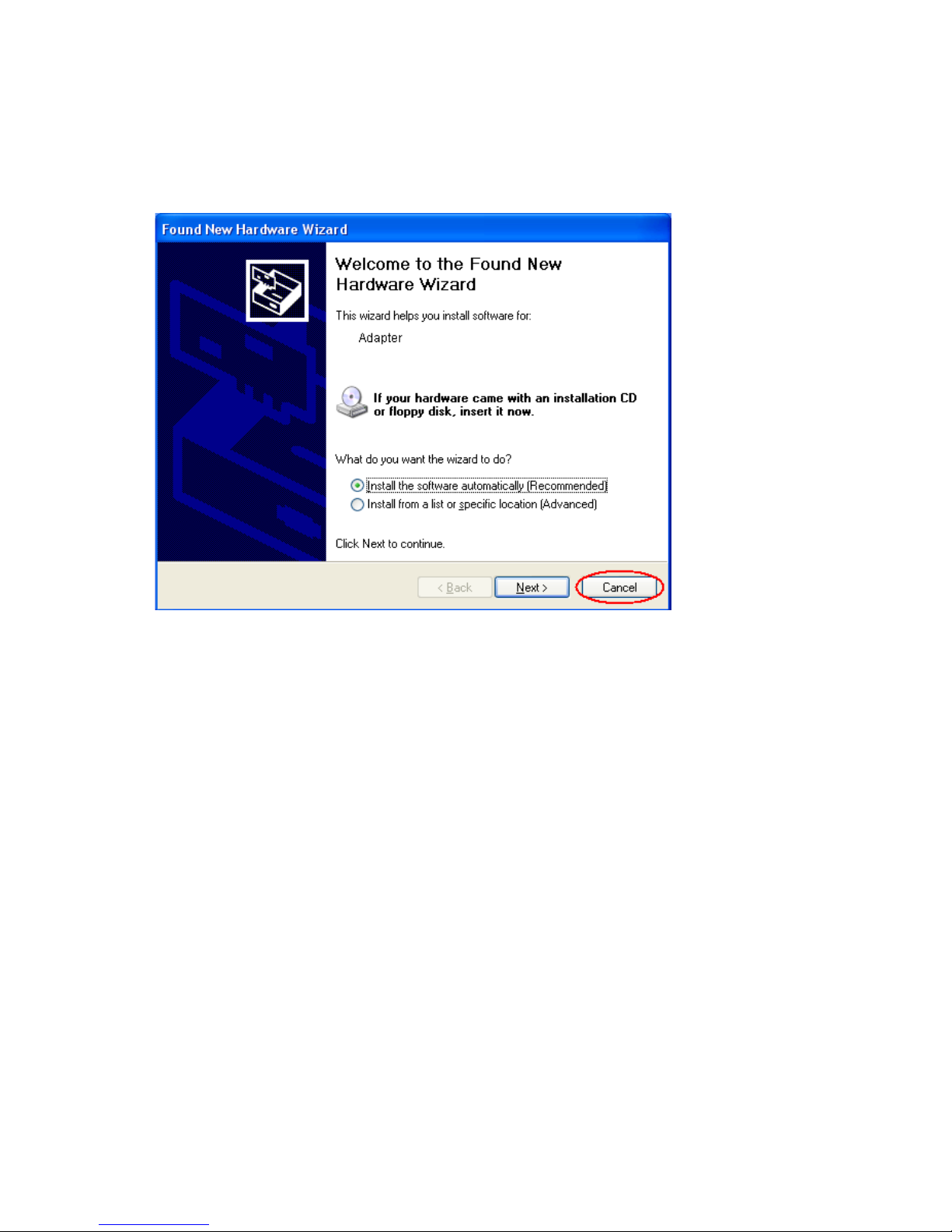
When you have installed all the hardware and restarted the computer,
the Found New Hardware Wizard is displayed. Click “Cancel”.
5
INSTALLING THE SOFTWARE
Depending on the operating system you use, follow the instructions below
to install the wireless product.
Below you will nd a specication of the installation le paths. “X” is the
drive letter of the CD/DVD player.
Go to “Start” “Run”
INSTALLING THE ADAPTER
X:\Drivers\Setup.exe
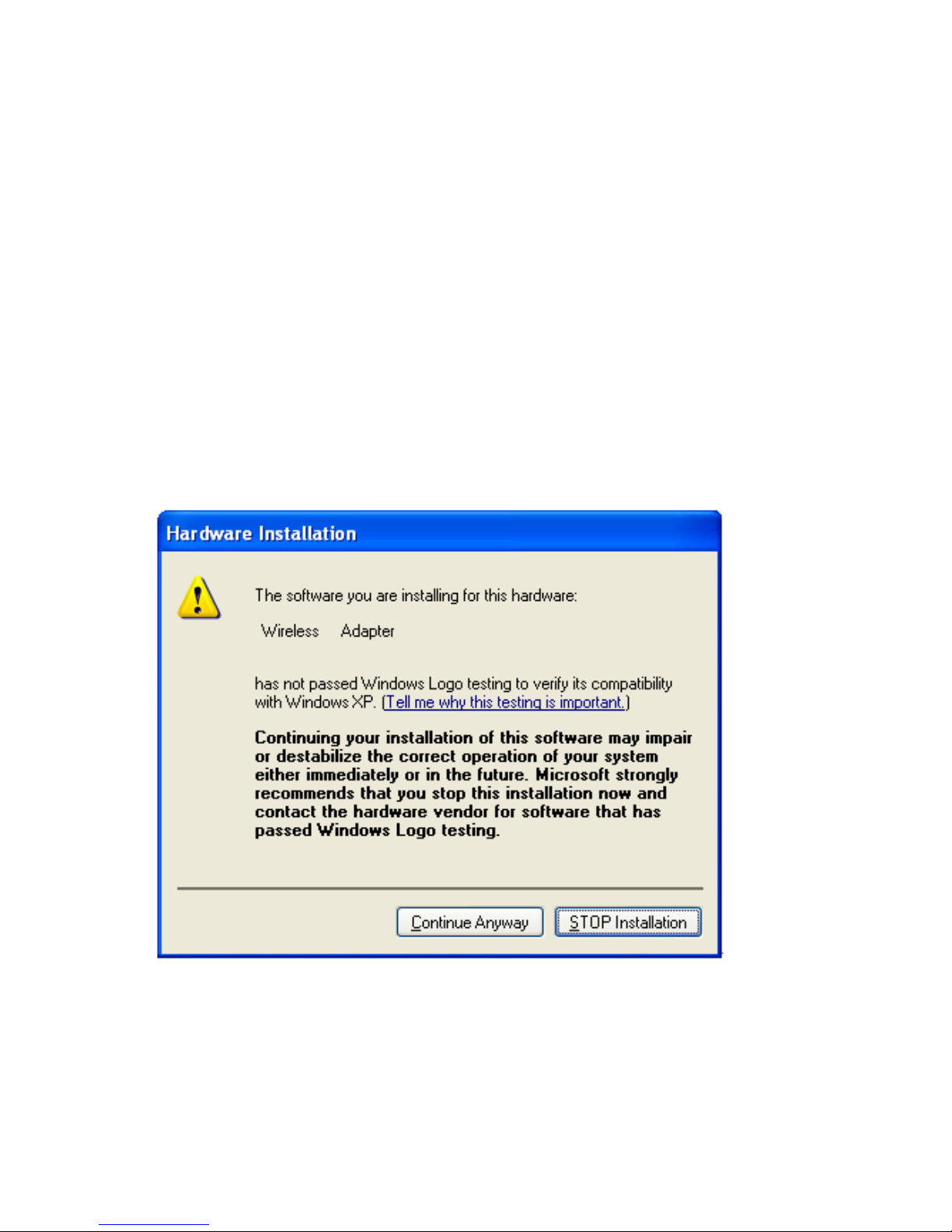
During the installation a message is displayed with the Windows Logo test. Click
“Continue Anyway”.
6

SOFTWARE UTILITY FOR THE CARDBUS ADAPTER
Click on “Wireless Utility” on your desktop. The following window is displayed.
Click on “Scan”.
A list of available wireless networks is displayed, select your network and click
“Activate”.
In the next screen enter the prole name you want to give your wireless network.
Click on the “Security” tab. Enter the same encryption code you entered for the router.
If the encryption code is not correct, you will not be able make a connection.
After you have entered all the required data, click on “Save”.
7

8

Click the “Current status” tab to view the status of your wireless network.
NOTE
To get the most out of your wireless products, please see the
complete manual on the CD-ROM.
9
WPS CONFIGURATION
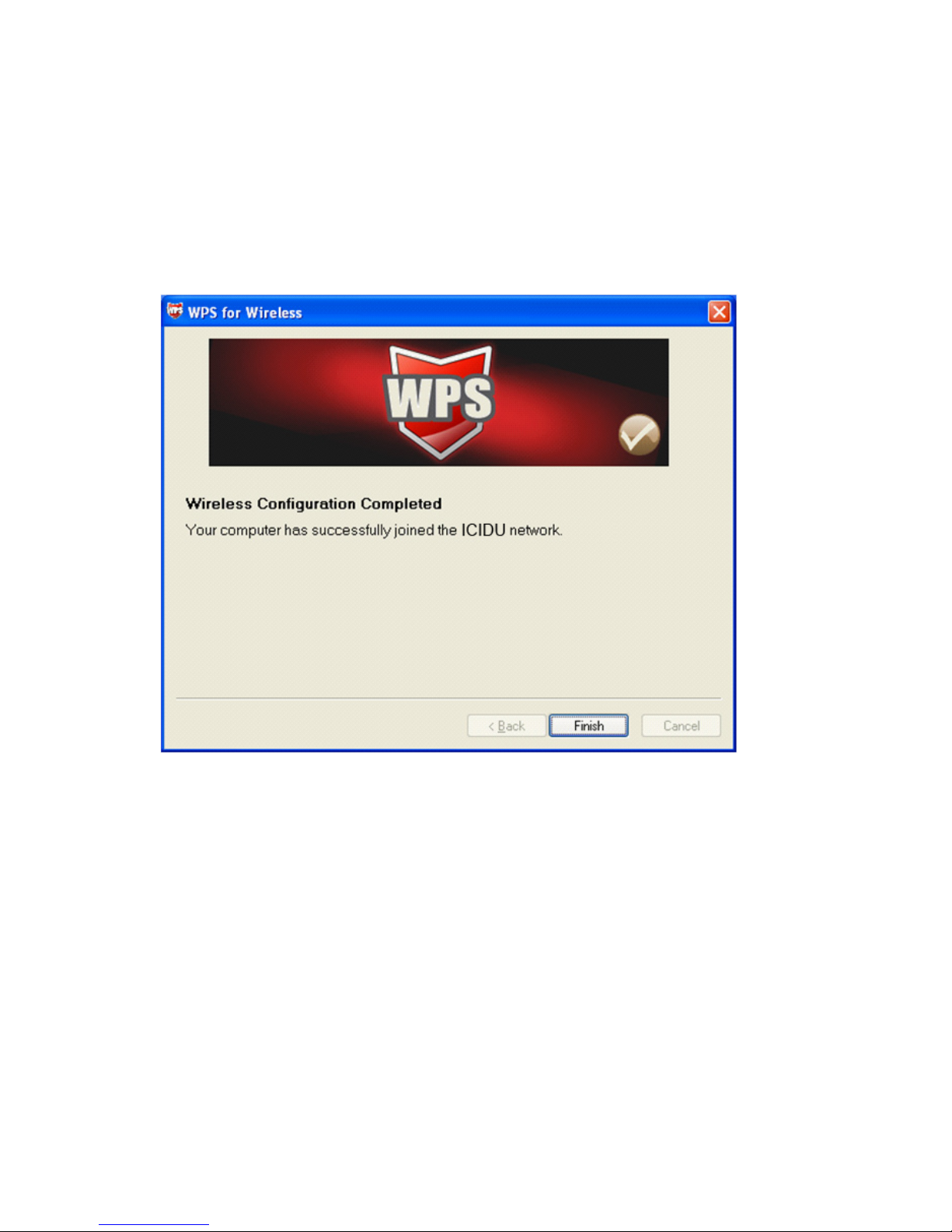
WPS (Wi-Fi Protected Setup) function allows you to add a new wireless device to an
existing network quickly. WPS can only be used if the router also supports this feature.
First, the WPS software should be installed, which is on the CD. Then, please follow the
step-by-step instruction to complete the WPS installation.
The WPS connection can also be established by making the connection in the software
utility. This will also enable you to use a PIN code.
WARRANTY
Unless specied otherwise, all items sold under the ICIDU name are covered by a
10-year warranty. No warranty or support is provided for the software and rechargeable
batteries that are provided. Claims under warranty can be made only via the dealer from
whom the item was purchased.
Specications can be changed without notice.
All ICIDU products comply with current European safety and environmental
standards and legislation. For further details, visit our website www.icidu.com
10
Other manuals for NI-707524
1