manuals.online logo
Brands
  1. Home
  2. •
  3. Brands
  4. •
  5. Intel
  6. •
  7. Desktop
  8. •
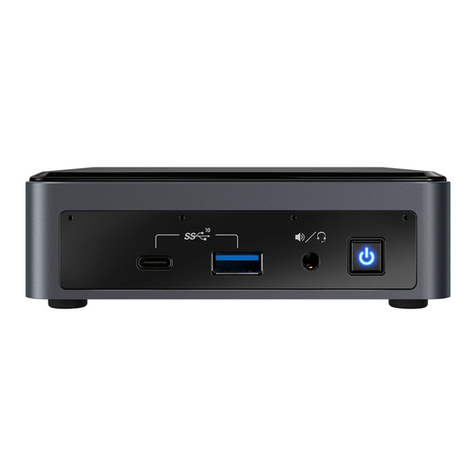
  9. Intel NUC 13 Pro Desk Edition User manual

Intel NUC 13 Pro Desk Edition User manual

Other manuals for NUC 13 Pro Desk Edition

1

This manual suits for next models

4

Other Intel Desktop manuals

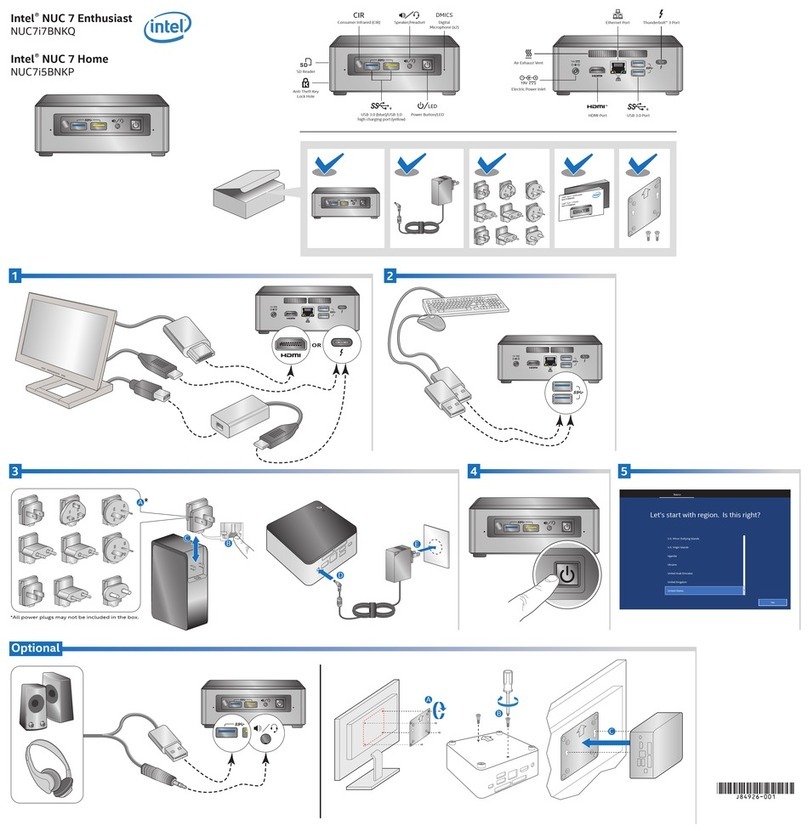
Intel NUC 9 User manual

Intel

Intel NUC 9 User manual

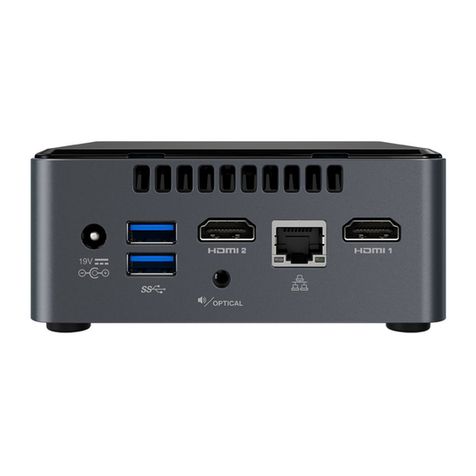
Intel NUC8i7BEH User manual

Intel

Intel NUC8i7BEH User manual

Intel SR2600UR - Server System - 0 MB RAM User manual

Intel

Intel SR2600UR - Server System - 0 MB RAM User manual

Intel NUC5i7RYH User manual

Intel

Intel NUC5i7RYH User manual

Intel NUC11BT User manual

Intel

Intel NUC11BT User manual

Intel NUC8i5BEK User manual

Intel

Intel NUC8i5BEK User manual

Intel PC On A Stick User manual

Intel

Intel PC On A Stick User manual

Intel LV19C Series User manual

Intel

Intel LV19C Series User manual

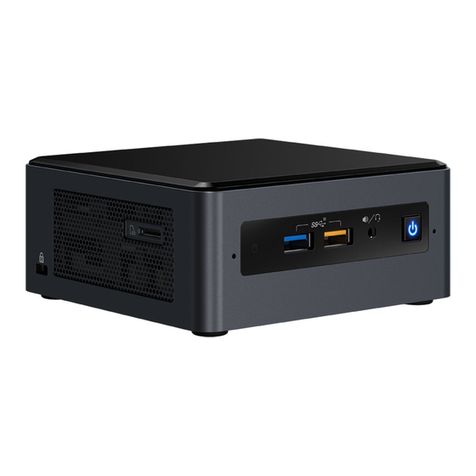
Intel NUC8i7BEK User manual

Intel

Intel NUC8i7BEK User manual

Intel inside MINIS FORUM User manual

Intel

Intel inside MINIS FORUM User manual

Intel NUC7i3DNKE User manual

Intel

Intel NUC7i3DNKE User manual

Intel NUC 7 Essential User manual

Intel

Intel NUC 7 Essential User manual

Intel NUC 13 Pro Mini PC NUC13ANKi7 User manual

Intel

Intel NUC 13 Pro Mini PC NUC13ANKi7 User manual

Intel SC5650SCWS User manual

Intel

Intel SC5650SCWS User manual

Intel NUC7CJYS Quick setup guide

Intel

Intel NUC7CJYS Quick setup guide

Intel NUC5i3RYK User manual

Intel

Intel NUC5i3RYK User manual

Intel NUC 12 Pro Kit NUC12WSHi3 User manual

Intel

Intel NUC 12 Pro Kit NUC12WSHi3 User manual

Intel Compute Card Dock User manual

Intel

Intel Compute Card Dock User manual

Intel SR2520SAXSR - Server System - 0 MB RAM User manual

Intel

Intel SR2520SAXSR - Server System - 0 MB RAM User manual

Intel NUC8i5BEH User manual

Intel

Intel NUC8i5BEH User manual

Intel NUC7i3BNHXF User manual

Intel

Intel NUC7i3BNHXF User manual

Intel NUC11PAKi7 User manual

Intel

Intel NUC11PAKi7 User manual

Intel NUC6i3SYH User manual

Intel

Intel NUC6i3SYH User manual

Intel NUC 8 Mainstream-G NUC8i7INH User manual

Intel

Intel NUC 8 Mainstream-G NUC8i7INH User manual

Popular Desktop manuals by other brands

StarTech.com ARMSTSL manual

StarTech.com

StarTech.com ARMSTSL manual

Dell Inspiron 5720 quick start guide

Dell

Dell Inspiron 5720 quick start guide

GÜDE WERKBANK GW 6/2 XL Translation of the original instructions

GÜDE

GÜDE WERKBANK GW 6/2 XL Translation of the original instructions

Lenovo ThinkCentre M62z Vodič za uporabnika

Lenovo

Lenovo ThinkCentre M62z Vodič za uporabnika

Lenovo ThinkCentre M71z user guide

Lenovo

Lenovo ThinkCentre M71z user guide

Fujitsu ESPRIMO C7xx operating manual

Fujitsu

Fujitsu ESPRIMO C7xx operating manual

Bosch DCU 130 operating instructions

Bosch

Bosch DCU 130 operating instructions

Zotac VR GO quick start guide

Zotac

Zotac VR GO quick start guide

HP 260 G2 DM Product End-of-Life Disassembly Instructions

HP

HP 260 G2 DM Product End-of-Life Disassembly Instructions

Sony VAIO VGC-LS21 Specifications

Sony

Sony VAIO VGC-LS21 Specifications

HP ProOne 400 G1 specification

HP

HP ProOne 400 G1 specification

IBM PS/2 60 Hardware maintenance service

IBM

IBM PS/2 60 Hardware maintenance service

Acer Aspire SA60 Service guide

Acer

Acer Aspire SA60 Service guide

Lenovo ThinkCentre M71z Uživatelská příručka

Lenovo

Lenovo ThinkCentre M71z Uživatelská příručka

IBM Aptiva 2198 reference guide

IBM

IBM Aptiva 2198 reference guide

Sony PCV-LX810 - Vaio Slimtop Computer System reference manual

Sony

Sony PCV-LX810 - Vaio Slimtop Computer System reference manual

Dell Precision U3525 Quick reference guide

Dell

Dell Precision U3525 Quick reference guide

MicroTouch IC-215P-AW2 user guide

MicroTouch

MicroTouch IC-215P-AW2 user guide

manuals.online logo
manuals.online logoBrands
  • About & Mission
  • Contact us
  • Privacy Policy
  • Terms and Conditions

Copyright 2025 Manuals.Online. All Rights Reserved.

1
Intel® NUC 13 Pro Desk Edition Mini PC NUC13VYK
User Guide –May 2023
Intel® NUC 13 Pro Desk Edition Mini PC NUC13VYKi70QC
Intel® NUC 13 Pro Desk Edition Mini PC NUC13VYKi70QA
Intel® NUC 13 Pro Desk Edition Mini PC NUC13VYKi50WC
Intel® NUC 13 Pro Desk Edition Mini PC NUC13VYKi50WA
User Guide
May 2023
2
Intel® NUC 13 Pro Desk Edition Mini PC NUC13VYK
User Guide –May 2023
You may not use or facilitate the use of this document in connection with any infringement or other legal analysis concerning Intel products
described herein. You agree to grant Intel a non-exclusive, royalty-free license to any patent claim thereafter drafted which includes subject
matter disclosed herein.
No license (express or implied, by estoppel or otherwise) to any intellectual property rights is granted by this document.
All information provided here is subject to change without notice. Contact your Intel representative to obtain the latest Intel product
specifications and roadmaps.
The products described may contain design defects or errors known as errata which may cause the product to deviate from published
specifications. Current characterized errata are available on request.
Copies of documents which have an order number and are referenced in this document may be obtained by calling 1-800-548-4725 or by
visiting: http://www.intel.com/design/literature.htm.
Intel technologies' features and benefits depend on system configuration and may require enabled hardware, software or service activation.
Performance varies depending on system configuration. No computer system can be absolutely secure.
Intel and the Intel logo are trademarks of Intel Corporation or its subsidiaries in the U.S. and/or other countries.
*Other names and brands may be claimed as the property of others.
Copyright © 2023, Intel Corporation. All rights reserved.
3
Intel® NUC 13 Pro Desk Edition Mini PC NUC13VYK
User Guide –May 2023
Contents
1.0 Introduction .........................................................................................................................................................5
1.1 Before You Begin ...............................................................................................................................................5
1.2 Installation Precautions ..................................................................................................................................5
1.3 Observe Safety and Regulatory Requirements ....................................................................................6
2.0 Open the Chassis...............................................................................................................................................7
3.0 Upgrade System Memory ..............................................................................................................................8
3.1 Upgrade to Different Memory......................................................................................................................8
3.2 Install Additional Memory .............................................................................................................................9
4.0 Changing the M.2 SSD.................................................................................................................................. 10
5.0 Close the Chassis............................................................................................................................................ 12
6.0 Connect Power ................................................................................................................................................ 13
7.0 Set Up Microsoft® Windows 11 ................................................................................................................ 14
8.0 Install the Latest Device Drivers and Software.................................................................................. 15
9.0 Operating System Recovery ...................................................................................................................... 16
4
Intel® NUC 13 Pro Desk Edition Mini PC NUC13VYK
User Guide –May 2023
Revision History
Date
Revision
Description
May 2023
1.0
Initial release.
5
Intel® NUC 13 Pro Desk Edition Mini PC NUC13VYK
User Guide –May 2023
1.0 Introduction
This User Guide provides step-by-step installation instructions for these products:
•Intel® NUC 13 Pro Desk Edition Mini PC NUC13VYKi70QC
•Intel® NUC 13 Pro Desk Edition Mini PC NUC13VYKi70QA
•Intel® NUC 13 Pro Desk Edition Mini PC NUC13VYKi50WC
•Intel® NUC 13 Pro Desk Edition Mini PC NUC13VYKi50WA
1.1 Before You Begin
CAUTIONS
The steps in this guide assume you’re familiar with computer terminology and
with the safety practices and regulatory compliance required for using and
modifying computer equipment.
Disconnect the computer from its power source and from any network before
performing any of the steps described in this guide.
Failure to disconnect power, telecommunications links, or networks before you open
the computer or perform any procedures can result in personal injury or equipment
damage. Some circuitry on the board can continue to operate even though the front
panel power button is off.
Follow these guidelines before you begin:
•Always follow the steps in each procedure in the correct order.
•Create a log to record information about your computer, such as model, serial
numbers, installed options, and configuration information.
•Electrostatic discharge (ESD) can damage components. Perform the procedures
described in this chapter only at an ESD workstation using an antistatic wrist strap and
a conductive foam pad. If such a station isn’t available, you can provide some ESD
protection by wearing an antistatic wrist strap and attaching it to a metal part of the
computer chassis.
1.2 Installation Precautions
When you install and test the Intel NUC, observe all warnings and cautions in the
installation instructions.
To avoid injury, be careful of:
•Sharp pins on connectors
•Sharp pins on circuit boards
•Rough edges and sharp corners on the chassis
•Hot components (such as SSDs, processors, voltage regulators, and heat sinks)

6
Intel® NUC 13 Pro Desk Edition Mini PC NUC13VYK
User Guide –May 2023
•Damage to wires that could cause a short circuit
Observe all warnings and cautions that instruct you to refer computer servicing
to qualified technical personnel.
1.3 Observe Safety and Regulatory Requirements
If you don’t follow these instructions, you increase your safety risk and the possibility
of noncompliance with regional laws and regulations.
7
Intel® NUC 13 Pro Desk Edition Mini PC NUC13VYK
User Guide –May 2023
2.0 Open the Chassis
Unscrew the four corner screws on the bottom of the chassis and lift the cover.
8
Intel® NUC 13 Pro Desk Edition Mini PC NUC13VYK
User Guide –May 2023
3.0 Upgrade System Memory
The Intel® NUC 13 Pro Desk Edition Mini PC NUC13VYK has two 260-pin DDR4 SO-
DIMM sockets.
Pre-installed memory
Intel® NUC 13 Pro Desk Edition Mini PC NUC13VYKi7
2x 4GB DDR4-3200 SODIMMs
Intel® NUC 13 Pro Desk Edition Mini PC NUC13VYKi5
2x 4GB DDR4-3200 SODIMMs
To upgrade memory, be sure to select memory modules that meet these
requirements:
•1.2V low voltage memory
•2400/2666/3200 MHz SO-DIMMs
•Non-ECC
•Up to 64GB of system memory supported with 2 SO-DIMMs using 32GB memory
modules
Find compatible memory modules in the Intel Product Compatibility Tool:
•Intel® NUC 13 Pro Desk Edition Mini PC NUC13VYKi70QC
•Intel® NUC 13 Pro Desk Edition Mini PC NUC13VYKi70QA
•Intel® NUC 13 Pro Desk Edition Mini PC NUC13VYKi50WC
•Intel® NUC 13 Pro Desk Edition Mini PC NUC13VYKi50WA
NOTE
If you plan to install only one memory module, install it in the lower memory
socket.
3.1 Upgrade to Different Memory
1. Observe the precautions in "Before You Begin" in Section 1.1.
2. Turn off all peripheral devices connected to the computer.
3. Turn off the computer and disconnect the power cord.
4. Remove the computer’s bottom chassis cover.
5. Remove the pre-installed memory module
a. Gently spread the retaining clips at each end of the memory socket, which causes
the module to pop out of the socket (C).
b. Holding the module by the edges, lift it away from the socket, and store it
in an anti-static package.
6. Install the new memory module
a. Align the small space at the bottom edge of the memory module with
the key in the socket.
b. Insert the bottom edge of the module at a 45-degree angle into the
socket (A).
9
Intel® NUC 13 Pro Desk Edition Mini PC NUC13VYK
User Guide –May 2023
c. When the module is inserted, push down on the outer edges of
the module until the retaining clips snap into place (B). Make sure
the clips are firmly in place (C).
3.2 Install Additional Memory
1. Observe the precautions in "Before You Begin" in Section 1.1.
2. Turn off all peripheral devices connected to the computer.
3. Turn off the computer and disconnect the power cord.
4. Remove the computer’s bottom chassis cover.
5. Install the additional module:
a. Align the small space at the bottom edge of the memory module with the key on
the socket.
b. Insert the bottom edge of the module at a 45-degree angle into the socket (A).
c. When the module is inserted, push down on the outer edges of the
module until the retaining clips snap into place (B). Make sure the clips
are firmly in place (C).
6. Reinstall and reconnect any parts you removed or disconnected to reach the
memory sockets.
7. Replace the computer’s cover and reconnect the power cord.
10
Intel® NUC 13 Pro Desk Edition Mini PC NUC13VYK
User Guide –May 2023
4.0 Changing the M.2 SSD
The Intel® NUC 13 Pro Desk Edition Mini PC NUC13VYK contains
•one 80mm connector supporting NVMe and
•one 42mm connector supporting SATA SSD
Pre-installed M.2
Intel® NUC 13 Pro Desk Edition Mini PC NUC13VYKi7
512GB Gen 4 NVMe SSD
Intel® NUC 13 Pro Desk Edition Mini PC NUC13VYKi5
512GB Gen 4 NVMe SSD
Find compatible M.2 SSDs in the Intel Product Compatibility Tool:
•Intel® NUC 13 Pro Desk Edition Mini PC NUC13VYKi70QC
•Intel® NUC 13 Pro Desk Edition Mini PC NUC13VYKi70QA
•Intel® NUC 13 Pro Desk Edition Mini PC NUC13VYKi50WC
•Intel® NUC 13 Pro Desk Edition Mini PC NUC13VYKi50WA
To install a different M.2 SSD:
1. Remove the small silver screw from the 80mm or 42mm metal standoff on the board (A).
2. Remove the pre-installed SSD from the connector.
3. Align the space at the bottom of the new M.2 SSD to the key on the connector.
4. Insert the bottom edge of the M.2 SSD into the connector (B).
5. Secure the card to the standoff with the small silver screw (C).