7
search locations:” Select “Specify a location” and then click “Next.”
5. Insert the enclosed driver CD.
6. On the next Found New Hardware Wizard screen, enter the driver
pathname “E:\” (E representing your CD-ROM drive), then click “OK.”
7. The next Found New Hardware Wizard screen will display “The wizard
found a driver for the following device Ethernet Controller.” Click “Next.”
8. The nal Found New Hardware Wizard screen will display “Windows
has nished installing the software for this device.” Click “Finish” to
complete the installation.
WINDOWS XP
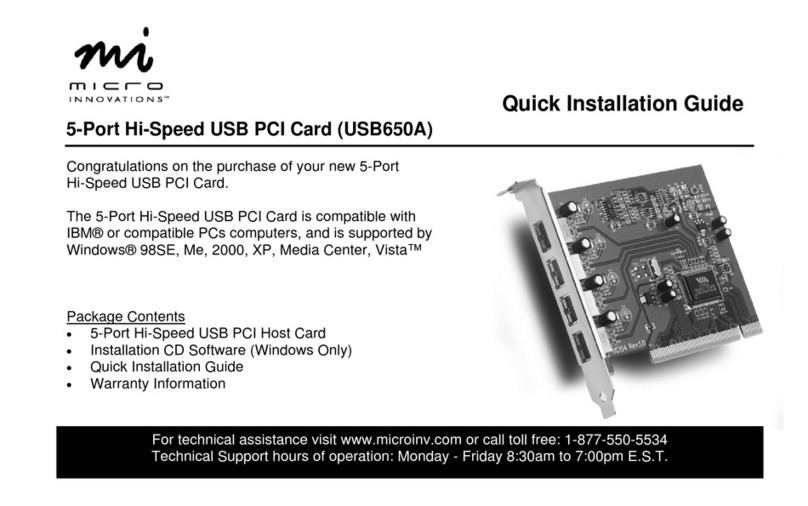
1. With the Gigabit PCI Express Network Card inserted into the PCIe slot,
turn the computer on.
2. An Add New Hardware Wizard screen will display “Ethernet Controller.”
Insert the enclosed driver CD.
3. Select “Install the software automatically” and click “Next.”
4. A Hardware Installation screen will display the device name (“Gigabit
Ethernet Network Adapter”). Click “Continue Anyway.”
5. The next Found New Hardware Wizard screen will display “The wizard
has nished installing the software for Gigabit Ethernet Network Adapter/
Fiber Gigabit Ethernet Network Adapter.” Click “Finish” to complete
the installation.
WINDOWS VISTA
1. With the Gigabit PCI Express Network Card inserted into the PCIe slot,
turn the computer on.
2. Windows will automatically nd the card and assign a default network
driver.
3. On the Start menu bar, go to Control Panel / System / Device
Manager / Network Adapters.
4. Double-click on this card and select “Update driver.”
5. Click “Browse” and select “Computer,” then “your CD-ROM drive,” then
“WVISTA32/64.” Click “OK” to start the installation.
6. When installation is complete, close the window.