manuals.online logo
Brands
  1. Home
  2. •
  3. Brands
  4. •
  5. Iomega
  6. •
  7. Projector Accessories
  8. •
  9. Iomega FotoShow Digital Image Center User manual

Iomega FotoShow Digital Image Center User manual

Other manuals for FotoShow Digital Image Center

1

This manual suits for next models

1

Popular Projector Accessories manuals by other brands

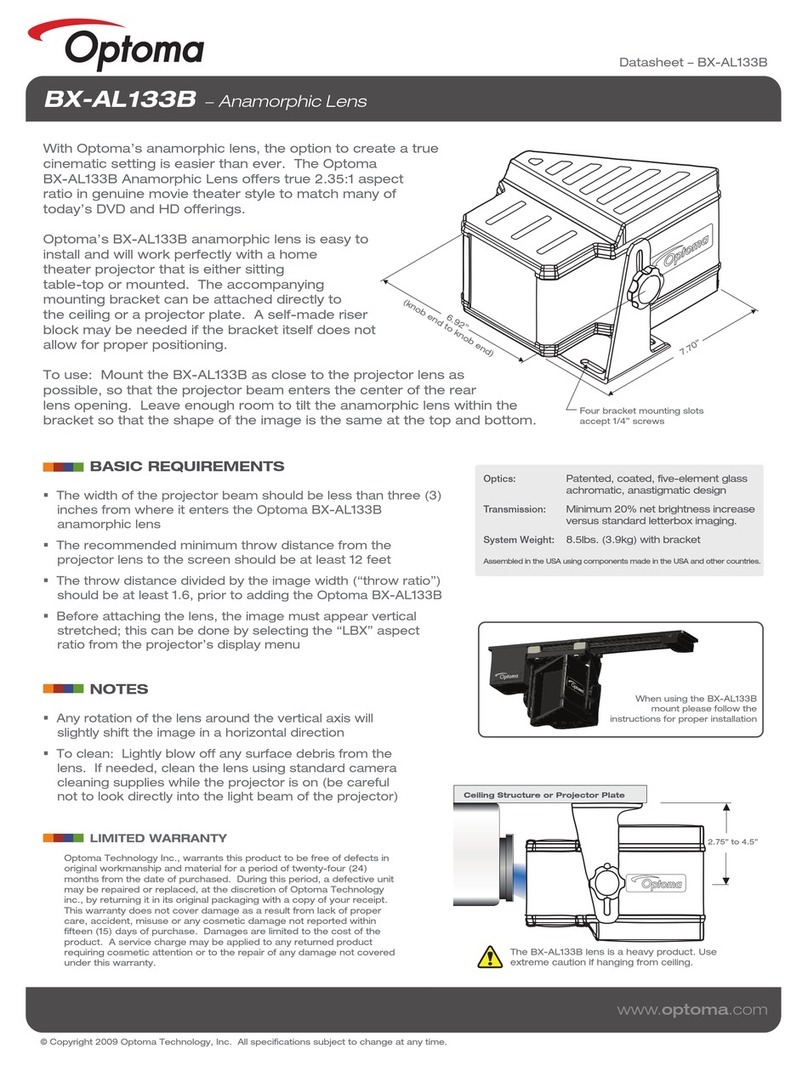
Optoma BX-AL133B datasheet

Optoma

Optoma BX-AL133B datasheet

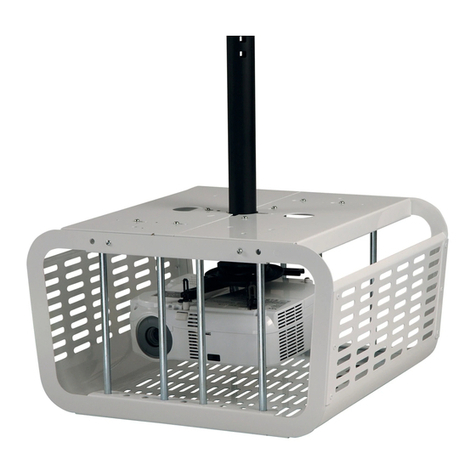
PEERLESS PE 1120 Installation and assembly

PEERLESS

PEERLESS PE 1120 Installation and assembly

Osram SIRIUS HRI Series Directions for use

Osram

Osram SIRIUS HRI Series Directions for use

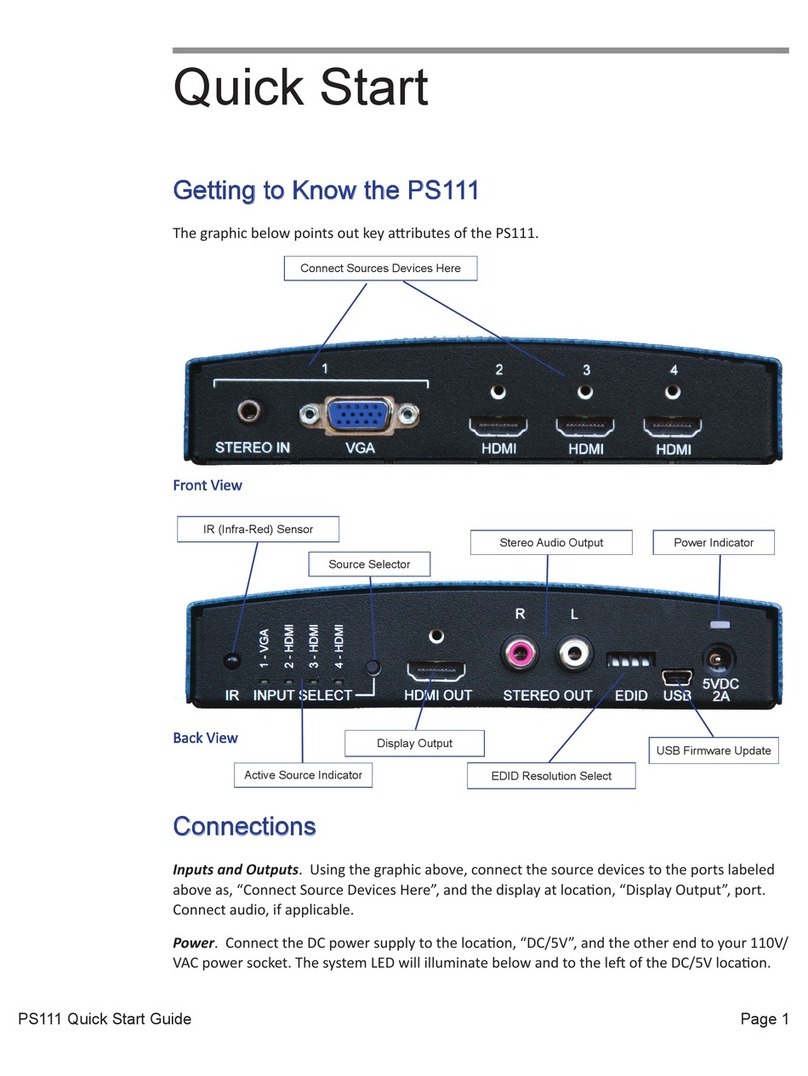
Presentation Switchers PS111 quick start

Presentation Switchers

Presentation Switchers PS111 quick start

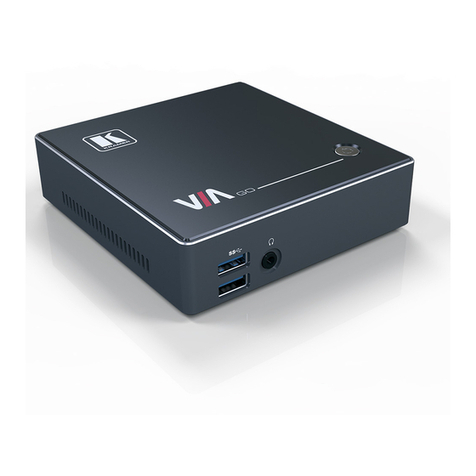
Kramer VIA GO user manual

Kramer

Kramer VIA GO user manual

Yamaha PJL-112 Replacement guide

Yamaha

Yamaha PJL-112 Replacement guide

Mitsubishi Electric 236CB Features

Mitsubishi Electric

Mitsubishi Electric 236CB Features

Epson BrightLink 475Wi user guide

Epson

Epson BrightLink 475Wi user guide

Acer WP100 quick guide

Acer

Acer WP100 quick guide

Biamp Modena Hub Network administrator's guide

Biamp

Biamp Modena Hub Network administrator's guide

Panamorph DCR-S3 installation guide

Panamorph

Panamorph DCR-S3 installation guide

Exact solutions FRAME-EVO-P10 manual

Exact solutions

Exact solutions FRAME-EVO-P10 manual

i3 i3board user manual

i3

i3 i3board user manual

CHIEF VCM103S installation instructions

CHIEF

CHIEF VCM103S installation instructions

InFocus LP70+ Replacement instructions

InFocus

InFocus LP70+ Replacement instructions

Sharp AN-PH20EZ Operation manual

Sharp

Sharp AN-PH20EZ Operation manual

PDR UPM51 product manual

PDR

PDR UPM51 product manual

CHIEF HB-43E installation instructions

CHIEF

CHIEF HB-43E installation instructions

manuals.online logo
manuals.online logoBrands
  • About & Mission
  • Contact us
  • Privacy Policy
  • Terms and Conditions

Copyright 2025 Manuals.Online. All Rights Reserved.

TM
®
User’s Manual
TM
®
Digital Image Center
TM
Instructions for use
with a TV or digital
camera!
This manual covers everything you need to know about
using your FotoShow™Digital Image Center with a TV set
or digital camera For more information on using your
FotoShow Image Center as an external Zip®250 USB
drive, please view the Zip drive Manual on the Zip disk
that came with your FotoShow Digital Image Center
To view the Zip Drive Manual, you must have Microsoft®
Internet Exlplorer®4 0 or higher or Netscape Navigator™
4 5 or higher installed on your system
Limited Warranty
(Drives and Media
Coverage
Iomega warrants this hardware product to be free from defects in materials and workmanship for the
warranty period This non-transferable, limited warranty is only to you, the first end-user Purchaser The
warranty begins on the date of purchase and lasts for the period specified below:
Clik!™, PocketZip™, Zip®, Jaz®, ZipCD™drives: one (1) year
Clik!™, PocketZip™, Zip®, Jaz®, ZipCD™disk media: five (5) years
Any other Iomega hardware product unless otherwise stated: one (1) year
Excluded Products and Problems
This warranty does not apply to: (a) Iomega software products; (b) expendable components such as fuses or
bulbs; or (c) third party products, hardware or software, supplied with the warranted product Iomega makes
no warranty of any kind on such products which, if included, are provided “AS IS ” Excluded is damage
caused by accident, misuse, abuse, unusually heavy use, use of non-Iomega supplied or approved media,
exposure of media to excess magnetic fields, or external environmental causes
Remedies
Your sole and exclusive remedy for a covered defect is repair or replacement of the defective product, at
Iomega’s sole option and expense, and Iomega may use new or refurbished parts or products to do so If
Iomega is unable to repair or replace a defective product, your alternate exclusive remedy shall be a refund
of the original purchase price
The above is Iomega’s entire obligation to you under this warranty IN NO EVENT SHALL IOMEGA BE LIABLE
FOR INDIRECT, INCIDENTAL, CONSEQUENTIAL OR SPECIAL DAMAGES OR LOSSES, INCLUDING LOSS OF DATA,
USE, OR PROFITS EVEN IF IOMEGA HAS BEEN ADVISED OF THE POSSIBILITY OF SUCH DAMAGES In no event
shall Iomega’s liability exceed the original purchase price of the drive or the media disk Some jurisdictions
do not allow the exclusion or limitation of incidental or consequential damages, so the above limitation or
exclusion may not apply to you
Obtaining Warranty Service
You must notify Iomega within the warranty period to receive warranty service For information on warranty
service, visit our website at http://www.iomega.com/supportpolicy.html; call 1-888-4-IOMEGA*; write to
Iomega Customer Service at 1821 W Iomega Way, Roy, UT, 84067, USA; or, contact your local Iomega dealer
Iomega's specific customer support policies (including fees for services) and procedures change as technology
and market conditions dictate To obtain information about Iomega's current policies, please visit our website
at http://www.iomega.com/supportpolicy.html or call 1-888-4-IOMEGA* Iomega reserves the right to change
the above stated conditions without any advance notice
If the Iomega representative determines your product is eligible for warranty service, you will be required to
return it to Iomega, shipping prepaid, along with proper identification, a return authorization number
provided by the representative, and proof of purchase Customers located in Latin America may obtain
warranty service by returning the Iomega product to the dealer where it was purchased Iomega will not
protect, recover, or return data during warranty service so you should duplicate your data before shipment
Limitations
THE ABOVE WARRANTY IS EXCLUSIVE AND IN LIEU OF ALL OTHER WARRANTIES, EXPRESS OR IMPLIED To the
extent permitted by applicable law, IOMEGA SPECIFICALLY DISCLAIMS ANY IMPLIED WARRANTIES, INCLUDING
ANY IMPLIED WARRANTY OF MERCHANTABILITY OR FITNESS FOR A PARTICULAR PURPOSE Any implied
warranty required by applicable law shall be limited in duration to the express warranty term Some
jurisdictions do not allow disclaimers of implied warranties or limitations on how long an implied warranty
lasts, so the above limitation may not apply to you
This warranty gives you specific legal rights and you may also have other rights that vary from jurisdiction to
jurisdiction Any suit for breach of any warranty on your Product must be filed within 1 year of the first date
the suit could have been brought
*1-888-4-IOMEGA (1-888-446-6342) is available in the U S and Canada only

Table of Contents
Limited Warranty . . . . . . . . . . . . . . . . . . . 2
Getting Started . . . . . . . . . . . . . . . . . . . . 5
List of Features 5
Contents 5
Accessories 6
Front Panel Controls and Indicators 7
Back Panel Controls and Connectors 7
Connecting Your FotoShow™Image Center . . 8
Typical Connection 8
Using the RCA Connectors 8
Other Types of Connections 10
Using an S-Video Connector 11
Using the FotoShow™Auto Adapter 13
Viewing the FotoShow™Tutorial 13
Copying Files to the FotoShow™
Image Center . . . . . . . . . . . . . . . . . . . 15
Understanding the Copy Button
on your FotoShow™Image Center 15
Copy Selectively 15
Copying Everything the Easy Way 16
Portable Downloads the Quick Way 17
Adding Photos from Your Computer 18
FotoShow™Image Center at a Glance . . . . . 19
Toolbar Overview 19
Understanding the Copy Button
on your FotoShow™Image Center 20
Using the FotoShow™Remote Control 20
Using your FotoShow™Image Center . . . . . 21
Remote Control Buttons 21
Using the FotoShow™Remote Control 22
Using the FotoShow™Software 23
Starting Your Fotoshow™Digital
Image Center for the First Time 23
Setting the System Clock 23
View the FotoShow™Image
Center Tutorial 23
Before you Start Using the
FotoShow™Software 23
Understanding Grids 23
Understanding System Folders 25
Using the Keyboard 26
The Album Room 27
Alternate Photo Album Views 28
Using the Zoom Tool 28
Opening an Existing Album 29
Creating a New Album 29
Adding Photos to an Album 29
Removing Photos From an Album 30
Rearranging Photos in an Album 30
Choosing a Theme for Your Album 31
Deleting Unwanted Photos 31
Deleting an Entire Album 32
Using Album Info to Customize Your
Album 32
Editing Your Pictures 33
Rotating Your Photo 33
Correcting Your Photo’s Color
Automatically 33
Removing Red-Eye from Your Photo 34
Adding Effects to a Photo 34
Available Photo Effects 35
Cropping a Photo 35
Undoing Your Changes 35
Saving Your Photo 36
Adding Captions or Changing
a Photo’s Information 36
Creating and Viewing a Slideshow 37
Creating a New Slideshow 37
Turning an Album into a Slideshow 38
Opening an Existing Slideshow 38
Running Your Slideshow 39
Adding Photos to a Slideshow 39
Removing Photos from a Slideshow 39
Rearranging the Photos in
a Slideshow 40
Choosing a Theme for
Your Slideshow 40
Deleting an Entire Slideshow 41
Viewing and Editing the Slideshow
Information 41
Some of the Available
Transition Styles 41
Making Microsoft®PowerPoint®
Presentations . . . . . . . . . . . . . . . . . . . 42
Using Your FotoShow™Image Center to Give
PowerPoint®Presentations 42
FotoShow™Essentials . . . . . . . . . . . . . . . 44
Inserting Zip®Disks 44
Inserting CompactFlash™Cards or IBM®
Microdrives™ 45
Inserting SmartMedia™Cards 45
Ejecting Zip®Disks 46
Ejecting Disks Without Power 46
Ejecting CompactFlash™Cards
and IBM®Microdrives™ 46
Ejecting SmartMedia™Cards 47
Ejecting Memory Cards Without Power 47
Using FotoShow™Zip®Disks on
a Computer 47
Drive Sleep 48
Compatibility with 100MB Zip®Disks 48
JPEG Guidelines 48
Using FotoShow™Media 49
Backing up With Zip®Disks 49
Formatting Zip®Disks 50
Using Read/Write Protected Zip®Disks 51
Using Write Protected Files 52
Shutting Down the FotoShow™
Image Center 52
FotoShow™Image Center Tips. . . . . . . . . . 53
Working with the Zip Drive 53
Working with the FotoShow™Software 54
Using with the FotoShow™Image
Center for Portable Downloads 55
Using the FotoShow™ Image Center
with Your Computer 55
Troubleshooting . . . . . . . . . . . . . . . . . . . 56
Why Don’t I Get a Picture on My TV
After I connect the FotoShow™
Image Center? 56
Why Doesn’t the FotoShow™Zip®Disk
I Created on My Macintosh Work? 56
Why Doesn’t My Write-Protected Zip®
Disk Work on My FotoShow™
Image Center? 56
Why Does My Digital Photo Look
Different When It is Printed Than
When It is on the Computer or
TV Screen? 57
Why Are My Pictures Cropped When
I View Them Full Screen? 57
Why Doesn’t my FotoShow™Digital
Image Center Display the Pictures I
Take with my Digital Camera? 57
What Causes the Delay that Sometimes
Occurs When I Insert a Zip Disk? 57
Why Does My FotoShow™Image Center
Automatically Eject A Zip®Disk as
Soon as I Insert it? 58
What are the “Zip” Folder and
“All my Photos?” 58
How Do I Delete Photos from
“All My Photos?” 58
Why Doesn’t the FotoShow™Image Center
Respond When I Press the Buttons
on the Remote Control? 58
Why Can’t I Locate a Photo I saved in the
Edit Room Yesterday? 59
Why Do Some of My Photos Appear
Sideways? 59
How can I save the Changes without
Losing the Original Photo? 59
How Can I Undo the Changes I’ve
Made to My Picture? 59
Why Doesn’t The Auto Fix Button
Seem to Do Anything? 59
Where Do Pictures Go When I
save Them? 60
How to I Get a Photo Back that I
Accidentally Deleted? 60
How Many Pictures Can I save on a
Zip®disk? 60
Why Am I Asked to Move My Photos
When I Delete an Album, But Not
When I Delete a Slideshow? 60
What is the Difference Between
Zoom and Crop? 61
Why are Some of Items on the Toolbar
Grayed Out? 61
Why Don’t the Photos I Add to an
Album Automatically Appear in the
Slideshow I created from that Album? 61
What Causes Photos to Disappear
from My Slideshow? 61
Why Do the Album Names I Create with
the Album Info Tool Always Revert to
the Original? 61
Why Do Only Some of My Photos Have
Captions? 62
What is the “PictIQ” Folder That I
Found on My Zip®Disk? 62
What is the “Deleted_Albums” Folder
That I Found on My Zip®Disk? 62
Why Did My FotoShow™Image Center
Copy Duplicate pictures or Images
I Didn’t Take From My
Digital Camera? 62
How to Get Help. . . . . . . . . . . . . . . . . . . 63
Regulatory Information . . . . . . . . . . . . . . 66
USB Guidelines. . . . . . . . . . . . . . Back Cover
Getting Started 5
Getting Started
List of Features
The FotoShow
™
Digital Image Center provides a digital workspace where you can organize,
edit, and present your digital photos and presentations Your FotoShow Image Center can:
• Transfer digital film content (3 3v SmartMedia™or CompactFlash™memory cards or
IBM®Microdrives™) to inexpensive Zip®disks that can be read by your computer
• Transfer existing JPEG images from your email, scanner, hard drive, or directly from
the internet to the FotoShow™Digital Image Center and organize them in your digital
photo album
• Function as an external Zip®250 USB drive (This manual discusses using your
FotoShow Image Center with a TV or as a portable device for downloading images
from your digital camera For information on using this device with a computer,
please view the Zip Drive Manual contained on the FotoShow™Zip®disk )
• Organize photos into digital photo albums that can be viewed on your TV
• Create slideshows and presentations that can be displayed on any TV Some TVs may
require a special adapter (sold separately)
• Rotate, crop, and correct your digital photos
• Remove red eye from portraits
• Add effects, such as sepia tone (antique) or black and white, to your digital photos
• Display and edit JPEG graphics on your TV
• Be used as an alternative to expensive computer projection systems
• Take your photos back to the PC for printing, e-mailing, posting on the internet, etc
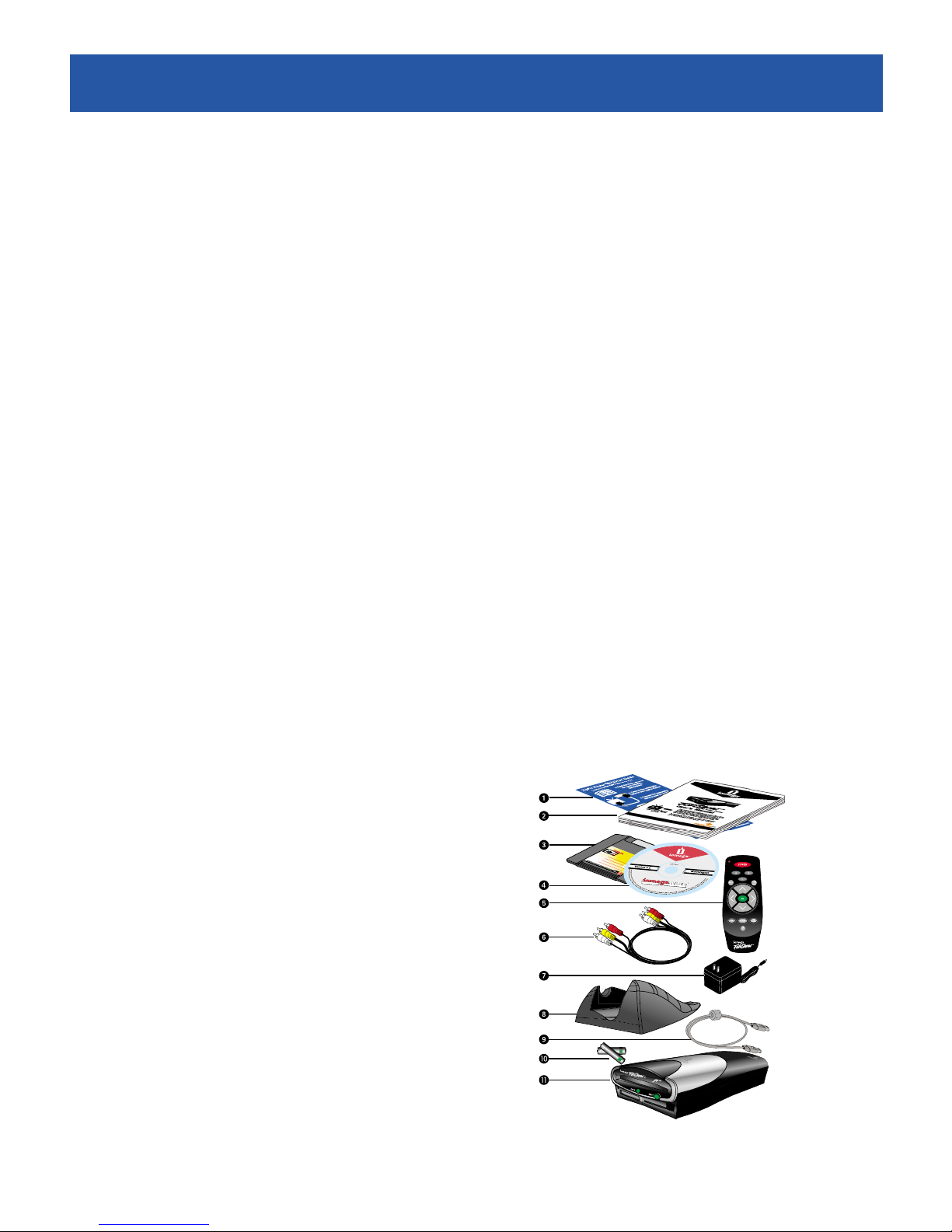
Contents
Unpack the FotoShow™Digital Image Center and accessories Check to make sure you
have all of the parts shown in the picture below
1 FotoShow™QuickStart Guide
2 User’s Manual—Instructions for use with your
TV or digital camera
3 FotoShow™Zip®Disk—includes a tutorial,
PowerPoint®templates, and a Zip Drive Manual
4 IomegaWare™Software CD (for computer use
only!)
5 FotoShow™Remote Control
6 RCA cable
7 FotoShow™Power Supply
8 FotoShow™Vertical Stand
9 USB Cable (for use when hooking your
FotoShow™Image Center to a computer only)
10 Batteries
11 FotoShow™Digital Image Center
Accessories
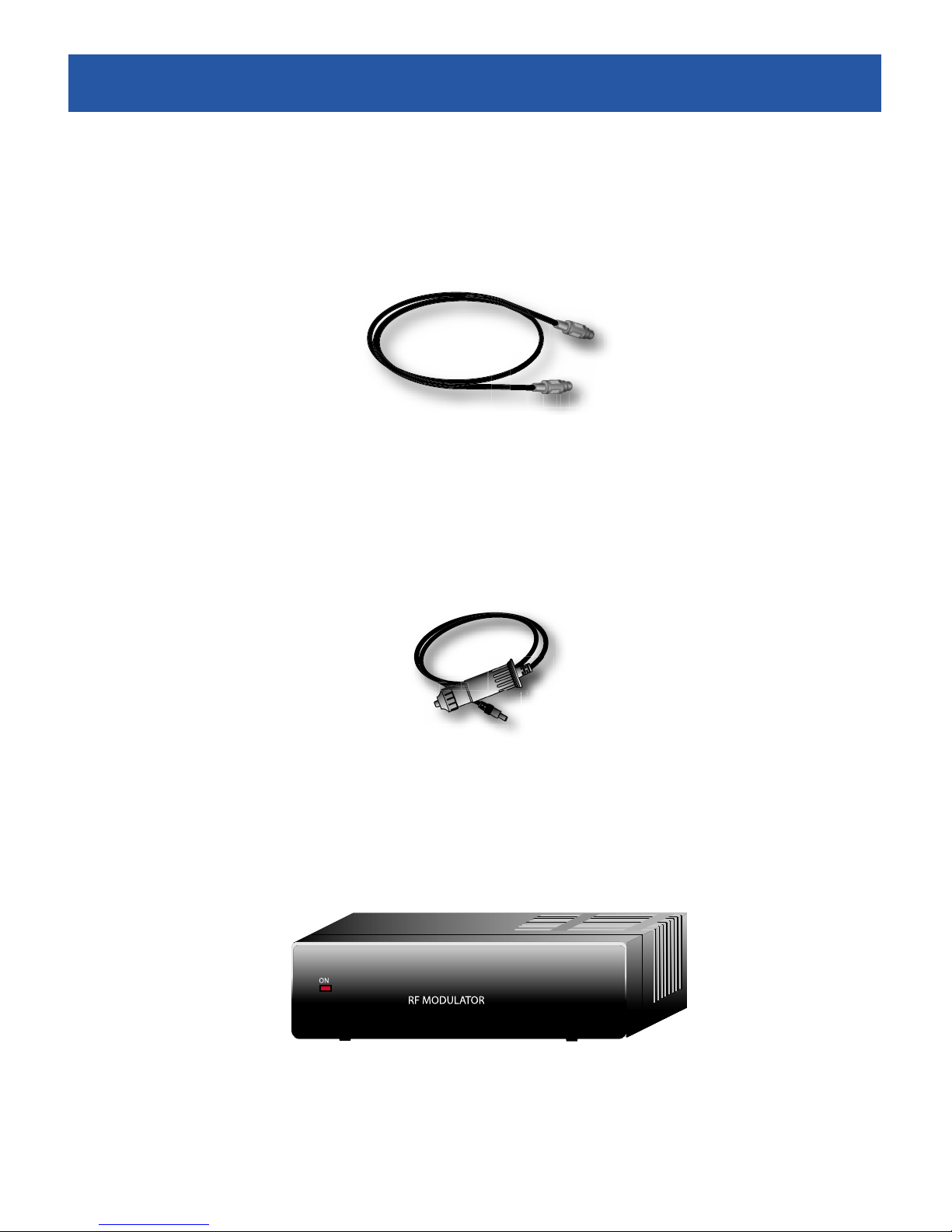
There are several FotoShow™accessories that are not included with your FotoShow Digital
Image Center The FotoShow accessories listed below are available directly from Iomega’s
web site at http://www.iomegadirect.com
S-Video Cable
Your FotoShow™Digital Image Center can be connected to your TV or VCR using an S-
Video connector S-Video carries a higher quality video signal than the RCA connector
included with your FotoShow Image Center; however, only high end TVs have S-Video
connectors
NOTE: S-Video cables carry video only You will still need to connect the red and white
connectors on the RCA cable included with your FotoShow
™
Image Center to hear any sound
Auto Adapter
Your FotoShow™Image Center can be used to transfer digital photos from digital film
(SmartMedia™, CompactFlash™cards, and IBM®Microdrives™) when it is not connected to
either a TV or computer The FotoShow Auto Adapter allows you to plug your FotoShow
Image Center into your car’s cigarette lighter or power outlet This accessory allows you
to transfer your digital photos to a Zip®disk and reuse your camera’s digital storage
while you are away from home without having to buy expensive digital film cards
RF Modulator
The RF Modulator allows you to hook your FotoShow™Image Center to TVs that do not
have either RCA or S-Video inputs The RF Modulator hooks into your TV’s standard
antenna connector
6 FotoShow™Digital Image Center User’s Manual
Getting Started 7
Front Panel Controls and Indicators
1 Zip®Disk Slot
2 Power Light
3 CompactFlash™/Microdrive™Slot
4 Copy Button
5 3 3v SmartMedia™Card Slot
6 Zip®Disk Eject Button
7 Infrared Sensor
Back Panel Controls and Connectors
1 Power Connector
2 USB Connector (For use with computers only)
NOTE: This port is only used when connecting the FotoShow
™
Image Center to a
computer Do not use this port to connect other devices to your FotoShow Image
Center
3 S-Video Connector
4 Composite (RCA) Video Out Connector
5 Emergency Disk Eject Button (recessed)
6 Left (Mono) Audio Channel Out Connector
7 Right Audio Channel Out Connector














Connecting Your FotoShow™Image Center
Typical Connection
Your FotoShow™Digital Image Center can be hooked to an NTSC* TV, VCR, or AV receiver
Your FotoShow Image Center includes a set of RCA cables Most TVs have RCA connectors
Check your TV’s user’s manual or the back of your TV to determine whether your TV has
an RCA connector (pictured below) If your TV does not have the connector pictured
below, skip to page 10
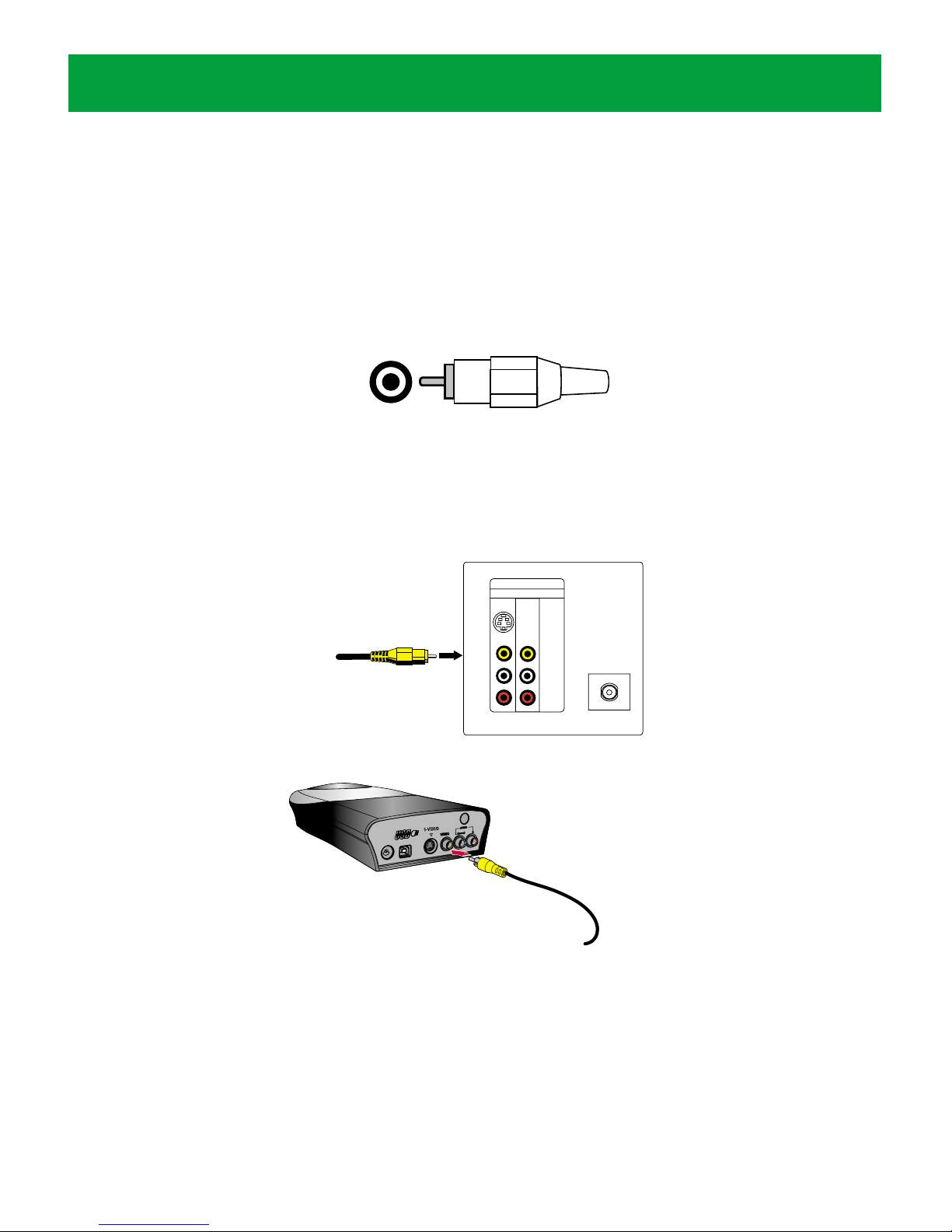
Using the RCA Connectors
1 Connect the yellow RCA cable to the yellow RCA VIDEO IN connector on the back of
your TV, VCR, or AV receiver
2 Connect the yellow RCA cable to the yellow RCA VIDEO OUT connector on the back
of your FotoShow™Image Center
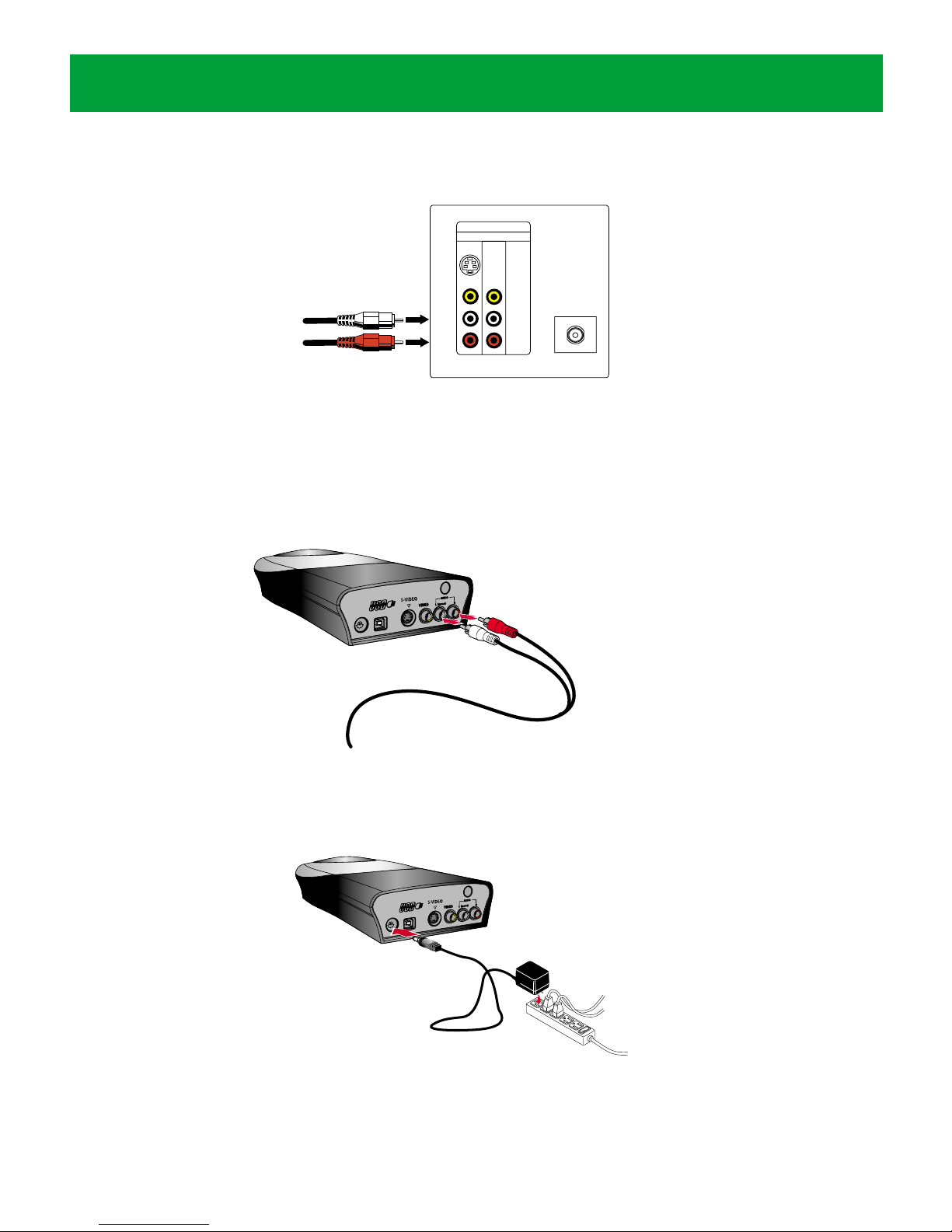
3 Connect the RCA audio connector to the AUDIO IN connector on the back of your
TV, VCR, AV receiver, or stereo system
Make sure you match the white cable connector with the white (left, mono) AUDIO
IN connector on the back of your TV, VCR, AV receiver, or stereo system If the
TELEVISION BACK
AUDIO/VIDEO
IN OUT
VIDEO
LEFT
AUDIO
RIGHT
AUDIO
S-
VIDEO
VHF/UHF
8 FotoShow™Digital Image Center User’s Manual
* NTSC is the television standard used in the United States, Japan, and parts of Canada Your FotoShow™Image Center will
not work with PAL or SECAM TVs
Connecting Your FotoShow™Image Center 9
device you are connecting to has stereo sound you will also find a red (right)
AUDIO IN connector The red connector is optional
4 Connect the RCA audio cable to the audio connectors on the back of your
FotoShow™Image Center
Make sure you match the white cable connector with the white (left, mono) AUDIO
OUT connector on the back of your FotoShow™Image Center If you connected the
Red (right) RCA connector in step 3, make sure that you connect the red cable
connector to the red (right) AUDIO OUT connector on the back of your FotoShow
Image Center The red connector is optional
5 Connect the power supply to your FotoShow™Image Center and then plug it into an
outlet Press the POWER button on the FotoShow remote control
Ensure the green power light on the front of the FotoShow™Image Center comes on
after you have connected the power supply cable
TELEVISION BACK
AUDIO/VIDEO
IN OUT
VIDEO
LEFT
AUDIO
RIGHT
AUDIO
S-
VIDEO
VHF/UHF
Connecting Your FotoShow™Image Center 9
6 Turn on your TV set and set it to the appropriate video input Adjust the volume
level of your TV or stereo
Most TVs will have either AUX (auxiliary) or VIDEO input channels Many TV remote
controls have either a TV/VCR or a TV/VIDEO button that changes the video input
Refer to the manual that came with your TV for more information on choosing the
appropriate video input channel If you hooked the audio channel to a stereo or AV
receiver, turn it on
NOTE: If you are connecting the FotoShow™ Image Center to a VCR or AV receiver,
you will need to turn on the VCR or receiver as well as the TV You may also need
to adjust the video input on the VCR or receiver See the user’s manual that came
with the VCR or AV receiver for more information
7 Insert the Zip®disk that came with your FotoShow™Image Center and view the
FotoShow Image Center tutorial
For more information on viewing the tutorial, see “Viewing the FotoShow™Tutorial”
at the end of this chapter
Other Types of Connections
Your FotoShow™Digital Image Center can be attached to almost any TV If your TV does
not have the RCA connectors described above, you will need to determine which
connection type is appropriate for you Refer to the manual that came with your TV, VCR,
or AV receiver or look at the back of the device to which you will be hooking your
FotoShow image Center to determine the type of connectors that are available Select the
appropriate connector for your TV, VCR or AV receiver, pictured below
S-Video Cable*
Your FotoShow™Digital Image Center can be connected to your TV or VCR using an
S-Video cable S-Video carries the highest quality video signal that your FotoShow Image
Center supports; however, only high end TVs have S-Video connectors Your FotoShow™
Image Center does not include an S-Video cable For information on connecting your
FotoShow Image Center to a TV, VCR, or AV receiver using an S-Video connector, continue
to the next page
RF Cable*
10 FotoShow™Digital Image Center User’s Manual
* Your FotoShow™Image Center does not come with an S-Video cable or an RF modulator To use these connection
options, you will need to purchase an S-Video cable or RF Modulator (available from your local electronics store or directly
from Iomega at http://www.iomegadirect.com) S-Video cables carry video signals only You will still need to connect the
red and white connectors on the RCA cable included with your FotoShow™Image Center to hear any sound