6
Installing IW2
1. Software Installation
2. Positioning the Sensor Cam
IW2 requires IPEVO IW2 software to function.
Please visit the IPEVO website to download the latest version at:
support.ipevo.com/IW2
After downloading,
For PC:
•Double-click the downloaded file and follow the onscreen prompts to
complete the installation. An IW2 icon will appear at the bottom right-
hand side of the taskbar.
For Mac:
• Double-click the downloaded file. An IW2 icon will appear at the top
right-hand side of the status bar.
Note: After successful installation, an IW2’s Menu for the IW2 will automatically pop up. You
can close it by clicking once on the IW2 icon. If the IW2’s Menu does not appear, you can
start IW2 by navigating to:
PC (Windows 7 and below):
Start Menu -> Program files -> IPEVO -> IW2.
PC (Windows 8): Start Menu -> Apps -> IW2.
Mac: Applications-> IW2.
Proper position of the Sensor Cam is important for optimum operation.
Follow these guidelines to place the Sensor Cam:
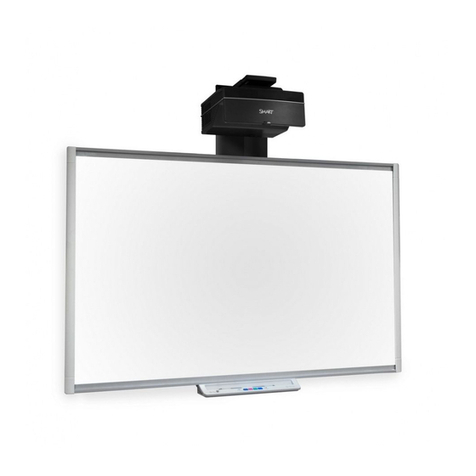
• For most projectors, a good position for the Sensor Cam will be the
same location as the projector. One exception to this is if you are
using a short-throw projector. In that case, you will need to place
the Sensor Cam further away from the screen than the projector.
•Minimal distance from your screen depends on screen size. Place the
Sensor Cam according to the recommended distances in the chart on
the following page: