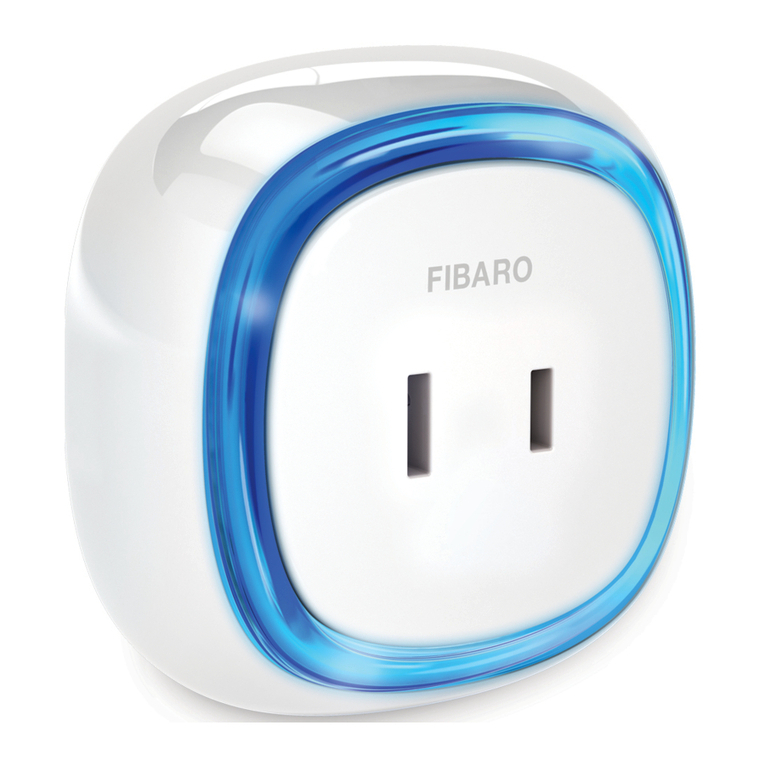
ITEAD S20 Smart Socket User manual

S20 Smart Socket USER GUIDE
Hi, welcome to use S20 Smart Socket EU/US/UK/CN!
1. Download “eWeLink” app.
Search “eWeLink” in APP Store for iOS version or Google play for Android
version.
2. Add device
1. Plug in and power up your S20 Socket.

2. Press the button for 7 seconds until the green LED fast blinks. Due to
this model has used different firmware and module, the led has two
blinking ways.
Open eWeLink, click”+”, you’ll see the pairing icons. Please select the
pairing mode according to below instructions:
If the led blinks like this: please select Quick Pairing Mode
(TOUCH), tap Next.
If the led blinks like this:
a. If the device firmware is 1.6.0 or higher, please select Quick Pairing
Mode (TOUCH). Otherwise, it will fail to add the device. Click Next.
b. If the firmware of above models is lower than 1.6.0, please
selectCompatible Pairing Mode (AP) icon, click Next. iOS users
should go to Phone Setting>WiFi>connect the WiFi begins with ITEAD-
******, enter default password 12345678. Go back to eWeLink, click next.
3. It will auto-search and connect smart home device around you.
4. It will auto select your home SSID, please enter password:
4.1 If no password, keep it blank.

4.2 Now eWeLink only support 2.4G WiFi communication protocol, 5G-
WiFi is not supported.
5. Name the device to complete.
6. Maybe the device is “Offline” on eWeLink, for the device needs 1 minute
to connect to your router and server. When the green LED on, the device is
“Online”, if eWeLink shows still “Offline”, please close eWeLink and re-
open.
3. APP features
1. WiFi remote control and device state
Turn on/off by tapping on device icon. Device state always simultaneous
display on APP.
2. Share Control
The owner can share the devices to other eWeLink accounts. While sharing
devices, both should stay online on eWeLink. Because if the account you
want to share is not online, he/she will not receive the invitation message.

How to make it possible? Firstly click Share, input the eWeLink account
(phone number or email address) you want to share, tick the timer
permissions (edit/delete/change/enable) you want to give, then click Next.
The other account will receive an invitation message. Click Accept, the
device has shared successfully. The other user will have access to control
the device.
3. Timing
Support max 8 enabled single/repeat/countdown timing schedules each
device.
4. Set default power on status
In Device Setting, you can set default device status: ON or OFF when
the device is power on.
5. Scene/Smart Scene

Scene allows triggering on/off your devices automatically. Scene Settings is
in the upper right corner of Device List. You can set up scenes or smart
scenes to trigger on/off the device.
Users should select “Click to execute” in the condition, add different
existing devices, name the scene and save it.
6. Security mechanism
One device one owner. Other people can not add the devices that have
already been added. If you want to add your device to another account,
don’t forget to delete it first.
7. Update
It will auto-remind you of new firmware or version. Please update as soon
as you can.
4. Problems and solutions
Read the detailed FAQ on Itead Smart Home Forum. If below answers
can’t solve your problem, please submit a feedback on eWeLink.
1. My device has added successfully but stays “Offline”.
Answers: The newly added device need 1-2 min to connect to your router
and the Internet. If it stays offline for a long time, please judge the problem
by the green led status:
1.1. Green led quickly blinks one time and repeats, which means device
failed to connect to the router. The reason may be you have entered wrong
WiFi password or your device is too far away from the router, which causes
a weak WiFi signal. The device can not be added to the 5G-wifi-router, only
the 2.4G-wifi is OK. At last, make sure that your router is MAC-open.
1.2. Green led slowly blinks one time and repeats, which means the device
has connected to router and server but failed to be added to the device list.
Then power on the device again, if it still not working, just add the device
again.

1.3. Green led quickly blinks twice and repeats, this means the device has
connected to the router but failed to connect to the server. Then please
confirm your WiFi router works normally.
2. Why the APP can’t find the device in pairing status?
Answers: That’s because of your phone’s cache. Please close the WLAN of
your phone then open it after a minute. At the same time, please power off
the device if you can, then power up to try again.
3. My WiFi is expired, can I connect the devices to LAN?
Answers: the S20 supports to be controlled by LAN(Update in 15/10/2017,
LAN function has been stopped).
Table of contents