manuals.online logo
Brands
  1. Home
  2. •
  3. Brands
  4. •
  5. JACLOC
  6. •
  7. Cash Register
  8. •
  9. JACLOC Desk Kiosk User manual

JACLOC Desk Kiosk User manual

This manual suits for next models

2

Popular Cash Register manuals by other brands

Royal 480nt operating manual

Royal

Royal 480nt operating manual

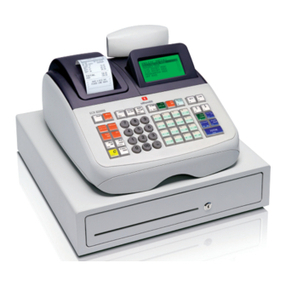
Olivetti ECR 8200 S user guide

Olivetti

Olivetti ECR 8200 S user guide

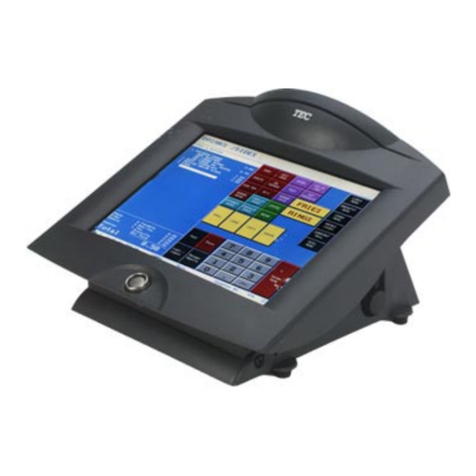
TEC TEC FS-3600 owner's manual

TEC

TEC TEC FS-3600 owner's manual

Integrated System Laboratory ISL 4006 user manual

Integrated System Laboratory

Integrated System Laboratory ISL 4006 user manual

Sam4s ER-380 Operation and program manual

Sam4s

Sam4s ER-380 Operation and program manual

Sharp XE-A206 Guía de inicio Rápido

Sharp

Sharp XE-A206 Guía de inicio Rápido

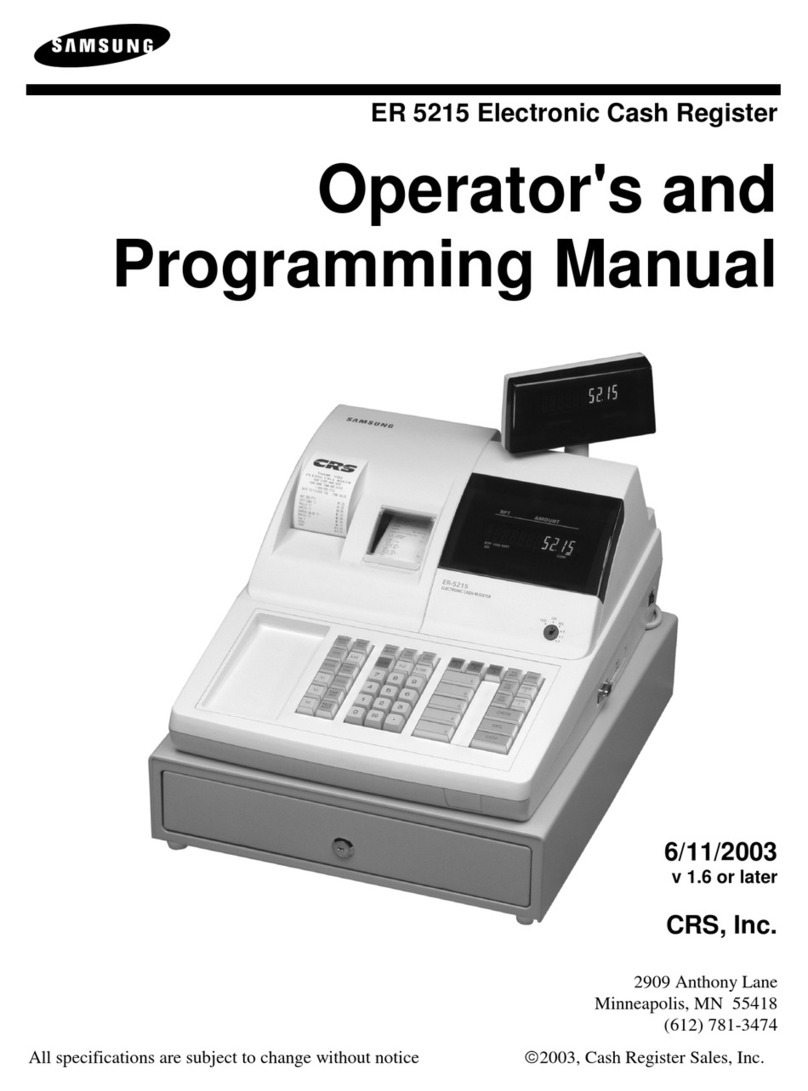
Samsung ER 5215 Operator's manual

Samsung

Samsung ER 5215 Operator's manual

Toast Toast Quick setup guide

Toast

Toast Toast Quick setup guide

QUORION CR 1200 user manual

QUORION

QUORION CR 1200 user manual

Olivetti ECR 7700 LD eco Plus user guide

Olivetti

Olivetti ECR 7700 LD eco Plus user guide

Sharp XE-A137-WH Operation Basic user manual
Sharp

Sharp XE-A137-WH Operation Basic user manual

Sharp XE-A203 - Cash Register Thermal Printing Graphic Logo... instruction manual
Sharp

Sharp XE-A203 - Cash Register Thermal Printing Graphic Logo... instruction manual

TEC TEC MA-1060 owner's manual

TEC

TEC TEC MA-1060 owner's manual

American Changer CLASSIC Series Operation manual

American Changer

American Changer CLASSIC Series Operation manual

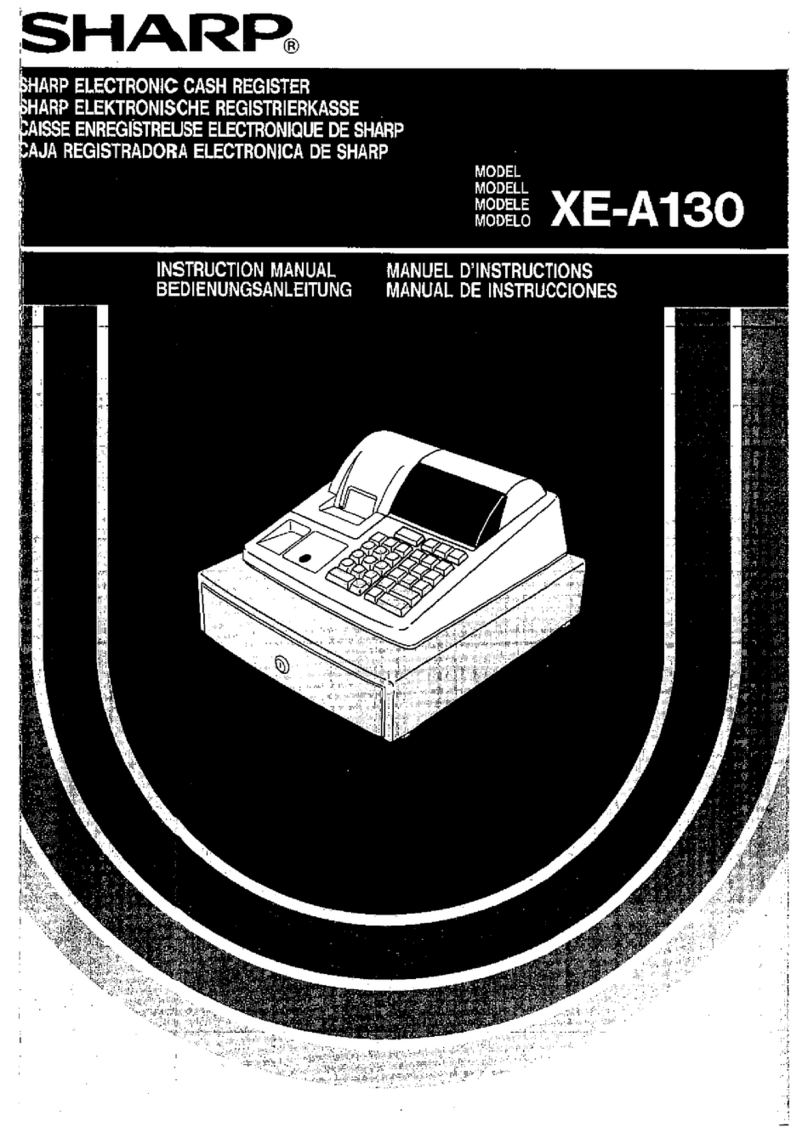
Sharp XE-A130 Bedienungsanleitung

Sharp

Sharp XE-A130 Bedienungsanleitung

Sam4s ER-5100? SERIES Service manual

Sam4s

Sam4s ER-5100? SERIES Service manual

Casio PCR-T273 user manual

Casio

Casio PCR-T273 user manual

Sharp ER-2540 Service manual

Sharp

Sharp ER-2540 Service manual

manuals.online logo
manuals.online logoBrands
  • About & Mission
  • Contact us
  • Privacy Policy
  • Terms and Conditions

Copyright 2025 Manuals.Online. All Rights Reserved.

Install Guide
Desk
Kiosk
designed to
improve user
experience & increase
engagement
THE JACLOC KIOSK SYSTEM IS
32
Recommended
Positioning
What’s in
the box?
Face Plate Access Cover CaseStem
2x Keys
Fit Kit
4x Bolts 1x Mounting Washer 45°Stem30°Stem
Flex Stem60°Stem
75cm – 90 cm
90cm – 110 cm
Please Note: If you purchased any of our upgrade options, those additional parts are not listed above.
4 5
Charging Cable
Options
Mounting
Options
Above 30 mm
Under Counter
Requires drill holes and access
beneath the mounting surface to
create a seamless nish.
Surface
Screw down into your surface to x your
kiosk to a desk or table with an option to
route cable along the countertop when
there is no access underneath.
Freestanding
No need to drill holes in your furniture.
Our sturdy base with rubber feet ensures
a non-slip grip onto any surface while
allowing easy mobility.
Option 1
The charge cable can exit out the back of
the base.
Option 2
The charge cable can continue through
the surface and exit underneath.
Up to 30 mm
6 7
Mounting
Washer
Mounting
Washer
Mounting
Washer
Bolts Bolts
Long
Bolts
Short
Bolts
Empty
Case
Empty
Case
Empty
Case
Fixed
Stem
Flex
Stem
Stem with
Switch option
xed together
Stem
STEP 1 CASE TO STEM
Attach the Case to the Stem by using the four bolts and the mounting washer to join together.
A.
Attach the Switch to
the Stem.
B.
You can now attach the Case to
the Stem.
PLEASE NOTE: This is an optional upgrade. Please complete A and B below, then proceed to Step 2.
If you have not purchased this option, please proceed to assemble your kiosk starting at Step 1 (right).
Fixed Stem Flex Stem
Switch Optional Upgrade:
Landscape to Portrait
Switch
LPS-90-W (WHITE) | LPS-90-B (BLACK)
98
STEP 2 FIT KIT
Connect the charge cable to the tablet, then insert your tablet into the Fit Kit corner pieces. It should sit neat and snug.
STEP 3 INSERT TABLET
Key
Lock
Tablet
Charge
Cable
Fit Kit
Corner Pieces
Key
Lock
Positioning
Pins
Firmly insert each of the four Fit Kit rubber corner pieces into the case by aligning with the Positioning Pins.
10 11
STEP 4 ACCESS COVER
STEP 5 ATTACH THE FACEPLATE
Face PlateKey Lock Fixing
Hooks
Example:
The last step is to lock-down the stainless steel Face Plate to secure and protect your tablet. First, position the
two Fixing Hooks into the Case (opposite side of the Key Lock). Then pop in the other end. The Faceplate should
click into the Case and sit ush.
First, peel the brown protective seal from one side of the Access Cover. Then insert the Access Cover over the top of your
tablet with the black, shiny side facing up. It should t precisely, allowing user access to your tablet home button and
front camera (options available for any combination of Open and Closed; home button and front camera).
Access
Cover on
top
Tablet sits
underneath
12 13
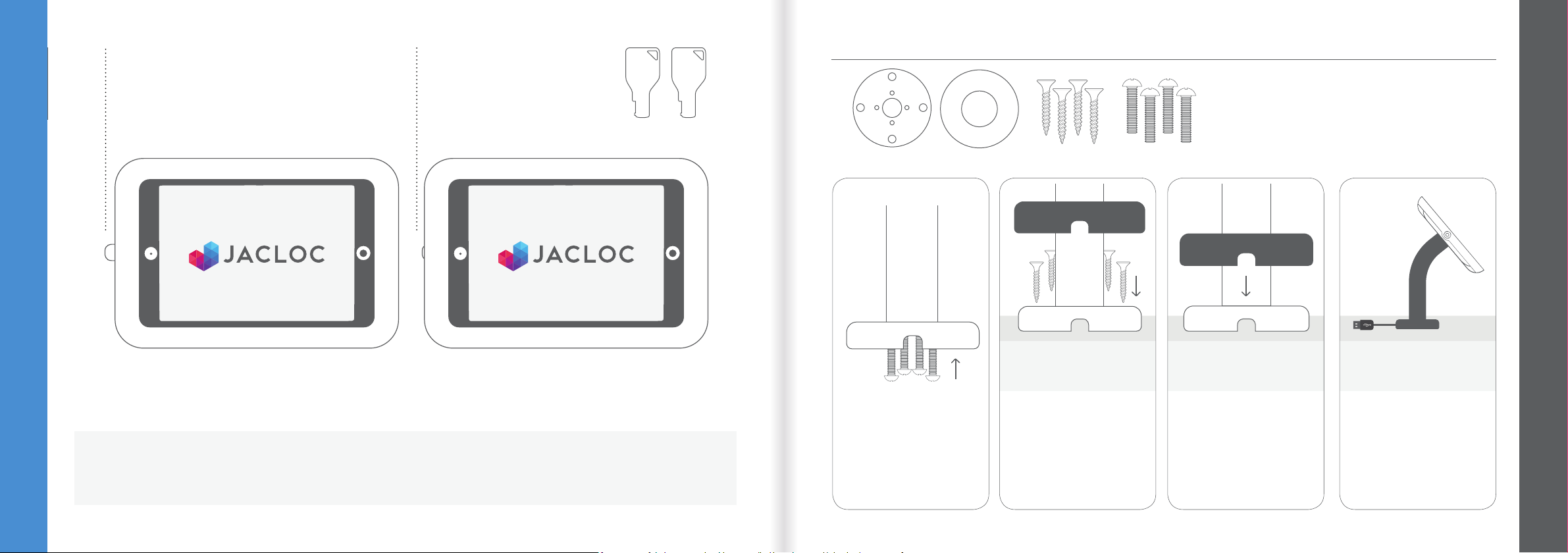
1x Base Plate 1x Base Cover 4x Screws 4x Bolts
STEP 6 PUSH TO LOCK
FIXED OPTION A. SURFACE
STEP 1
Connect the Base Plate
to the Stem using the
four bolts provided,
tightening from
underneath.
STEP 2
Secure the Base Plate to
your surface using the
four screws.
STEP 3
Line up the Base Cover
to match the charge
cable access hole.
STEP 4
Click the Base Cover
down and over the Base
Plate to nish.
To secure your kiosk, push
in the lock-pin
When the lock-pin stands out, it
means your kiosk is open
To complete the setup of your kiosk and ensure your device is secure, make sure to push in the lock-pin. To
unlock use the 2 keys provided. More keys can be purchased from our website.
BOX INCLUSIONS MTB001-W (WHITE) | MTB001-B (BLACK)
14 15
Base Rotate
FIXED OPTION B. UNDER COUNTER
ROTATE BASE
1x Mounting Washer4x Bolts 4x Bolt Rods 4x Nuts4x Washers
STEP 1
Connect the Base Rotate
to the Stem using the
four bolts provided,
tightening from
underneath.
STEP 2
Tightly screw the Bolt
Rods into the Base
Rotate.
STEP 3
Drill holes into the
surface, then place the
Bolt Rods through the
holes, and secure from
underneath using the
washers and nuts.
STEP 4
Complete and test by
rotating your kiosk left
and right (270 degrees).
BOX INCLUSIONS BOX INCLUSIONS
1x Mounting Washer4x Bolts 4x Bolt Rods 4x Nuts4x Washers
STEP 1
Tightly screw the Bolt
Rods into the Stem.
STEP 2
Drill holes into the surface, then
place the Bolt Rods through
the holes, and secure from
underneath using the washers
and nuts.
STEP 3
Feed charging cable through the
counter to complete.
MTB001-W (WHITE) | MTB001-B (BLACK) ROT-270-W (WHITE) | ROT-270-B (BLACK)
16 17
For further
information
& support
Email
[email protected]om.au
Phone
1800 077 375
Distribution Centre
34 Thompson Street,
Bowen Hills, QLD 4006
Wall Kiosks
From $158
Floor Kiosks
From $295
FREESTANDING BASE
Base Freestanding 4x bolts
STEP 1
Connect the Base Freestanding to the Stem using the
four bolts provided, tightening from underneath.
STEP 2
Complete.
Also available...
BOX INCLUSIONS FSB001-W (WHITE) | FSB001-B (BLACK)
18 19