manuals.online logo
Brands
  1. Home
  2. •
  3. Brands
  4. •
  5. Juniper
  6. •
  7. Network Router
  8. •
  9. Juniper J2300 User manual

Juniper J2300 User manual

Other manuals for J2300

4

Other Juniper Network Router manuals

Juniper MX104 Installation instructions

Juniper

Juniper MX104 Installation instructions

Juniper V10000 User manual

Juniper

Juniper V10000 User manual

Juniper E SERIES BROADBAND SERVICES ROUTERS - E SERIES END-OF-LIFE MODULE GUIDE... User manual

Juniper

Juniper E SERIES BROADBAND SERVICES ROUTERS - E SERIES END-OF-LIFE MODULE GUIDE... User manual

Juniper PTX5000 Installation instructions

Juniper

Juniper PTX5000 Installation instructions

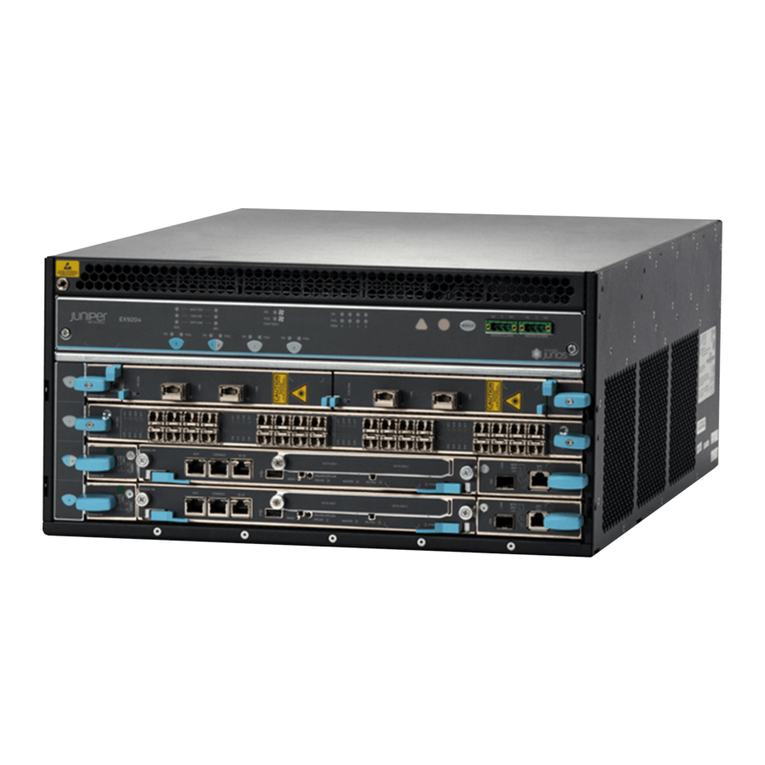
Juniper EX9200 Series Specification sheet

Juniper

Juniper EX9200 Series Specification sheet

Juniper T4000 - Installation instructions

Juniper

Juniper T4000 - Installation instructions

Juniper T Series User manual

Juniper

Juniper T Series User manual

Juniper MX Series User manual

Juniper

Juniper MX Series User manual

Juniper ACX1000 User manual

Juniper

Juniper ACX1000 User manual

Juniper MX960 User manual

Juniper

Juniper MX960 User manual

Juniper MX2020 Installation instructions

Juniper

Juniper MX2020 Installation instructions

Juniper MX2020 Installation instructions

Juniper

Juniper MX2020 Installation instructions

Juniper M40 User manual

Juniper

Juniper M40 User manual

Juniper M7i Installation instructions

Juniper

Juniper M7i Installation instructions

Juniper M40e Installation instructions

Juniper

Juniper M40e Installation instructions

Juniper J4350 User manual

Juniper

Juniper J4350 User manual

Juniper J4300 User manual

Juniper

Juniper J4300 User manual

Juniper EX2300 Series User manual

Juniper

Juniper EX2300 Series User manual

Juniper PTX10004 User manual

Juniper

Juniper PTX10004 User manual

Juniper ACX500 User manual

Juniper

Juniper ACX500 User manual

Juniper M10i Installation instructions

Juniper

Juniper M10i Installation instructions

Juniper PTX1000 Installation instructions

Juniper

Juniper PTX1000 Installation instructions

Juniper MX10 Installation instructions

Juniper

Juniper MX10 Installation instructions

Juniper MX2010 Installation instructions

Juniper

Juniper MX2010 Installation instructions

Popular Network Router manuals by other brands

TRENDnet TEW-435BRM - 54MBPS 802.11G Adsl Firewall M Quick installation guide

TRENDnet

TRENDnet TEW-435BRM - 54MBPS 802.11G Adsl Firewall M Quick installation guide

Siemens SIMOTICS CONNECT 400 manual

Siemens

Siemens SIMOTICS CONNECT 400 manual

Alfa Network ADS-R02 Specifications

Alfa Network

Alfa Network ADS-R02 Specifications

Barracuda Networks Link Balancer quick start guide

Barracuda Networks

Barracuda Networks Link Balancer quick start guide

ZyXEL Communications ES-2024PWR Support notes

ZyXEL Communications

ZyXEL Communications ES-2024PWR Support notes

HPE FlexNetwork 5510 HI Series Openflow configuration guide

HPE

HPE FlexNetwork 5510 HI Series Openflow configuration guide

Allied Telesis AT-AR236E quick start guide

Allied Telesis

Allied Telesis AT-AR236E quick start guide

ADTRAN NetVanta 3458-PoE quick start

ADTRAN

ADTRAN NetVanta 3458-PoE quick start

C&H Technologies EM405-8 manual

C&H Technologies

C&H Technologies EM405-8 manual

Huawei WiFi Mesh 3 Product description

Huawei

Huawei WiFi Mesh 3 Product description

Addonics Technologies ISC8P2G-S Quick install guide

Addonics Technologies

Addonics Technologies ISC8P2G-S Quick install guide

Atel W02 Arch+ Faqs

Atel

Atel W02 Arch+ Faqs

Allnet ALL0333AU user guide

Allnet

Allnet ALL0333AU user guide

Sercomm Genesis OC3505D Quick installation guide

Sercomm

Sercomm Genesis OC3505D Quick installation guide

Billion BIPAC 5102 Series user manual

Billion

Billion BIPAC 5102 Series user manual

TP-Link TD-8817 QIG

TP-Link

TP-Link TD-8817 QIG

Motorola MR1900 user guide

Motorola

Motorola MR1900 user guide

Cisco SOHO Series Regulatory compliance and safety information

Cisco

Cisco SOHO Series Regulatory compliance and safety information

manuals.online logo
manuals.online logoBrands
  • About & Mission
  • Contact us
  • Privacy Policy
  • Terms and Conditions

Copyright 2025 Manuals.Online. All Rights Reserved.

J2300 Services Router Quick Start
To install and configure a J-series Services Router, you need:
Electrostatic discharge (ESD) grounding strap (provided)
Four rubber feet (provided)
For desk or wall installation, four mounting screws appropriate for your rack, or four
wall screws or anchors capable of supporting the full weight of the chassis, up to 12 lb
(5.4 kg)
Screwdriver appropriate for the screws or anchors
Power cord with a plug appropriate for your geographical location (provided)
Management host, such as a PC, with an Ethernet port
Ethernet cable
NOTE: For further information about the tasks described in this quick start, see the
J-series Services Router User Guide at http://www.juniper.net/techpubs/.
Part 1: Install the Services Router
1. Attach an ESD grounding strap to your bare wrist and connect the strap to an outside
ESD point.
2. For installation on a desktop or wall, attach the provided rubber feet. (Placing the
router on the desktop completes desktop installation.)
3. For installation on a wall or in a rack, attach the provided mounting brackets.
For installation on a wall:
1. Grasp the sides of the router, lift the router, and position it on the wall, with the base of
the router facing the wall and the front panel facing up.
2. Have a second person install four mounting screws on the wall, two for each mounting
bracket.
For installation in a rack:
1. Make sure the rack is properly secured to the building in its permanent location.
2. Have one person grasp each side of the router, lift the router, and position it in the
rack.
3. Have a second person install a mounting screw into each of the holes aligned with the
threaded holes in the rack.
Part 2: Connect Power to the Services Router
1. Insert the appliance coupler end of the power cord into the appliance inlet on the
router’s power supply faceplate.
2. Insert the plug into an AC power source receptacle.
Part 3: Connect a PC for Initial Configuration
NOTE: When the router is powered on for the first time, it attempts to acquire an IP
address and configuration automatically. If no configuration server is present, LAN PORT 0
is assigned an IP address of 192.168.1.1/24.
1. On the management PC, configure a static IP address in the 192.168.1/24
subnetwork. Alternatively, if DHCP is enabled on the PC, the router can automatically
assign an IP address in the 192.168.1/24 subnetwork with a 12-hour lease time.
2. Turn off the power to the management PC.
3. Plug one end of the Ethernet cable into the Ethernet port on the PC.
4. Connect the other end of the Ethernet cable to LAN PORT 0 on the front of the router.
Connect a PC for Initial Configuration
Part 4: Perform Initial Configuration Through the J-Web Interface
1. Press the POWER button to boot the router. Verify that the green PWR ON LED on the
router faceplate blinks, then lights steadily.
2. Turn on the power to the PC.
3. From the PC, open a Web browser and enter the IP address 192.168.1.1 in the
address field. The J-Web Setup Quick Configuration page appears.
g003516
USB
PORT0 PORT1
PORT2SERIALSTATUS
SYNC
PORT3
STATUS
CONSOLE
10/100
ETHERNET
RJ-45 cable
Ethernet port
Ethernet port
Juniper Networks, the Juniper Networks logo, NetScreen, NetScreen Technologies, the NetScreen logo, NetScreen-Global Pro, ScreenOS, and GigaScreen are registered trademarks of Juniper Networks, Inc. in the United States and other
countries. The following are trademarks of Juniper Networks, Inc.: ERX, ESP, E-series, Instant Virtual Extranet, Internet Processor, J2300, J4300, J6300, J-Protect, J-series, J-Web, JUNOS, JUNOScope, JUNOScript, JUNOSe, M5, M7i, M10, M10i,
M20, M40, M40e, M160, M320, M-series, MMD, NetScreen-5GT, NetScreen-5XP, NetScreen-5XT, NetScreen-25, NetScreen-50, NetScreen-204, NetScreen-208, NetScreen-500, NetScreen-5200, NetScreen-5400, NetScreen-IDP 10,
NetScreen-IDP 100, NetScreen-IDP 500, NetScreen-Remote Security Client, NetScreen-Remote VPN Client, NetScreen-SA 1000 Series, NetScreen-SA 3000 Series, NetScreen-SA 5000 Series, NetScreen-SA Central Manager, NetScreen Secure
Access, NetScreen-SM 3000, NetScreen-Security Manager, NMC-RX, SDX, Stateful Signature, T320, T640, and T-series. All other trademarks, service marks, registered trademarks, or registered service marks are the property of their
respective owners. All specifications are subject to change without notice. Juniper Networks assumes no responsibility for any inaccuracies in this document. Juniper Networks reserves the right to change, modify, transfer, or otherwise revise
this publication without notice. Copyright 2004, Juniper Networks, Inc. All rights reserved. Printed in USA. Part Number: 530-010357-01, Revision 2, 10 December 2004
4. Enter information in the following fields on the Setup Quick Configuration page:
5. To apply the configuration and return to the Quick Configuration page, click OK.
Part 5: Install J-series Licenses
To use these features on your Services Router, you must purchase and install a license:
Stateful firewall
IPSec VPN tunneling
J-Flow traffic analysis
Advanced border router protocol support
One, two, or four additional E1, Fast Ethernet, serial, or T1 ports
1. In the J-Web interface, select Manage>Licenses.
2. Under Installed Licenses, click Add to add a new license key.
3. Do one of the following, using a blank line to separate multiple license keys:
In the License File URL box, type the full URL to the destination file containing
the license key to be added.
In the License Key Text box, paste the license key text, in plain-text format, for
the license to be added.
4. Click OK to add the license key.
Safety Warnings Summary
NOTE: This is a summary of safety warnings. For a complete list of warnings, including
translations, see the J-series Services Router User Guide at http://www.juniper.net/techpubs/.
Permit only trained and qualified personnel to install or replace Services Router
components.
Perform only the procedures described in this quick start or the J-series Services Router
User Guide. Other services must be performed by authorized service personnel only.
Before you connect the Services Router to a power source, read the installation
instructions in the J-series Services Router User Guide.
Before installing the router, read the guidelines in the “Preparing for Router
Installation” section of the J-series Services Router User Guide, to make sure that the
site meets power, environmental, and clearance requirements for the router.
When installing the Services Router, do not use a ramp inclined at more than
10 degrees.
Manually installing the Services Router requires one person to lift and a second person
to install mounting screws. To prevent injury, keep your back straight and lift with your
legs, not your back.
Mount the Services Router at the bottom of the rack if it is the only unit in the rack.
When mounting the Services Router in a partially filled rack, load the rack from the
bottom to the top, with the heaviest component at the bottom of the rack.
If the rack is provided with stabilizing devices, install the stabilizers before mounting
or servicing the Services Router in the rack.
When removing or installing an electrical component, always place it component-side
up on a flat antistatic surface or in an electrostatic bag.
Do not work on the system or connect or disconnect cables during electrical storms.
Before working on equipment that is connected to power lines, remove jewelry,
including rings, necklaces, and watches. Metal objects heat up when connected to
power and ground and can cause serious burns or become welded to the terminals.
Failure to observe these safety warnings can result in serious physical injury.
Contacting Juniper Networks
For technical support, open a support case using the Case Manager link at
http://www.juniper.net/support/ or call 1-888-314-JTAC (within the United States) or
1-408-745-9500 (outside the United States).
Host Name (required) Hostname of the router.
Domain Name Network or subnetwork that the router belongs to.
Root Password (required) Root password that user “root” can use to log in to the router.
Time Zone Time zone in which the router is located.
NTP Servers NTP server to synchronize the system time.
Current System Time Your current time and date.
DNS Name Servers DNS server to resolve hostnames into addresses.
Domain Search Name of each domain to include in a DNS search.
Default Gateway Default gateway that the router can use to direct packets addressed to
networks not explicitly listed in the routing table.
Loopback Address Reserved IP address that is always available on the router. By default,

this address is set to 127.0.0.1/32.
fe-0/0/0 Address IP address and prefix length of fe-0/0/0. By default, this address is set
to 192.168.1.1/24.
Allow Telnet Access Allows remote access to the router using telnet.
Allow JUNOScript over
Clear-Text Access
Allows JUNOScript to send unencrypted text to the router over a TCP
connection.
Allow SSH Access Allows remote SSH access to the router.