manuals.online logo
Brands
  1. Home
  2. •
  3. Brands
  4. •
  5. JVC
  6. •
  7. HDTV
  8. •
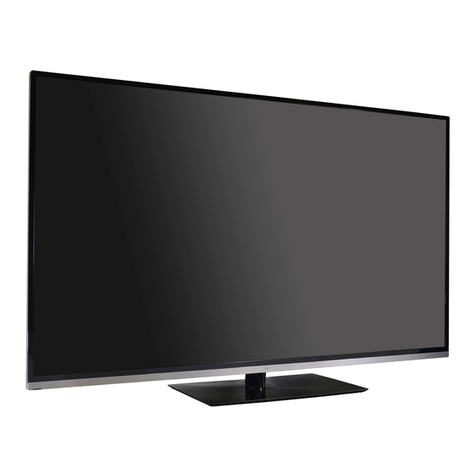
  9. JVC LT-32C670 User manual

JVC LT-32C670 User manual

Other manuals for LT-32C670

1

This manual suits for next models

3

Other JVC HDTV manuals

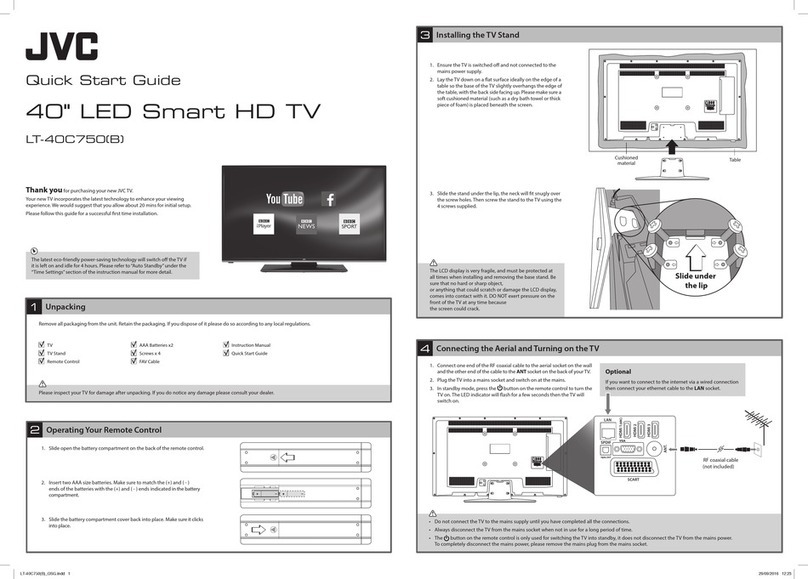
JVC LT-24C655C User manual

JVC

JVC LT-24C655C User manual

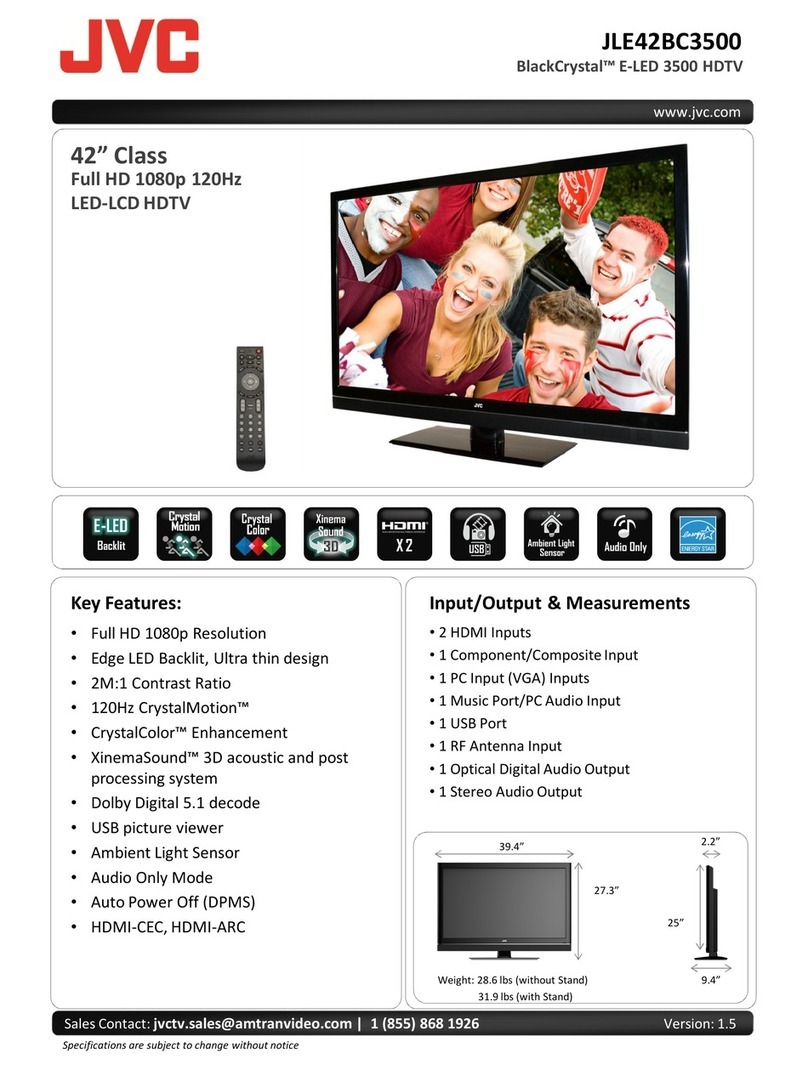
JVC BlackSapphire SP55M-C Owner's manual

JVC

JVC BlackSapphire SP55M-C Owner's manual

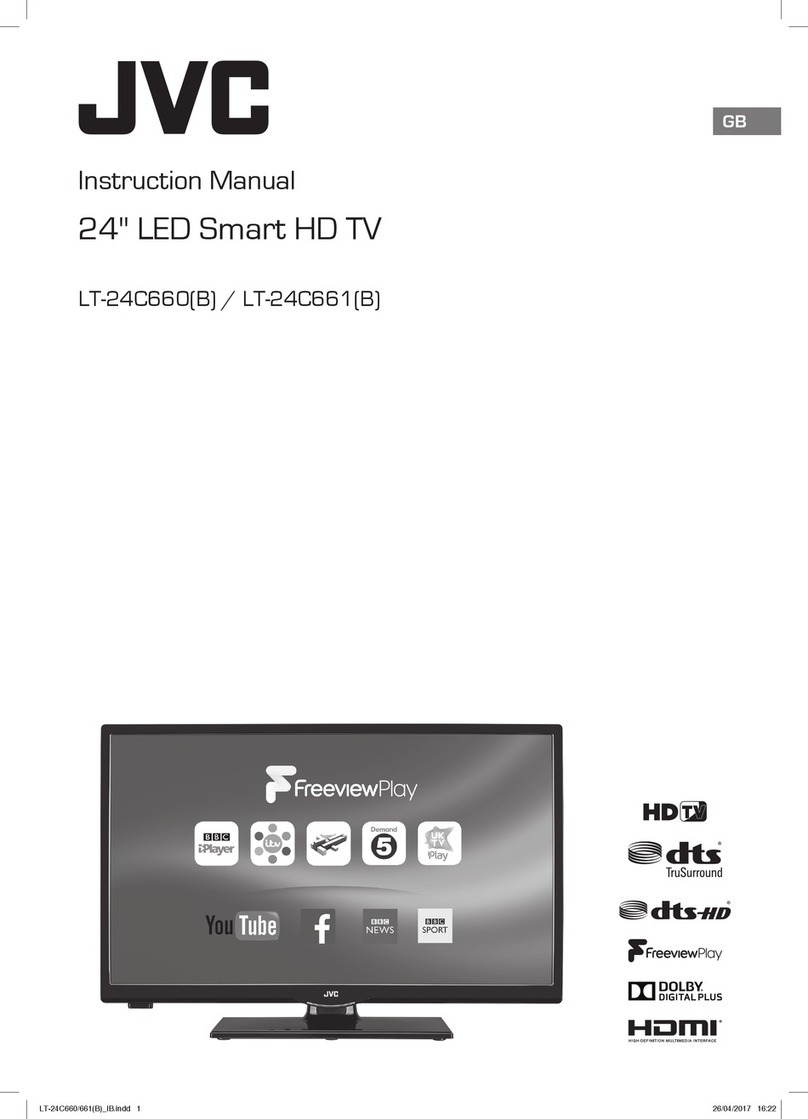
JVC LT-48K780 User manual

JVC

JVC LT-48K780 User manual

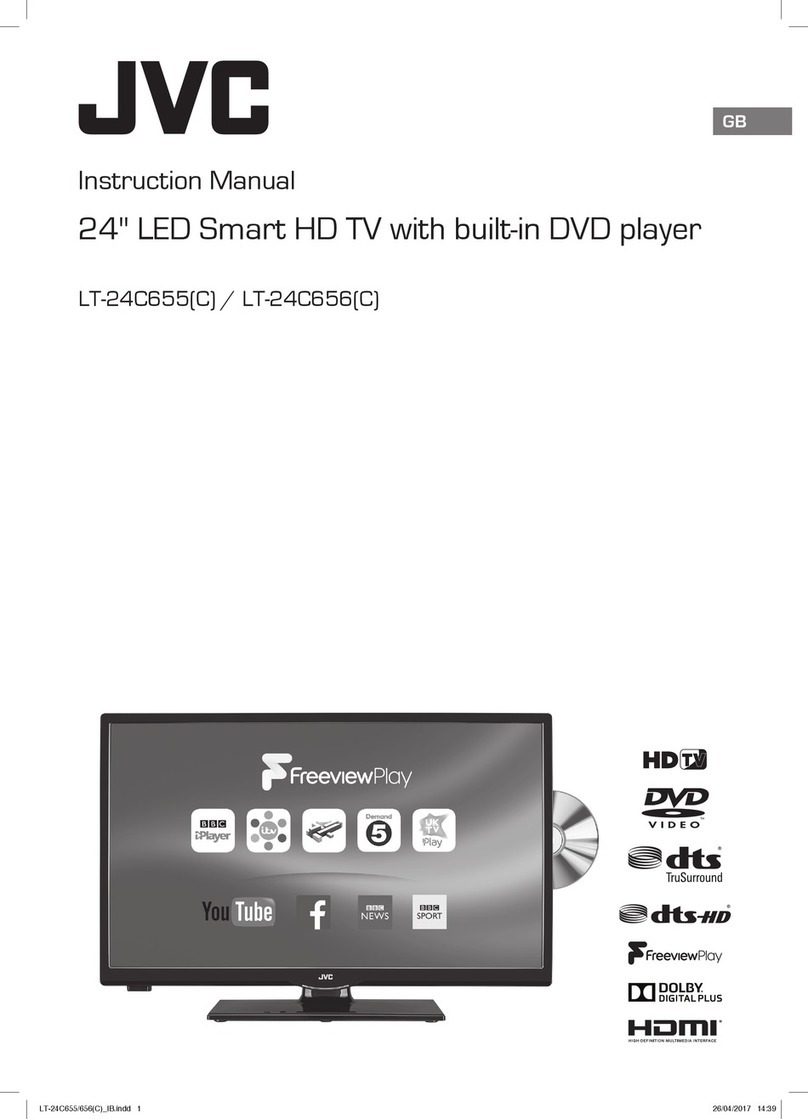
JVC LT-43C860 User manual

JVC

JVC LT-43C860 User manual

JVC LT-49C760 User manual

JVC

JVC LT-49C760 User manual

JVC BlackCrystal BC50R User manual

JVC

JVC BlackCrystal BC50R User manual

JVC LT-32C790 User manual

JVC

JVC LT-32C790 User manual

JVC EM39T User manual

JVC

JVC EM39T User manual

JVC EM39T User manual

JVC

JVC EM39T User manual

JVC LT-40C750 User manual

JVC

JVC LT-40C750 User manual

JVC EM40NF5 User manual

JVC

JVC EM40NF5 User manual

JVC LT-24C655 User manual

JVC

JVC LT-24C655 User manual

JVC LT-32K680 User manual

JVC

JVC LT-32K680 User manual

JVC LT-40C880 User manual

JVC

JVC LT-40C880 User manual

JVC LT-32C655A User manual

JVC

JVC LT-32C655A User manual

JVC Emerald EM32FL User manual

JVC

JVC Emerald EM32FL User manual

JVC LT-49C770 User manual

JVC

JVC LT-49C770 User manual

JVC BlackSapphire SP50M-C User manual

JVC

JVC BlackSapphire SP50M-C User manual

JVC LT-55C860 User manual

JVC

JVC LT-55C860 User manual

JVC LT-39C460 User manual

JVC

JVC LT-39C460 User manual

JVC LT-48C570 User manual

JVC

JVC LT-48C570 User manual

JVC BlackCrystal JLE47BC3500 User manual

JVC

JVC BlackCrystal JLE47BC3500 User manual

JVC LT-48C770 User manual

JVC

JVC LT-48C770 User manual

JVC LT-32C790 User manual

JVC

JVC LT-32C790 User manual

Popular HDTV manuals by other brands

Vizio M602i-B3 user manual

Vizio

Vizio M602i-B3 user manual

Sharp LC60LE830UN brochure

Sharp

Sharp LC60LE830UN brochure

LEECO uMax85 user manual

LEECO

LEECO uMax85 user manual

Pendo PNDLFHU55 quick start guide

Pendo

Pendo PNDLFHU55 quick start guide

Philips 32PFL9604H null

Philips

Philips 32PFL9604H null

Philips 32PFL8404H null

Philips

Philips 32PFL8404H null

RCA RTU7575-B manual

RCA

RCA RTU7575-B manual

Sceptre X23 user manual

Sceptre

Sceptre X23 user manual

Medion LIFE P13901 user manual

Medion

Medion LIFE P13901 user manual

Vizio D32h-C0 user manual

Vizio

Vizio D32h-C0 user manual

LG 50PC1DRA Specifications

LG

LG 50PC1DRA Specifications

Samsung Tantus HCJ555W instruction manual

Samsung

Samsung Tantus HCJ555W instruction manual

Sceptre X460BV-FHD Specifications

Sceptre

Sceptre X460BV-FHD Specifications

BEA 49B4KUHD user manual

BEA

BEA 49B4KUHD user manual

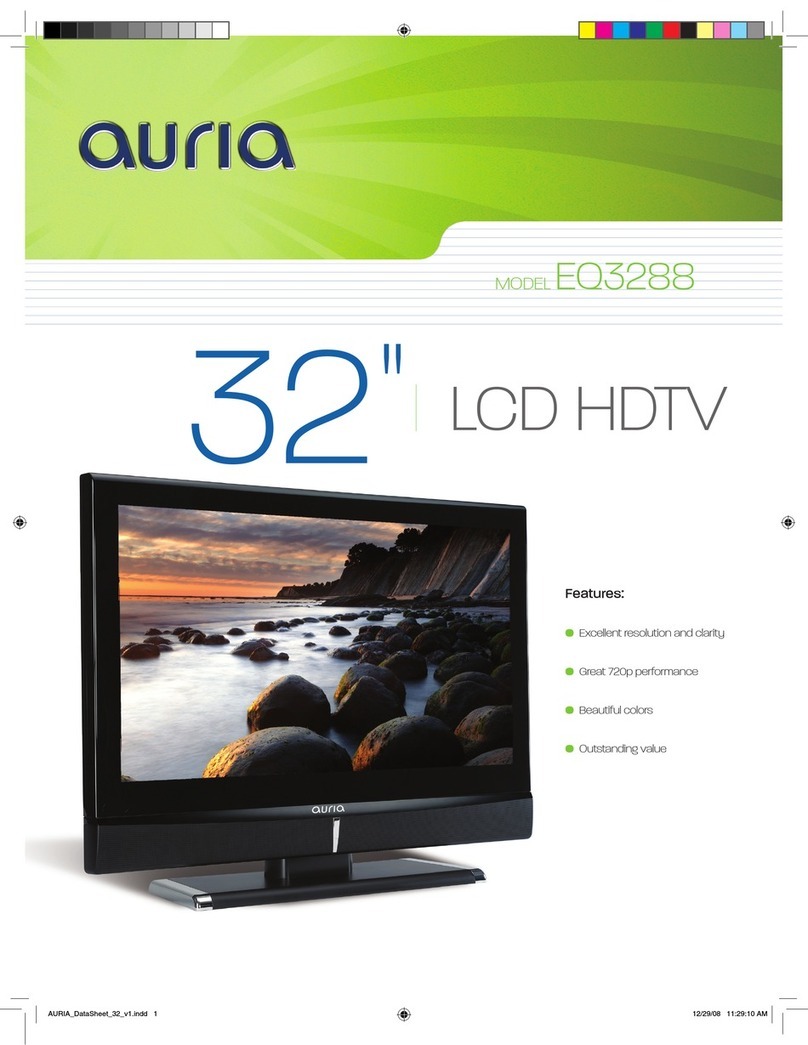
EQD Auria EQ3288 Specifications

EQD

EQD Auria EQ3288 Specifications

Medion LIFE P14334 user manual

Medion

Medion LIFE P14334 user manual

Mitsubishi Electric WD-57733 owner's guide

Mitsubishi Electric

Mitsubishi Electric WD-57733 owner's guide

Naxa NT-3202 instruction manual

Naxa

Naxa NT-3202 instruction manual

manuals.online logo
manuals.online logoBrands
  • About & Mission
  • Contact us
  • Privacy Policy
  • Terms and Conditions

Copyright 2025 Manuals.Online. All Rights Reserved.

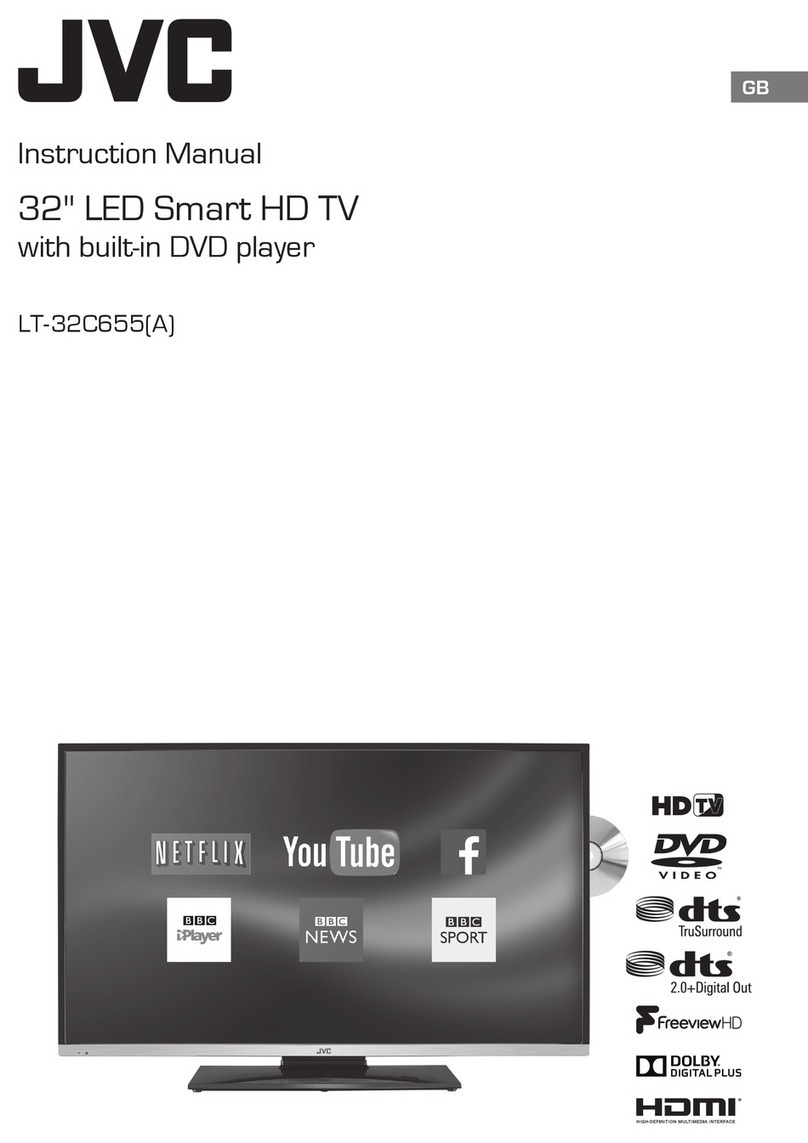
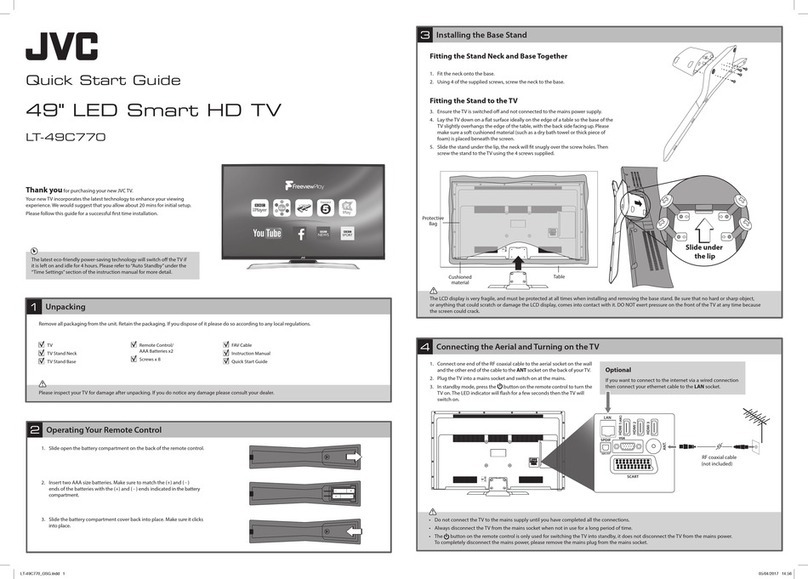
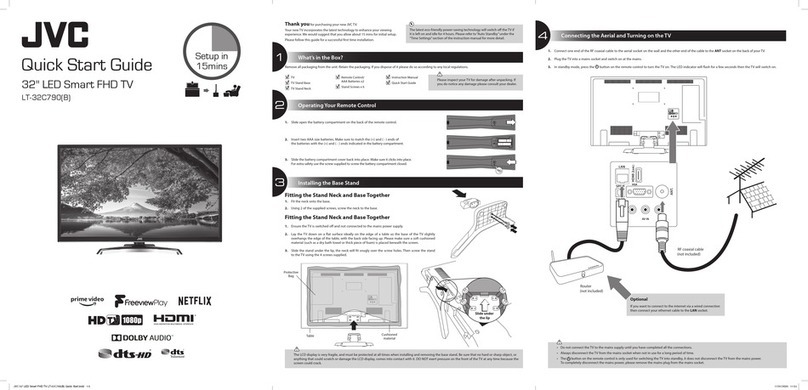
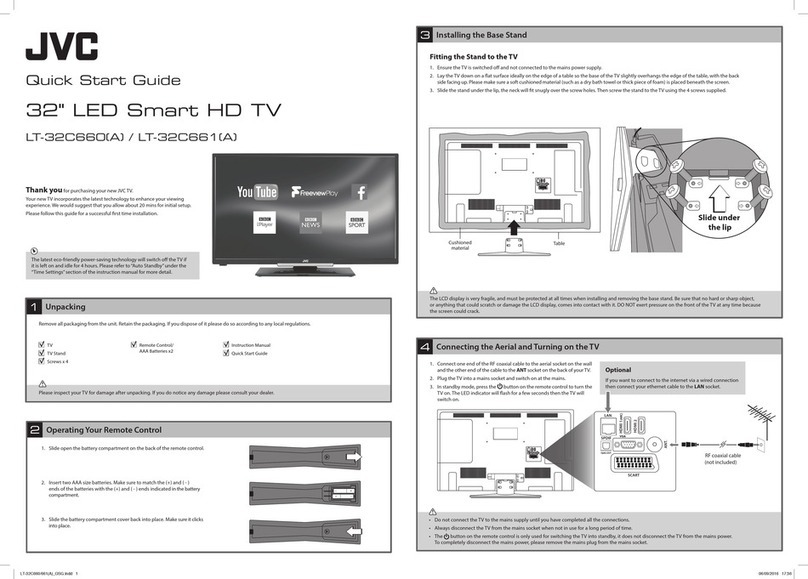
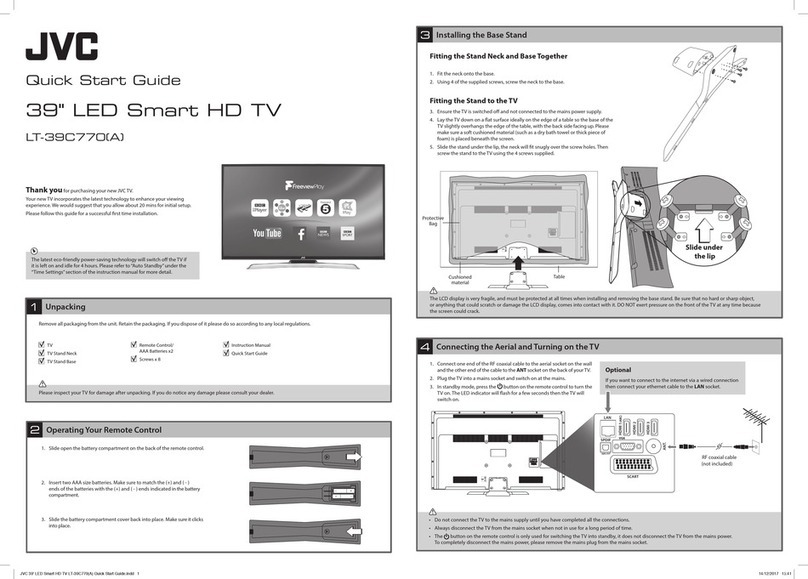
Quick Start Guide
32" LED Smart HD TV
LT-32C670(D) / LT-32C671(D)
Thank you for purchasing your new JVC TV.
Your new TV incorporates the latest technology to enhance your viewing
experience. We would suggest that you allow about 15 mins for initial setup.
Please follow this guide for a successful rst time installation.
The latest eco-friendly power-saving technology will switch o the TV if
it is left on and idle for 4 hours. Please refer to“Auto Standby” under the
“Time Settings”section of the instruction manual for more detail.
What’s in the Box?
1
Remove all packaging from the unit. Retain the packaging. If you dispose of it please do so according to any local regulations.
TV
TV Stand
Remote Control/
AAA Batteries x2
Screws x 6
Instruction Manual
Quick Start Guide Please inspect your TV for damage after unpacking. If
you do notice any damage please consult your dealer.
Operating Your Remote Control
2
1. Slide open the battery compartment on the back of
the remote control.
2. Insert two AAA size batteries. Make sure to match
the (+) and ( - ) ends of the batteries with the (+) and
( - ) ends indicated in the battery compartment.
3. Slide the battery compartment cover back into
place. Make sure it clicks into place.
Fitting the Stand Neck and Base Together
1. Fit the neck onto the base.
2. Using 2 of the supplied screws, screw the neck to the base.
Fitting the Stand to the TV
3. Ensure the TV is switched off and not connected to the mains power supply.
4. Lay the TV down on a flat surface ideally on the edge of a table so the base of the TV slightly
overhangs the edge of the table, with the back side facing up. Please make sure a soft cushioned
material (such as a dry bath towel or thick piece of foam) is placed beneath the screen.
5. Slide the stand under the lip, the neck will fit snugly over the screw holes.
Then screw the stand to the TV using the 4 screws supplied.
Installing the Base Stand
3
The LCD display is very fragile, and must be protected at all times when installing and removing the base stand. Be sure that no hard or sharp object, or
anything that could scratch or damage the LCD display, comes into contact with it. DO NOT exert pressure on the front of the TV at any time because the
screen could crack.
• Do not connect the TV to the mains supply until you have completed all the connections.
• Always disconnect the TV from the mains socket when not in use for a long period of time.
• The button on the remote control is only used for switching the TV into standby, it does not disconnect the TV from the mains power.
To completely disconnect the mains power, please remove the mains plug from the mains socket.
1. Connect one end of the RF coaxial cable to the aerial socket on the wall and the other end of the cable to the ANT socket on the back of your TV.
2. Plug the TV into a mains socket and switch on at the mains.
3. In standby mode, press the button on the remote control to turn the TV on. The LED indicator will ash for a few seconds then the TV will switch on.
Connecting the Aerial and Turning on the TV
4
SCART
SPDIF
Optic.OUT
VGA
ANT.
HDMI 1(ARC)
HDMI 2
LAN
SCART
SPDIF
Optic.OUT
VGA
ANT.
HDMI 1(ARC)
HDMI 2
LAN
RF coaxial cable
(not included)
Router
(not included)
Optional
If you want to connect to the internet via a wired connection
then connect your ethernet cable to the LAN socket.
Setup in
15mins
Slide under
the lip
SCART
SPDIF
Optic.OUT
VGA
ANT.
HDMI1(ARC )
HDMI2
LAN
Cushioned
material
Table
Protective
Bag
JVC 32' LED Smart HD TV LT-32C670/671(D) Quick Start Guide.indd 1-3 25/10/2018 14:45
1. The first time you turn the TV on, it will go straight into the First Time Installation menu. Please
ensure the aerial is plugged in. Press the buttons to highlight your language then press OK.
Getting Started
5
All of the setting on 'First time installations' menu are pre set for the majority of customers in the UK, if
you wish you can change the setting by selecting each setting and pressing the buttons.
If you View TV Through a Set Top Box
If you have attached a Set top box such as Sky/Virgin or BT via a HDMI cable select Digital Aerial to NO.
This will mean your TV will not try to tune any channels in. To view your set top box press the SOURCE
button and select the HDMI socket you have attached your set top box to.
2. Confirm these settings by pressing OK.
3. Press the buttons to highlight Home Mode then press OK.
Privacy Settings
Before you are able to connect to the internet and use the smart features of your TV, you MUST make sure that some Privacy Settings are activated.
To use Smart functions the minimum settings that you will need to activate are Portal and Applications and Internet connection . For Red Button services you
must activate HbbTV.
By activating these settings you are allowing the TV Manufacturer to store data to help improve the performance and user experience of your TV.
Each setting has a description, if you press the P / button when the setting is highlighted you will be able to scroll up and down the text to read the
description.
To enjoy Freeview Play your TV must be connected to the internet.
Press OK to Accept All
Reminder of setting not selected
To Accept ALL (recommended)
1. To accept all the setting press the OK button. All of
the sliders will slide across to the right and change
to Green.
2. Press OK again to continue with your installation.
Select Individual Settings
If you don’t want to accept all the setting you can
choose to activate settings individually.
1. First make sure Accept All is deactivated, the slider
should be on the left and red.
2. Press the button to highlight your desired
setting then press the to activate it.
3. Press the OK button to confirm your settings, a
list will appear highlighting the settings that you
haven't accepted. Select YES to continue.
4. To access all the features of your Smart TV you must be connected to the internet. If you do not
wish to set up your network connection you can skip this section by selecting NO, however we
recommend you set up your network connection now.
5. Select Yes and Press OK.
Connecting to the Internet - Wired, Wireless or using the WPS button
6
To access all the features of your Smart TV you must be connected to the internet. If you do not wish to
set up your network connection you can skip this section by pressing , however we recommend you
set up your network connection now.
WIRED Connection
•If you have connected your ethernet cable to the LAN socket on the back of your TV press the
buttons to select WIRED DEVICE. When Network says CONNECTED press OK.
WIRELESS Connection
You can connect using a wireless connection via your router.
Make sure your TV
is as close to your
router as possible,
within 5m and its
recommended its in
the same room as
the TV.
1. Press the buttons to select WIRELESS DEVICE. Wait a few seconds and a list of all wireless
networks will be displayed.
2. Press the buttons to select your wireless network then press OK.
WPS Connection
Rather than having to enter your Wireless password, you can select the WPS option. This will allow you to connect to your router without a password once the WPS
button is pressed on your router.
Tuning in Your TV
7
Choose Region (UK only)
During tuning, your TV may have received signals from more than one transmitter. If this has occurred the Choose Region screen will be displayed. This will enable
you to select the correct regional transmission for the local news service that you require.
1. Press the button to highlight Primary region, then press the buttons to select your Primary
Region e.g. England.
2. Press the button to highlight Secondary region, then press the buttons to select your
Secondary Region e.g. London.
3. Press the button to highlight Tertiary region, then press the buttons to select your Tertiary
Region e.g. Greater London.
4. Press the button to highlight Save then press OK.
Your TV will now start automatic channel scan. It will tune in all available TV
channels.
5. The Scan statistics screen will appear, showing you the amount of TV and radio stations that have been
tuned in. Press OK to exit this screen.
6. The Edit Channel list will appear, press the EXIT button to remove this. Your TV is now fully tuned in and
ready to use.
1. Select WIRELESS DEVICE, when you see list of wireless networks press the BACK button.
2. Press the button to select 'Press WPS on your wifi router' then press OK. Now press the WPS
button on your router and your TV will connect to your router, without the use of a password.
3. You now need to enter your password, a keyboard will appear. Press the buttons to select
a letter/number/symbol and press OK to enter each one. Once you have typed your password
highlight OK and press OK. The network will now show Connected.
4. Press the OK button to continue.
Need More Help!
If you need more help setting up your TV then please call:
UK: 0344 561 1234
Ireland: 1890 818 575
Lines are open 24/7
(QSG-LT-32C670/671(D)-181025V1)
Best connection
speed
Maximum distance
5m
Wireless Router Wireless Router
JVC 32' LED Smart HD TV LT-32C670/671(D) Quick Start Guide.indd 4-6 25/10/2018 14:45