9
3.9 Indicator Lights
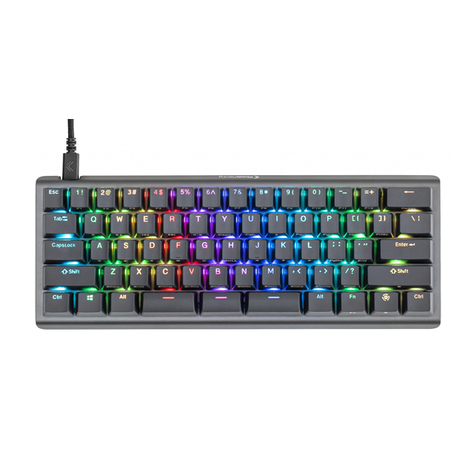
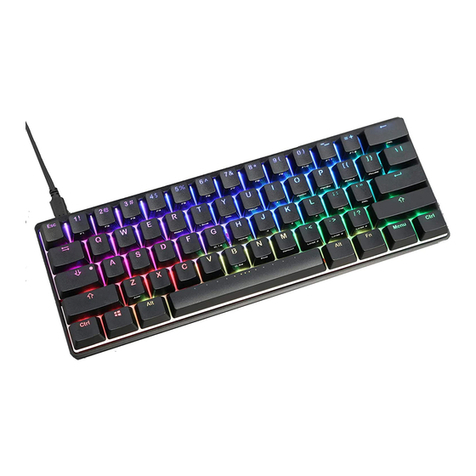
Unlike most 60% keyboards, the TKO features two indicator lights between the Hyperspace keys. These
lights are used to indicate Caps Lock, and Game Mode, as well as provide feedback for certain onboard
programming shortcuts. Note: These lights may be difficult to see if you have installed the full-size spacebar.
4.0 SmartSet Onboard Programming
The SmartSet Programming Engine allows you to custom program the keyboard without installing any
software or special drivers on the computer by using a series of convenient onboard shortcuts. Remap keys,
record macros, toggle Profiles, and adjust keyboard settings. Profiles and Settings are saved to the
keyboard’s onboard “v-Drive” 4MB flash memory, not your PC, so they travel with your keyboard. To
customize Lighting Effects and access other powerful programming tools, download and install the intuitive
SmartSet App for Windows and Mac (See Section 5.0).
All Programming commands are executed using the dedicated SmartSet Key. Press and hold the SmartSet
Key, then press and hold the Right Shift key, then press the desired shortcut key. The SmartSet key LED will
flash in response to successful programming commands. Continuous flashing indicates there is programming
in progress (tap the SmartSet key to exit).
4.1 Program Lock/Unlock (SmartSet + Right Shift + X)
All TKO keyboards ship with the Program Lock feature enabled to prevent accidental programming.
If you wish to re-program the keyboard simply use the shortcut above to disable Program Lock.
4.2 Change Profiles (SmartSet + Right Shift + 1 - 9)
The TKO features 9 fully programmable PROFILES. Each PROFILE can be customized with distinct Backlighting
and Edge lighting effects, and a unique Layout featuring unlimited remaps and up 100 macros.
Profile 1 is the default, but you can load any of the other 8 Profiles using the shortcut above and then
customize to your exact specifications. Each Profile is pre-configured with a unique lighting effect to make it
easy do differentiate them and a unique set of HYPERSPACE key actions (see Section 3.1).
4.3 Recording Macros (SmartSet + Right Shift + M)
A macro is string of characters or key actions that is triggered by a single key press or key combination in
either layer. Macros are powerful tools for typing, coding, and gaming that allow you to quickly produce
multiple actions in rapid succession. Macros are assigned to the active Profile at the time of recording but can
be easily copied using the SmartSet App. Macros will override the default keyboard action for the trigger key
or key combination.
To record a macro on-the-fly, use the shortcut above to enter Macro Record Mode, choose your trigger key(s)
first, and then type out your macro (up to 300 characters). When you have finished recording your macro, tap
the SmartSet key to resume normal keyboard operation.
Note: Macros can be also be created (and edited) using the SmartSet App.
Macro Trigger Key(s): After entering Macro Record Mode, the SmartSet LED will flash rapidly prompting you
select your trigger key(s). Any full-size, non-modifier key in either the TOP LAYER or FN LAYER can be used
as a macro trigger. A macro can also be triggered by a two-key combination by pairing the primary trigger key
with a modifier-key “co-trigger”. To assign a key combination as a macro trigger, first press and hold one of
the six standard modifier keys (Ctrl, Alt or Shift) and then tap the primary trigger key.
Note: The Windows key is not recommended for use as a macro co-trigger on PC’s.
Macro Contents: After a valid macro trigger has been designated, the SmartSet LED will flash slowly
prompting you to record your macro (open an appropriate program during recording). Every single keystroke