Using Your Speaker
PLAYBACK MODES
Once your Bluetooth device has been paired with KW71,
it is simple to reconnect.
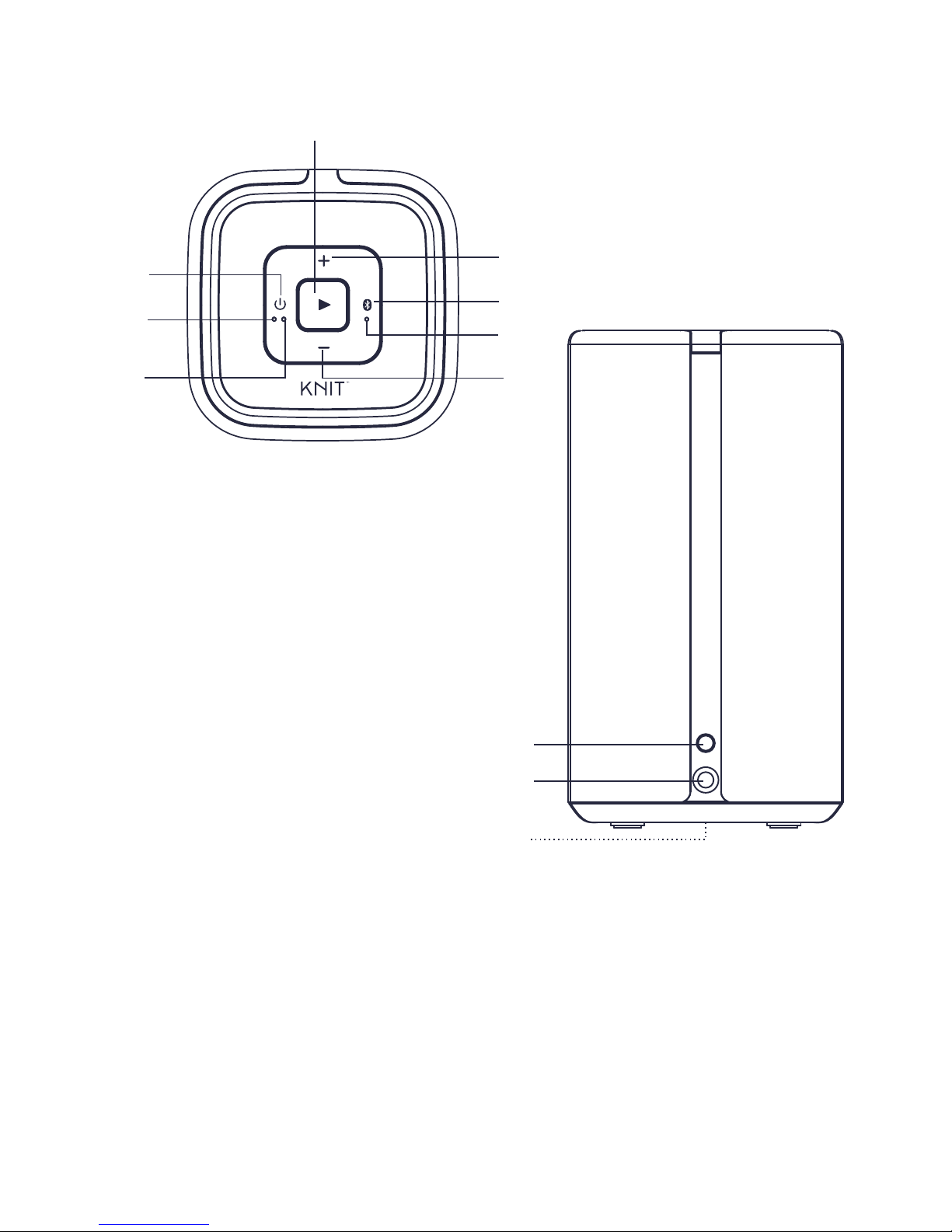
In standby mode, press and hold the Power Button to turn on
If a 3.5mm cable is connected to the AUX Input,
Otto will default to AUX-IN mode
If no cable is connected to the AUX Input, Otto will
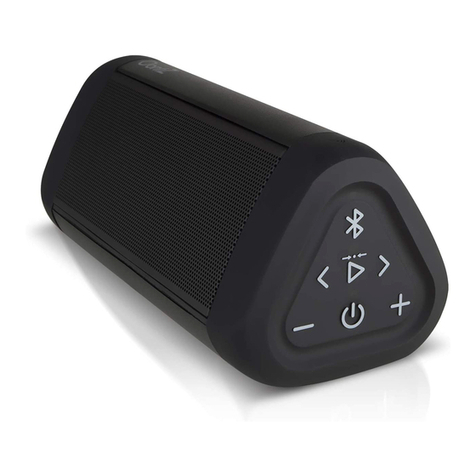
switch to Bluetooth mode, press BLUETOOTH PAIR button
to begin Bluetooth pairing
To return to AUX-IN mode, simply connect a 3.5mm cable
to the AUX Input
Press the Power Button again to turn off.
BLUETOOTH PAIRING
Pair with Bluetooth®capable devices to stream stereo audio
wirelessly from smartphones, tablets or laptops for music,
movies, video games and apps.
In Standby mode, press and hold the Power Button to turn
on and press BLUETOOTH PAIR button to begin Bluetooth
pairing (make sure no cable is plugged into Line-In).
The Bluetooth LED will flash Blue.
Turn on your A2DP Bluetooth device and enable Bluetooth
on your Bluetooth device, select “Knit Otto”from the device
list to pair. If asked for a password, enter “0000”Once
Bluetooth has paired successfully, the blue LED on Otto will
change from flashing to solid— indicating that your Bluetooth
device is connected to KW71.
Press the PLAY / PAUSE/ SKIP +/ SKIP –button to begin
streaming music. Press again to pause. Double tapping will
skip to next track and triple tapping will skip back to the
previous track.
To disconnect, press and hold the BLUETOOTH PAIR button
for 3 seconds. The unit will return to pairing mode and the
blue LED will flash.
NOTES: If the unit fails to pair with your Bluetooth device, go to
your Bluetooth Setting menu, then select Knit Otto "Info". For
Android device, select "Unpair", if using an Apple OS device,
select "Forget this Device". When Knit Otto appears in your list
of Bluetooth devices, select it to complete pairing.