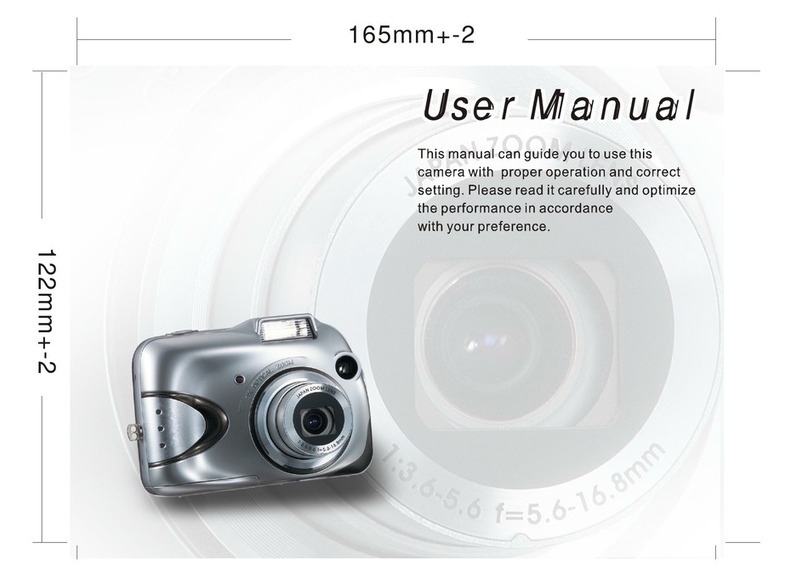
Kobian CyperPix E550V User manual

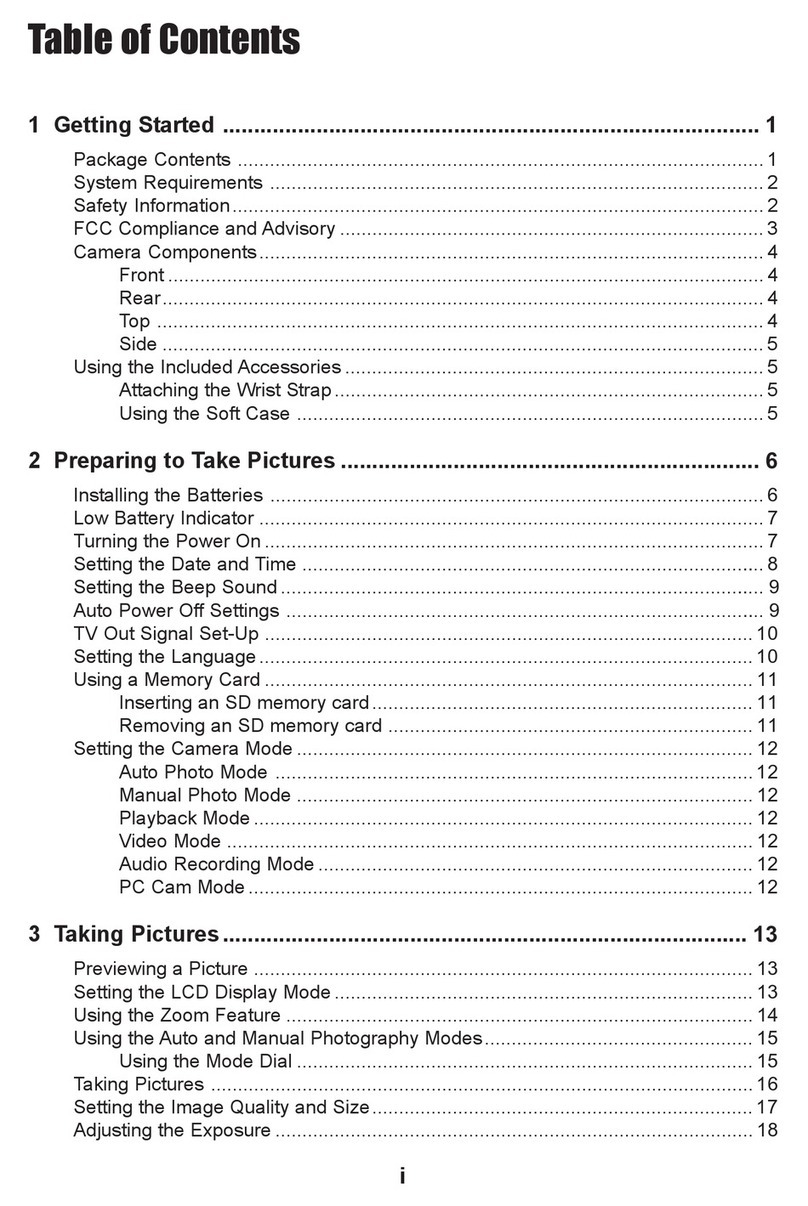
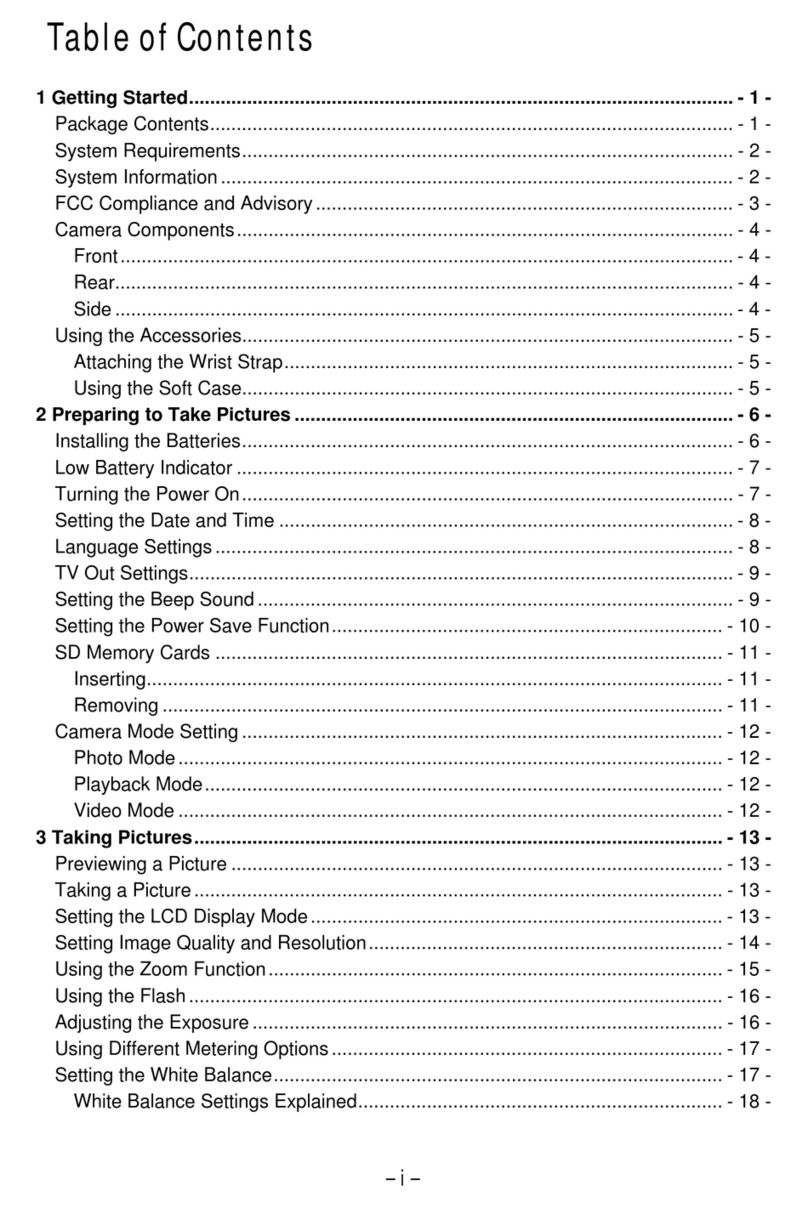
Table of contents
1 Getting Started
Package Contents ............................. 1
System Requirements ...................... 2
Windows............................................2
Macintosh ..........................................2
Safety Information ........................... 3
FCC Compliance and Advisory .......... 4
Quick Start........................................ 5
Charge the Battery .............................5
Install the Battery...............................5
Install the SD Card .............................5
Turn on the Camera Power..................5
Turn the Shooting Mode dial to
AUTO.................................................6
Focus the Subject and Shoot ...............6
View the Recorded Image ...................6
Camera Components ........................ 7
Front .................................................7
Rear ..................................................7
Top....................................................7
Side...................................................8
Using the Included Accessories........ 8
Attaching the Wrist Strap ....................8
Using the Soft Case ............................8
Operating the Multi-controller ......... 9
2 Preparing the Camera
Charging the Battery Pack.............. 10
Battery Status Symbols .....................10
Installing the Battery Pack............. 11
Using Compact Power Adapter....... 12
Installing an SD Card...................... 12
To remove the SD card .....................13
Formatting Internal or SD Card
Memory........................................... 13
Turning the Power On / Off............ 14
Setting the Date and Time.............. 14
Print Date........................................ 15
Setting the Language ..................... 15
Setting the Beep Sound .................. 15
Auto Power Off Settings ................. 16
TV Out Signal Set-Up ...................... 16
Setting LCD Brightness ................... 17
Folder Format.................................. 18
Quick View ...................................... 18
Selecting Menus and Settings......... 19
3 Basic Functions
Previewing a Picture....................... 21
Setting the LCD Display Mode ........ 21
Shooting Mode................................. 21
Playback Mode................................. 22
Information Displayed on the
LCD Monitor .................................... 22
Shooting Mode................................. 22
Playback Mode................................. 23
Using the Zoom Feature.................. 23
Digital Zoom.................................... 24
Using the Mode Dial ........................ 24
4 Taking Pictures
Taking Pictures in Auto Mode ......... 25
Replaying an Image after
Shooting Quickly ............................. 26
Setting the Image Quality and
Resolution ....................................... 26
Using the Flash ............................... 27
Setting the Red-eye Reduction
Function .......................................... 27
Setting the Slow Sync....................... 28
Macro Mode..................................... 28
Setting the Self-Timer..................... 29
Continuous Shooting ...................... 30
5 A/S/M (Advanced) Mode
A (Aperture Priority) Mode ............. 31
S (Shutter Priority) Mode ............... 32
M (Manual) Mode ............................ 33

Quick Switching in A/S/M
(Advanced) Mode............................ 34
Adjusting the Exposure ---EV
adjustment ..................................... 34
Adjusting Color Tones ---Setting
the White Balance .......................... 35
Changing the ISO Speed................. 35
Movie Mode..................................... 36
Functions Available in Each
Camera Mode.................................. 38
6 Replaying Photo & Video Clips
Replaying Pictures.......................... 39
Magnifying Images......................... 39
Viewing Pictures in Thumbnail
Mode ............................................... 40
Erasing Files From Memory ............ 40
Erasing Images Individually...............40
Erasing All Unprotected Images.........41
Protecting Photos and Video
Clips ................................................ 42
Playing a Slide Show (Auto Play) ... 42
Adjusting the Play Time and
Repeat Settings ................................43
Copying Flash Memory Images
to a Memory Card ........................... 44
7 File Names & Printing
About File and Folder Numbers ...... 45
Folder File Capacity...........................45
File Number Reset .......................... 46
DPOF Print Settings ........................ 47
Selecting Images for Printing.............47
Resetting the Print Settings ...............48
8 Making Connections
Viewing Images on a TV ................. 49
Selecting the Video Output
Signal Mode .................................... 50
Downloading Images to a
Computer ........................................ 50
Downloading Directly from an SD
Card................................................ 51
Connecting the Camera to a
Computer with a USB Cable .............. 51
Understanding Camera Memory
and Storage..................................... 52
Internal Memory .............................. 52
Optional SD Memory Card................. 52
DCF Protocol.................................... 52
9 Installing Software
Install the Software Driver ............. 53
Installing Roxio PhotoSuite 5.0
SE .................................................... 54
Using the Roxio PhotoSuite 5.0
SE .................................................... 57
10 Appendix
Indicator Lamp Status .................... 58
Troubleshooting.............................. 59
Specifications.................................. 60

1 Getting Started
Packa
g
e Content
s
Please contact your dealer immediately if any of the items below are missing or damaged.
USB Cable
Camera
TV out cable
Soft Case
Li-ion Rechargeable Battery Pack
Strap
User Manual
Software Installation
CD-ROM
Compact Power Adapter Quick Start Guide
-1-

S
y
stem Re
q
uirement
s
Windows:
zPC with processor better than MMX Pentium 233 MHz
zWindows XP/2000/ME/98SE/98
zMinimum 32 MB RAM
zUSB port
zCD-ROM drive
z800x600 pixels, 16-bit color display compatible monitor
Macintosh:
zPower Mac G3 or later
zMac OS 9.0, 9.1, 9.2 and OS X
zMinimum 64 MB RAM
zUSB port
zCD-ROM drive
z800x600 pixels, 16-bit color display compatible monitor
Specifications are subject to change without prior notice.
-2-

Safet
y
Information
zBefore using the camera, please ensure that you read and understand the safety
precautions described below. Always ensure that the camera is operated correctly.
zDo not aim the camera directly into the sun or other intense light sources which could
damage your eyesight.
zDo not try to open the case of the camera or attempt to modify this camera in any
way. High-voltage internal components create the risk of electric shock when exposed.
Maintenance and repairs should be carried out only by authorized service providers.
zDo not fire the flash too close to the eyes of animals or people, especially for young
children. Eye damage may result. In particular, remain at least one meter away from
infants when using flash.
zKeep the camera away from water and other liquids. Do not use the camera with wet
hands. Never use the camera in the rain or snow. Moisture creates the danger of fire
and electric shock.
zKeep the camera and its accessories out of the reach of children and animals to
prevent accidents or damage to the camera.
zIf you notice smoke or a strange odor coming from the camera, turn the power off
immediately and unplug the AC adapter from the power outlet. Take the camera to
the nearest authorized service center for repair. Never attempt to repair the camera
on your own.
zUse only the recommended power accessories. Use of power sources not expressly
recommended for this equipment may lead to overheating, distortion of the
equipment, fire, electrical shock or other hazards.
zDisconnect the compact power adapter from both the camera and power outlet after
recharging and when the camera is not in use to avoid fires and other hazards.
The compact power adapter of the camera is designed for exclusive use with this camera.
Do not use it with other products. There is a risk of fire and other hazards.
-3-

FCC Com
p
liance and Advisor
y
This device complies with Part 15 of the FF Rules. Operation is subject to the following two
conditions: 1.) this device may not cause harmful interference, and 2.) this device must
accept any interference received, including interference that may cause unsatisfactory
operation.
This equipment has been tested and found to comply with the limits for a Class B
peripheral, pursuant to Part 15 of the FCC Rules. These limits are designed to provide
reasonable protection against harmful interference in a residential installation. This
equipment generates, uses, and can radiate radio frequency energy and, if not installed
and used in accordance with the instructions, may cause harmful interference to radio
communication. However, there is no guarantee that interference will not occur in a
particular installation. If this equipment does cause harmful interference to radio or
television reception, which can be determined by turning the equipment off and on, the
user is encouraged to try to correct the interference by one or more of the following
measures.
zReorient or relocate the receiving antenna.
zIncrease the separation between the equipment and receiver.
zConnect the equipment to an outlet on a circuit different from that to which the
receiver is connected.
zConsult the dealer or an experienced radio/TV technician for help.
Any changes or modifications not expressly approved by the party responsible for
compliance could void the user’s authority to operate the equipment. When shielded
interface cables have been provided with the product or when specified additional
components or accessories have elsewhere been designated to be used with the
installation of the product, they must be used in order to ensure compliance with FCC
regulations.
-4-

-5-
Power switch
1.Charge the Battery (p. 10).
Put battery inside the camera body and plug
the compact power adapter then a green-light
indicator is on, that mean charging is on the
way.
2. Install the Battery (p. 11).
Slide the battery cover in the direction of the
arrows. Insert the battery pack with the
positive (+) and negative (-) poles matching
the directions indicated inside the battery cover.
Slide the battery cover closed.
3. Install the SD Card (p. 12).
Turn off the camera. Slide the SD card
slot/battery cover in the direction of the arrow
to open the cover. The SD card slot is located
beneath the battery compartment. Insert the
SD card with the label facing up and the arrow
pointing in.
4. Turn on the Camera Power (p. 14).
Slide the power switch to right side and hold it
until the LCD indicator begins flashing green. It
takes about 2 seconds to power on the camera.
Q
uick Start

5. Turn the Shooting Mode dial to AUTO (p. 25).
-6-
5.0
Turn the Mode dial to Amode.
6. Focus the Subject and Shoot (p. 25).
Aim the camera at the subject. Press the shutter
button down halfway. When the camera has
finished adjusting its settings, the auto focus
indicator will appear. Press the shutter button all
the way.
7. View the Recorded Image (p. 26).
The recorded image appears in the LCD monitor
for approximately 2 seconds.
Press to view the captured photo.
To delete the file, press .
Press and to select YES or NO, press OK
to confirm the choice.
Press again, return to shooting mode.

Camera Com
p
onent
s
Viewfinder
Flash
Self-timer lamp
Lens
Front
Macro/ Protect
Operation lamp
Power switch
Viewfinder /Zoom Out button
Flash/ Erase
Up button
Right button
Down button
Left button
/Zoom In button
button
button
Battery cover
LCD screen
Replay
OK / Quick Function button
Rear
Shutter button
Mode dial
5.0
Top
-7-

DC IN terminal
Battery cover
Video out terminal / USB port
Side
Usin
g
the Included Accessorie
s
Attaching the Wrist Strap
The illustration shows how to attach the wrist strap to your camera.
-8-
Don’t swing the camera
when carrying it by the
wrist strap.
Using the Soft Case
zStore the camera in the included soft case
when not in use.
zSlide the camera in the case with the LCD
screen facing down as illustrated.
Table of contents
Other Kobian Digital Camera manuals

Kobian
Kobian CyperPix E460M User manual

Kobian
Kobian CyperPix S551V User manual

Kobian
Kobian VQ2220 Operating and safety instructions

Kobian
Kobian CyperPix E450V User manual

Kobian
Kobian CyperPix E560M User manual

Kobian
Kobian CyperPix E585D User manual

Kobian
Kobian CyperPix S550V User manual

Kobian
Kobian CyperPix E660P User manual

Kobian
Kobian CyperPix E350V User manual

Kobian
Kobian CyperPix E685P User manual