KREAFUNK AHEAD User manual

Wireless Stereo
Headphone
Manual

English����������������page 4
Dansk������������������page 18
Deutsch ��������������page 32
Français��������������page 48
Español���������������page 62

54
EnglishEnglish
1� Introduction
Congratulations, and thank you for
choosing KREAFUNK’s aHead.
This manual will help you operate your
headphone, but you should be familiar
with the Bluetooth function of your
mobile phone or other master devices
before using the aHead Bluetooth
headphone.
Safety rules
– To ensure safety, please follow this
user manual, we strongly recommend
the users to read this manual before
using the aHead Bluetooth Head-
phone.
– Do not modify, repair or dismantle
this headphone. This will not be
covered by the warranty.
– Do not use any diluents or volatile
liquid to clean the headphone.
TABLE OF CONTENTS
1� Introduction
2� Connection diagram
3� How to use aHead
3.1. General functions
3.2. Pairing to mobile phone
3.3. Charging your device
4� Technical specication
5� Service and support
6� FAQ
76
EnglishEnglish
3� How to use aHead
3�1 General functions
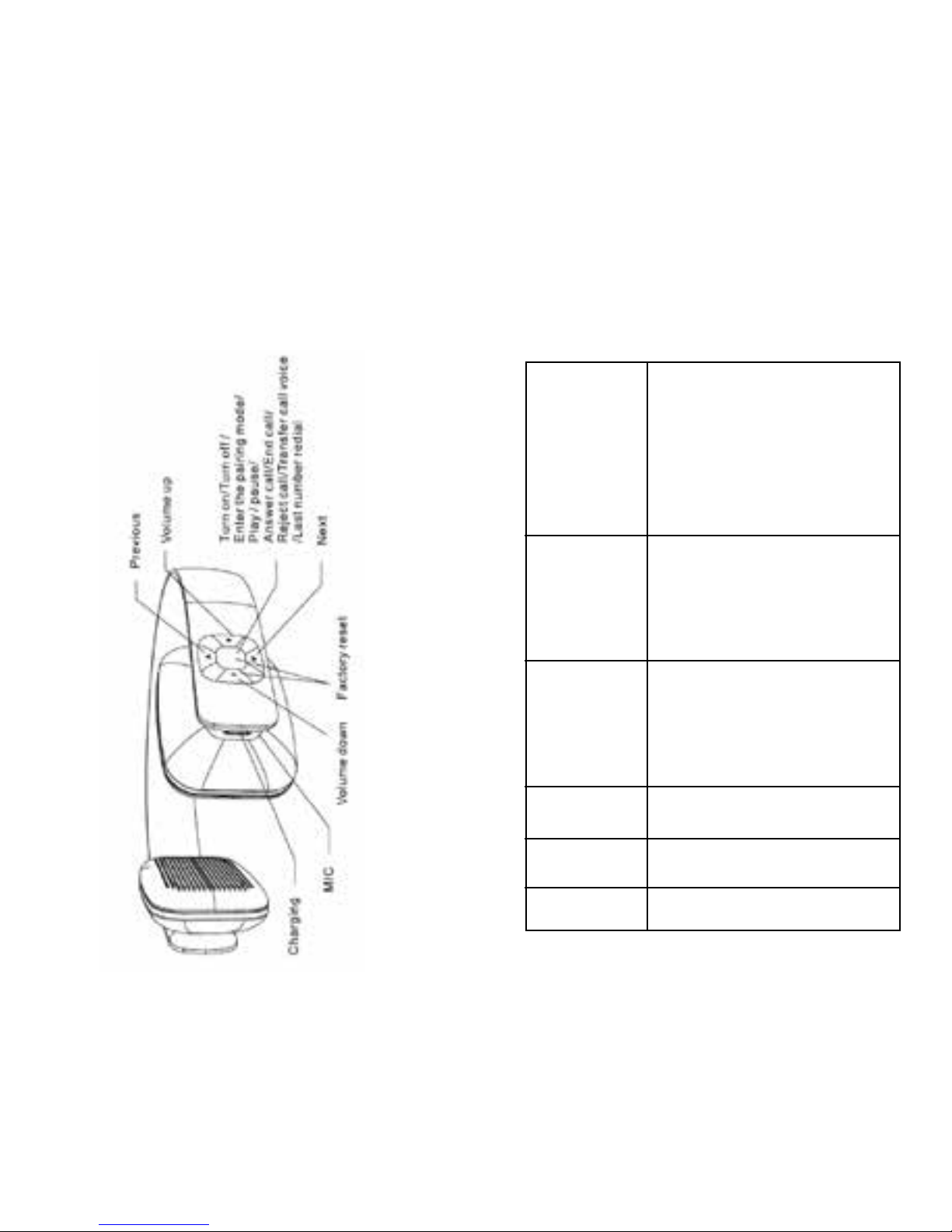
2� Connection diagram
Turn on
Turn off
Enter the
pairing mode
Pairing
Low battery
warning
Charging
Answer call
Press “MFB” button for 2
seconds when the device is
off. (Red LED light and a tone
voice beep)
Press the “MFB” button for 3
seconds when the device is
on. (A tone voice beep and
LED is off)
Press the “MFB” button in
“power off mode and hold
on for 5 seconds. (Blue LED
and red LED quickly ash
alternately with two beep tone
voice).
In pairing mode use a mobile
phone with Bluetooth function
or other Bluetooth master de-
vices to perform pairing action.
(Detail refer to the chapter
about pairing).
The red LED ashes
Plug the charger to port of the
device. (Red LED is on)
Short click “MFB” button.

98
EnglishEnglish
3�2� To use your aHead Bluetooth
Headphones
To use your aHead Bluetooth Head-
phones, you must pair your Head-
phones with a phone or a computer
rst. Once your aHead Bluetooth
Headphones are paired to a specic
mobile phone, they will remain paired
and automatically recognise each other
when they are within range.
Pairing to a phone and
entertainment devices:
– Turn on your phone and ensure that
its Bluetooth function is activated.
– Turn on the aHead Bluetooth Head-
phones and activate pairing mode.
– Search after your Bluetooth device
on your phone by following your re-
spective phone’s instructions. Refer
End call
Reject call
Last number
redial
Play/Pause
Volume up
Volume off
Next
Previous
Fast
backward
Fast
forward
Factory
reset
Short click “MFB” button.
Press the “MFB” button
for 1-2 seconds.
Double click the “MFB” button
in the connected state.
Click “MFB” button to play
music when the device is con-
nected or pausing and click
“MDB” button to pause when
the device is playing music.
Short click the “+” button
Short click the “-” button
Short click “>” button – keep
pressure
Short click “<” button – keep
pressure
Press and hold the “<” button
Press and hold the “>” button
Under pairing mode, press
and the “MFB” button for 5
seconds.

1110
EnglishEnglish
Bluetooth adapter is necessary in
order to use the aHead Bluetooth
Headphones with your computer.
Connect the Bluetooth adapter to
your computer and ensure that the
Bluetooth function is enabled.
– Turn on the device and go to pairing
mode.
– Open the Bluetooth software (for
example Blue Soleil) installed on
your computer, and select ‘Search
your Bluetooth devices’ function.
Refer to the user manual associated
with the Bluetooth software if more
information is needed.
– After a few seconds the device
name will be listed on your comput-
er, it will be listed as a discover de-
vice. Select the icon and right-click
on your mouse to select ‘Pairing’.
to your phone’s user manual if more
information is needed.
– After a few seconds the phone
will list the device as a discovered
device. Select it and follow your
phone’s instruction on how to select
this mode.
– Your phone will conrm the pairing,
and then press Yes/Ok.
– You can now play music, watch TV
and/or movies and play games on
your phone while hearing the sound
and/or music from the device. You
can also control your mobile phone
with the aHead Bluetooth Head-
phones.
Pairing to a computer and
entertainment devices:
– If there is no Bluetooth function
supported by your computer, a

1312
EnglishEnglish
ed, the red LED light will turn off and
replaced by a blue LED light.
WARNING
– You must select a qualied charger
from a regular manufacturer.
– You must charge the aHead Blue-
tooth Headphones if it has not been
used for more than 12 months.
Right-click again to select ‘Connect
with Audio Device’.
– Open your media player software
on your computer to play music,
watch TV and/or movies and play
games. All the sound will now be
coming from your aHead Bluetooth
Headphones.
3�3� Charging your
aHead Bluetooth Headphones
These headphones use USB to Micro
USB charger. It is convenient to
connect to an AC charger or a USB
charger. Ensure that your device is
fully charged for at least 6 hours when
using it the rst time. To charge insert
one terminal of your charger to an
AC or PC USB port and connect the
other end to the Headphones. When
charging the red LED light will show
constantly, when charging is complet-

1514
EnglishEnglish
5� Service and support
- If your aHead Bluetooth Headphones
are not working properly, please
contact your local service provides
or dealer for more information and
service.
6� FAQ
1� Why are the aHead Bluetooth
Headphones not turning on when
pressing the button?
Ans: Ensure that the battery has
been charged fully for at least 6
hours before using it for the rst
time. The red LED light will show
when charging starts.
2� There is no sound�
Ans: Ensure that there is a
connection between your aHead
Bluetooth Headphones and your
4. Tecnical specications
Parameter
Bluetooth specication
RF range
Frequency response
Loudspeaker output
Signal-to-noise
Distortion
Playback time
(80% volume)
Charging time
Dimension (L x W x H)
Weight
DSP
Bluetooth prole
Bluetooth V4.0
10 m
80Hz-20KHz
20mW
≥90dB
≤1.0 %
About 14 hours
About 2.5 hours
165.7 x 161.5 x 50 mm
About 125 g
CVC6.0 Noise
and Echo reduction
A2DP1.2 AVRCP1.4
HSP 1.2 HFP1.6
Value

1716
EnglishEnglish
the aHead Bluetooth Headphones
to phone A, restart the aHead
Bluetooth Headphones’ pairing
mode and connect the Headphones
to phone B, and then use phone A
paired device list to reconnect to the
Headphones.
device. If the connection is not
established, please try to reconnect
again. Make sure that the aHead
Bluetooth Headphones are paired
and connected with your mobile
phone or computer.
3� How can I know if the aHead
Bluetooth Headphones have been
fully charged?
Ans: When the LED light turns from
red to blue during charging it is an
indication that the aHead Bluetooth
Headphones have been charged
fully.
4� Why can’t the aHead Bluetooth
Headphones connect to
a second device?
Ans: Please turn the aHead
Bluetooth Headphones to pairing
mode and press the ‘MFB’ button
to enable multipoint mode. Connect

1918
DanskDansk
1� Introduktion
Tillykke og tak fordi du har valgt
aHead Bluetooth Headphones.
Denne manual hjælper dig med
at betjene dine aHead Bluetooth
Headphones, men du skal helst
være bekendt med Bluetooth
som funktion på din mobiltelefon
eller på anden teknisk enhed, før
du anvender aHead Bluetooth
Headphones.
Sikkerhedsforanstaltninger
– Vi anbefaler, at denne manual
læses grundigt inden aHead Blue-
tooth Headphones tages i brug.
Dette er for egen sikkerhed.
– Der må ikke ændres eller repar-
eres på hovedtelefonerne, ej heller
afmontering af dele er accepteret.
Overholdes ovenstående ikke,
INDHOLDSFORTEGNELSE
1� Introduktion
2� Forbindelsesdiagram
3� Brugsanvisning
3.1 Generelle funktioner
3.2 Parring til mobil
3.3 Opladning af produkt
4. Tekniske specikationer
5� Service og support
6� Oftest stillede spørgsmål
Other manuals for AHEAD
1
Table of contents
Languages:
Other KREAFUNK Headphones manuals