manuals.online logo
Brands
  1. Home
  2. •
  3. Brands
  4. •
  5. Legamaster
  6. •
  7. Monitor
  8. •
  9. Legamaster ETX-6500 User manual

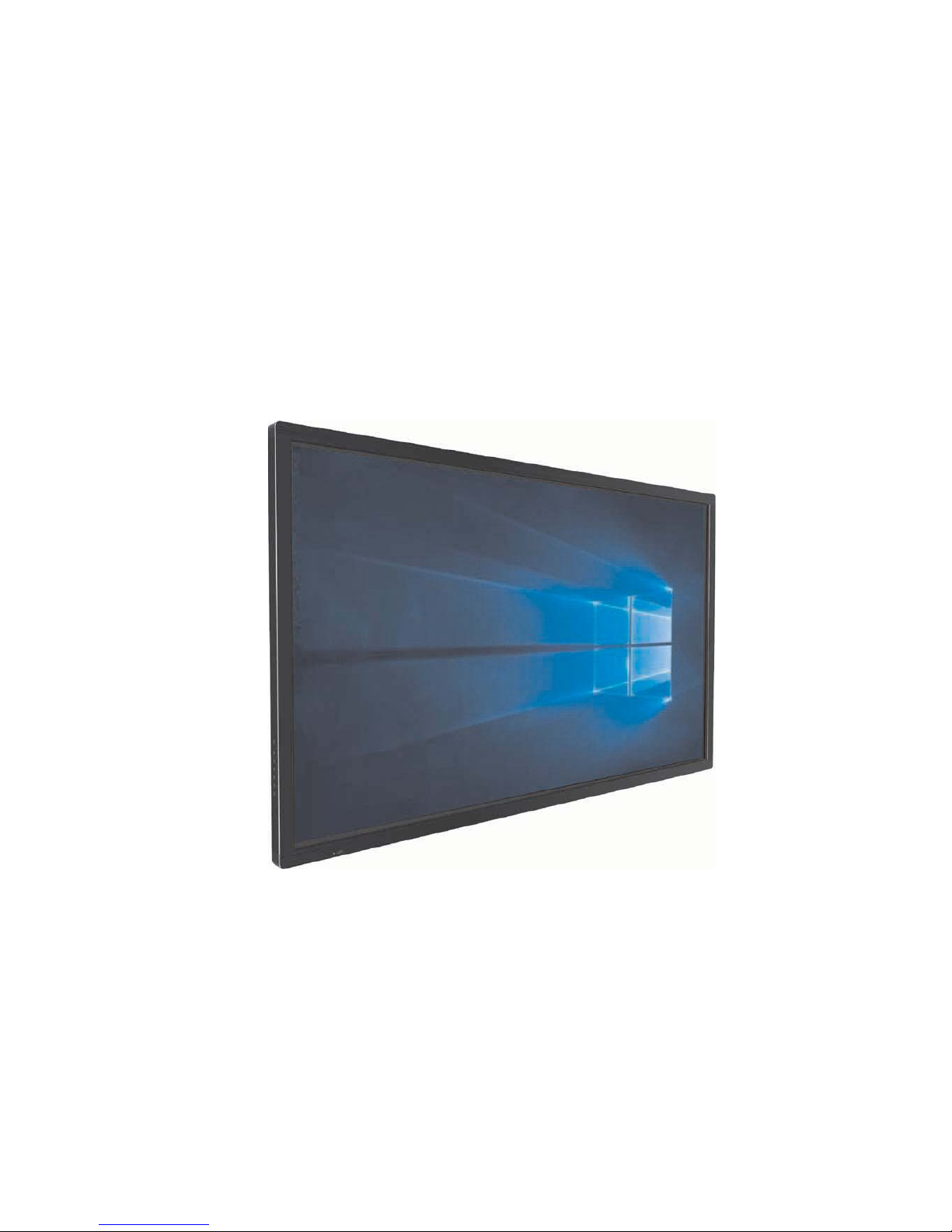
Legamaster ETX-6500 User manual

This manual suits for next models

2

Other Legamaster Monitor manuals

Legamaster e-Screen PTX-6500UHD User manual

Legamaster

Legamaster e-Screen PTX-6500UHD User manual

Legamaster ETX Series User manual

Legamaster

Legamaster ETX Series User manual

Legamaster ETX Series User manual

Legamaster

Legamaster ETX Series User manual

Legamaster PTX-6500 User manual

Legamaster

Legamaster PTX-6500 User manual

Legamaster e-Screen PTX-6510UHD User manual

Legamaster

Legamaster e-Screen PTX-6510UHD User manual

Popular Monitor manuals by other brands

Samsung ME32C user manual

Samsung

Samsung ME32C user manual

ViewSonic VA926-LED user guide

ViewSonic

ViewSonic VA926-LED user guide

Furuno Mu 120c Operator's manual

Furuno

Furuno Mu 120c Operator's manual

Asus VB171D - 17" LCD Monitor Service manual

Asus

Asus VB171D - 17" LCD Monitor Service manual

AOC 9GLR Technical specifications

AOC

AOC 9GLR Technical specifications

DMG RAFFAELLO manual

DMG

DMG RAFFAELLO manual

AOC LM720 - 17" Technical specifications

AOC

AOC LM720 - 17" Technical specifications

Sony Trinitron GDM-F500 Service manual

Sony

Sony Trinitron GDM-F500 Service manual

Memorex MT1701 user guide

Memorex

Memorex MT1701 user guide

ViewSonic VE510s-4 Service manual

ViewSonic

ViewSonic VE510s-4 Service manual

Farenheit T-1503CM instruction manual

Farenheit

Farenheit T-1503CM instruction manual

Ditel DINOS DN129/AT Quick installation guide

Ditel

Ditel DINOS DN129/AT Quick installation guide

Sony SDM-S51 Specifications

Sony

Sony SDM-S51 Specifications

Kenwood DMX1025BT quick start guide

Kenwood

Kenwood DMX1025BT quick start guide

Dell S2409WFP user guide

Dell

Dell S2409WFP user guide

EverFocus EN-7517E instruction manual

EverFocus

EverFocus EN-7517E instruction manual

Dell P3222QE user guide

Dell

Dell P3222QE user guide

Panasonic TH152UX1 - 152" PLASMA TV Service manual

Panasonic

Panasonic TH152UX1 - 152" PLASMA TV Service manual

manuals.online logo
manuals.online logoBrands
  • About & Mission
  • Contact us
  • Privacy Policy
  • Terms and Conditions

Copyright 2025 Manuals.Online. All Rights Reserved.

Before connecting, operating or adjusting this product, please read the manual completely
.
Please keep this manual for future reference.
Interactive Touch Screen
INSTRUCTION MANUAL
FCC ID: 2AKP8-ETX-6500
Contains the module's FCC ID: 2ADID-WP0DR1110
Contains the module's FCC ID: 2ADID-BT03B110
Contents
Important Information 1
Important Safety Precautions 2
Important Notice 4
Identification of Controls 5
Remote Control 6
Setting Up 7
Connections 8
Basic Operations 10
Device Settings 12
Network Settings 13
Menu List
Troubleshooting 24
Specifications 25
19
Using USB Multi Media Player 21
1
IMPORTANT INFORMATION
If the is not positioned in a stable location, it can be potentially
hazardous due to falling. Many injuries, particularly to children, can be
avoided by taking simple precautions such as:
! Use cabinets or stands recommended by the manufacturer of the
.
! Only use furniture that can safely support the .
! Ensure the is not hanging over the edge of the supporting
furniture.
! Do not place the on tall furniture (for example, cupboards or
bookcases) without anchoring both the furniture and the to a
suitable support.
!
! Increase children’s awareness of danger caused by falling down of the
, or being hurt by bumping into the s.
!Do not use immediately after moving from a low temperature to high
temperature environment, as this causes condensation, which may
result in fire, electric shock, or other hazards.
!To avoid possible condensation it is recommended to not use the
device within 24 hours after its arrival, to avoid possible condensation.
Warning:
To prevent the spread of fire, keep candles or other
open flames away from the all the times.
screen
screen
screen
screen
screen
screen
Do not position the screen on cloth or place any material between the
screen and supporting furniture.
screen creen
screen
2
Important Safety Precautions
Electricity may cause personal injuries and property
damage if improperly handled. The has been
engineered and manufactured with the highest priority
on safety. But IMPROPER USE CAN RESULT IN
POTENTIAL ELECTRIC SHOCK OR FIRE HAZARD. In
order to prevent potential danger, please observe the
following instructions when installing, operating and
cleaning the product. To ensure your safety and prolong
the service life of your , please read the following
precautions carefully before using the product.
All warnings on the product and
in the instruction manual must be observed closely.
7.Power cord protection---
screen
screen
1. Read these instructions---All operating instructions
must be read and understood before the product is
operated.
2. Keep these instructions---These safety and
operating instructions must be kept in a safe place for
future reference.
3. Note all warnings---
4. Follow all instructions---All operating instructions
must be followed.
5.Attachments---Only use attachments/accessories
specified by the manufacturer. Do not use
attachments which are not recommended by the
manufacturer. Use of improper attachments can
result in accidents.
6. Power source---This product is intended to be
supplied with a listed power supply indicated on the
marking label. If you are not sure of the type of power
supply to your home, consult your product dealer or
local power company. For added protection for this
product during a lightning storm, or when it is left
unattended and unused for a long period of time,
unplug it from the wall outlet and disconnect the cable
system.
Protect the power cord from
being walked on or pinched particularly at plugs,
convenience receptacles, and the point where they
exit from the apparatus.
NOTE: Where the mains plug or an appliance coupler is
used as the disconnected device, the disconnected
device shall remain readily operable.
8.Overloading---Do not overload wall outlets,
extension cords, or convenience receptacles on
other equipment as this can result in a risk of fire or
electric shock.
9.Entering of objects and liquids---Never insert an
object into the product through vents or openings.
High voltages are present in the product and inserting
an object can cause electric shock and/or short
internal parts. For the same reason, do not spill water
or liquid on the product.
10. Servicing---Refer all servicing to qualified service
personnel. Servicing is required when the apparatus
has been damaged in any way, such as the power-
supply cord or plug is damaged, liquid has been
spilled or objects have fallen into the apparatus, the
apparatus has been exposed to rain or moisture,
does not operate normally or has been dropped.
11.Damage requiring service---If any of the following
conditions occurs, unplug the power cord from the AC
outlet and request a qualified service technician to
perform repairs.
a. When the power cord or plug is damaged.
b. When liquid is spilled on the product or when objects
have fallen into the product.
c. When the product has been exposed to rain or water.
d. When the product does not operate properly as
described in the operating instructions.
e. If the product has been dropped or the cabinet has
been damaged in any way.
f. When the product displays an abnormal condition or
exhibits a distinct change in performance. Any
noticeable abnormality in the product indicates that
the product needs servicing.
12. Replacement parts---In case the product needs
replacement parts, make sure that the service person
uses replacement parts specified by the
manufacturer, or those with the same characteristics
and performance as the original parts. Use of
unauthorized parts can result in fire, electric shock
and/or other danger.
13. Safety checks---Upon completion of service or
repair work, request the service technician to perform
safety checks to ensure that the product is in proper
operating condition.
14. Wall or ceiling mounting---When mounting the
product on a wall or ceiling, be sure to install the
product according to the method recommended by
the manufacturer. This is a safety issue.
15. Stand---Use only with the trolley stand or wall mount
specified by the manufacturer, or sold with the
apparatus. Do not place the product on an unstable
trolley stand or wall mount. Placing the product on an
unstable base can cause the product to fall, resulting
in possible serious injuries as well as damage to the
product. When mounting the product on a wall, be
sure to follow the manufacturer’s instructions. Use
only the mounting hardware recommended by the
manufacturer.
16.Careful move---When a trolley is used, be c
when moving the trolley/apparatus combination to
avoid injury from the product tipping over. Sudden
stops, excessive force and uneven floor surfaces can
cause the product to fall from the trolley.
Never attempt to move the screen unless the AC
Power cord has been disconnected.
autious

3
Important Safety Precautions (Continued)
17. Lightning---Unplug this apparatus during a thunder
storm or when unused for long periods of time.
For added protection during a thunder storm, or
when the screen is left unattended and unused for
long periods of time, unplug it from the wall outlet and
disconnect the antenna. This will prevent damage to
the equipment due to lightning and power-line
surges.
18. Do not use this apparatus near water---for
example, near a bathtub, washbowl, kitchen sink,
laundry tub, in a wet basement or near a swimming
pool, and the like.
Do not use immediately after moving from a low
temperature to high temperature environment, as
this causes condensation, which may result in fire,
electric shock, or other hazards.
19. Clean only with dry cloth---Unplug this product
from the wall outlet before cleaning. Do not use liquid
cleaners or aerosol cleaners. Use a soft cloth for
cleaning.
20. Ventilation---Do not block any ventilation openings.
Install the in accordance with the
manufacturer instructions. The vents and other
openings in the cabinet are designed for ventilation.
Do not cover or block these vents and openings
since insufficient ventilation can cause overheating
and/or shorten the life of the product. Do not place
the product on a bed, sofa, rug or other similar
surface, since they can block ventilation openings.
This product is not designed for built-in installation;
therefore do not place the product in an enclosed
space such as a bookcase or rack, unless proper
ventilation is provided or the manufacturer’s
instructions are followed.
21.Heat sources---Do not install near any heat sources
such as radiators, heat registers, stoves, or other
apparatus (including amplifiers) that produce heat.
22.Panel protection---The display panel used in this
product is made of glass. Therefore, it can break
when the product is dropped or impacted upon by
other objects. Be careful not to be injured by broken
glass pieces in case the display panel breaks.
23.Pixel defect---The display panel is a very high
technology product, giving you finely detailed
pictures. Occasionally, a few non-active pixels may
appear on the screen as a fixed point of blue, green
or red. Please note that this does not affect the
performance of your product.
WARNING: For continued safety, apparatus with class I
construction shall be connected to a mains socket outlet
with a protective earthing connection.
The apparatus should not be
exposed to dripping or splashing liquids and that no
objects filled with liquids, such as vases, shall be
placed on the apparatus.
screen
Legal notices
FCC Statement
1. This device complies with Part 15 of the FCC Rules.
Operation is subject to the following two conditions:
(1) This device may not cause harmful interference.
(2)This device must accept any interference received, including
interference that may cause undesired operation.
2. Changes or modifications not expressly approved by the
party responsible for compliance could void the user’s
authority to operate the equipment.
NOTE: This equipment has been tested and found to comply
with the limits for a Class B digital device, pursuant to
Part 15 of the FCC Rules. These limits are designed to
provide reasonable protection against harmful
interference in a residential installation.
This equipment generates uses and can radiate radio
frequency energy and, if not installed and used in accordance
with the instructions, may cause harmful interference to radio
communications. However, there is no guarantee that
interference will not occur in a particular installation. If this
equipment does cause harmful interference to radio or
television reception, which can be determined by turning the
equipment off and on, the user is encouraged to try to correct
the interference by one or more of the following measures:
Reorient or relocate the receiving antenna.
Increase the separation between the equipment and receiver.
Connect the equipment into an outlet on a circuit different from
that to which the receiver is connected.
Consult the dealer or an experienced radio/TV technician for
help.
FCC Radiation Exposure Statement:
This equipment complies with FCC radiation exposure limits
set forth for an uncontrolled environment. In order to avoid
the possibility of exceeding the FCC radio frequency exposure
limits, Human proximity to the antenna shall not be less than
20cm (8 inches) during normal operation.
Important Notice
About After-Image
Cleaning and
Maintenance
The extended use of fixed image program material can cause a permanent
on the screen.
This background image is viewable on normal programs in the form of a
stationary fixed image. This type of irreversible screen deterioration can be
limited by observing the following steps:
A. Reduce the brightness/contrast setting to a minimum viewing level.
B. Do not display the fixed image for extended periods of time.
C. Turn the power off when not in actual use.
Important Information Regarding Use of Video Games,
Computers, Captions or Other Fixed Image Displays.
after-image
!Do not allow a still picture to be displayed for an extended period, as this
can cause a permanent after-image to remain on the screen.
Examples of still pictures include logos, video games, computer images,
teletext and images displayed in 4:3 mode.
CAUTIONS:
!The permanent after-image on the screen resulting from fixed image use is
not an operating defect and as such is not covered by the warranty.
!This product is not designed to display fixed images for extended periods
of time.
About Location/
Environment
Do not use in hot and cold rooms (locations)
!When the unit is used in rooms (locations) with low temperature, the
picture may leave trails or appear slightly delayed. This is not a
malfunction, and the unit will recover when the temperature returns to
normal.
!Do not leave the unit in a hot or cold location. Also, do not leave the unit in a
location exposed to direct sunlight or near a heater, or in high humidity, as
this may cause the cabinet to deform and the to malfunction, and
affect the screen’s performance .
screen
!Environment condition:
Operating temperature: 5°C – 35°C
Operating humidity: 20 – 80 % ( no moisture condensation )
Storage temperature: -15°C – 45°C
Storage humidity: 10 – 80 %
Atmospheric pressure: 86 kPa ~106 kPa
To clean this unit, wipe with a soft, dry cloth.
Clean the cabinet with a soft, lint-free cloth, If the cabinet is especially dirty,
moisten a soft, lint-free cloth in a weak detergent solution, squeeze the
excess moisture from the cloth, then wipe the cabinet with the cloth. Use a
clean cloth to dry the cabinet.
Use eyeglass cleaner to remove stubborn dirt from the screen.
Never use alcohol, paint thinner or benzine to clean this unit.
!Clean the screen with a soft, lint-free cloth.
!
!
Carrying or Moving
the screen
! When you move the screen , hold the frame of the screen .
Be aware of the danger or harm which may caused by carrying or moving
the screen , as the bezel is very thin.
When transporting, do not subject the unit to shocks or vibration, or
excessive force.
!
!
4
Environmental Protection Waste electrical products should not be disposed of with
household waste. Please recycle where facilities exist. Check
with your Local Authority or retailer for recycling advice.
Identification of Controls
5
15
14
1.VGA OUT
The currently selected PC IN 1/2/3 signal output.
2.PC IN1/2/3
Enable connection to PC or other external devices
with VGA/AUDIO ports.
3.USB2.0/3.0
Connect USB devices to these ports.
4.HDMI1/2 Input
To connect with those equipments with HDMI or DVI
interface.
HDMI1(MHL): Connect an MHL - enabled device such
as a cell phone to this jack to view the external
device’s screen on your screen.
HDMI2(ARC): Connect an ARC-enabled home theater
receiver to this jack.
5. DP(DisplayPort) Input
Connect an external device to DP out jack.
6.
WIFI antenna for transmitting or receiving
network signal.
7.TOUCH1/2 OUT
Output the touch for external devices connected
to PCx or HDMIx port which support touch
system.
Note: TOUCH OUT 2 takes precedence over
TOUCH OUT 1 in default. You can define it to in
Lock menu.
8.RS232
For service, software upgrades and the other
uses.
9.WAN IN
The built-in router input port. Connect to the
external network.
10.LAN OUT
The built-in router output port. Connection to
another computer or other Internet enabled
devices.
11.AV IN
Connect an AV device to this jack.
12.S/PDIF digital audio output
Connect a digital sound system to this jack.
13.
Connect headphones to this jack. The screen is
the current audio output.
14. Power Switch
Push to (1) to connect the power, push to (O ) to
cut off.
Note:
15. Fuse (12A 250V)
16. AC IN
Plug the AC cord into this jack and into a power
outlet.(~100-240V 50Hz/60Hz)
Do not cover the Power switch, it should be
kept free from coverings so that it can be easily
and conveniently operated.
16
AUDIO
TOUCH
OUT 2
2910
1112
13 7
2
3
4
5
6
7
8
3
HDMI 1
(MHL)
HDMI 2
(ARC)
VGA 1
PC IN 1
VGA 2
PC IN 2
DP IN
USB 2.0
TOUCH
OUT 1
1
Remote Sensor
Power Indicator
1
2
3
4
5
6
7
81. :Switch the screen power on or standby.
2. : Press the button to display input source menu or exit
the menu screen.
3. : Press the button to return to previous menu.
4. : Press the button to display desktop (Home page) on
the screen.
5. : Press the button to open the setting menu.
6. : Press the button to turn down the volume.
7. : Press the button to turn up the volume.
8.USB(2.0)(for camera): This port is connected to PC (internal
OPS) , but is changed to Android if current source is
AV, USB or in Home page.
Notes: 1. Please open the dust cover before being used.
2. It can perfectly support up to the 720p of camera.
6
Remote Control
Notes:
● This operation manual provides a description based on operating functions with the remote control.
● In different mode, some buttons may have different function.
Set up the sleep timer
Select picture mode
Select aspect ratio
Display or exit the setting menu screen
0-9 number buttons
Switch to AV mode
Switch to TV mode
Press to enter or exit the disc tray
Go to USB multi media player
Go to DVD multi media player
CHANNEL UP/DOWN
Note: If no DVD, this button has no function.
Note: If no RF, this button has no function.
Switch the screen power on or Standby
Display or exit input source menu
Display desktop (Home page)on the screen
Takes a screenshot and stores the
data onto your connected USB
storage device.
If there is no USB storage, the
screenshot will be stored on the
built-in storage.
Select sound mode
Return to previous menu
or exit the on-screen menu
Mute the sound
Coloured buttons(RED/GREEN/YELLOW/BLUE)
Red: Screen off /on.
Blue: Call or exit recent application list.
Switch to HDMI mode
Switch to VGA mode
Display
OPS
on the scr een
: Play/Pause button
: STOP button
/ : Fast forward/fast reverse
/ : Previous/next
Return to the previous channel
VOLUME UP/DOWN
Control buttons for USB/DVD Multi Media Player
To confirm or enter a sub-menu or toggle
between options during MENU operation.
Use Arrow buttons to navigate in on-
screen menu.
Freeze the content displayed on the screen
Note: If no OPS, this button has no
function.
Display or exit the current
program information
Note: If no RF, this button has no function.
30
30
5m
7
Setting Up
Installing remote control Batteries
Battery precautions:
Improper use of batteries can result in a leakage of chemicals and/or
explosion. Be sure to follow the instructions below.
·Place batteries with their terminals corresponding to the (+) and (–)
indications.
·Different types of batteries have different characteristics. Do not mix
batteries of different types.
·Do not mix old and new batteries. Mixing old and new batteries can shorten
the life of new batteries and/or cause old batteries to leak chemicals.
·Remove batteries as soon as they are non-operable. Chemicals that leak
from batteries can cause a rash. If chemical leakage is found, wipe with a
cloth.
·Dispose of batteries in a proper manner.
·If the remote control is not used for an extended period of time, remove the
batteries.
·The batteries shall not be exposed to excessive heat such as sunshine, fire
or the like.
Open the battery cover.
1
Insert two AAA batteries into the battery compartment. Make sure that the
+ and – symbols on the batteries match the + and – symbols in the battery
compartment.
2
Replace the cover.
3
To install remote control batteries:
Aiming the remote control
Use the remote control by pointing it towards the remote sensor on the front
of your screen. Objects between the remote control and the remote sensor
may prevent proper operation.
Cautions regarding use of remote control
·Do not expose the remote control to shock. In addition, do not expose the
remote control to liquids, and do not place in an area with high humidity.
·Do not install or place the remote control under direct sunlight. The heat may
cause deformation of the unit.
·The remote control may not work properly if the remote sensor window of
the main unit is under direct sunlight or strong lighting. In such a case,
change the angle of the lighting or the screen set, or operate the remote
control closer to the remote sensor window.
7
=When connecting an external device to the screen, make sure that the screen and the device are turned off.
=Check the plugs at the ends of cables to make sure that they are the correct type before you try plugging them into jacks
on the screen.
=Make sure that all plugs are securely inserted into the jacks. Loose connections can result in image or color problems.
=The illustration of the external device may be different depending on your model.
=Refer to the operating manual of the external device as well.
Cautions Before Connecting
Connections
8
AV devices
DVD/VCD
Game console
Digital sound system
PC, etc.
VGA devices
Serial port cable
VGA cable
AV cable
AV adapter
Network cable
Computer, etc.
Internet devices
Network connection
S/PDIF cable
Audio cable
Camcorder
Satellite signal receiver
Computer, etc.
Network cable
Set top box
Y
W
R
Y
W
R
VGA OUT AUDIO
OUT
USB
Computer
USB HDMI
Connect TOUCH OUT with USB cable
to PC USB port.
Connect PC with VGA cable or HDMI
cable. Please choose the proper
method of connection based on your
device.
Note: After installation of the driver, it
can control the external computer by
native touch control. (Only for PC、
HDMI signal)
TOUCH OUT 2 takes precedence
over TOUCH OUT 1 in default. You
can define it to in Lock menu.
Headphone cable
Note: Before using headphones, adjust the device volume so as
to avoid excessive levels, as hearing damage may result.
Audio input devices
USB cable
AV OU T
VIDEO AUDIO
Y
W
R
PC OUT
1. Connect the female plug to the AC socket
on the unit.
2. Connect the male plug to the wall outlet as
illustrated.
=This product should be operated only from the
type of power source indicated on the marking
label.
=Always unplug the AC cord from power outlet
when not using for a long period of time.
Notes:
AC IN
AUDIO
TOUCH
OUT 2