manuals.online logo
Brands
  1. Home
  2. •
  3. Brands
  4. •
  5. Light & Motion
  6. •
  7. Camera Accessories
  8. •
  9. Light & Motion Bluefin VX2000 User manual

Light & Motion Bluefin VX2000 User manual

Other Light & Motion Camera Accessories manuals

Light & Motion 5060 - CAMEDIA Wide Zoom Digital Camera User manual

Light & Motion

Light & Motion 5060 - CAMEDIA Wide Zoom Digital Camera User manual

Light & Motion Bluefin HC3 User manual

Light & Motion

Light & Motion Bluefin HC3 User manual

Light & Motion TRV120 User manual

Light & Motion

Light & Motion TRV120 User manual

Light & Motion Stingray G2 User manual

Light & Motion

Light & Motion Stingray G2 User manual

Light & Motion Bluefin SR12 User manual

Light & Motion

Light & Motion Bluefin SR12 User manual

Light & Motion FXI User manual

Light & Motion

Light & Motion FXI User manual

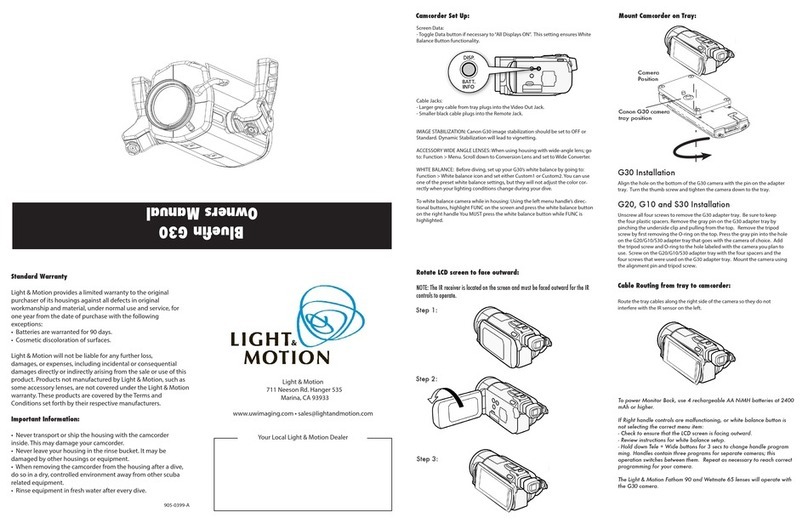
Light & Motion Bluefin G30 User manual

Light & Motion

Light & Motion Bluefin G30 User manual

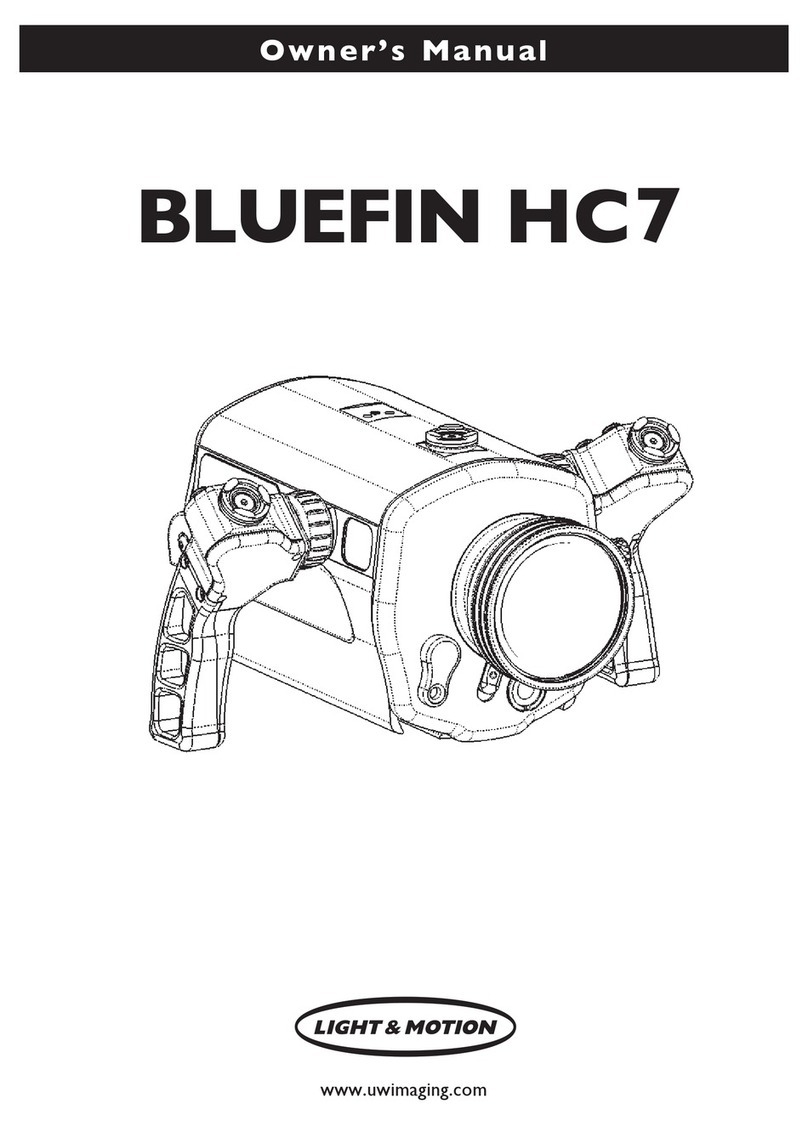
Light & Motion BLUEFIN HC7 User manual

Light & Motion

Light & Motion BLUEFIN HC7 User manual

Light & Motion Stingray HD User manual

Light & Motion

Light & Motion Stingray HD User manual

Light & Motion TITAN D100 User manual

Light & Motion

Light & Motion TITAN D100 User manual

Popular Camera Accessories manuals by other brands

CamRanger CamRanger user manual

CamRanger

CamRanger CamRanger user manual

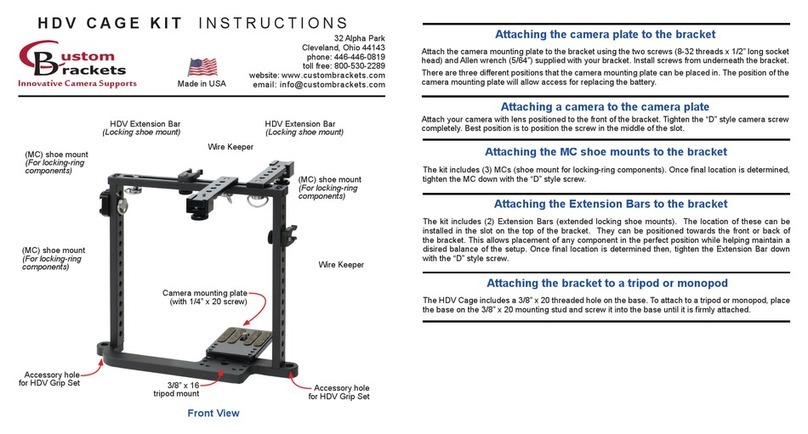
Custom Brackets HDV CAGE KIT Instructions for use

Custom Brackets

Custom Brackets HDV CAGE KIT Instructions for use

Aegis ABL052010P user manual

Aegis

Aegis ABL052010P user manual

Saft SRA Series Installation and operating instructions

Saft

Saft SRA Series Installation and operating instructions

Kodak TIB5200 technical information

Kodak

Kodak TIB5200 technical information

Videotec HEG instruction manual

Videotec

Videotec HEG instruction manual

Ikelite 6171.11 manual

Ikelite

Ikelite 6171.11 manual

Pentax Auto Bellows Slide Copier K user manual

Pentax

Pentax Auto Bellows Slide Copier K user manual

Nikon UT-1 user manual

Nikon

Nikon UT-1 user manual

dji RONIN 4D quick start guide

dji

dji RONIN 4D quick start guide

SLIK ABLE 300DX user manual

SLIK

SLIK ABLE 300DX user manual

Rebelcell 36V70 user manual

Rebelcell

Rebelcell 36V70 user manual

Trojan GC2 48V quick start guide

Trojan

Trojan GC2 48V quick start guide

Calumet 7100 Series CK7114 operating instructions

Calumet

Calumet 7100 Series CK7114 operating instructions

Ropox 4Single Series User manual and installation instructions

Ropox

Ropox 4Single Series User manual and installation instructions

Cambo Wide DS Digital Series Main operating instructions

Cambo

Cambo Wide DS Digital Series Main operating instructions

Samsung SHG-120 Specification sheet

Samsung

Samsung SHG-120 Specification sheet

Ryobi BPL-1820 Owner's operating manual

Ryobi

Ryobi BPL-1820 Owner's operating manual

manuals.online logo
manuals.online logoBrands
  • About & Mission
  • Contact us
  • Privacy Policy
  • Terms and Conditions

Copyright 2025 Manuals.Online. All Rights Reserved.

Owner’s Manual
www.uwimaging.com
VX2000
Bluefin
3
Table of Contents
Quick Start Guide . . . . . . . . . . . . . . . . . . . . . . . . . . . . . . . . . . . . . . . . . . . . . . . . . . .5
Bluefin VX2000 Operation - Camera Preparation . . . . . . . . . . . . . . . . . . . . . . . . . .6
ounting the Camera . . . . . . . . . . . . . . . . . . . . . . . . . . . . . . . . . . . . . . . . . . . . . . . .6
Operation . . . . . . . . . . . . . . . . . . . . . . . . . . . . . . . . . . . . . . . . . . . . . . . . . . . . . . . . . .7
onitor Back LED signals . . . . . . . . . . . . . . . . . . . . . . . . . . . . . . . . . . . . . . . . . . . .11
Front Optic Installation / Removal . . . . . . . . . . . . . . . . . . . . . . . . . . . . . . . . . . . .12
Pre-Dive Checklist . . . . . . . . . . . . . . . . . . . . . . . . . . . . . . . . . . . . . . . . . . . . . . . . . .12
First Time Use . . . . . . . . . . . . . . . . . . . . . . . . . . . . . . . . . . . . . . . . . . . . . . . . . . . . .12
After Diving Care . . . . . . . . . . . . . . . . . . . . . . . . . . . . . . . . . . . . . . . . . . . . . . . . . .12
Housing Storage . . . . . . . . . . . . . . . . . . . . . . . . . . . . . . . . . . . . . . . . . . . . . . . . . . .13
O-ring Care & aintenance . . . . . . . . . . . . . . . . . . . . . . . . . . . . . . . . . . . . . . . . . .13
Focus Techniques . . . . . . . . . . . . . . . . . . . . . . . . . . . . . . . . . . . . . . . . . . . . . . . . . . .14
Replacing Handle Batteries . . . . . . . . . . . . . . . . . . . . . . . . . . . . . . . . . . . . . . . . . . .15
Bluefin VX2000 Lights - Getting Started . . . . . . . . . . . . . . . . . . . . . . . . . . . . . . . .17
Charging Batteries . . . . . . . . . . . . . . . . . . . . . . . . . . . . . . . . . . . . . . . . . . . . . . . .18
Installing Batteries . . . . . . . . . . . . . . . . . . . . . . . . . . . . . . . . . . . . . . . . . . . . . . . .18
Removing Batteries . . . . . . . . . . . . . . . . . . . . . . . . . . . . . . . . . . . . . . . . . . . . . . .19
ounting Battery Pods . . . . . . . . . . . . . . . . . . . . . . . . . . . . . . . . . . . . . . . . . . . .19
Installing and Using QuickConnects . . . . . . . . . . . . . . . . . . . . . . . . . . . . . . . . .19
Assembly with Universal ounts . . . . . . . . . . . . . . . . . . . . . . . . . . . . . . . . . . .21
Connecting Battery to Light Head . . . . . . . . . . . . . . . . . . . . . . . . . . . . . . . . . . .21
Light Operation . . . . . . . . . . . . . . . . . . . . . . . . . . . . . . . . . . . . . . . . . . . . . . . . . .22
Post dive cleaning . . . . . . . . . . . . . . . . . . . . . . . . . . . . . . . . . . . . . . . . . . . . . . . .23
Storage . . . . . . . . . . . . . . . . . . . . . . . . . . . . . . . . . . . . . . . . . . . . . . . . . . . . . . . . .23
Other aintenance . . . . . . . . . . . . . . . . . . . . . . . . . . . . . . . . . . . . . . . . . . . . . . .23
onitor Instructions - Getting Started . . . . . . . . . . . . . . . . . . . . . . . . . . . . . . . . . .24
Bluefin Bulkhead Installation . . . . . . . . . . . . . . . . . . . . . . . . . . . . . . . . . . . . . . .25
Bluefin Compact onitor ID and Operation . . . . . . . . . . . . . . . . . . . . . . . . . . .27
Remote onitor ID and Operation . . . . . . . . . . . . . . . . . . . . . . . . . . . . . . . . . .28
Charging the Remote onitor . . . . . . . . . . . . . . . . . . . . . . . . . . . . . . . . . . . . . .29
Diving Without a onitor Attached . . . . . . . . . . . . . . . . . . . . . . . . . . . . . . . . .29
Returning Products for Care . . . . . . . . . . . . . . . . . . . . . . . . . . . . . . . . . . . . . . . . . .30
Contact Light & otion . . . . . . . . . . . . . . . . . . . . . . . . . . . . . . . . . . . . . . . . . . . . .30
Welcome
Congratulations on your purchase of the revolutionary Bluefin VX2000
Video Housing.
Please inspect the packaging of your product to verify that there was no
damage during shipping.
If you are not familiar with your camcorder’s features, please take time to
become familiar with the camcorder before you proceed in this manual. This
manual assumes you have a working knowledge of your camcorder and will
only cover operational procedures relative to the underwater housing.
The term “Push” when referenced in this manual means to press and release
in one motion. If a function requires a button to be continually held, the
manual will read, “press and hold”.
Periodically refer to the website for instruction revisions.


Hot Tip Important Caution
Look for these symbols to help identify special information.
Caution - Caution - Caution
We hope you have a wonderful underwater experience with Light & otion
equipment. To increase your enjoyment and the life span of your new gear
please take an extra minute to review common errors which will result in
equipment damage or destruction.
• Check the operation of all your equipment several weeks prior to your trip.
If maintenance or repair is necessary, then time is available for both shipping
and repair scheduling.
• Never transport or ship the housing with the camcorder inside.
This may damage your camcorder.
• Never leave your housing in the rinse bucket, it may be damaged by other
equipment.
• When removing the camcorder from the housing after a dive, do so in a dry
controlled environment away from other SCUBA related equipment. This
prevents water from other equipment or water from another diver
accidentally entering the housing.
• If a product is flooded, immediately rinse it with fresh water. ost non-
electrical parts will be salvageable if not corroded by salt water

5
Quick Start Guide
Every Light & otion housing is pressure tested prior to
shipping. However, unseen damage may have occurred
during shipping. It is strongly recommended to test dive
with only the housing prior to installing the camcorder.
1) Attach a fully charged Sony NP-750 battery to the camcorder. Install a ini
DV tape and a emory Stick. Remove eyecup from camcorder.
2) Remove rear plate by sliding both LATCH LOCKS in and hold, then rotate
REAR LATCHES down and forward.
3) Push the CA ERA TRAY forward to relieve the tension from the CA ERA
TRAY.
4) Press the release button down and release the CA ERA TRAY and allow it
to slide backward out of the housing.
5) Place the camcorder on the CA ERA TRAY and secure with the
OUNTING SCREW.
6) Attach the small black cable to the LANC jack, the large shielded cable to the
yellow VIDEO OUT jack, and the multicolored cable into the hot shoe mount.
7) Align the front of the CA ERA TRAY with the base of the housing.
8) Connect the microphone cable into the IC jack.
9) Pull exposure dial away from housing before sliding the tray forward.
Slide the CA ERA TRAY forward until CA ERA TRAY RELEASE
LATCH engages.
10) Position the camera eyepiece prior to installing rear plate so that it aligns
with rear eyepiece.
11) Rotate the camcorder selector switch to the E ORY position.
12) Replace Rear Plate by aligning guide pins into the CA ERA TRAY. Push the
Rear Plate forward into the housing. Rotate REAR LATCHES can engage the
LOCKING PINS. Rotate the REAR LATCHES simultaneously and evenly so
the Rear Plate draws in evenly. Rotate latches until latches engage.
Quick Start Operations Guide.
CA - Using the Smart Grip’s labeled buttons as a guide, you can access
common camcorder functions.
E - Press the ON/ ODE button once to switch to from Camera to emory
mode. Press the PHOTO button on the left grip to record a still image to
the camcorder’s emory Stick.
VTR - Press the ON/ ODE button twice from camera mode to enter VTR
mode. Press the smart grip buttons until the camcorder performs the
VTR operation you desire. (see page 11, fig 11 & fig 12)

Getting Started - Housing Identification
Illustrated below are the locations of Bluefin VX2000’s features. Take time to
familiarize yourself with the housing.

7
Operation
The Bluefin VX2000 is designed to access most camcorder features using a
combination of infrared commands from the Smart Grips as well as
mechanical interfaces on the housing.
Rear Plate
ON/MODE - Turns camcorder on from off state. When camcorder is
in powered state, loops between Camera - emory and
VTR modes.
Program/Gain - Activates camcorders manual Program (VX2000) or
Gain (PD150)
Shutter Speed - Activates camcorders manual Shutter Speed.
White Balance - Activates camcorders manual White Balance.
Audio Lev. / AE Shi t - Activates camcorders manual Audio Level (VX2000) or
AE Shift (PD150)
Bluefin VX2000 Operation - Camera Preparation
1) Install a fully charged NP-750 battery into your camcorder.
2) Install a Sony iniDV tape and a emory Stick into your camcorder.
3) Remove viewfinder from camcorder as indicated on page 157 in the Sony
manual.
Mounting the Camera
1) Remove the rear plate by sliding both latch locks in and hold, them
simultaneously rotate both rear latches down and forward.
2) Push camera tray forward to relieve tension from the camera tray
3) Press the release button down and release camera tray and allow it to slide
backward out of the housing.
4) Place camcorder on the cameratray and secure with the mounting screw
5) Attach the small black cable to the LANC jack, the large shielded cable into
the yellow Video out jack, and the multi-colored cable into the hot-shoe
mount (VX2000 only).
6) Align the front of the camera tray with the base of the housing.
7) Connect the microphone cable into the microphone jack of the housing.
8) Pull exposure dial outward.
9) Slide camera tray forward until the camera tray release latch engages.
10) Release exposure dial.
11) Position camera eyepiece prior to installing rear plate so that it aligns with
rear eyepiece.
12) Rotate the camcorder selector switch to the memory position.
13) Replace the rear plate by aligning the guide pins into the camera tray. Push
the rear plate forward into the housing. Rotate the rear latches
simultaneously and evenly so the rear plate draws-in evenly. Rotate latches
until locking latches engage.
(Fig. 1)
(Fig. 3) (Fig. 4)
RELEASE
BUTTON
(Fig. 5)
CO AND
DIAL
(Fig. 2)
8 9
Using the Bluefin VX2000 in Camcorder mode
Camcorder POWER switch should be set to E ORY setting when installed
into the housing. When the rear plate is secured to the housing, the
camcorder will switch to CA mode.
Left Smart Grip (ref. fig. 9)
LIGHTS - After initial power up from battery pod, cycles lights through
output cycles. Press and hold for three seconds to turn lights
off.
PHOTO - Will record a video capture to ini DV tape.
Still images captured in this manner will always
have a resolution of 640x480. Higher resolution
images may be captured using the emory Stick.
PHOTO DIS. - Press to display thumbnails of images stored on emory
Stick. ost recent image will be displayed first. Cycle through
stored images by pressing the FAR/- and NEAR/+.
FAR/- (dual function)
A) FAR: switches camcorder to manual focus and moves
focus point further from camcorder.
B) -: displays previous image stored on emory Stick.
PHOTO DIS must be pressed first.
NEAR/+ (dual function)
A.) NEAR: switches camcorder to manual focus and moves
focus point closer to camcorder.
B) + : displays next image stored on emory Stick. PHOTO
DIS must be pressed first.
Using the FAR/- and NEAR/+ to cycle through images on
emory Stick will place the camcorder in manual focus
and will refocus the camcorder as you scroll through the
images. When you switch back to CA mode press
AF/OFF to return to auto focus.
If REC is pressed while displaying thumbnails, the
displayed thumbnail will be recorded as part of the
composition of the video.
Front Plate
Flip Filter - Rotate lever to engage or disengage color correction filter.
Microphone - icrophone records sound to a depth of 80 ft.

(Fig. 6)
ICRO-
PHONE
FLIP
FILTER
(Fig. 7)
Housing Control
Exposure Dial - Activates camcorders manual Exposure.
ND LEVER - Controls camcorders ND filter position.
(Fig. 8)
(Fig. 9) (Fig. 10)

Exposure Dial Neutral Density Filter
Using the Bluefin VX2000 in VTR mode
Left Grip (ref. fig. 11)
FAR/- Frame Back while paused and reverse direction during
playback
NEAR/+ Frame Advance while paused
PHOTO DIS. - Rewind during Stop and high speed reverse during Playback
LIGHTS - Not used
PHOTO - Captures still image to emory Stick
Right Grip (ref. fig. 12)
TELE - Stop
WIDE - Slow otion
MOM. AF - Pause
AF/OFF - Play
REC - Fast Forward during Stop and high speed advance during
Playback
K
Rear Plate LED signals
The onitor Back features a LED light located just above the monitor. The
LED’s function is to display camcorder mode and be a visual alarm for
moisture detected inside the housing. The LED signals are:
Solid Green - Camcorder is in CA mode and a ini DV tape is loaded.
Solid Red - Camcorder is in PHOTO mode or recording in CA mode.
When a ini DV tape is not installed, LED will be red in
CA mode.
Flashing Green/Red - oisture has been detected inside the housing.
Immediately remove it from the underwater environment..
11

(Fig. 11) (Fig. 12)
Right Smart Grip (ref. fig. 10)
TELE - Zooms camera to telephoto. Double tap zoom button to double
zoom speed.
WIDE - Zooms camera to wide-angle. Double tap zoom button to double
zoom speed.
MOM. AF - Press and hold this button to put the camcorder into “momentary
AF”. Camcorder remains in AF as long as the button is pressed.
Once released, the camcorder switches to manual focus. This is
useful in stopping the camcorder from “seeking” when filming in a
low contrast environment. To return the camcorder to AF, press the
AF/OFF button.
REC - Toggles between record and stand-by modes.
AF/OFF (dual function)
AF: Returns camcorder to auto focus from manual focus.
OFF: Turns camcorder off. Press and hold for three seconds then
release.
Using the Bluefin VX2000 in Memory Stick mode
Push the POWER BUTTON on the rear plate to enter E mode.
Left Grip (ref. fig. 9)
PHOTO - Captures still image to emory Stick
PHOTO DIS - Displays images stored on emory Stick Use -/+ to cycle
through stored images.
FAR/- Displays previous image stored on emory Stick. PHOTO
DIS must be pressed first. Focus command requires onitor
Back.
NEAR/+ Displays next image stored on emory Stick. PHOTO DIS
must be pressed first.
LIGHTS - Turn lights on/off
Right Grip (ref. fig. 10)
TELE - Zooms camera to telephoto. Double tap zoom button to
double zoom speed.
WIDE - Zooms camera to wide-angle. Double tap zoom button to
double zoom speed.
MOM. AF - Pressing and holding this button puts the camcorder into
“ omentary AF”. Camcorder remains in AF as long as the
button is pressed. Once released, the camcorder switches to
manual focus. This is useful in stopping the camcorder from
“seeking” when filming in a low contrast environment. To
return the camcorder to AF, press the AF/OFF button.
AF/OFF - AF: Press once to return camcorder to auto focus from manual
focus.
OFF: Turns camcorder off. Press and hold for three seconds
then release.
REC - is not used in E mode
Housing Storage
Store housing and Travel Case in a dry location. 24 hours after a dive, leave
the Rear Plate off the housing to allow for air circulation. Similarly, leave
Travel Case Lid about two inches open. Allow any residual water to
evaporate from the Travel Case prior to storing the housing.
12 13
Front Optic Installation / Removal
To Install Optic
1. Perform o-ring inspection.
2. Align optic to housing details.
3. Press optic evenly into housing.
4. Rotate clockwise until LOCKING PIN engages.
To Remove Optic
1. Slide LOCKING PIN outward away from optic.
2. Rotate optic counter clockwise.
3. Pull away from housing.
Pre-Dive Checklist
1) ake sure you have a ini DV tape and emory Stick in the camcorder.
2) ake sure you have a completely charged battery in the camera.
3) Verify operation of all housing controls.
4) Check that the front bayonet port is securely engaged and that the latch pin
is in the locked position. Clean lens if necessary.
5) Check that the rear plate o-rings are seated correctly and that the rear latches
are in the closed and locked position.
First Time Use
All Light and otion housings are pressure tested prior to
shipping. However, there could be unseen damage due to
shipping. A test dive without the camcorder in the housing
is highly recommended.
After the initial dive with just the housing, make the following checks.
1. Dry off housing exterior.
2. Remove the Rear Plate / onitor Back and visually inspect for moisture.
3. Reach inside the housing and trace a finger around all view ports and mating
surfaces.
4. If any water is detected, contact the housing reseller or Light & otion
Service Center.
After Diving Care
1. Immediately submerge the housing in fresh water. While in fresh water,
work all the switches and press all the buttons, to work salt water out of the
housing buttons.
2. Remove housing from rinse tank. After you have geared down, simply towel
dry.
Double O-ring seal Rear Plate
Double O-ring seal Front Optic
O-ring seal Smart Grip
O-ring Care & Maintenance
O-rings are the critical component that keeps water out of the housing.
Routinely inspect O-rings and replace at least once a year. If your o-rings
need replacement, contact the Light & otion Service department for an
o-ring replacement kit.
Follow these steps for proper O-ring function.
1) The sealing system used on the rear plate and monitor back incorporates two
O-rings. This is the most critical area of the housing for maintenance and
should be inspected before every dive.
2) ake sure the rear plate O-rings and the mating surface on the inside of the
main housing are clean from grit, hair, lint and anything that could
potentially breach the O-ring seal.
Using Manual Focus
The Bluefin VX2000 FAR/-, NEAR/+ and O .AF buttons will switch the
camcorder from auto to manual focus.
One technique is to toggle the FAR and NEAR buttons until the subject is in
focus. Because this method is slow, we recommend the following technique.
1) While in auto focus, point the camera toward a solid object equidistant
to the actual subject you are trying to shoot (ie fin or boat bottom). This
allows the camcorder to achieve an actual focus.
2) Press and release the O . AF button to lock the focus distance.
3) Re-orient the camcorder toward the actual subject.
4) Use the FAR and NEAR buttons to fine tune the focus.
5) Press REC / PHOTO when subject is in focus.
Replacing Handle Batteries
The battery life of your Smart Grip Handles will vary depending on usage
and technique. But eventually the handle batteries will exhaust.
Replacing the handle batteries is an easy procedure. However, pay special
attention to the wear of the O-ring and to the orientation of the batteries.
1) Using a hex key, remove the two hex screws on the back of the handle
(ref. fig. 13).
2) Remove the Handle Cap from the handle assembly (ref. fig. 13)
3) Remove old batteries from handle board.
4) Install new 1/3 N batteries into the handle board (Refer. fig. 14)
The +/- position o the batteries is critical. I batteries are
installed backwards, they will damage the handle board.
5) Service Handle Cap O-ring or replace with a new O-ring.
3) After frequent diving or if O-rings appear dirty, remove O-rings and clean
the grooves. To remove O-rings, use finger pressure or the rounded edge of
a plastic card to lift the O-ring out of the groove. The Rear Plate and onitor
Back feature cutouts in the bottom corners to assist in O-ring removal.
Never use a metal object to remove an o-ring. It may cause
damage to the O-ring and mating surface.
4) To check O-rings for damage, place the o-ring between the index finger and
thumb. Then pull the O-ring through your fingers, feeling for any debris or
wear.
5) If O-rings are dirty, it is best to replace them. Washing dirty o-rings with soap
and water is not recommended. Soap breaks down the lubricants and will
compromise the integrity of the seal.
6) Properly greased O-rings will help maintain sealing integrity and minimize
O-ring degradation. Use enough grease to lubricate the O-ring thoroughly,
but not so much that it will attract additional debris.
7) Clean the groove with a lint free swab or the folded edge of a paper towel.
8) All of the front optic ports for the housing also utilize two O-ring seals. Also
check these seals every time the optic is removed.
O-ring Replacement Kit (part # 802-0163 )kit includes:
Two O-rings each for the Rear Plate and for front optic
Smart Grip O-ring and Battery Kit (part # 802-0117)
O-ring and battery set for one Smart Grip.
O-rings used for the Rear Plate, onitor Back and all
optics are different sizes. Be sure to replace the appropriate
O-ring in its respective groove.
Focus Techniques
The camcorder’s auto focus works well for most video and emory
Stick capture conditions. However, the properties of water can prevent
the camcorder from accurately judging distance. To overcome this, Light
& otion has integrated manual focus ability into most housing
configurations.
Look for camcorder icons to appear in the view finder or
onitor Back. This will identify when the camcorder is
operating in auto or manual mode. Refer to camcorder
manual for icon interpretation.
14 15



(Fig. 13) (Fig. 14)

Bluefin VX2000 Lights - Getting Started
Pictured below are the components of both the SunRay -X Pro and the
SunRay -X Elite lighting systems. Take a moment to familiarize yourself with
each part for later identification and use.
Battery Pods
Pro light heads
Charger and
electrical cord
Light Arms
Light Cable
Ni H Batteries
16
6) Press the Handle Cap into the handle assembly so O-ring seals evenly.
7) Replace both hex screws in Handle Cap and tighten using hex key.
Smart Grip O-ring and Battery Kit (part # 802-0117) (ref. fig. 16)
Kit contains one O-ring and battery set for one Smart Grip.
Reversing Smart Grip left and right functionality
Smart Grips can be programmed to swap left and right button functions. This
is useful if a Smart Grip battery becomes exhausted during a dive. You then
can swap Smart Grip functions to maintain primary housing operation.
This is a total button function swap, not a button by button
nor a custom configuration.
1) Press either FAR/- and NEAR/+ or TELE and WIDE simultaneously and
hold for three seconds.
Button functions are now swapped. New button configuration will mirror
old configuration, i.e. REC and PHOTO, AF/OFF and PHOTO DIS.
This is a handle-by-handle procedure. Performing this function on one
handle will not switch both.
Revert to original button configuration
1) Perform the same swap procedure. Press either FAR/- and NEAR/+ or
TELE and WIDE simultaneously and hold for three seconds.
Eventually the batteries in the Smart Grips will totally exhaust. Contact
Light & otion to order a replacement battery and O-ring kit (part #802-
0117). Or remove the Smart Grip handle cover and Replace the two batteries
located inside. Batteries are CR 1/3 N and can usually be purchased from
any store that stocks camera and watch batteries.

(Fig. 15) (Fig. 16)
Battery Pods
Elite light heads
Charger and
electrical cord
Light Arms
Ni H Batteries
Pod Locker
Pod Locker
1918
Removing Batteries
1) Rotate latch at the front of the pod counter-clockwise 1/8 turn or until it
stops.
2) Pull the front cap off the pod.
3) Pull the battery from the pod using removal strap (ref. fig. 17 & 18).
Mounting Battery Pods
Battery Pods can be mounted prior to installing batteries
into pods.
1) Remove the rear plate or monitor back of the housing.
2) If using weight bracket, remove it from the housing using 1/8” hex wrench.
3) Slide the battery pods into housing channels (ref. fig. 19).
4) Insert Pod Locker between the pods and tighten using 1/8” allen wrench
(ref. fig. 20). Do not over tighten.
Installing and Using QuickConnects
You may need to install QuickConnects to the housing, light, or light arm or
all three. If your housing and light system already has QuickConnects
attached or has universal mounts, skip ahead to the appropriate section for
light system assembly

(Fig. 19 - Battery alignment)
(Fig. 21)
(Fig. 20)
Charging Batteries
Due to shipping, batteries charge states will vary. It is
recommended that you charge your batteries when they
are received.
1) The charger can accept an electrical range of 100 - 240v and 50 - 60hz.
2) The charger has two LED lights, one green and one yellow.
Green LED illuminates when charger is receiving power.
Yellow LED is illuminated when charging and blinking when charge is
complete.
3) To attach charger to battery, align arrow on charger connector with arrow on
battery label and push together until connectors seat. (ref. fig. 17)
Charge time for the 10.8v fast charger is approximately 2.5
hours.
Installing Batteries
1) Slide the battery back into the pod with the contact end inserted first so that
the connector will align with the socket inside the pod. (ref. fig. 18)
2) Servicing the o-rings (See o-ring maintenance).
3) Replace the front cap onto the pod.
ake sure the battery is rotated completely out of the way
so that when replaced onto the pod, it does not contact the
sealing surface.
Insure that the removal strap attached to the battery does
not interfere with the seal when the end cap is attached to
the pod
4) Turn the knob on the end cap clockwise 1/8 turn until it stops. The endcap
will now be locked into place. The endcaps are specific to the left and right
pods.
(Fig. 17) (Fig. 18)



