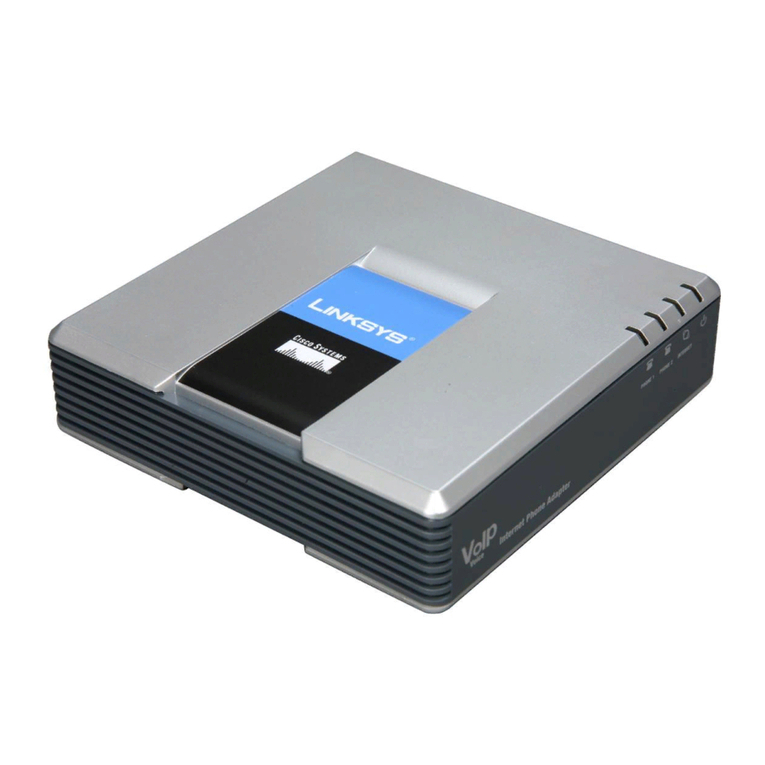
This section explains how to use the Interactive Voice Response Menu to
configure the Phone Adapter’s network settings. You will use the telephone’s
keypad to enter your commands and select choices, and the Phone
Adapter will use voice responses.
To access the Interactive Voice Response Menu:
AUse a telephone connected to the PHONE port of the Phone
Adapter. (You can only access the Interactive Voice Response Menu
through an analog telephone, not any of the Internet phones.)
BPress **** (in other words, press the star key four times).
CWait until you hear the “Linksys configuration menu—please enter the
option followed by the # (pound) key or hang up to exit” response.
DRefer to the following table that lists actions, commands, menu
choices, and descriptions. After you select an option, press the #
(pound) key. To exit the menu, hang up the telephone.
Using the Interactive Voice Response Menu
While entering a value, such as an IP address, you may exit without entering
any changes. Press the * (star) key twice within half a second. Otherwise,
the * will be treated as a decimal point or dot.
After entering a value, such as an IP address, press the # (pound) key to
indicate you have finished your selection. To save the new setting, press 1.
To review the new setting, press 2. To re-enter the new setting, press 3. To
cancel your entry and return to the main menu, press *(star).
For example, to enter the IP address
191.168.1.105
by keypad, press these
keys: 191*168*1*105. Press the #(pound) key to indicate that you have
finished entering the IP address. Then press 1to save the IP address or press
the *(star) key to cancel your entry and return to the main menu.
If the menu is inactive for more than one minute, the Phone Adapter will
time out. You will need to re-enter the menu by pressing ****.
The settings you have saved will take effect after you hang up the
telephone. The Phone Adapter may reboot at this time.
Interactive Voice Response Menu
Action Command Choices Description
Enter Interactive Voice
Response Menu
**** Use this command to enter the
Interactive Voice Response Menu. Do not
press any other keys until you hear,
“Linksys configuration menu. Please
enter the option followed by the #
(pound) key or hang up to exit.”
Check Internet
Connection Type
100 Hear the Internet connection type of the
Phone Adapter.
Check Internet IP
Address
110 Hear the IP address assigned to the
Phone Adapter’s Internet (external)
interface.
Check Network Mask
(or Subnet Mask)
120 Hear the network or subnet mask
assigned to the Phone Adapter.
Check Gateway IP
Address
130 Hear the IP address of the Phone Adapter
(usually the network router).
Check MAC Address 140 Hear the MAC address of the Phone
Adapter in hexadecimal string format.
Check Firmware
Version
150 Hear the version number of the firmware
running on the Phone Adapter.
Check Primary DNS
Server IP Address
160 Hear the IP address of the primary DNS
(Domain Name Service) server.
Check Internet Web
Server Port
170 Hear the port number of the Internet Web
server used for the Web-based Utility.
Check Local IP
Address
210 Hear the local IP address of the Phone
Adapter.
Set Internet
Connection Type
101 DHCP - Press 0.
Static IP -
Press 1.
PPPoE - Press 2.
Select the type of Internet connection
you are using. Refer to the
documentation supplied by your Internet
Service Provider (ISP).
3In the Optional Settings
section, enter the DNS
server address(es) in the
Primary DNS
and optional
Secondary DNS
fields.
4Click Submit All Changes.
PPPoE (most DSL users)
1Select PPPoE for the
Connection Type.
2Enter the user name in the
PPPoE Login Name
field,
and enter the password in
the
PPPoE Login Password
field.
3Click Submit All Changes.
If the Phone Adapter is pre-
configured by your ITSP, then you
do not need to change any of the
default voice settings. Refer to the
documentation supplied by your
service provider for more
information.
If you want to change the settings
for your Internet phone service,
refer to the User Guide, which is
available on the Linksys website at
www.linksys.com.
If you want to configure network
settings using the Interactive Voice
Response Menu, refer to the next
section.
Factory Reset 73738 Confirm -
Press 1.
Cancel - Press
*(star).
This feature may be protected by a
password available only from your ITSP.
If necessary, enter the password*. The
Phone Adapter will request confirmation;
enter 1to confirm. You will hear, “Option
successful.” Hang up the phone. The
Phone Adapter will reboot, and all
settings will be reset to their defaults.
User Factory Reset 877778 Confirm -
Press 1.
Cancel - Press
*(star).
The Phone Adapter will request
confirmation; enter 1to confirm. You will
hear, “Option successful.” Hang up the
phone. The Phone Adapter will reboot
and all user-configurable settings will be
reset to their factory default settings.
Interactive Voice Response Menu
Action Command Choices Description
SPA2102-QI-60613A DF
Linksys is a registered trademark or trademark of
Cisco Systems, Inc. and/or its affiliates in the U.S.
and certain other countries. Copyright © 2006
Cisco Systems, Inc. All rights reserved.
Using the Interactive Voice
Set Static IP Address 111 First, set the Internet Connection Type to
static IP address; otherwise, you will
hear, “Invalid Option,” if you try to set the
static IP address. Use the * (star) key
when entering a decimal point.
Set Network (or
Subnet) Mask
121 First, set the Internet Connection Type to
static IP address; otherwise, you will
hear, “Invalid Option,” if you try to set the
network or subnet mask. Use the * (star)
key when entering a decimal point.
Set Gateway IP
Address
131 First, set the Internet Connection Type to
static IP address; otherwise, you will
hear, “Invalid Option,” if you try to set the
gateway IP address. Use the * (star) key
when entering a decimal point.
Set Primary DNS
Server IP Address
161 First, set the Internet Connection Type to
static IP address; otherwise, you will
hear, “Invalid Option,” if you try to set the
IP address of the primary DNS server.
Use the * (star) key when entering a
decimal point.
Set the Mode 201 Router/NAT
Mode - Press 0.
Bridge/Switch
Mode - Press 1.
If the Phone Adapter acts as the router
for your network, use the router/NAT
mode.
If your network already has a router, use
the bridge/switch mode.
Enable/Disable WAN
Access to the
Web-based Utility
7932 Enable -
Press 1.
Disable -
Press 0.
Use this setting to enable or disable WAN
access to the Web-based Utility. (This
Utility lets you configure the Phone
Adapter.)
Manual Reboot 732668 After you hear, “Option successful,” hang
up the phone. The Phone Adapter will
automatically reboot.
Interactive Voice Response Menu
Action Command Choices Description
PPPoE
Response Menu
* Follow these instructions to enter
the password.
• A, B, C, a, b, or c — press 2.
• D, E, F, d, e, or f — press 3.
• G, H, I, g, h, or i — press 4.
• J, K, L, j, k, or l — press 5.
• M, N, O, m, n, or o — press 6.
• P, Q, R, S, o, q, r, or s — press 7.
• T, U, V, t, u, or v — press 8.
• W, X, Y, Z, w, x, y, or z — press 9.
• All Other Characters — press 0.
For example, to enter the
password
phone@321
by
keypad, press these keys:
746630321. Then press the #
(pound) key to indicate that you
have finished entering the
password. To cancel your entry
and return to the main menu,
press *(star).
For additional information or troubleshooting
help, refer to the User Guide, which is
available on the Linksys website. Contact
your Internet Telephony Service Provider for
further support.
Linksys Website
http://www.linksys.com or
http://www.linksys.com/support