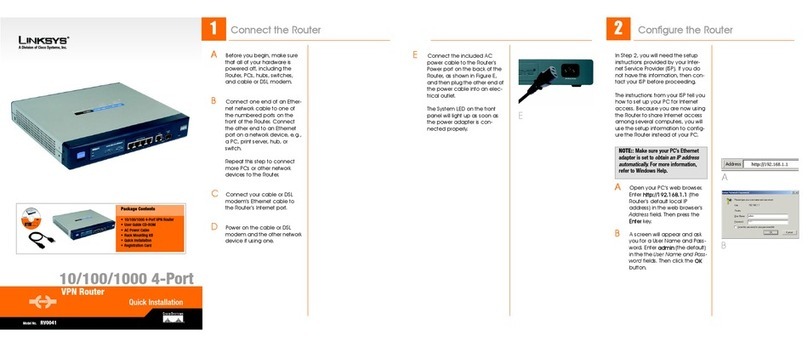
10. Open your PC’s web browser and type http://192.168.1.1 in
the browser’s Address box. Press Enter.
11. A username and password prompt will appear. Leave the
User Name box empty and type “admin” (the default pass-
word) in the Password box. Click OK.
12. Configure the following values into the Cable/DSL & Voice
Router’s Setup page. You can get these values from your
ISP. (Not everyone will require the following settings. Check
with your ISP.)
LAN IPAddress These values refer to the internal network
you are creating with your Cable/DSL & Voice Router.
Unless you have specific internal needs, there should be no
reason to change these values.
WAN IP Address These values refer to the outside network
you connect to every time you access your Broadband
Internet connection. Most Broadband ISPs assign their
clients with a different IP address each time they log on. If
this is the case with your ISP, click Obtain an IP Address
Automatically and continue on to step 14. If your PC has
been assigned a fixed IP address by your ISP, click Specify
an IP Address then enter address into the Subnet Mask,
Default Gateway Address and DNS fields.
13. When you have properly configured the Setup page, click on
the Apply button. Click Continue.
14. Choose the DHCP tab.
15. Unless you already have a DHCP server on your internal
network, choose Enable from the DHCP Server field.
16. In the Number of DHCP Users box, enter the number of
PCs you plan on networking to the Router, then click
Apply.
17. Click the Continue button, then close your web browser.
Restart your computer to apply the new settings.
18. Before your PC reboots, power down your broadband
modem for three seconds, then power it back on.
19. After your PC reboots, open your web browser to test your
Internet connection.
20. Repeat steps 6-9 as necessary for each PC on your network.
Once you have configured all of the PCs on your network,
the Cable/DSL & Voice Router Setup and Installation is
complete. You may now go to the Net2Phone Quick
Installation Guide to set up your Net2Phone account.
NNoottee: Check with your ISP to see if you need to enter RRoouutteerr&&DDoommaaiinn
NNaammeessto be viewed by your ISP’s network. If you do, click on your
SSttaarrttbutton. Choose CCoonnttrroollPPaanneell, then double-click the NNeettwwoorrkk
icon. Choose the IIddeennttiiffiiccaattiioonntab. There will be a CCoommppuutteerrNNaammee
and a WWoorrkkggrroouuppname displayed here. Enter the CCoommppuutteerrNNaammeeinto
the RRoouutteerrNNaammeebox on the
Setup Page
, and enter the WWoorrkkggrroouupp
name into the DDoommaaiinnNNaammeebox on the
Setup Page
.
QI-BEFN2P4S-01219NC DG