manuals.online logo
Brands
  1. Home
  2. •
  3. Brands
  4. •
  5. Livewire Connections
  6. •
  7. Gateway
  8. •
  9. Livewire Connections FB-10 User manual

Livewire Connections FB-10 User manual

Other manuals for FB-10

1

Popular Gateway manuals by other brands

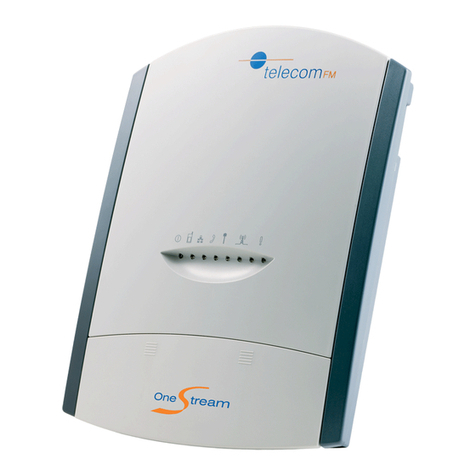
Telecom FM onestream gfx Programming guide

Telecom FM

Telecom FM onestream gfx Programming guide

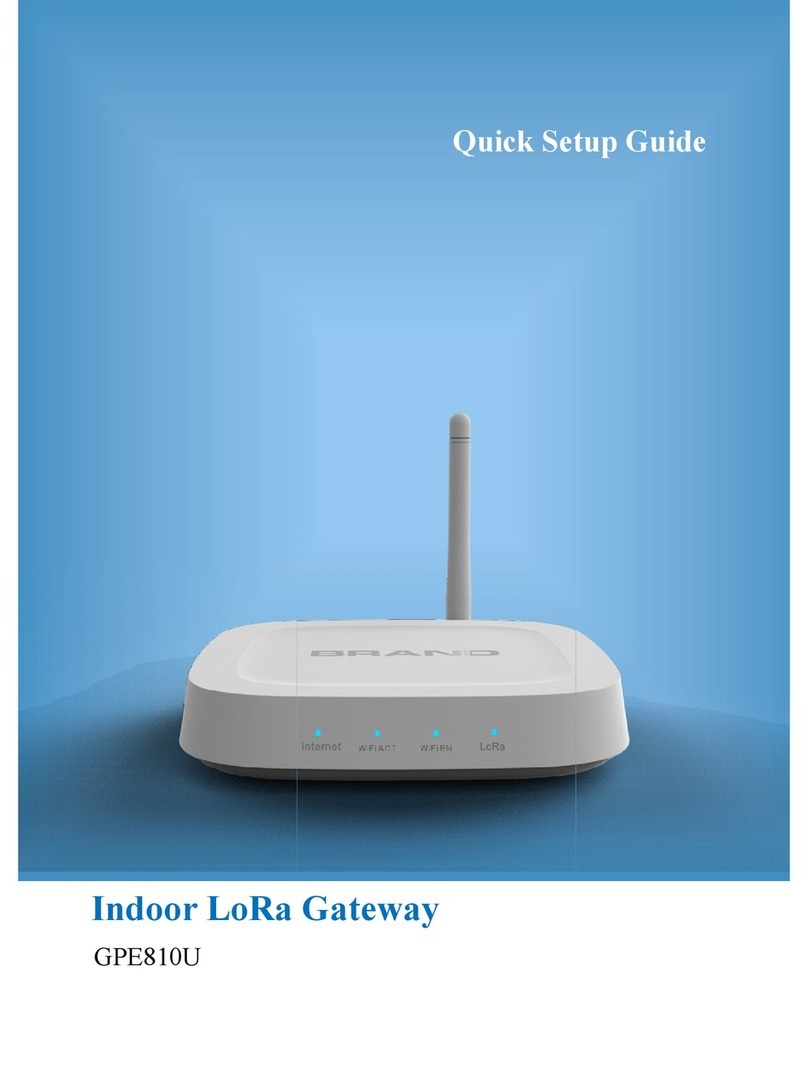
UfiSpace LoRa GPE810U Quick setup guide

UfiSpace

UfiSpace LoRa GPE810U Quick setup guide

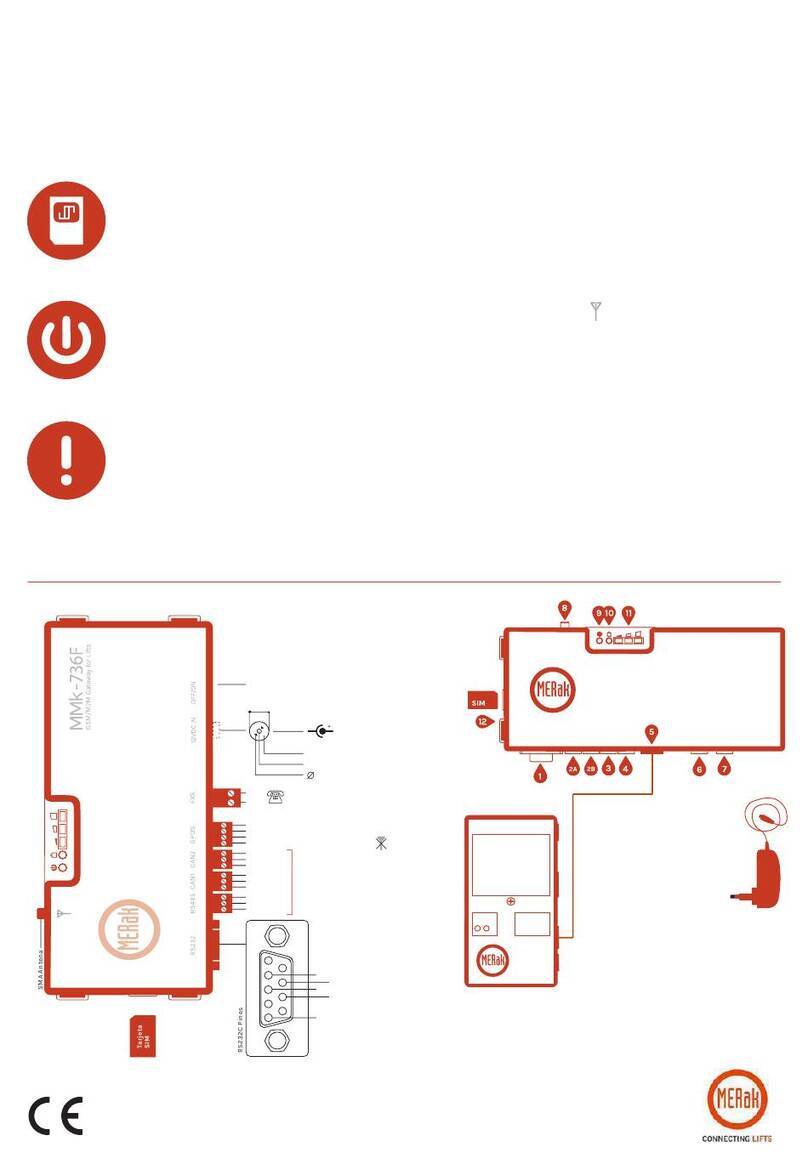
Merak MMk-736F Quick setup guide

Merak

Merak MMk-736F Quick setup guide

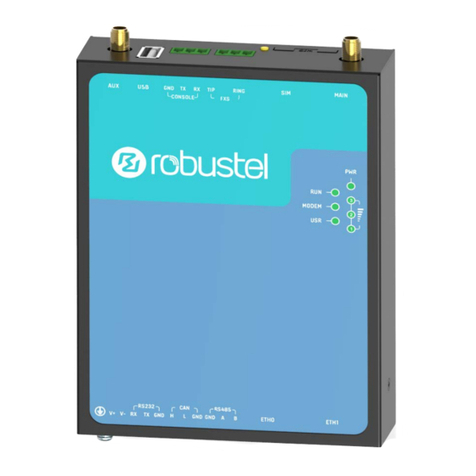
Robustel R3010 user guide

Robustel

Robustel R3010 user guide

turck BL20-PG-EN-V3 user manual

turck

turck BL20-PG-EN-V3 user manual

IBM Security Web Gateway Appliance quick start guide

IBM

IBM Security Web Gateway Appliance quick start guide

SSS Siedle Smart Gateway Commissioning instructions

SSS Siedle

SSS Siedle Smart Gateway Commissioning instructions

ADTRAN 424RG Installation

ADTRAN

ADTRAN 424RG Installation

Chorus Hyperfibre XGS-250WX-A user guide

Chorus

Chorus Hyperfibre XGS-250WX-A user guide

Dragino G308 user manual

Dragino

Dragino G308 user manual

Data Domain DD690g Installation and setup guide

Data Domain

Data Domain DD690g Installation and setup guide

Raritan Laptop Release notes

Raritan

Raritan Laptop Release notes

Haivision Torpedo quick start guide

Haivision

Haivision Torpedo quick start guide

ATCOM AG-268 user manual

ATCOM

ATCOM AG-268 user manual

LST M500RFE-AS Specification sheet

LST

LST M500RFE-AS Specification sheet

Vega VEGA BS-3 user manual

Vega

Vega VEGA BS-3 user manual

Kinnex Media Gateway quick start guide

Kinnex

Kinnex Media Gateway quick start guide

2N Telekomunikace 2N StarGate user manual

2N Telekomunikace

2N Telekomunikace 2N StarGate user manual

manuals.online logo
manuals.online logoBrands
  • About & Mission
  • Contact us
  • Privacy Policy
  • Terms and Conditions

Copyright 2025 Manuals.Online. All Rights Reserved.

Access Controller FB-10
1
Quick Start Guide
Access Controller FB-10 Quick Start Guide
(for mini-VSAT Broadbandsm & FleetBroadband or Fleet connections)
The following supplemental instructions explain how to connect
Livewire Connections’ Access Controller to both a mini-VSAT
Broadband system (e.g., TracPhone®V7) and a FleetBroadband or
Fleet system (e.g., TracPhone FB250, FB500, FB150, F33, F55, or F77).
For complete setup and operation information, including advanced
configurations (e.g., firewall settings, port forwarding, remote access,
and access control), refer to the Access Controller’s user
documentation.
NOTE: These instructions assume you have already installed both antenna
systems.
NOTE: Microsoft’s .NET Framework is required to run the Access Controller
software. The Access Controller software installer will prompt you to
download .NET Framework from the Internet if it’s not already installed on
the PC. At press time, the file size of the .NET Framework download was
approximately 870 KB. Please note that normal airtime charges will apply if
you choose to download this file via a satellite connection.
54-0688 Rev. A

Access Controller FB-10
2
Quick Start Guide
Step 1 - Wire the Access Controller
Follow the applicable steps below to wire the Access Controller to
your antenna systems.
a. mini-VSAT Broadband:
Connect the mini-VSAT Broadband system (e.g.,
TracPhone V7) to the Access Controller according to
any of the diagrams on the following pages. Use
straight-through (not crossover) cables for all Ethernet
connections.
b. FleetBroadband:
Connect the TracPhone FleetBroadband system to the Access
Controller according to the diagram on page 3 (FB250 or
FB500) or page 4 (FB150). The table below lists the available
connections.
* To activate streaming service, contact your Inmarsat airtime service
provider.
c. Fleet:
Connect the TracPhone Fleet system to the Access Controller
according to the diagram on page 5. The table below lists the
available connections.
d. Follow the instructions in the Access Controller
documentation to connect the Access Controller to vessel
power.
Connection TracPhone System Terminal Port
Standard IP FB250, FB500, or
FB150
Any LAN port
Streaming IP* FB250 or FB500 Any LAN port
configured for
streaming access
Connection TracPhone System BDU Port
ISDN F55 or F77 X7 Ethernet
MPDS F55, F77, or F33 X10 Serial
Older BDU versions:
Use X9 port instead if
it is a serial port
Access Controller FB-10
3
Quick Start Guide
Access Controller Wiring: TracPhone V7 + TracPhone FB250 or FB500
4 3 2 18 7 6 5
POE 48V
+4 3 2 18 7 6 5
POE 48V
+
12V DC RSTR WAN LAN PHONE 2 PHONE 1
MTA
Access Controller
Analog
Phone
Ethernet
WAN
Phone1
Power
TracPhone FB250/FB500 Terminal
Any LAN
Port
Analog
Phone
Switch
5
6
J1
AC PWR
J3
Rx RF
J2
Tx RF
J4
ACU
J5
CONSOLE
J6
BUC PWR J8
USER
ENET
J7
ACU
ENET
NO OPERATOR
SERVICEABLE
PARTS INSIDE,
DO NOT OPEN
CAUTION
MODEL: VMBR-1510 ArcLight
PART: 1234567 REV XXX
SERIAL: XX-XXXXXX
CAGE CODE: 12345
KVH mini-VSAT Broadband Modem
User Enet
Vessel LAN
7
Access Controller FB-10
4
Quick Start Guide
Access Controller Wiring: TracPhone V7 + TracPhone FB150
Access Controller
Ethernet
Power
TracPhone FB150 Terminal
Either
LAN Port
Analog
Phone
4 3 2 18 7 6 5
POE 48V
+4 3 2 18 7 6 5
POE 48V
+
12V DC RSTR WAN LAN PHONE 2 PHONE 1
MTA
WAN
Phone1
Switch
5
6
J1
AC PWR
J3
Rx RF
J2
Tx RF
J4
ACU
J5
CONSOLE
J6
BUC PWR J8
USER
ENET
J7
ACU
ENET
NO OPERATOR
SERVICEABLE
PARTS INSIDE,
DO NOT OPEN
CAUTION
MODEL: VMBR-1510 ArcLight
PART: 1234567 REV XXX
SERIAL: XX-XXXXXX
CAGE CODE: 12345
KVH mini-VSAT Broadband Modem
User Enet
Vessel LAN
7
Analog
Phone
Access Controller FB-10
5
Quick Start Guide
Access Controller Wiring: TracPhone V7 + TracPhone F33, F55, or F77
Access Controller
TracPhone F55/F77 BDU
MPDS
ISDN
TracPhone F33 BDU
Analog
Phone
Analog
Phone
OR
X10
X7 X10
X1
X1
Power
4 3 2 18 7 6 5
POE 48V
+4 3 2 18 7 6 5
POE 48V
+
12V DC RSTR WAN LAN PHONE 2 PHONE 1
MTA
Analog
Phone
WAN
Phone1
Switch
5
6
J1
AC PWR
J3
Rx RF
J2
Tx RF
J4
ACU
J5
CONSOLE
J6
BUC PWR J8
USER
ENET
J7
ACU
ENET
NO OPERATOR
SERVICEABLE
PARTS INSIDE,
DO NOT OPEN
CAUTION
MODEL: VMBR-1510 ArcLight
PART: 1234567 REV XXX
SERIAL: XX-XXXXXX
CAGE CODE: 12345
KVH mini-VSAT Broadband Modem
User Enet
Vessel LAN
7
Older BDU versions:
Use X9 port if serial
Access Controller FB-10
6
Quick Start Guide
Step 2 - Run the Access Controller Software
Follow these steps to install and run the Access Controller software on
the customer’s primary onboard computer, which will control all
Access Controller operations and setup. If desired, install the software
on multiple computers to give them control as well. Internet access is
not required for this step; the software resides in the Access Controller.
a. Press the Power button on the front panel of the Access
Controller to apply power. The button illuminates blue.
b. Follow the instructions in the Access Controller
documentation to download and install the Access
Controller software (default IP address: http://192.168.5.1).
c. Launch the Access Controller software (double-click the
shortcut or select it from the Start menu). At the Login
screen, select Admin GUI.
d. Enter admin for the user name and password for the
password. Later, the customer should change this password to
something unique. Then select Login.
Access Controller FB-10
7
Quick Start Guide
Step 3 - Configure a mini-VSAT Broadband Connection
Follow the steps below to add a mini-VSAT Broadband connection
(e.g., TracPhone V7) to the Access Controller’s interface.
a. At the Internet Connections tab, select Add New Service.
b. Under Selected Service Settings, set the following parameters
(leave all networking fields blank):
* No User GUI Required: If this box is checked, the service will
remain connected even if all user GUIs (user interface windows)
are closed. This box must remain unchecked for
FleetBroadband Streaming and Fleet ISDN connections to
avoid inadvertent airtime charges. For other connections, check
or uncheck it as you prefer.
c. Select Save Changes.
For Step 4, follow the instructions on the following pages that apply to you.
Field Setting
Service Name mini-VSAT (suggested)
Interface Ethernet 1
Service Template VSAT
Obtain an IP via DHCP Checked
No User GUI Required* Checked or unchecked - see below
Min User Level Required
(Min = minimum)
N/A, or select a user level (refer
to the Access Controller’s user
documentation for details)
Access Controller FB-10
8
Quick Start Guide
Step 4a - Configure a FleetBroadband Standard Connection
Follow the steps below to add a standard FleetBroadband connection
(via TracPhone FB500, FB250, or FB150) to the Access Controller’s
interface.
a. At the Internet Connections tab, select Add New Service.
b. Under Selected Service Settings, set the following parameters
(leave all networking fields blank):
c. Select Save Changes.
Field Setting
Service Name FBB (suggested)
Interface Ethernet 2
Service Template FleetBroadband
Obtain an IP via DHCP Checked
No User GUI Required Checked or unchecked
See page 7 for details
Manufacturer Thrane & Thrane
Service Class TT - Standard IP
Min User Level Required
(Min = minimum)
N/A, or select a user level
(refer to the Access Controller’s
user documentation for details)
Service APN xantic.bgan.inmarsat.com
Username and Password Leave blank
Access Controller FB-10
9
Quick Start Guide
Step 4b - Configure a FleetBroadband Streaming Connection (Not Common)
Follow the steps below to add a streaming FleetBroadband connection
(via TracPhone FB500 or FB250) to the Access Controller’s interface.
a. At the Internet Connections tab, select Add New Service.
b. Under Selected Service Settings, set the following parameters
(leave all networking fields blank):
c. Select Save Changes.
Field Setting
Service Name FBB ###K (suggested)
Interface Ethernet 2
Service Template FleetBroadband
Obtain an IP via DHCP Checked
No User GUI Required Unchecked
See page 7 for details
Manufacturer Thrane & Thrane
Service Class TT - Streaming ###
(### = Connection speed, kbps)
Min User Level Required
(Min = minimum)
N/A, or select a user level
(refer to the Access Controller’s
user documentation for details)
Service APN xantic.bgan.inmarsat.com
Username and Password Leave blank
Access Controller FB-10
10
Quick Start Guide
Step 4c - Configure a Fleet MPDS Connection
Follow the steps below to add a Fleet MPDS connection (via
TracPhone F77, F55, or F33) to the Access Controller’s interface.
a. At the Internet Connections tab, select Add New Service.
b. Under Selected Service Settings, set the following
parameters:
* Enter the user’s username and password for Fleet service.
c. Select Save Changes.
Field Setting
Service Name Fleet MPDS (suggested)
Interface Serial 1
Service Template Fleet MPDS
No Traffic Timeout 120
No User GUI Required Checked or unchecked
See page 7 for details
Min User Level Required
(Min = minimum)
N/A, or select a user level
(refer to the Access Controller’s
user documentation for details)
Username <username>*
Password <password>*
Number Dialed 1234#