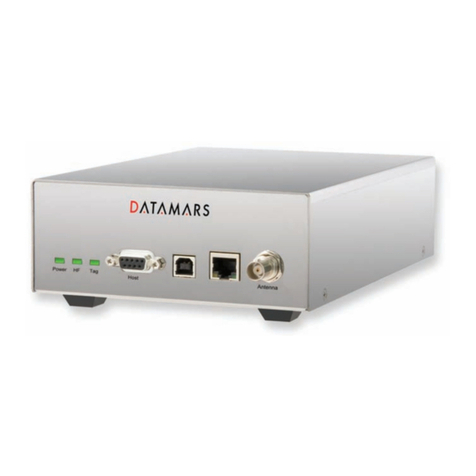
2.Re-Installation of the picochet device driver
Steps to re-install the picochet new device driver
①In case where the current version of driver is needed, save files that are
directed to delete, in some other folder, instead of just deleting them
②Delete C:¥Windows¥INF¥Other¥Hitachi Maxell, Ltd.Usbmax.inf
③Delete C:¥Windows¥SYSTEM32¥DRIVERS¥Usbmax.sys
④Select Run on the Start menu, and then enter ‘regedit’to open registry editor.
⑤Delete HKEY_LOCAL_MACHINE¥Enum¥USB¥VID_0858&PID_1101
⑥Delete HKEY_LOCAL_MACHINE¥System¥CurrentControlSet¥Services
¥Class¥Usbmax
⑦Empty out Recycle Bin
⑧Restart the PC
⑨Installation screen appears on PC monitor and if you select a folder where
the driver was installed previously, the installation of the driver is initiated.
Follow the instruction displayed on the PC monitor, while installing.
⑩If device manager in system folder from Control Panel displays Tag IC R/W
unit, device driver installation is completed without any errors. However, if Tag
IC R/W unit is not displayed, repeat the steps from the beginning until Tag IC
R/W unit is displayed.
This concludes installation of Device Driver.
3.Installation of the picochet Utility Software
①Insert a diskette labeled ‘Disk 1’into floppy disk drive, and double-click on
‘setup.exe’, wait a while. Click on "Next" button when screen shown below
appears.