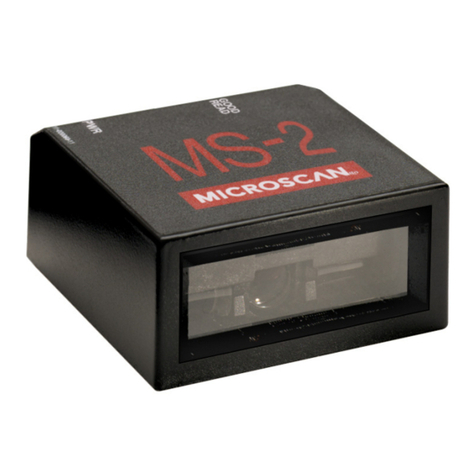
Microscan MS-4 User manual


Other manuals for MS-4
1
This manual suits for next models
3
Table of contents
Other Microscan Barcode Reader manuals
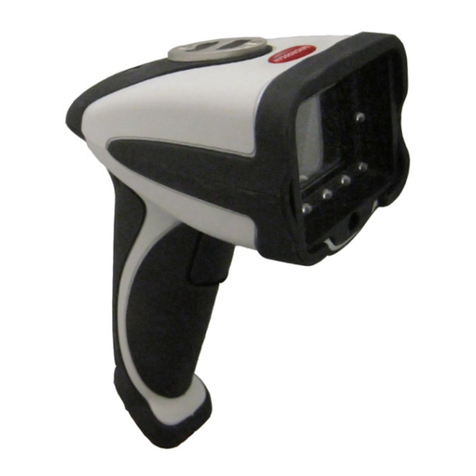
Microscan
Microscan HS-2D User manual
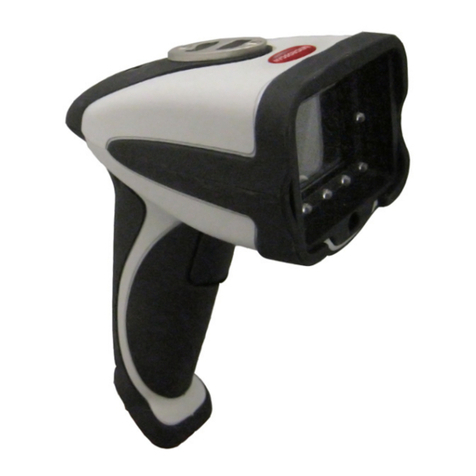
Microscan
Microscan HS-2D User manual
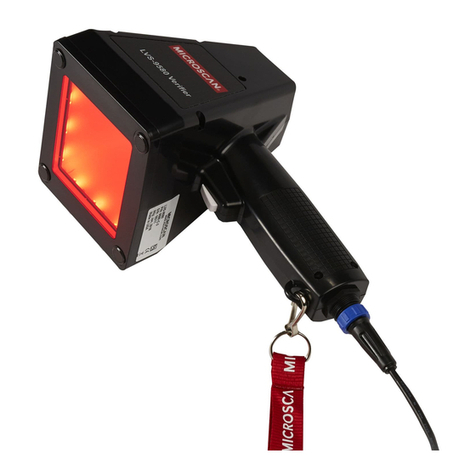
Microscan
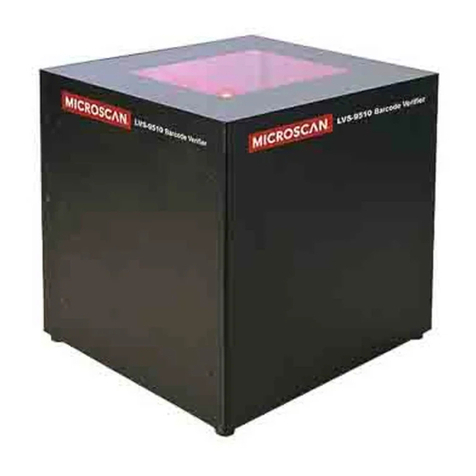
Microscan LVS-9510 User manual
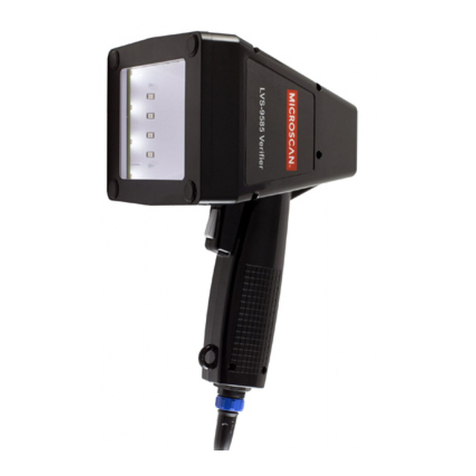
Microscan
Microscan LVS-9585 User manual
Microscan
Microscan LVS-9510 Product guide
Microscan
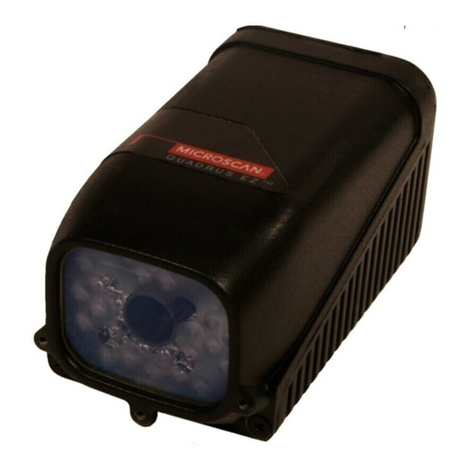
Microscan Quadrus EZ Reader User manual
Microscan
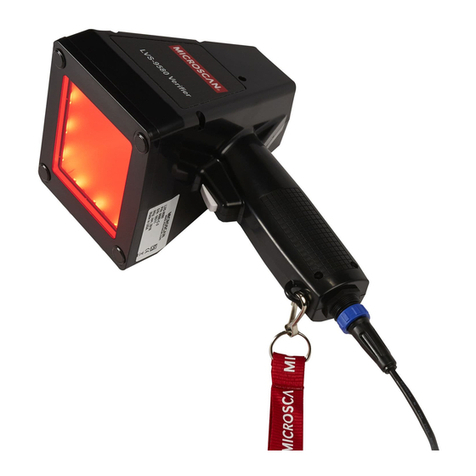
Microscan LVS-9580 User manual
Microscan
Microscan MS-1 Use and care manual
Microscan
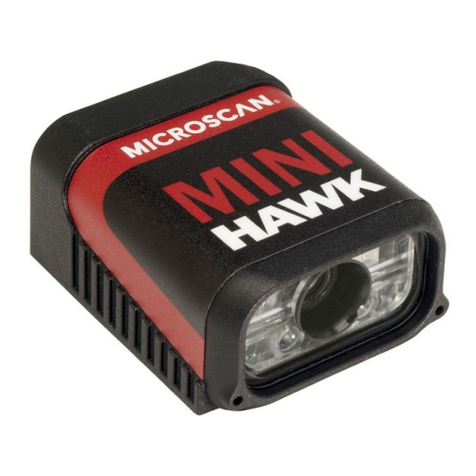
Microscan MINI Hawk User manual
Microscan
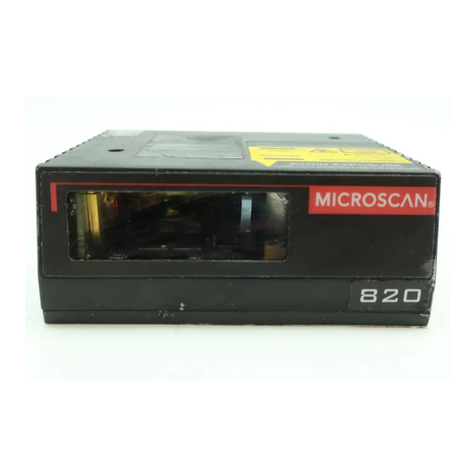
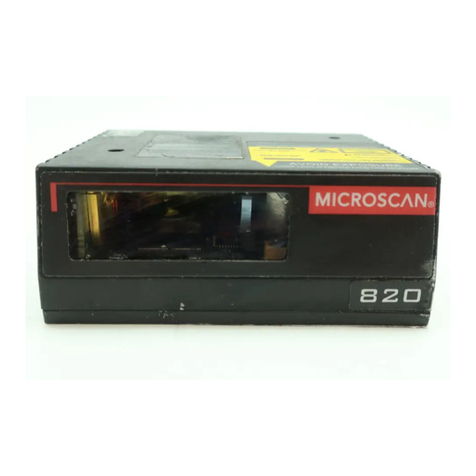
Microscan MS-820 User manual
Microscan
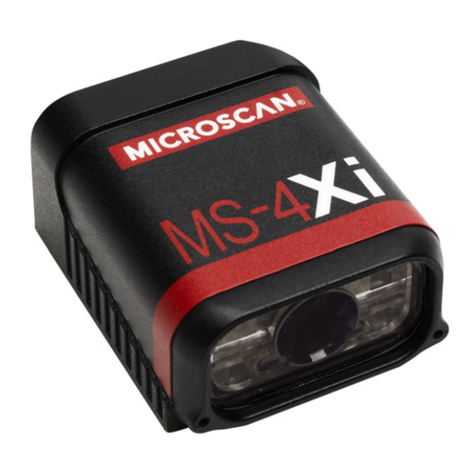
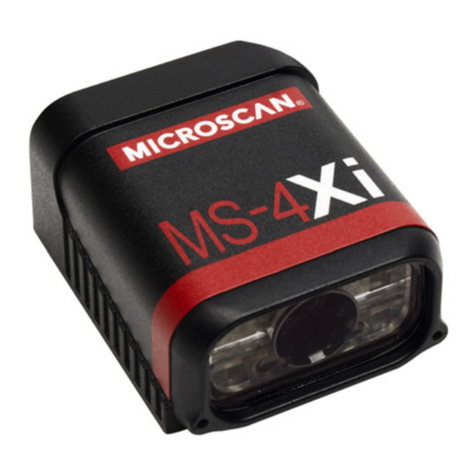
Microscan MS-4X User manual
Microscan
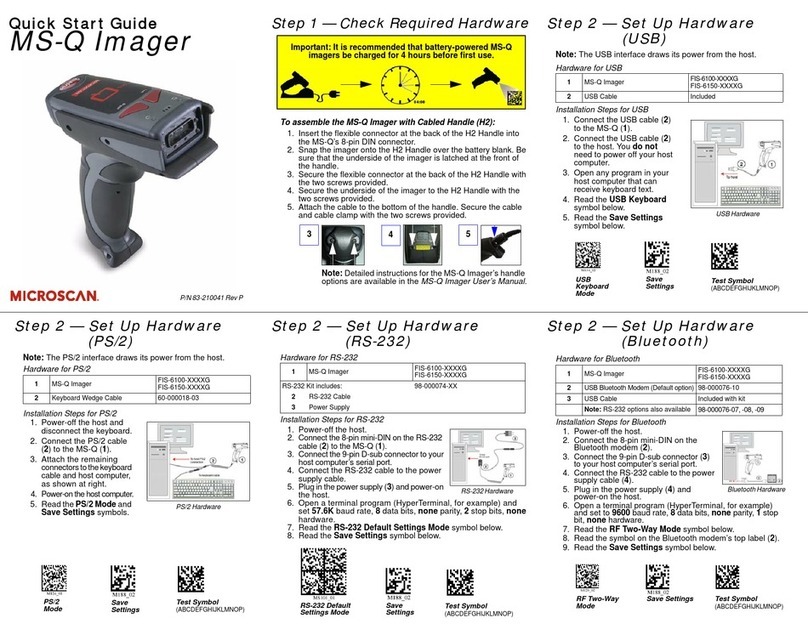
Microscan MS-Q Imager User manual
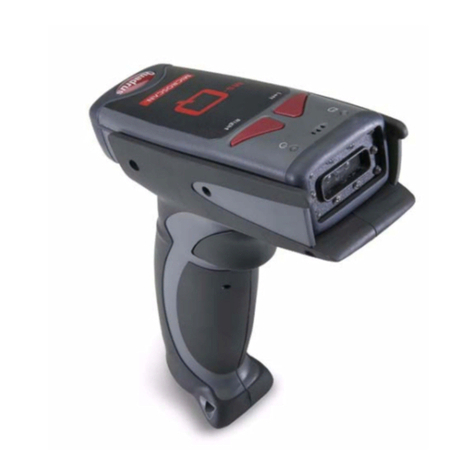
Microscan
Microscan MS-Q Imager User manual
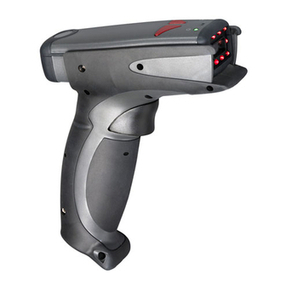
Microscan
Microscan HawkEye 40T User manual
Microscan
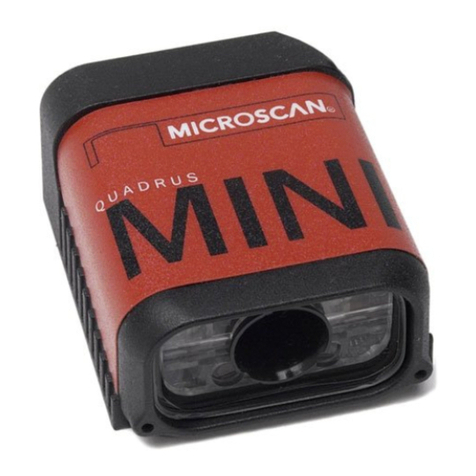
Microscan Quadrus MINI Imager User manual
Microscan
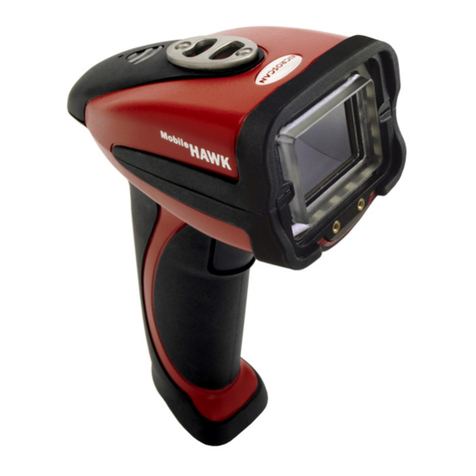
Microscan Mobile Hawk User manual
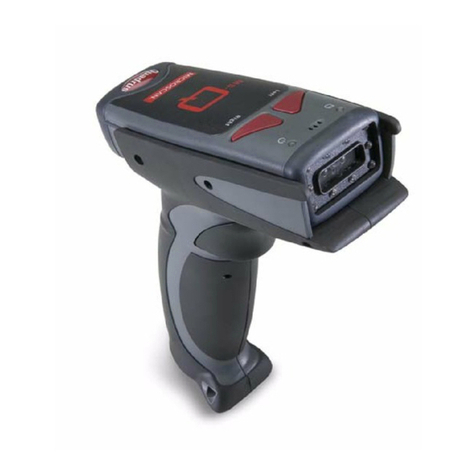
Microscan
Microscan HawkEye 45T User manual
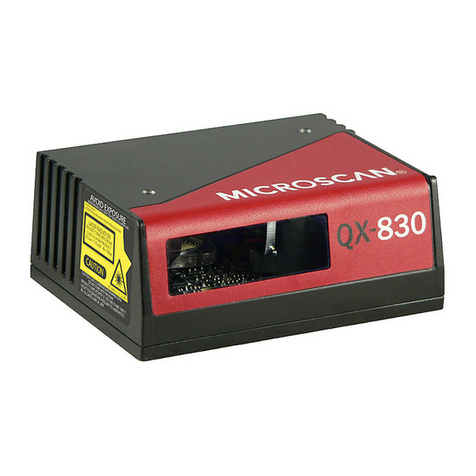
Microscan
Microscan QX-830 User manual
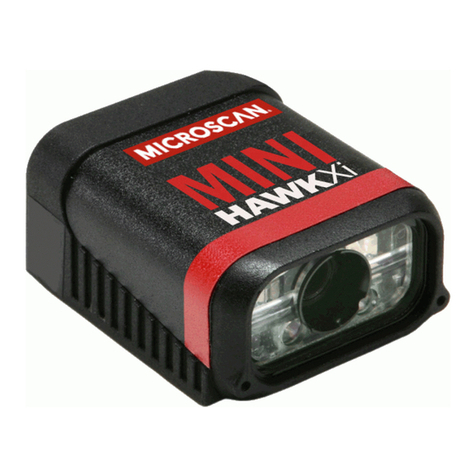
Microscan
Microscan MINI Hawk Xi User manual
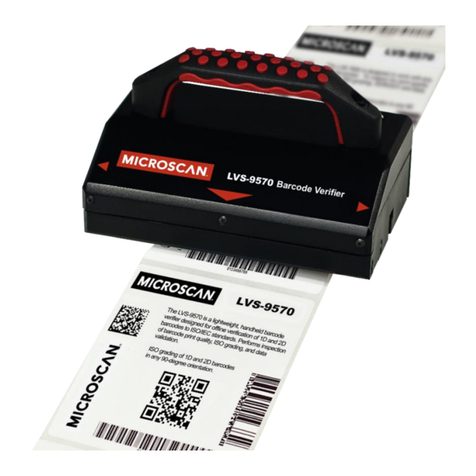
Microscan
Microscan LVS-9570 User manual