13 14
After connection to the LiveView server, the following
Web pages are available for viewing:
LiveView
This is the default Web Page, which displays basic
real-time system data, faults and alarms.
Network
This Web Page shows the Morningstar Device’s current
Network settings, and allows the option of changing
COM settings, and port forwarding:
DHCP Primary DNS
IP Address Modbus IP Port 502
Subnet Mask Default Device (MODBUS) ID
Gateway HTTP port 80
Data Log
This Web Page displays the current day, and a certain
period of detailed historical system information,
depending on the number of variables set for logging.
System
The System Web Page is used to update EMC-1
firmware. Connected device firmware cannot be
updated through the System Web Page. The System
Web page also shows specific EMC-1 diagnostic
information.
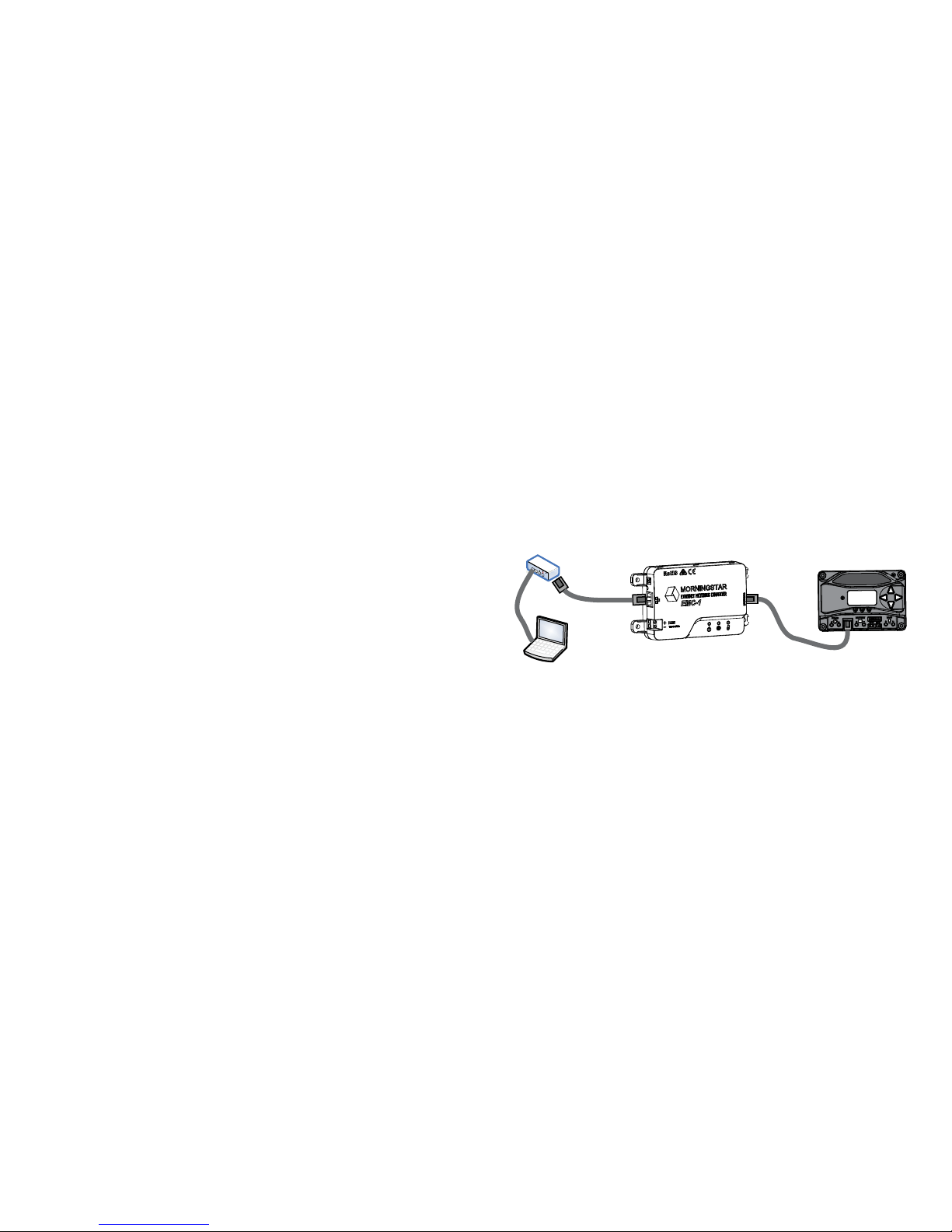
3.6.3 Connecting to a LAN / WAN
After installing MSView on a PC on a local network,
and with COM and power connections made, as
described in Section 2.3, 2.4,
a DHCP enabled router
will
a
utomatically assign an IP address and network
settings to the EMC-1. The
Morningstar Device
will also
be read for specific device information before connection
is made. After the original assignment, Network settings
can be changed as desired using the LiveView Network
Web Page.
For complete connection and addressing information, see
Appendix I of the
Product Connectivity Manual
:
www.morningstarcorp.com/wp-content/up-
loads/2014/02/
ADVANCED TOPIC:
3.6.4 Connecting to the EMC-1 from a Remote
Location (outside of the LAN) via the
Internet / WAN
Basic Procedure:
1. Verify that the Morningstar Device is correctly
connected by accessing it via a Web browser (see
Section 3.6.2). Navigate to the Network Page.
2. In another browser window, enter the network
router default gateway IP address (probably
192.168.1.1, but see Appendix I, Section II of Product
Connectivity Manual - link below).
3. Login to the network router, and choose a static IP
address outside of the listed dynamic range.
4. Return to the LiveView Network Page window,
change the selection to, “Use Static IP Address”,
enter the IP address chosen in the previous step,
re-enter the remaining network settings listed in the
box, including port 502, to direct incoming Internet
requests to the Morningstar Device, and port 80 to
view Morningstar Device Web pages on any Internet
connected PC, then click the “Save” button.
5. To maintain a recognizable public IP address, set
up a Dynamic DNS service, or verify your router’s
Dynamic DNS capabiltiy.