+1-714-528-6777 (toll-free: 1-888-669-2872)
+86-21-5258-9955 (toll-free: 800-820-5036)
2012 Moxa Inc. All rights reserved.
Do not use the 1 KΩ setting while in RS
232 mode. Doing
so will degrade the RS
232 signals and reduce the effective
communication distance.
5. First-time Hardware Installation
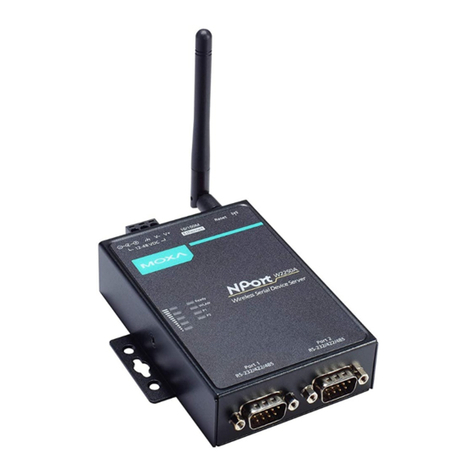
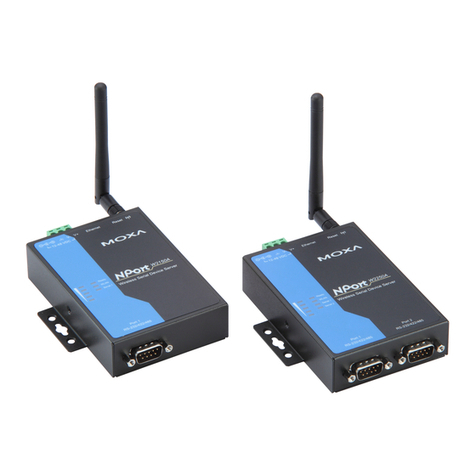
After removing the NPort W2150A/W2250A from the box,
use a cross
-over Ethernet cable to connect the NPort’s
RJ45 Ethernet port directly to your computer’s Ethernet
port.
Attach the power adaptor to the NPort and then plug the
adaptor into an electrical outlet.
Configure the NPort W2150A/W2250A through the
Ethernet port. See the next section for software
installation information.
You must connect the Ethernet cable first before powering
up your NPort
6. Software Installation Information
Insert the Document & Software CD into your PC. A window should
open with several options displayed:
•Click [Install COM Driver] and follow the on-screen
instructions to install the COM drivers.
•Click [Documents] and select “NPort W2150A/W2250A
Series User’s Manual” to view the user’s manual.
•Click [Install UTILITY] and follow the on-screen instructions
to install the NPort Search Utility. This utility can be used to
search for NPort W2150A/W2250A units on the network.
7. Setting the IP Address
The factory default IP settings are assigned as follows:
LAN: Static; IP = 192.168.126.254; netmask = 255.255.255.0
WLAN: Static; IP = 192.168.127.254; netmask = 255.255.255.0
If the NPort is configured for DHCP but the DHCP server cannot be
found, the NPort will use factory default IP settings.
If you have forgotten the NPort’s IP address, use the NPort
Search Utility from your PC to locate the NPort. Aft
searching the LAN for NPort units, the NPort Search Utility
will display the IP address of each unit.
Only one network interface can be active at a time. If the
Ethernet link is active, the WLAN will be inactive. If the
WLAN is active, the Ethernet link will be inactive.
Open the web console to make configuration changes as follows:
In the address bar, enter 192.168.126.254 (the default
IP address).
The web console will open, and the current configuration
settings are shown.
For first time use, click the Wizard
in the left navigation
panel. The wizard will prompt you to configure the IP
address, SSID, and security mode. For other settings,
use the factory defaults or modify the settings for your
application.
8. Pin Assignments and Cable Wiring
Pin RS-232
Female DB9 to Male DB9
Female DB9 to Male DB25
9. Specifications
Screw type power jack and terminal
block
Aluminum sheet metal (1 mm)
77 × 111 × 26 mm (no ears, no antenna)
1.5 KV magnetic isolation built-in
Standard Models:
0 to 55°C (32 to 131°F), 5 to 95%RH
-40 to 75°C (-40 to 167°F), 5 to 95%RH
-40 to 85°C (-40 to 185°F), 5 to 95%RH
CE: EN 55022 Class A/EN 55024
FCC Part 17 Subpart B, Class A
FCC Part 15 Subpart B, Class A
DSPR: ARIB-STD 33, ARIB-STD 66