manuals.online logo
Brands
  1. Home
  2. •
  3. Brands
  4. •
  5. MSI
  6. •
  7. Motherboard
  8. •
  9. MSI MS-6132 User manual

MSI MS-6132 User manual

Other MSI Motherboard manuals

MSI A320M PRO-E User manual

MSI

MSI A320M PRO-E User manual

MSI H67MS-E33 series User manual

MSI

MSI H67MS-E33 series User manual

MSI MS-7270 User manual

MSI

MSI MS-7270 User manual

MSI P55-CD45 series Quick start guide

MSI

MSI P55-CD45 series Quick start guide

MSI K9N2 SLI PLATINUM - Motherboard - ATX User manual
MSI

MSI K9N2 SLI PLATINUM - Motherboard - ATX User manual

MSI 770-G45 Series User manual

MSI

MSI 770-G45 Series User manual

MSI K9A2GM User manual

MSI

MSI K9A2GM User manual

MSI K8NNeo4 Platinum Series User manual

MSI

MSI K8NNeo4 Platinum Series User manual

MSI A320M PRO-E User manual

MSI

MSI A320M PRO-E User manual

MSI MS-98E3 User manual

MSI

MSI MS-98E3 User manual

MSI IM-GM45-D User manual

MSI

MSI IM-GM45-D User manual

MSI FM2-A85XMA-P33 series User manual

MSI

MSI FM2-A85XMA-P33 series User manual

MSI MS-7641 User manual

MSI

MSI MS-7641 User manual

MSI PRO B550-P GEN3 User manual

MSI

MSI PRO B550-P GEN3 User manual

MSI 645 Ultra MS-6547 User manual

MSI

MSI 645 Ultra MS-6547 User manual

MSI 760GA-P43 FX User manual

MSI

MSI 760GA-P43 FX User manual

MSI FM2-A85XA-G43 series User manual

MSI

MSI FM2-A85XA-G43 series User manual

MSI Z170A KRAIT GAMING User manual

MSI

MSI Z170A KRAIT GAMING User manual

MSI Z77A-GD55 series User manual

MSI

MSI Z77A-GD55 series User manual

MSI H81M-P32L User manual

MSI

MSI H81M-P32L User manual

MSI MAG B760M MORTAR MAX WIFI User manual

MSI

MSI MAG B760M MORTAR MAX WIFI User manual

MSI 760GM-P31 Series User manual
MSI

MSI 760GM-P31 Series User manual

MSI 694T Pro User manual

MSI

MSI 694T Pro User manual

MSI X299 TOMAHAWK AC User manual
MSI

MSI X299 TOMAHAWK AC User manual

Popular Motherboard manuals by other brands

Gigabyte MNJ190I-FH user manual

Gigabyte

Gigabyte MNJ190I-FH user manual

Biostar HI-FI-Z87X-3D Setup manual

Biostar

Biostar HI-FI-Z87X-3D Setup manual

Atmel SAM9753PIA-DK user guide

Atmel

Atmel SAM9753PIA-DK user guide

Coapt GEN2 Handbook

Coapt

Coapt GEN2 Handbook

Supero SUPER P4DL6 user manual

Supero

Supero SUPER P4DL6 user manual

Cypress CY3210-PSoCEVAL1 quick start guide

Cypress

Cypress CY3210-PSoCEVAL1 quick start guide

ASROCK B660M-HDV manual

ASROCK

ASROCK B660M-HDV manual

Fujitsu D2831 Short description

Fujitsu

Fujitsu D2831 Short description

Industrial Computers ADE-6050 user manual

Industrial Computers

Industrial Computers ADE-6050 user manual

Asus TUF Z270 MARK 2 manual

Asus

Asus TUF Z270 MARK 2 manual

DFI NB71-BC user manual

DFI

DFI NB71-BC user manual

ASROCK H61 Pro BTC user manual

ASROCK

ASROCK H61 Pro BTC user manual

Norco POS-7893 user manual

Norco

Norco POS-7893 user manual

Intel DG965MS specification

Intel

Intel DG965MS specification

Asus B85M-VIEW PAKER user manual

Asus

Asus B85M-VIEW PAKER user manual

Asus P5G41T-M LX V2 user manual

Asus

Asus P5G41T-M LX V2 user manual

Gigabyte GA-K8VT800-RH user manual

Gigabyte

Gigabyte GA-K8VT800-RH user manual

Gigabyte Z790M AORUS ELITE user manual

Gigabyte

Gigabyte Z790M AORUS ELITE user manual

manuals.online logo
manuals.online logoBrands
  • About & Mission
  • Contact us
  • Privacy Policy
  • Terms and Conditions

Copyright 2025 Manuals.Online. All Rights Reserved.

CHAPTER 1CHAPTER 1
CHAPTER 1CHAPTER 1
CHAPTER 1 INTRODUCTIONINTRODUCTION
INTRODUCTIONINTRODUCTION
INTRODUCTION
1-1
The MICRO ATX EX6 mainboard is a high-performance personal computer
mainboard based on the Intel®
Pentium®
II processor. This mainboard
combines leading edge AGP ATI®
3D RAGE PRO technology in graphics
and YAMAHA®
YMF740 technology in audio. The Intel®
Pentium®
II
processor supports MMXTM(Multimedia Extension) technology.
The mainboard uses the highly integrated Intel®
82440EX chipset to support
the PCI/ISA and Green standards, and to provide the Host/AGP bridge. The
82371EB chipset integrates all system control functions such as ACPI
(Advanced Configuration and Power Interface). The ACPI provides more
Energy Saving Features for the OSPM(OS Direct Power Management)
function. The Intel®
82371EB chipset also improves the IDE transfer rate by
supporting Ultra DMA/33 IDE that transfers data at the rate of 33MB/s.
The mainboard also supports the System Hardware Monitor Controller as an
optional function. This function includes: CPU /power supply/chassis fan
revolution detect, CPU/system voltage monitor, and system temperature
monitor.
Chapter 1
INTRODUCTION
CHAPTER 1CHAPTER 1
CHAPTER 1CHAPTER 1
CHAPTER 1 INTRODUCTIONINTRODUCTION
INTRODUCTIONINTRODUCTION
INTRODUCTION
1.1 Mainboard Features
1-2
CPU
lSlot 1 for Intel®
Pentium®
II processor.
lSupports233MHz,266MHz,300MHz,and333MHz.
Chipset
lIntel®
82440EX chipset.
ClockGenerator
l66.6MHz clock is supported.
MainMemory
lSupports four memory banks using two 168-pin unbuffered DIMM
sockets .
lSupportsamaximummemorysizeof 256MB for EDO/SDRAM.
lSupports 3.3v Extended Data Output (EDO) and SDRAM DIMM.
Slots
lTwo 32-bit Master PCI Bus slots and one 16-bit ISA bus slots
lSupports 3.3v/5v PCI bus Interface.
On-BoardIDE
lAn IDE controller on the Intel®
82371EB PCI Chipset provides IDE HDD/
CD-ROM with PIO, Bus Master and Ultra DMA/33 operation modes.
lCan connect up to four IDE devices.
On-BoardPeripherals
lOn-Board Peripherals include:
- 1 floppy port supports 2 FDD with 360K, 720K, 1.2M, 1.44M and
2.88Mbytes.
-2 serial ports(COMA + COMB)
- 1 parallel port supports SPP/EPP/ECP mode
- 2 USB ports
- 1 IrDA connector for SIR.
CHAPTER 1CHAPTER 1
CHAPTER 1CHAPTER 1
CHAPTER 1 INTRODUCTIONINTRODUCTION
INTRODUCTIONINTRODUCTION
INTRODUCTION
1-3
VGA
lATI®
Rage PRO/RAGE IIC
-RunningonAGP BUS 2x for RAGE PRO/1XforRAGEIIC.
-Onboard 2MB SGRAM (optional4MB).
- 3D Acceleration.
Sound
lYAMAHA®
YMF740
-PCI2.1compliant
-AC97/98 specification compliant
- 3D audio effects.
- 32-voice XG wavetable synthesizer
- Direct Sound Hardware Accelerator
- Direct Music Hardware Accelerator
-Full-Duplex stereo
BIOS
lThe mainboard BIOS provides “Plug & Play” BIOS which detects the
peripheral devices and expansion cards of the board automatically.
lThe mainboard provides a Desktop Management Interface(DMI) function
which records your mainboard specifications.
Dimension
lMICROATXFormFactor: 24.4cm(L)x 19cm(W) x 4 layers PCB
Mounting
l7 mounting holes.
SystemHardwareMonitor(optional)
lCPU/Power Supply/Chassis Fan Revolution Detect
lCPU Fan Control (the fan will automatically stop when the system enters
suspend mode)
lSystem Voltage Detect
lDisplay Actual Current Voltage
CHAPTER 1CHAPTER 1
CHAPTER 1CHAPTER 1
CHAPTER 1 INTRODUCTIONINTRODUCTION
INTRODUCTIONINTRODUCTION
INTRODUCTION
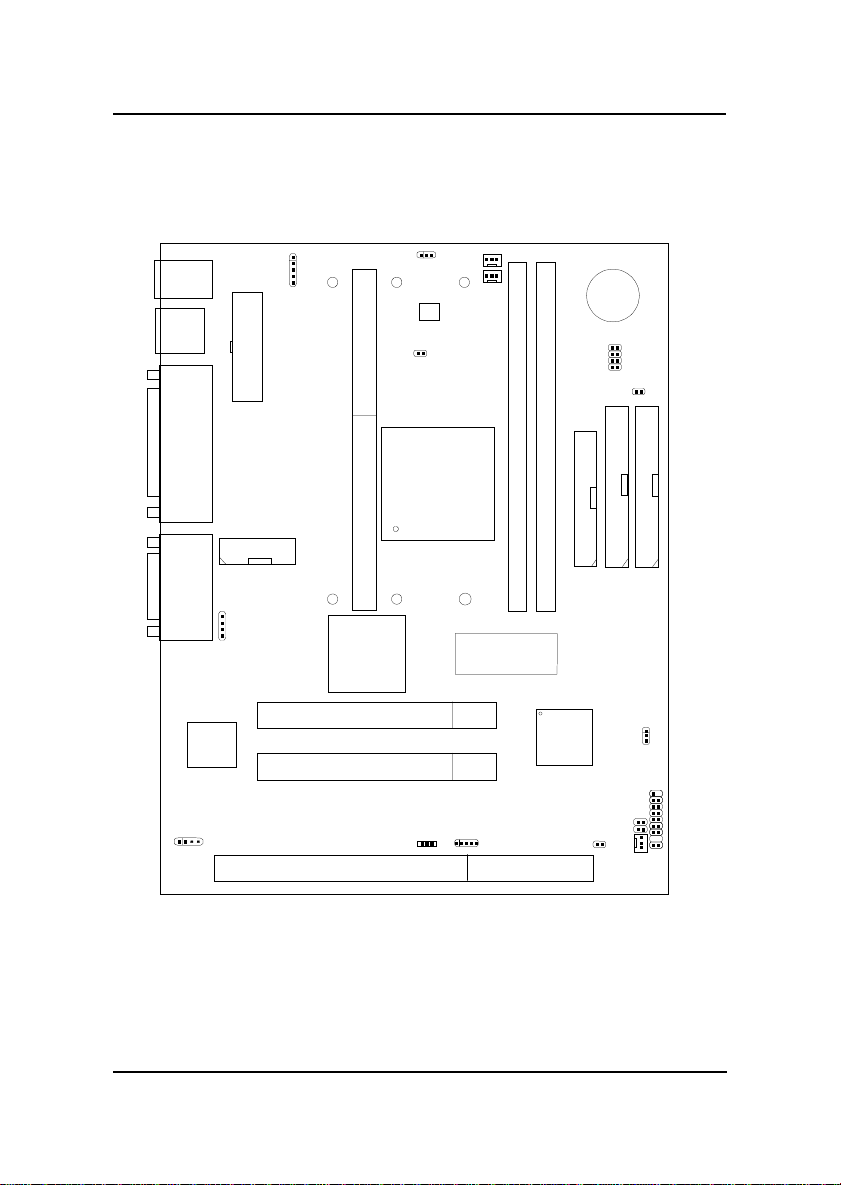
1.2 Mainboard Layout
MS-6132
1-4
PCI SLOT 2
PCI SLOT 1
ISA SLOT 1
ATX
Power Supply
FW82443EX
SLOT 1
DIMM 1
Top: mouse
Bottom:
keyboard
Top:Port1
USB
DIMM 2
IDE2
Bottom:
Port2
IDE1
FDD
ATI3D
RAGEPRO
FW82371AB
JMODEM1
YAMAYA
YMF740
J5
SFAN1
JFP1
JGS1
JGL1
JBAT1
JWOL1
BIOS
JCD1
COM 2
CFAN1
J1
JSW1
JP1
JFAN1
PSFAN1
IR1 BATT
+
Top: LPT
Bottom:
COMA
VGAPort
Top: Midi/
GamePort
Bottom:
Line-In
Line-Out
Mic
JAUX
1
CHAPTER 2 HARDWARE INSTALLATION
2-1
Chapter 2
HARDWARE INSTALLATION
2.1 Central Processing Unit: CPU
The mainboard operates with Intel®
Pentium®
II processor. The mainboard
uses a CPU Slot called Slot 1 for easy CPU installation and a jumper switch
(JP1) to set the proper speed for the CPU. The CPU should always have a
Heat Sink and a cooling fan attached to prevent overheating.
CHAPTER 2 HARDWARE INSTALLATION
2-2
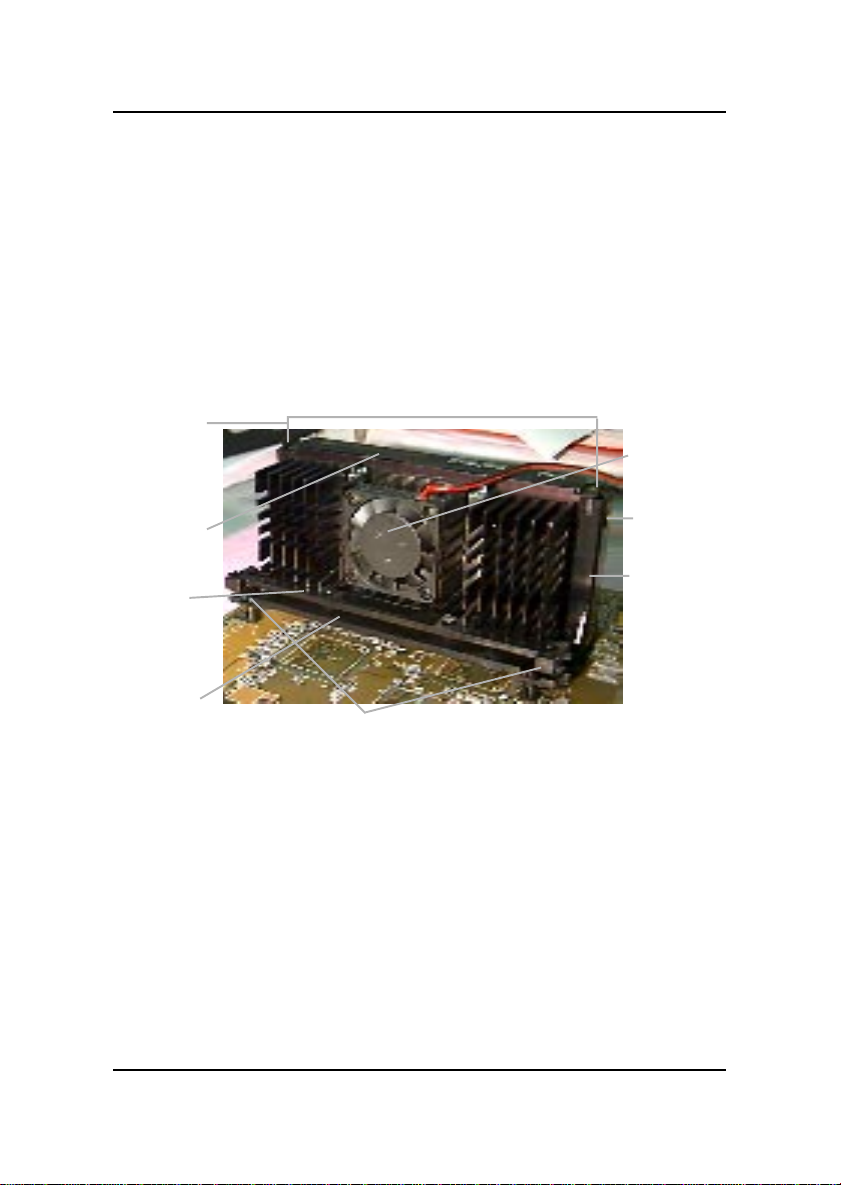
2.1-1 CPU Installation Procedures
A. OEM Pentium®
II Processor Installation Procedures
Different kinds of Pentium®
II processor that is currently used: the OEM
version, the Boxed version, and CeleronTM. OEM Pentium®
II Processor has
no Heat Sink, Fan and Heat Sink Support, the Boxed Pentium®
II Processor
is provided with Heat Sink w/ fan and Heat Sink Support, while the
CeleronTM processor is a plain processor card without cover or heatsink..
Required Things:
Pentium®
II processor- Processor.
*RetentionMechanism(RM)- Plastic Guide thatholds the S.E.C. Catridge
in the Slot 1 connector.
*RetentionMechanismAttachMount(RMAM)-Bolt/Bridgeassemblies
inserted up through the bottom of the
motherboard. RM secures to RMAM ( 2
RMAM required per RM ).
*Heat Sink SupportBase (HSSBASE) - Plastic support bar mounted to
the mainboard under the ATX heatsink.
(One leg is always bigger than the other one)
Processor
Lock
Retention
Mechanism
Pentium®
II
Processor
Heat Sink
W/Fan
Notch Hole
Heat Sink
Support Base Heat Sink
Support Pin
Heat Sink
Support
Top Bar
CHAPTER 2 HARDWARE INSTALLATION
2-3
*HeatSink Support Pin (HSSPIN) - Plastic pins inserted through the
HSSBASE to secure it to the mainboard (2
required per Assembly).
*Heat Sink Support Top Bar (HSSTOP) - Plastic bar that clips onto the
HSSBASE through the fins on the ATX
heatsink.
**Heat Sink w/ fan - Heat Sink that can be attached to the Pentium®II
processorwith metal clip.
Note:* Provided by MSI mainboard.
** Provided by Special request.
RM
HSSPIN
HSSTOP
HSSBASE
RMAM
CHAPTER 2 HARDWARE INSTALLATION
2-4
SLOT1
Retention
Mechanism
êê
Key
êê
Retention
Mechanism
Attach Mount
Notch
Key
Step 1: Insert the Retention Mechanism Attach Mount at the bottom
of the mainboard.
Step 2: Install the Retention Mechanism.
Look for the key on Slot 1, and match it with the Notch Key on the
Retention Mechanism for proper direction. Then, attach the
Retention Mechanism to the Retention Mechanism Attach Mount.
Use a Screwdriver to secure the Retention Mechanism.
CHAPTER 2 HARDWARE INSTALLATION
2-5
Step 3: Install the Heat Sink Support Base.
Look for the Two holes across Slot 1, and match it with the Two legs
of the Heat Sink Support Base for the proper direction. Take note
that one hole/leg is bigger than the other. The Four top pins of the
Heat Sink Support Base should also be oriented towards Slot 1.
Push the Heat Sink Support Base onto the mainboard, until you hear
a click sound. Check for a perfect fit.
Step 4: Install the Heat Sink Support Pin.
Push the Heat Sink Support Pins onto the two holes of the Heat Sink
Support Base. Check for a perfect fit. These pins are used to secure
the Heat Sink Support Base.
Heat Sink
Support Base
Heat Sink
Support Pin
Leg
pins
CHAPTER 2 HARDWARE INSTALLATION
2-6
S.E.C. Cartridge - Thermal
P
Isometric View
Step 5: Install the Heat Sink with Fan to the Processor.
Push down the metal clips, so that they are in line with the back of
the Heat Sink. Be careful, so as not detach the metal clips from the
HeatSink.
In case the metal clips are detached from the Heat Sink, re-attach
them. Look for the arrow on the metal clip. This arrow should be
pointing down and aligned with the Heat Sink Support Base Holder.
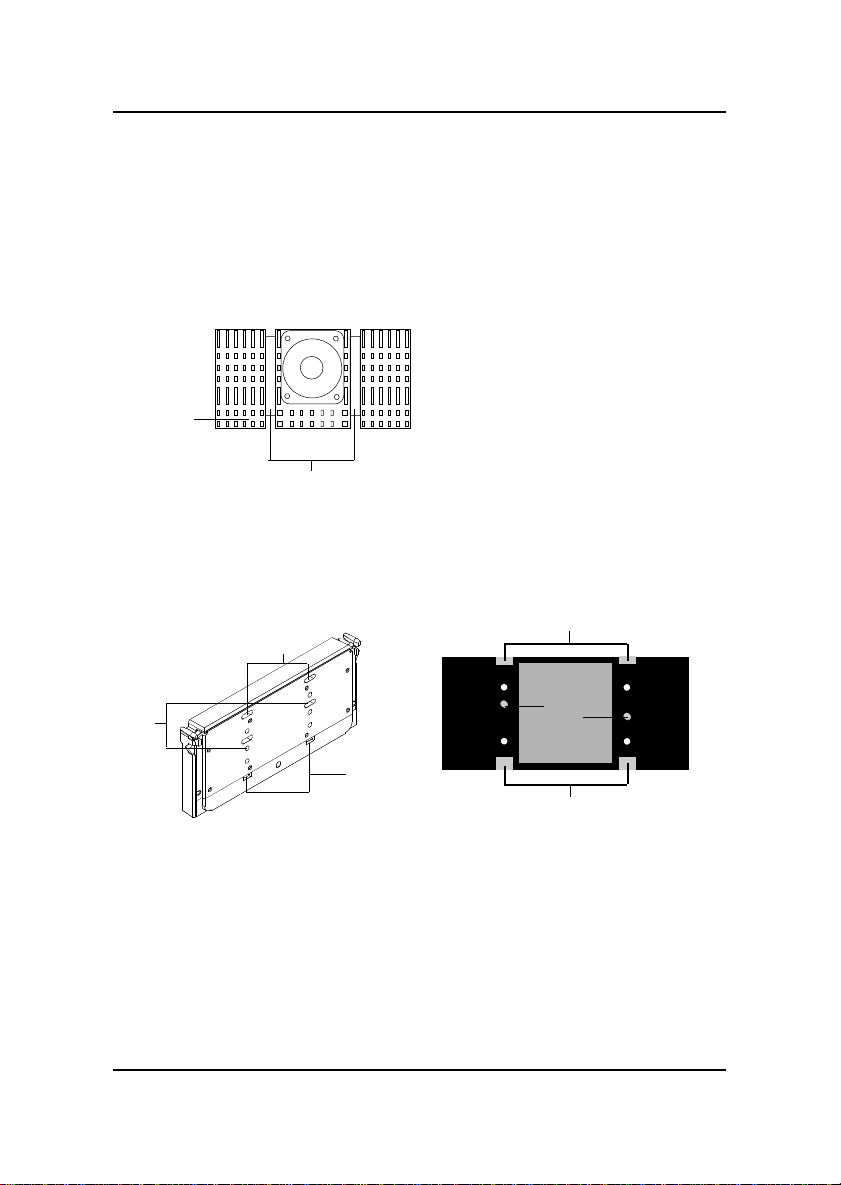
Attach the Heat Sink to the processor.
- Look at the back of the Heat Sink and take note of the 2 secure
posts. Insert these 2 Secure posts to the 2 secure holes on the
back of the processor.
- Align the ears of the metal clips with the clip holders on the back of
the processor. Use a screw driver to push the metal clips onto the
clip holders. Check for a perfect fit.
Pentium®
II Processor (Back)
â
Thearrow
shouldbe
pointing
down.
Metal Clips
Heat Sink w/ Fan
Metal Clips Ear
Metal Clips Ear
Secure
Posts
Heat Sink w/ Fan(Back)
HeatSink
BaseHolder
Secure
holes
Clip Holder
Clip Holder