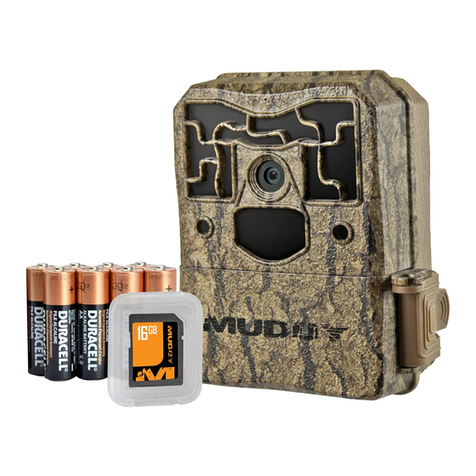
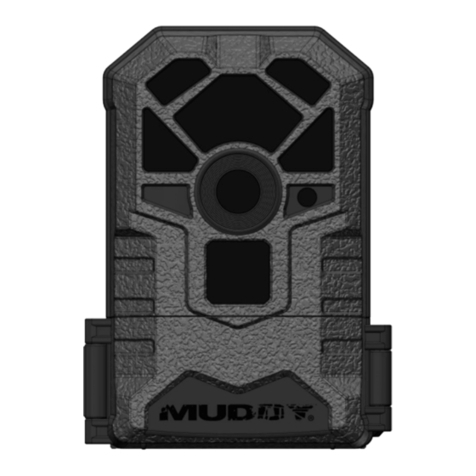
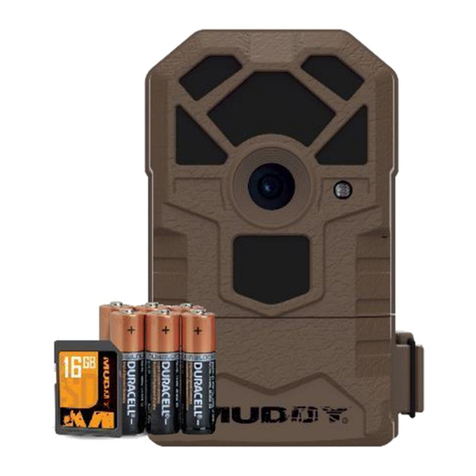
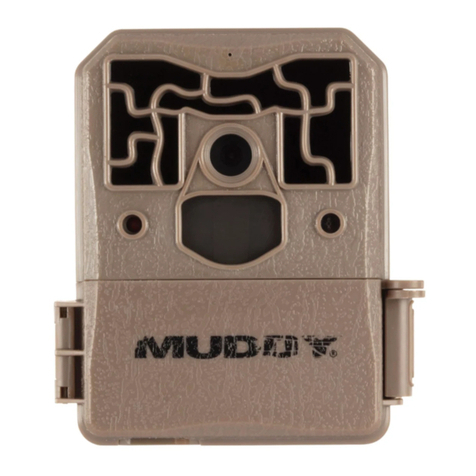
Muddy PRO-CAM 20 User manual

MODEL MTC600

2
ITEMS REQUIRED FOR STARTUP........................ 2
FEATURES & SPECS........................................... 3
CAMERA DIAGRAMS...................................... 4-5
BATTERY INSTALLATION................................... 6
MEMORY CARD INSTALLATION.......................... 8
QUICK-START................................................... 9
ADVANCED SETTINGS .....................................10
MOUNTING & FIELD SETUP..............................16
CAMERA CARE ................................................18
TROUBLESHOOTING........................................19
WARRANTY INFORMATION..............................20
OWNER’S RECORD...........................................21
INCLUDES:
REQUIRED FOR STARTUP:
Camera Manual 5’ Mounting Strap
•
6-AA Cell Alkaline Batteries (recommend name brand for best performance, sold separately)
• 1- SDHC Storage Card (Up to 32GB) (sold separately) The Pro-Cam Trail Cameras require
a minimum of 4GB. It is highly recommended to use Class 10 SDHC Cards to provide
optimal performance.
• 1- External SDHC memory card reader for viewing photos/videos (sold separately)
NOTE: 12V DC hookup is available. Both power supply options can be used in combination
with each other. If both power supply’s are connected, the trail camera will run o of the 12V
power before switching over to the 6-AA Cell batteries. The battery indicator will display“EXT”
for the power available from the 12V DC option.
Jan. 2018. Published by Premier Outdoor Equipment, LLC., Windom, Minnesota.
© 2018 Premier Outdoor Equipment, LLC. All rights reserved

Camera Specications
Image Res. 20 MP (Day), 5 MP (Night) Video Mode 1280 x 720 HD with Sound
or VGA (32 FPS) with Sound
Image Detail Color (Day), B/W (Night) Video Length 6 Options: 5 Sec - 2 Min
Illumination 36 LEDs with Invisible Flash Detection Range 70 Feet
Trigger Speed 0.6 Seconds Flash Range 70+ Feet
Image Data Camera ID, Date, Time, Temp, & Moon Phase
Burst Interval 2 Seconds or 0.6 Seconds Field of View 3 Zone + 50° Detection Angle
Camera Options - Beyond Optimal Presets
Photo Burst 2-8 Photos Trigger Delay 10 Options: 2.5 Sec - 60 Min
Time-Lapse Yes Time-Lapse Frequency 10 Options: 5 Sec - 60 Min
Time-Lapse Period
AM and PM Custom Start/End Times SD Overwrite Yes
Physical Specs
Dimensions 4.75” H x 4.25” W x 2.5” D Settings Screen Backlit LCD Screen
Material Molded ABS Mounting Options Adjustable Strap with Buckle
Finish Non-reective Bark Pattern Alt. Mounting 1/4“ - 20
Housing Waterproof Theft Deterrence Cable Lock and Padlock Ready
Technical Data
Battery Life Up to 10,000 Images Memory Card Secure Digital up to 32 GB
Battery Req. 6 AA Product Warranty 1 Year
Alt. Power 12V DC Operating Temp. -10° F to 140° F
FEATURES & SPECS:
3

4
ON
OFF
M KO
O
F
F
O
OK
M
Camera Lens
LEDs
PIR Sensor
Door
Power
Button
Mode Set-up
Buttons
LCD
Screen
Ok
Motion Test LED Light
Sensor
S E T U P D A T E T I M E
0 1 0 2 1 6 0 1 : 0 1 A M

5
ON
OPEN
OFF
OK
M
Latch
SDHC
Card
Slot
Battery Chamber
Release
Mounting Receiver
(1/4” - 20)
12V DC
Port

6
IF USING AA - CELL
BATTERIES
1. To remove the internal AA battery
pack, press chamber lightly and
slide the eject/open button inside
camera cover (Fig. 1). Next, pull
rmly to remove chamber and
insert batteries (Fig. 2).
2. Reference the battery icons located
on the inside of the chamber
compartment. Insert the batteries
accordingly as indicated by the
positive and negative battery icons
(Fig. 3).
3. Slide the battery compartment back
into the camera housing until it is
completely engaged in the slot in
the bottom of the housing (Fig. 4).
NOTE: Installing any of the 6-AA
batteries in the wrong direction
may cause the batteries to leak acid
and could possibly explode, causing
camera failure and damage to the
battery compartment.
INSTALLING BATTERIES:
Fig. 1
Fig. 2
Fig. 4
Fig. 3
M KO
M
OK
1.5V SIZE AA
1.5V SIZE AA
1.5V SIZE AA
1.5V SIZE AA
1.5V SIZE AA
M KO
1.5V
M
V SI
ZE AA
OK
1.5V SIZE AA
1.5V SIZE AA
1.5V SIZE AA
1.5V SIZE AA
1.5V SIZE AA
1.5V SIZE AA

7
IF USING 12V DC POWER SOURCE
1. Remove the rubber port cap at the bottom
of the camera (Fig. 1). Using a universal 12V
DC cord, plug in to the bottom port option
(Fig. 2).
2. Run the cord to the side of the camera
where there is a hook provided behind the
hinge of the camera door. This will support
the power cord and take pressure o of the
connection point (Fig. 3).
3. When not in use, replace the rubber port
cap at the bottom of the camera to protect
the 12V DC universal plug-in port.
BATTERIES CONT . . .
NOTE: Make sure the camera is powered o prior to installing the batteries.
Fig. 2
Fig. 3
Fig. 1

8
1. To access the user interface and insert a SDHC
Card, lift up on the side locking latch located
toward the bottom of the side of the camera.
After the latch is disengaged, move latch to
allow the interface door to open (Fig. 1).
2. Insert the SDHC card with the contacts facing
away. The SDHC card should slide in freely
with little resistance. Continue pressing the
card inward until you hear a click. This means
the SDHC card is locked in place and ready for
use. (Fig. 2).
3. To remove SDHC card, press the card inwards
to release.
NOTE: We do NOT recommend using cards
that came out of a camera from a dierent
manufacturer, or one that has previously been
used in a point and shoot camera. Doing so, your
Pro-Cam might not be able to accept or read the
SDHC Card properly. Use the Format SDHC Card
function on the camera for a full format before
each use (after you have either copied or reviewed
all your photos, see page 17 for reviewing photos),
or if any problems occur. Another option is a full
format on a PC. Formatting a SDHC card clears le
system corruption and erases everything on the
SDHC card.
MEMORY CARD INSTALL:
CARD
Fig. 1
Fig. 2
(sold separately)

9
Your Pro-Cam will come with the following standard options already preset. You can leave all
settings as defaulted to start taking quality pictures, but you’ll want to make sure to set up
the current Date and Time.
Setup date/time (Defaults to original date/time – may need to be re-programmed if you reset
the default settings)
Slide the power button from OFF to ON position to activate the camera and view the user setup
screen. Setting the functions is easy;
1. Simply press the Mbutton to access the menus, and use the UP or DOWN arrows to scroll
through the menu settings.
2. To select the menu setting you want to adjust, press the OK button.
3. Make your adjustments, and press OK button to accept the settings and change to another
menu.
*Note: any changes you make to settings are not saved until you hit the OK button. If you power
the camera o prior to hitting the OK button, settings will remain unchanged.
SETUP DATE/TIME
CAMERA MODE – CAMERA
IMAGE QUALITY – HIGH
VIDEO QUALITY - HD
VIDEO LENGTH – 10 SEC
PICTURE DELAY – 10 SEC
BURST MODE – 3-BURST STANDARD
TEMPERATURE UNIT – FAHRENHEIT
CAMERA ID – MY CAMERA
PICTURE INFO BAR – ON
TIME-LAPSE FREQ – 1 MIN
TIME-LAPSE PERIOD:
TIMER AM - 6:00 AM -> 10:00 AM
TIMER PM - 2:00 PM -> 6:00 PM
FLASH MODE – AUTO
PIR SENSITIVITY – MEDIUM
SD OVERWRITE - OFF
QUICK-START:
ADVANCED SETTINGS:

10
TIME AND DATE:
This will set the Date, Year, and Time of day to be imprinted on your photos/videos.
Press the OK button for the month setting to ash. Use the UP and DOWN arrows to change.
Press the LEFT or RIGHT arrows to move
to the DATE and set this accordingly. Next,
press the LEFT or RIGHT arrows to move to
the year and set accordingly. Continue to
adjust the hour, minute, and am/pm on the
time. Press the OK button when nished,
and press the UP or DOWN arrows to go on
to another menu.
CAMERA MODE:
Sets the camera to photos, videos or timelapse mode.
CAMERA - The following other settings are
recommended to be set when in Camera Mode:
Image Quality, Picture Delay, Burst Mode, Flash Mode, PIR Sensitivity, SD Overwrite
VIDEO - The following other settings are recommended to be set when in Video Mode:
Video Quality, Video Length, PIR Sensitivity, SD Overwrite
TIMELAPSE - The following other settings are recommended to be set when inTimelapse Mode:
Timelapse Frequency, Timelapse Period Timer AM & PM, PIR Sensitivity, SD Overwrite.
NOTE: In Timelapse mode, your Pro-Cam will still trigger if an animal walks in front of the
camera with the current Camera settings you have saved, regardless of the Timelapse settings,
so you never miss a thing.
This feature is great for taking photos of game from a long range that you normally couldn’t
get. Timelapse mode takes a photo at a xed time whether there is activity or not, depending
on the settings you choose, (see page 14 for Timelapse settings).
ON
OFF
M KO
O
F
F
O
OK
M
S E T U P D A T E T I M E
0 1 0 2 1 6 0 1 : 0 1 A M
CAMERA MODE
CAM E R A
3 P H O T O
B U R S T M O D E
I M A G E Q U A L I T Y
HIG H
Other manuals for PRO-CAM 20
1
Table of contents
Other Muddy Scouting Camera manuals