5. Setting up Z821
5-1. Join the ZigBee Network
After Z821 is turned on, it will search for an existing ZigBee network and send a request to join the network
automatically. While Z821 is under the coverage from a coordinator or a router whose permit-join feature is
enabled, Z821 will be permitted to join the network.
Step1. Enable the permit-join function (valid for 60 seconds) of a coordinator or a router (please refer to
the user manual of the coordinator or the router to enable the permit-join feature).
Step2. Turn on Z821. It will start to search and join the network.
Step3. The indicator will flash green once when it finds out a network to join.
Step4. The network indicator will stay green after it is joined successfully. Otherwise, the indicator will
be off.
5-2. Permit-Join
Z821 acts as a router in ZigBee network. After the permit-join feature is enabled, it allows other devices to join
the network.
Step1. Press the Binding Key. The permit-join feature will be enabled for 60 seconds.
Step2. Within the period of 60 seconds, the network indicator flashes once per second.
Within the period of 60 seconds, press the Binding Key again to turn off the permit-join.
5-3. Power Measurement
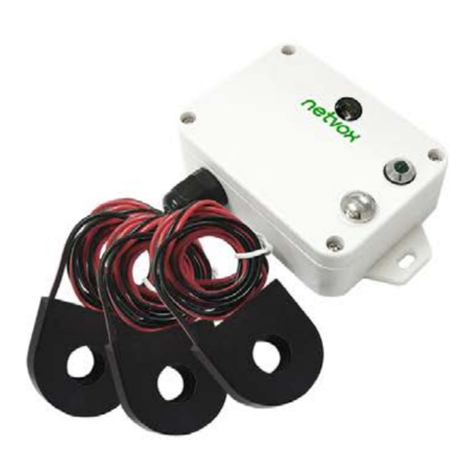
Z821 is an ideal product to know the whole energy consumption of the building; even to measure every sub
power meter to recognize how much energy is consumed by appliances in your home/office. Through ZigBee
technology, users are able to acquire the data, like current, voltage, power, or energy, from Z821 wirelessly.
5-4. CT/ N Wire/ L Wire Connection Error Notification
When the connection of CT or N/L wire is incorrect, the Status Indicator will keep flashing red. In this case,
we will get the wrong power consumption data.
5-5. Reset Power Consumption Summation
To reset the power consumption data, please follow the steps: