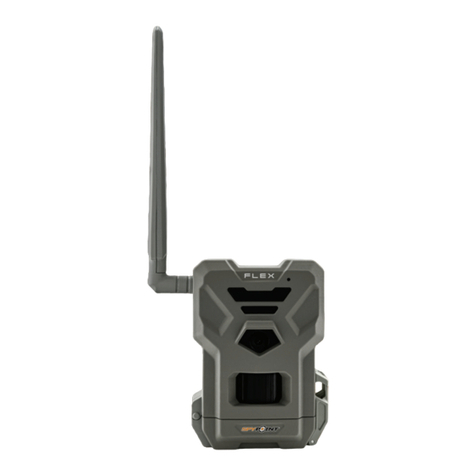
NITEforce EZmail User manual

Copyright © 2023 - www.niteforce.mobi
USER MANUAL
NITEforce EZmail 20MP FullHD 4G wireless trail camera
Declaration of Conformity to Directive 2014/53/EU
CE Caution: Hereby The Manufacturer declares that this NITEforce EZmail 4G Wireless Trail Camera is in compliance with the essential
requirements and other relevant provisions of Directive 2014/53/EU. A copy of the DOC, Declaration of Conformity to Directive 2014/53/EU, may
be obtained thru the local distributor.
PLEASE READ CAREFULLY BEFORE USING CAMERA
Thank you for Purchasing your NITEforce Trail Camera! The NITEforce EZmail 20MP FullHD 4G is a high-quality
digital wireless trail camera. It has been precisely engineered and tuned to provide you with optimal and consistent
performance. This camera will provide high quality digital pictures and video for applications such as home, cabin and
business surveillance and animal monitoring for hunting and research. It features a highly sensitive Passive Infra-Red
(PIR) motion sensor and numerous mobile APP setting options to tailor the camera to your particular needs. Camera
offers you high quality product using many useful features.
Take photos & videos - transmit over wireless network
Allow users to get photos & videos, monitor camera status and modify parameter settings via the mobile APP
Before use, you need to install antenna, SIM card, SD card, 12 x AA alkaline batteries, and install mobile APP (Android) to
use all remote commands by SMS. FREE Mobile APP is able to find from www.niteforce.mobi website/ APP Gallery.
SPECIAL HANDLING PRECAUTIONS
The camera has been fine tuned. Avoid dropping and physical shock. This camera is designed for typical weather
conditions (IP66). It is not waterproof for use underwater. Carefully clean debris from camera lens, PIR, and LED platform.
Avoid use of cleaning solvents. Camera contains precise electronic equipment. Do not attempt to open camera case
yourself. Fog condensation may form on lens and electrical components when bringing into warm room from cold. To
avoid this, first place camera inside a sealed plastic bag before bringing into warm room temperature. If condensation
forms, remove SD card and batteries until camera is dry. Remove batteries when storing camera. Removing batteries from
the camera during storage reduces the risk of battery acid leakage and battery drain. Battery leaks are not covered by the
warranty. When using the camera, Do Not mix old and new batteries together in the camera.
Use High Quality brand 1.5V AA alkaline batteries and SD card such as NITEforce (sold separately):

Copyright © 2023 - www.niteforce.mobi
CELLULAR INFORMATION
This camera contains LTE 4G cellular module to transmit pictures & videos directly from the camera to your e-mail. Its
capable to support 2G in areas where no 4G network present. Under 2G network only small thumbnail picture sending
possible. No original pics nor videos due the network small data upload speed. Operator SIM card costs and data-transfer
payment plans are between the camera user and operator.
NOTE: Remember disable (take off) the PIN code from the SIM card, before inserting SIM card into camera.
FEATURES
● Easy to use: Just type in the receiver email addresses – done! (no more complicated programming needed)
● Multiple receivers: Max 4 receiver email address can be inserted
● FREE APP for remote controlling (Android)
● Trigger Mode: PIR Motion detect & Time Lapse
● SD Card overwrite to recycle
Product Specs
Wireless Support LTE 4G (2G supported)
MegaPixels 20MP (16MP, 12MP, 8MP, 5MP, 3MP)
Video Resolution with Audio Full HD (1080P), HD (720P), WVGA
Video Clip Lenghts 5 - 60 Sec
Max Send Video Lenghts 20 Sec (WVGA), 15 Sec (HD)
Multi Shot 1-10 pics
Invisible No-Glow Flash
940nm Yes
Flash Max Range 20m
PIR Max Detecting Range 18m
PIR Trigger Speed 0.6 Sec
PIR Sensitivity Adjustment Yes (High/Med/Low/OFF)
Adjustable PIR Delay 5 Sec - 60 Min
Lens F2.2
FOV (Diagonal Field of View) 58°
FOV at 10 meters 7.70 m
Time-Lapse Capturing 3 min - 24h
4 Work-Time Settings Yes
Color Daytime Pic & Vid Yes
Black/White Night Pic & Vid Yes
Time & Date Stamp Yes
Camera Name Stamp Yes
Moon Phase Stamp Yes
Temperature Stamp Yes (°C / °F)
Camera Color Matte Black
Mounting Strap / Cable
Tripod Thread 1/4"-20
Battery Power Source 12 AA Alkaline Batteries (not incl)
External 6V – 12V Power
Port Yes (6V – 12V)
SD Card Support 2GB - 32GB
Weather Proof IP66
Operation Temperatures -20°C ... +60°C
Operation Humidity 5% - 90%
10 Language Menu EN, CZ, DK, FI, FR, DE, HU, IT, NO, SW

Copyright © 2023 - www.niteforce.mobi
Includ
es
Wireles
s LTE 4G Trail Camera x 1
LTE 4G Antenna x 1
Free APP (Android)
Mounting Strap x 1
User Manual x 1
Warranty
1 Year
CAMERA OVERVIEW
GETTING STARTED
1) INSTALL BATTERIES (camera OFF)
Camera operates with 12pcs of 1.5V AA alkaline batteries. Pay attention to the (+) or (-) battery polarization when you
insert batteries. Negative battery terminal always contacts the spring.
o Do not mix different types of batteries
o Do not mix the old and new batteries
o Recommend high-performance (1.5V) Alkaline batteries, such as NITEforce AA alkaline
o Remove batteries when not in use, to prevent leakage
Camera accepts External 6V – 12V Power source (max 2A). Use only manufacturer approved external power sources
such as NITEforce 6V 12Ah external battery or NITEforce Solar Power Panel (sold separately).
2) INSERT SD CARD (camera OFF)
Always ensure that the camera is turned OFF before inserting SD card. Insert SD card into the SD card port. You will hear
“click” when pushed SD card into port. Please make sure to enter MENU->SYS->Format SD to format the SD card before
use.
Use 2GB - 32GB capacity SD cards. Prefer “slow” write/read speed SD cards fex Class 10. Do not use “micro”
SD cards with adapter. Incompatible SD card may cause saving and sending errors & high power consumption.

Copyright © 2023 - www.niteforce.mobi
3) INSERT SIM CARD (camera OFF)
Push SIM card gently until it "clicks" into place inside the camera port. If SIM card needs to be removed, push again gently
and you will hear "click".
Remove PIN code from your SIM card, before inserting SIM card into camera port
Check your SIM card data plan speed details from your operator (before installing SIM card).
Camera supports SIM card data-plan with LTE 4G High Speed. If original pictures or videos are sent, Upload
Speed 5MB/sec is required
SIM card should support SMS text message receiving & sending (SMS commands from APP)
4) MOUNT THE ANTENNA (camera OFF)
Mount and attach the LTE 4G antenna to camera antenna port by twisting the antenna. Do not use the camera outside
without antenna. Antenna is protecting the antenna hub from the rain and moisture going inside the camera!
5) POWERING THE CAMERA FROM POWER SWITCH
Slide the Power Switch to SETUP mode. You will see camera turning on and “NITEforce logo” displayed on the screen.
Power Switch functions:
OFF: Power off (Please remove batteries when not in use)
SETUP: Setting the camera
ON: Working mode (the screen will power off)
6) ADDING YOUR E-MAIL ADDRESS TO CAMERA
Camera is asking you to type in your e-mail address, where the pictures or videos will be sent.
LCD looks like this:
By choosing the “1st Email”, you can find the camera keyboard functions and you can type with Menu buttons your own e-
mail address to camera.

Copyright © 2023 - www.niteforce.mobi
MENU: Enter menu
▲▼◄ ►: Navigation buttons
OK: Confirm operation /Playback photos or video clips
►: To manually take photo or video. (Click again to stop the video)
When you have typed your own e-mail address, press SAVE (OK button). Then you are saving your receiving e-mail
address under the 1st Email receiver position. Add more e-mail addresses same way under positions 2-4 (if needed). Go
to Menu and slide Power Switch to ON position.
Camera is now getting active & ready for operation
After switching the Power Switch to ON position… wait about 5 minutes and check your e-mail.
You should now start receive pictures from camera, if movement front of camera during that time
o If you have not received any pictures after 5minutes, please check:
Check that you typed your own e-mail address correctly?
Check if pictures are in your e-mail “SPAM” or “Junk e-mail” folders?
Check if your company firewall is blocking incoming camera e-mails?
Add second e-mail address for example Gmail
Check that your e-mail inbox is not full?
Check that your SIM card is supporting fast 4G data (upload speed min 5MB/sec or more)?
Slow speed “2G” SIM cards are not compatible
Check that your SD card is not “too fast” (prefer SD cards less than 100mb/s read speed)?
Check that you are NOT using “micro SD card” with adapter?
Check that your camera has enough power?
Check that you did not set PIR off?
Tips & Tricks:
By resetting camera back to “Factory Settings” (under SYS menu), you can start again and so delete all possible own
mistake setting errors easily. After Factory reset, just type in your e-mail address and turn Power switch ON again
You can also try send “manually” a test picture and see on the camera LCD the sending progress.
1. Press “OK” and view any earlier captured picture on camera LCD
2. Press Menu and choose Send
3. You can see if sending was
“successful” or “error”

Copyright © 2023 - www.niteforce.mobi
CAMERA LCD ICONS
Customizing camera settings
Menu Settings
NET
Send Mode
INSTANT
Daily Report
Instant + Daily Report
Off
Send Size
Big Photo/Video(Max sending size for
1080P video is 5s; Max sending size for
720P video is 15s; Max sending size for
WVGA is 20s.)
/ Small Photo
Edit Email 1st Email, 2nd Email,
3rd Email, 4th Email
Recipients 4 Emails
SMS Switch Off/ON/Set
Send Mode:
Instant: If you want the camera to send every photo instantly, you need to choose this option. You can control the number
of photos that are sent to your Email every day. If you want to limit the number, set the maximum number. If you want the
camera send out without max number limit, please set this value to 0 (zero).
Daily Report: This option only sends you the last photo taken each day with a report of all the other activity during the day
at preset time.
Instant & Daily Report: This option allows you both get instant photos and daily report.
Off: Choose this option if you do not want any photo be sent out.
Send Size: It can send Big Photo/Video to your Email. When the network is weak (2G) to send big photos or video clips,
you can choose Small Photo to send out.

Copyright © 2023 - www.niteforce.mobi
Please note the max sending size for 1080P video is 5s, max sending size for 720P video is 15s, and max sending size for
WVGA is 20s.
Edit Email: It supports max 4 Email address to receive the photos or videos.
Recipients: You can double check inbox info from here.
SMS switch: You can remote control your camera via APP or SMS command. For example, to require an instant photo or
change settings by sending an SMS command. When SMS switch is set ON, the remote control function is enable. But
due to the 4G module stays awake all the time, the power consumption will be high. If you do not use remote control
function, please set SMS switch as OFF. You also can choose Set to set a time period to enable the remote control
function only working in the set time period.
CAM
Camera Mode
Photo Custom Settings
Video
Video Size:
WVGA/720P/1080P
Video Length:
5s-60s(Default:10s)
Custom
Settings
Photo Size 3/5/8/12/16/20MP
Flash Power Low/High
Photo Burst
1~10
Burst Speed(Fast/Slow)
Sending Option
Shutter Speed Normal/Fast
Photo Burst:It’s the taken number of pictures after a triggering. If photo burst is 3, it means the camera will take 3
pictures after a triggering. You also can choose one of the pictures to send via Send Option.
Shutter Speed:Normal is suitable for most application scenarios. Fast can be used to reduce motion blur.
PIR
Trigger Mode
PIR Trigger
Time Lapse
Both
PIR Sensitivity
Low
Normal
High
Off
PIR Interval 5s-60min(Default:1min)

Copyright © 2023 - www.niteforce.mobi
Time Lapse
Interval
3min~24hours
(Default:30min)
Work-Time
(4 groups)
Default: Off
PIR Interval:It means how often the PIR sensor can be allowed to work. This prevents the card from filling up with too
many redundant images.
Time Lapse:When choose time lapse, camera takes photos or videos even when it is not triggered by a nearby live
animal. It’s useful for constant monitoring of an area.
Work Time:The camera can work at a preset time and preset days. In the rest of the time the camera is not work. Work
hour: 00:00-00:00 means 24 hours. If the settings is cross the day, for example: Start: 20:00 Stop: 10:00 means 00:00-
10:00 am and 20:00-24:00 of the chosen day.
SYS
Set Clock Enter to set date and time
Language
10 languages
(English,Czech,Danish,Finnish,French,Ger
many,Hungarian,Italian,Norway,Swedish)
Password Off/On
Rename Off/On
Over Write Off/On
Diagnose ~
Format SD Card Format SD Card
Default Restore all customer settings to default
values
About Camera Name/Software Version
Password: Make sure you write down your password and save it so you can access your camera if you ever forget your
password.
External 6V – 12V Power Port Connection
Your camera comes with External Powert port. You can connect your camera to an external 6V - 12V battery. During external battery
or solar power panel power connection, you can keep AA alkaline batteries inside the camera. Camera always consumes first
external power source, and when its out of use, camera starts use internal AA batteries. This combination gives max operation time
for camera. External NITEforce Power accessories are sold separately. Ask more from your dealer or check www.niteforce.mobi

Copyright © 2023 - www.niteforce.mobi
EXTERNAL POWER ACCESSORY OPTIONS (sold separately)
NITEforce 8000mAh Solar Power Panel NITEforce External Power Cable (3m) NITEforce 6V 12Ah External Battery
Remote Control APP
You can download free NITEforce EZmail trail camera Android mobile APP from below link (NITEforce APP Gallery):
https://www.niteforce.mobi/product/niteforce-ezmail-trail-camera-android-app/
The APP is easy to use. You just need to input the SIM’s phone number which is inserted in your EZmail camera.
If your Android phone is missing the “3 button navigation” bar, you can
enable it under the “System Navigation”. Then you can go Back inside the
APP. Please see below picture how to turn it on:
EZmail APP is sending all commands by SMS text messages.

Copyright © 2023 - www.niteforce.mobi
SMS Commands without APP use
Incase if you do not have Android phone, you can send all remote SMS commands by simple text message to your
camera SIM number. Below is the list of different commands:
Mounting of the Camera
This camera is designed to use the Nylon mounting strap (included) to obtain maximal mounting versatility.
It is recommended to mount the camera 1m – 1.5m height pointing to desired area. Distance about 5m away from target
center area for maximum sensitivity in most situations. Adjustments may be required depending on animal size and
environment. PIR motion detection distance changes based on ambient temperature and setup. Higher ambient
temperatures will reduce PIR motion detection range thereby requiring camera to be closer to desired location. Mounting
camera too high or tilting camera may result in animal or humans going under or above the PIR motion detection range.
Position the camera perpendicular to the ground to maximize the Flash lighting potential. Cars and other motorized
vehicles are not animals. Those are emitting heat motion differently vs humans and animals. Cold vehicle iron is not
emitting heat. Avoid installing the camera directly at sunrise or sunset, so that the sunlight will not directly shine on the
lens. If installed in a dusty environment, regularly clean the camera lens cover, flash cover and PIR sensor cover.
SMS commands list for NITEforce EZmail camera
Message Function Note
Get
picture
#110# To take a picture / video and send
Camera
status
#370# Camera status (status data)
Send
Mode #220#value1#value2#
#220#0#10# Instant,max num=10 (Value "0")
#220#1#2030# Daily report, 20:30 (Value "1")
#220#2#10#2030# Both, Max num=10 ,20:30 (Value "2")
#220#3# Off, (Value "3", the maximum is "3" )
Send
Size #230#1# #230#1#0# Send to Email(big photo/video)
#230#1#1# Send to Email(smaller photo)
SMS
Switch #240#value#value# #240#00#00# Works the whole day(If two values are the same, it
means work the whole day)
#240#18#20# Works from 18:00 to 20:00
Camera
mode #310#value#
#310#0#
The camera mode is set as Photo.
#310#1# The camera mode is set as Video.
Video
settings
#330#Video Size# Video
Length#
Set Video Size and video length. 0=1080P, 1=720P, 2=WVGA ; Video length is from
5 to 60.
Trigger
Mode
#350#0#PIR interval#PIR
Sensitivity# PIR trigger
#350#1#Time Lapse# Time Lapse
#350#2#PIR interval#PIR
Sensitivity#Time Lapse# Both
Note: PIR
Sensitivity=0(Low),1(Normal),2(High),3(Off)
eg: #350#0#m1#2# means PIR trigger, 1 min
delay ,High sensitivity;
eg: #350#0#s30#3# means PIR trigger, 1 min
delay ,High sensitivity;
eg:#350#1#h1# means Time Lapse, 1 hour delay.)
Table of contents
Languages:
Other NITEforce Scouting Camera manuals