InTemp CX5000 Gateway Manual
1-800-LOGGERS 5 www.onsetcomp.com
connection can download the logger instead, thereby
expanding the coverage area and reducing the risk of multiple
gateways incorrectly affecting a logger. Note: If loggers are in
range of more than one gateway, then those gateways should
be grouped to ensure the system works correctly. If there is any
risk of the Bluetooth range between devices overlapping within
a facility (including gateways in different rooms, areas, or
floors), then the gateways should be grouped to reduce the risk
of issues.
To create a gateway group:
1. In InTempConnect, click Gateways and then Groups.
2. Click Add Group.
3. Select a gateway profile.
4. Select a location (if applicable).
5. Under Description, type a name for the group.
6. Select the gateways you want to assign to this group from
the Available Gateways list and use the right arrow to move
them to the Assigned Gateways list.
7. Click Save.
See www.intempconnect/help for details on gateway groups.
Configuring Loggers with a Gateway
You can use a gateway to configure loggers automatically
within range instead of using the InTemp app.
To configure loggers with a gateway:
1. In InTempConnect, click Loggers and then click Configure
Logger.
2. Click Create Logger Configuration.
3. Type the serial number for the logger and then click Find
Logger. Note: The selected logger cannot already be part of
a scheduled configuration or shipment.
4. Enter a logger label.
5. Select a logger profile.
6. Fill in any trip information fields (if applicable).
7. Click Save if you want to save this logger configuration, but
are not ready to release it (i.e. not ready for the gateway to
configure the logger). Click Save and Release if you are
ready for the gateway to configure the logger.
Alternatively, you can use a Microsoft® Excel® spreadsheet as a
template for setting up multiple logger configurations at once.
To import logger configurations with a template:
1. Click Loggers and then Configure.
2. Click Import Logger Configurations.
3. Click to create a file using the template.
4. Fill in all the fields for each logger that you want to be
configured by the gateway. The template includes columns
for any trip information fields you have created. Note: The
selected logger cannot already be part of a scheduled
configuration or shipment.
5. Save the file.
6. Click Choose to select the file. Click if you need to
remove that file and select another.
7. Click Upload.
8. Select the "Release on import" checkbox if you want the
gateway to configure the loggers in the file as soon as the
import is complete.
9. Click Start Import. If you did not select the "Release on
import" checkbox, the loggers are added to the list with a
status of Planned.
Any loggers that are not immediately released have a status of
“planned.” To release planned logger configurations:
1. Click Loggers and then Configure Logger.
2. To release one logger at a time, click the Release icon at
the end of the row in the Logger Configurations table for
the logger you want the gateway to configure.
To release multiple loggers at a time, select the check box
next to each logger in the Logger Configurations table (or
select the checkbox next to the Serial Number column
heading to select all the loggers). Click above the
table for the gateway to configure all the selected loggers.
Note: You can also set up shipments in which loggers are
configured and downloaded by specified gateways at their
origin and destination points. Loggers that are part of a
shipment cannot be configured separately as described in this
section.
See www.intempconnect/help for other details on configuring
loggers with a gateway or as part of shipments.
Setting up the Gateway at a Different Site
Follow these instructions if you need to configure/start the
gateway for use at a different site or to set up network settings
for the gateway for a different location than the current site
(for example, you are an IT administrator who is setting up a
gateway that will be used at a different office). Note that you
must have an InTempConnect user account with Gateway
Administrator privileges and the InTemp app to continue.
Note: If the gateway will be deployed in a location that
supports Ethernet with DHCP and you do not need to set up
network settings in advance, then you can follow the steps in
Setting up the Gateway on page 1 instead.
1. Power up the gateway. Insert the appropriate plug for your
region into the AC adapter. Connect the AC adapter to the
gateway and plug it in. Plug in an Ethernet cable if you will
be using Ethernet at your current location. Wait a couple of
minutes for it to completely power up before continuing.
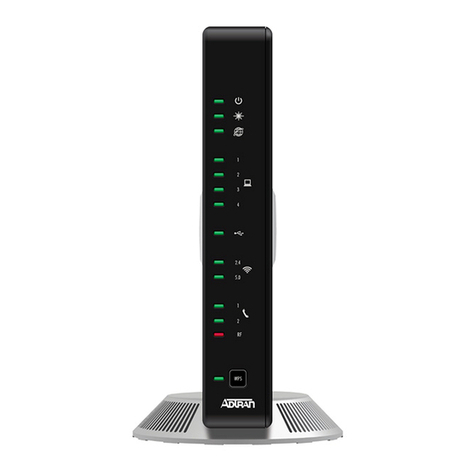
The LED will be yellow-green while it powers up and then
change to a deep green once it is ready to set up.
2. If you will not be configuring the gateway and only setting
up network settings for the different site:Go to step 4.
If you will be configuring the gateway and have Ethernet
with DHCP at your current location: Go to step 3.
If you will be configuring the gateway and using Ethernet
with static IP addresses or WiFi at your current location:
Follow these steps to set up temporary network settings:
a. Tap the Devices icon and tap Gateways at the top of the
screen. Find the gateway in the list and tap anywhere in
the row to open it.
b. Tap Network Settings and tap Ethernet of WiFi.