manuals.online logo
Brands
  1. Home
  2. •
  3. Brands
  4. •
  5. pathway
  6. •
  7. Interactive Whiteboard
  8. •
  9. pathway eGlass User manual

pathway eGlass User manual

Other manuals for eGlass

2

Popular Interactive Whiteboard manuals by other brands

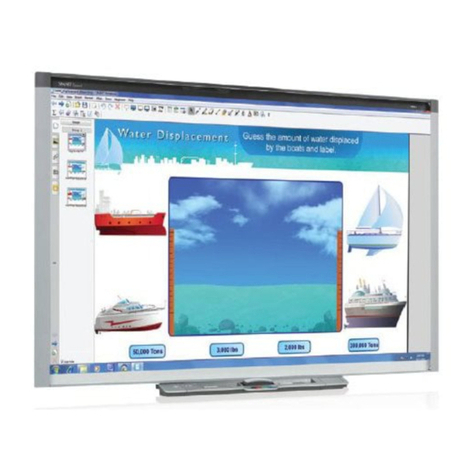
SMART KAPP42 user guide

SMART

SMART KAPP42 user guide

Panasonic Panaboard UB-8325 null

Panasonic

Panasonic Panaboard UB-8325 null

Panasonic ELITE PANABOARD UB-T780 null

Panasonic

Panasonic ELITE PANABOARD UB-T780 null

Buhl LyteBoard user guide

Buhl

Buhl LyteBoard user guide

SMART 885ix reference guide

SMART

SMART 885ix reference guide

Panasonic UB-5325 operating instructions

Panasonic

Panasonic UB-5325 operating instructions

Sharp PN-TPCi7W7 Connection guide

Sharp

Sharp PN-TPCi7W7 Connection guide

Optoma 5652RK user manual

Optoma

Optoma 5652RK user manual

i3TOUCH P7511 user manual

i3TOUCH

i3TOUCH P7511 user manual

Ricoh D5500 manual

Ricoh

Ricoh D5500 manual

SMART kapp iQ 55 user guide

SMART

SMART kapp iQ 55 user guide

Returnstar IQBoard IR Pro user manual

Returnstar

Returnstar IQBoard IR Pro user manual

Dukane ITP84 user guide

Dukane

Dukane ITP84 user guide

Hitachi HILU75202 user manual

Hitachi

Hitachi HILU75202 user manual

Panasonic Panaboard KX-B430 operating instructions

Panasonic

Panasonic Panaboard KX-B430 operating instructions

abi IMAGE IQBoardA user manual

abi

abi IMAGE IQBoardA user manual

SMART SmartBoard 600i2 installation instructions

SMART

SMART SmartBoard 600i2 installation instructions

BOXLIGHT ProColor 554U manual

BOXLIGHT

BOXLIGHT ProColor 554U manual

manuals.online logo
manuals.online logoBrands
  • About & Mission
  • Contact us
  • Privacy Policy
  • Terms and Conditions

Copyright 2025 Manuals.Online. All Rights Reserved.

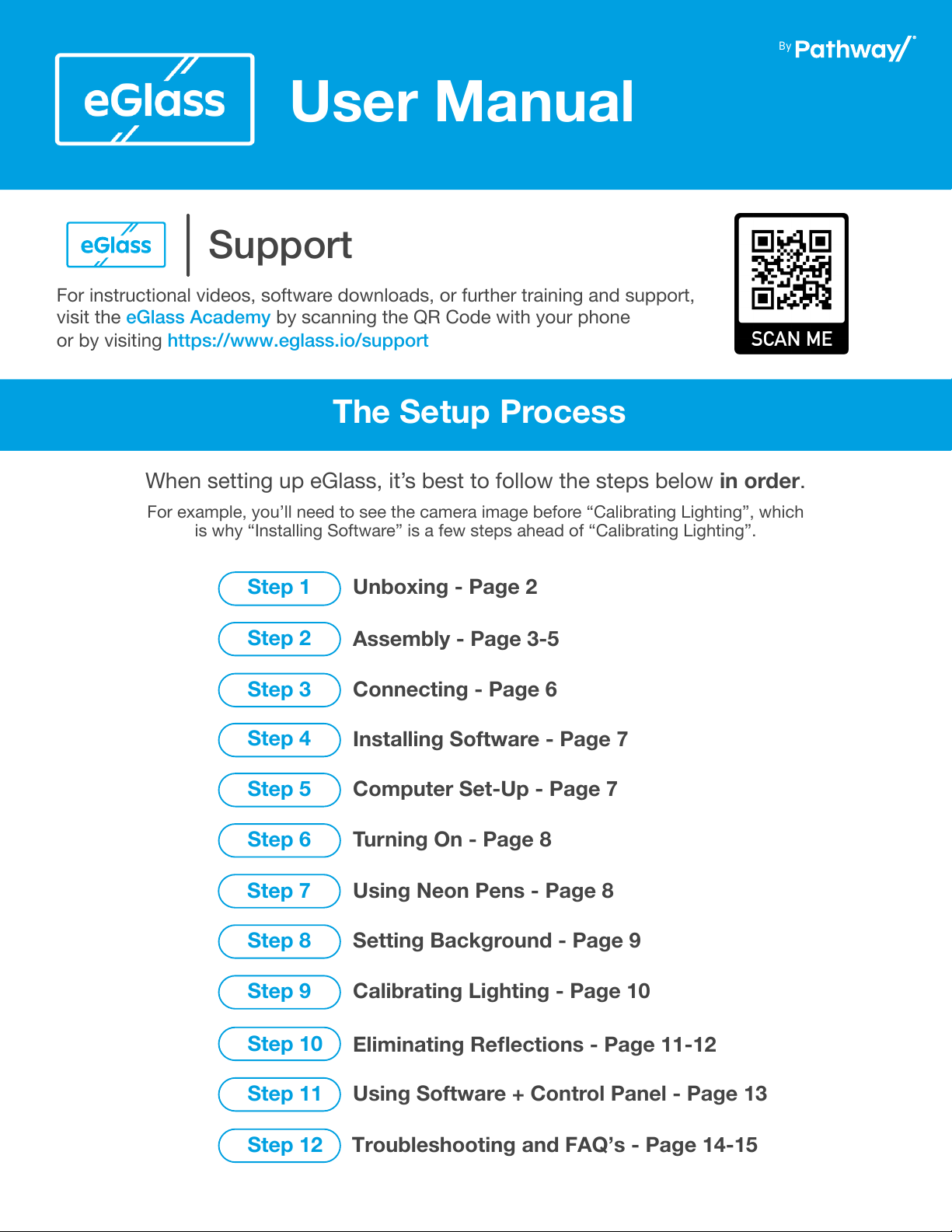
For instructional videos, software downloads, or further training and support,
visit the eGlass Academy by scanning the QR Code with your phone
or by visiting https://www.eglass.io/support
User Manual
When setting up eGlass, it’s best to follow the steps below in order.
For example, you’ll need to see the camera image before “Calibrating Lighting”, which
is why “Installing Software” is a few steps ahead of “Calibrating Lighting”.
The Setup Process
Support
By
Unboxing - Page 2
Assembly - Page 3-5
Connecting - Page 6
Installing Software - Page 7
Computer Set-Up - Page 7
Using Neon Pens - Page 8
Setting Background - Page 9
Calibrating Lighting - Page 10
Eliminating Reflections - Page 11-12
Using Software + Control Panel - Page 13
Troubleshooting and FAQ’s - Page 14-15
Turning On - Page 8
Step 1
Step 2
Step 3
Step 4
Step 5
Step 6
Step 7
Step 8
Step 9
Step 10
Step 11
Step 12
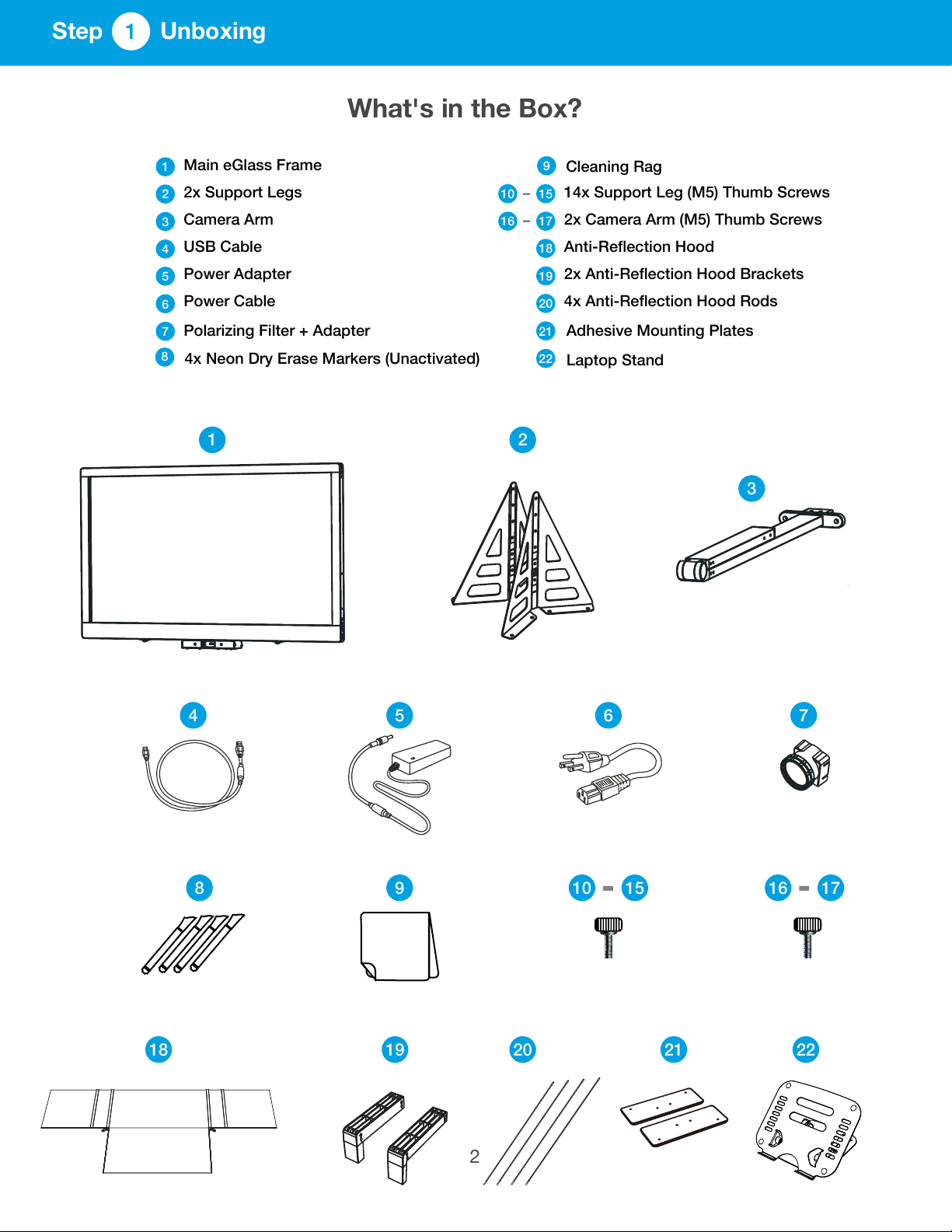
Main eGlass Frame
4x Neon Dry Erase Markers (Unactivated)
2x Support Legs
Cleaning Rag
Camera Arm
14x Support Leg (M5) Thumb Screws
USB Cable
2x Camera Arm (M5) Thumb Screws
Power Adapter
Anti-Reflection Hood
Power Cable
2x Anti-Reflection Hood Brackets
Polarizing Filter + Adapter
4x Anti-Reflection Hood Rods
1
2
3
4
5
6
7
8
9
15
17
18
19
20
10
16
1 2
3
4 5 6 7
8 9 1510 1716
What's in the Box?
18 19 20 21 22
21
22
Adhesive Mounting Plates
Laptop Stand
2
1
Step Unboxing
Use the polarizing filter to eliminate reflection of LCD computer screens
Attach filter to camera arm using the filter adapter, and rotate filter until reflection is
minimized.
1710
10
11
12
13
14
15
16
17
7
in the color-coded
1510
The support legs can be mounted in three height configurations. Install thumb screws
holes below depending on the desired height:
Choose Height Setting
2
Step Assembly
7
3
Medium
(24”)
Low
(22”)
High
(26”)
4
Mounting eGlass Semi-Permanently (Optional)
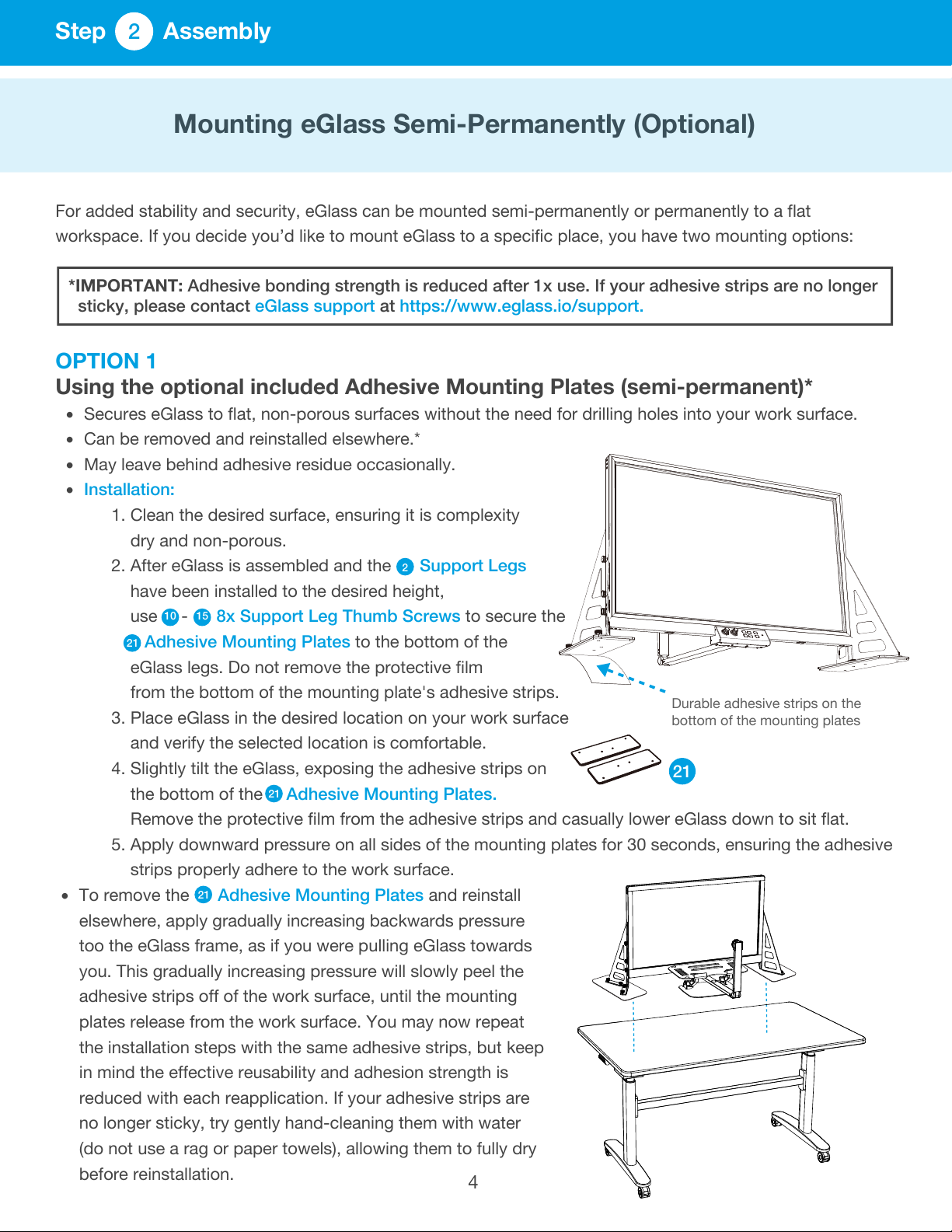
Durable adhesive strips on the
bottom of the mounting plates
21
2
Step Assembly
For added stability and security, eGlass can be mounted semi-permanently or permanently to a flat
workspace. If you decide you’d like to mount eGlass to a specific place, you have two mounting options:
OPTION 1
Using the optional included Adhesive Mounting Plates (semi-permanent)*
�Secures eGlass to flat, non-porous surfaces without the need for drilling holes into your work surface.
�Can be removed and reinstalled elsewhere.*
�May leave behind adhesive residue occasionally.
�Installation:
1. Clean the desired surface, ensuring it is complexity
dry and non-porous.
2. After eGlass is assembled and the Support Legs
have been installed to the desired height,
use - 8x Support Leg Thumb Screws to secure the
Adhesive Mounting Plates to the bottom of the
eGlass legs. Do not remove the protective film
from the bottom of the mounting plate's adhesive strips.
3. Place eGlass in the desired location on your work surface
and verify the selected location is comfortable.
4. Slightly tilt the eGlass, exposing the adhesive strips on
the bottom of the Adhesive Mounting Plates.
Remove the protective film from the adhesive strips and casually lower eGlass down to sit flat.
5. Apply downward pressure on all sides of the mounting plates for 30 seconds, ensuring the adhesive
strips properly adhere to the work surface.
�To remove the Adhesive Mounting Plates and reinstall
elsewhere, apply gradually increasing backwards pressure
too the eGlass frame, as if you were pulling eGlass towards
you. This gradually increasing pressure will slowly peel the
adhesive strips off of the work surface, until the mounting
plates release from the work surface. You may now repeat
the installation steps with the same adhesive strips, but keep
in mind the effective reusability and adhesion strength is
reduced with each reapplication. If your adhesive strips are
no longer sticky, try gently hand-cleaning them with water
(do not use a rag or paper towels), allowing them to fully dry
before reinstallation.
*IMPORTANT: Adhesive bonding strength is reduced after 1x use. If your adhesive strips are no longer
sticky, please contact eGlass support at https://www.eglass.io/support.
21
10 15
21
21
2

5
Mounting eGlass Permanently (Optional)
Mounting hardware
not included
2
Step Assembly
21
2
OPTION 2
Mounting eGlass directly to the work surface (permanent)
�The most stable option
�Requires drilling permanent holes in the chosen work surface.
�Requires additional hardware (not included)
�Installation:
1. Select and verify the location you’d like to install eGlass.
2. Place eGlass on the select location (do not use Adhesive Mounting Plates)
3. Select the appropriate sized and rated hardware (screws, washers) based on your work surface’s
` material type (most desk surfaces are typically wood or laminate).
4. Install hardware through the 8x exposed mounting holes on the bottom of the
Support Legs into the work surface
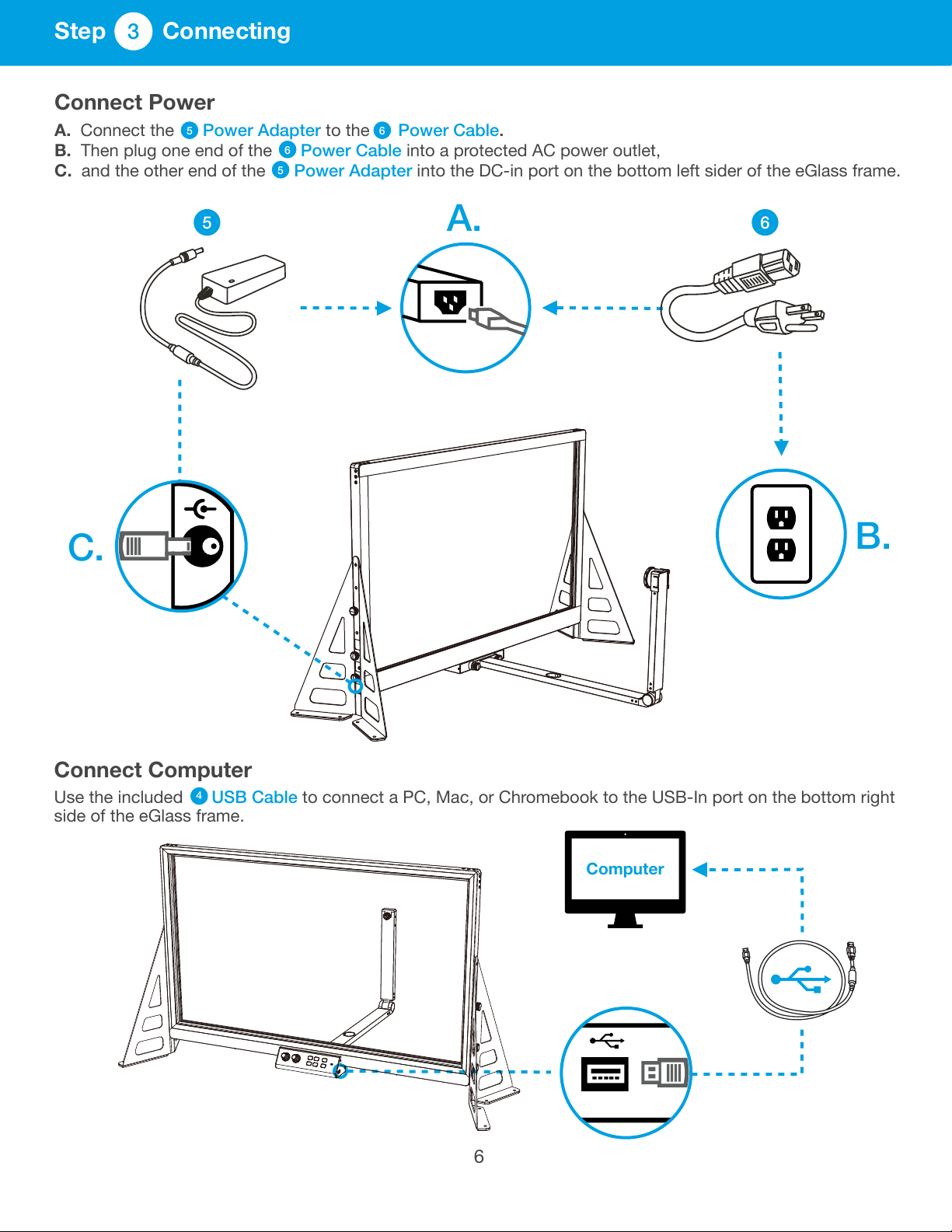
Connect Computer
Use the included USB Cable to connect a PC, Mac, or Chromebook to the USB-In port on the bottom right
side of the eGlass frame.
Connect Power
A. Connect the Power Adapter to the Power Cable.
B. Then plug one end of the Power Cable into a protected AC power outlet,
C. and the other end of the Power Adapter into the DC-in port on the bottom left sider of the eGlass frame.
5 6
5
6
A.
C.
B.
5 6
4
Computer
6
3
Step Connecting
Before completing set-up process, please install the eGlassFusion Software onto your computer.
Download the Software from https://www.eglass.io/support
Chromebook users must use the HoverCam for Chrome App.
Download from
Computer Placement
For optimal results, place computer screen on the other side of glass as close to eGlass camera as possible.
This will simulate eye contact when looking towards the computer screen.
Because computer will on the other side of glass and out of reach, use a mouse and keyboard (not included)
to operate.
For best results, use the laptop stand as pictured below to position computer screen even closer
to the eGlass camera.
Good:
Best:
eGlass
Laptop Stand
7
4
Step Installing Software
5
Step Computer Setup
https://www.eglass.io/support
22
22
eGlass Fusion Software
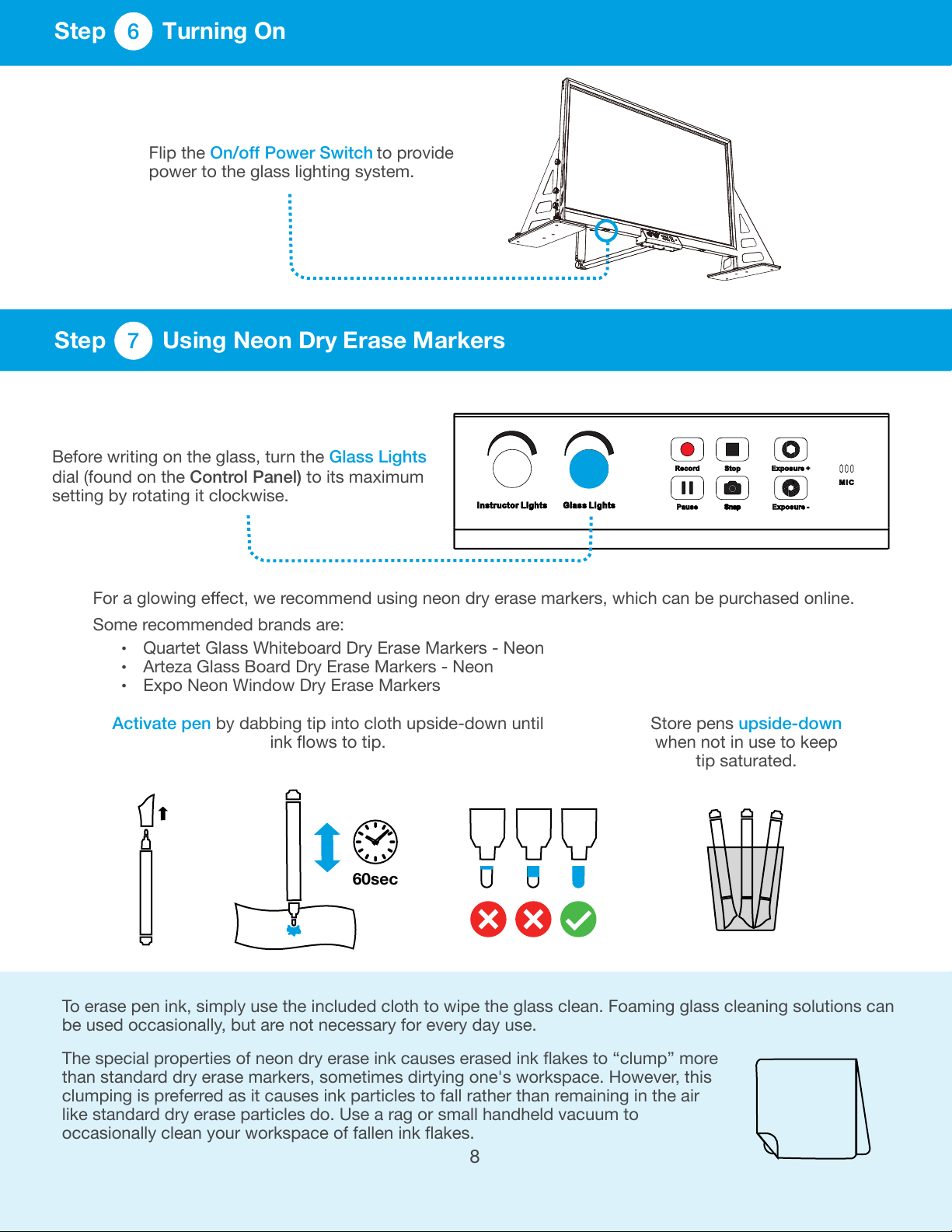
Activate pen by dabbing tip into cloth upside-down until
ink flows to tip.
Store pens upside-down
when not in use to keep
tip saturated.
60sec
For a glowing e ect, we recommend using neon dry erase markers, which can be purchased online.
Some recommended brands are:
Quartet Glass Whiteboard Dry Erase Markers - Neon
Arteza Glass Board Dry Erase Markers - Neon
Expo Neon Window Dry Erase Markers
To erase pen ink, simply use the included cloth to wipe the glass clean. Foaming glass cleaning solutions can
be used occasionally, but are not necessary for every day use.
The special properties of neon dry erase ink causes erased ink flakes to “clump” more
than standard dry erase markers, sometimes dirtying one's workspace. However, this
clumping is preferred as it causes ink particles to fall rather than remaining in the air
like standard dry erase particles do. Use a rag or small handheld vacuum to
occasionally clean your workspace of fallen ink flakes.
Flip the On/off Power Switch to provide
power to the glass lighting system.
Before writing on the glass, turn the Glass Lights
dial (found on the Control Panel) to its maximum
setting by rotating it clockwise.
6
Step Turning On
7
Step Using Neon Dry Erase Markers
8
Choosing the right background is essential, because it will appear in the wide angle camera ’s field of
view. Any light sources will make it harder to read the glowing ink. Furthermore, it is best to use eGlass
against a background that is free from clutter to minimize distractions.
For a strikingly dramatic look, use a dark backdrop (such as a black sheet pinned to the wall with
thumbtacks). This will make the ink glow vividly against the black background.
Ink Writing
Ink Writing
Window Covered
Lights Removed
Ink Visible
Black backdrop
Cleanest background
Ink Highly Visible
GOOD
BEST
Ink Writing
Window in Background
Lights in Background
Ink Not Visible
BAD
8
Step Setting Background
9
The objectives when calibrating lighting:
Reduce background brightness as much as possible.
Maximize ink brightness so that it stands-out in contrast against the now-darkened background.
Ensure instructor is properly lit so that viewers can see the instructor's face.
Calibrating the Lighting is one of the most important steps when setting up eGlass. When properly
calibrated, the lighting settings will make the ink glow vividly. eGlass features exposure controls that
allow it to be used in bright rooms. Even a white wall can be made darker by lowering the exposure
eGlass exposure.
Note: Before calibrating lighting, you need to have the software installed and running on you computer so
that you can see the eGlass image. You also need to active a neon pen and prepare to write on the glass.
Before Calibrating Lighting
Background is bright
Ink does not glow against background
Instructor is not illuminated
After Calibrating Lighting
Background is dark
Ink glows vividly against background
Instructor is illuminated
9
Step Calibrating Lighting
10