12
BRIGHTNESS CONTROL
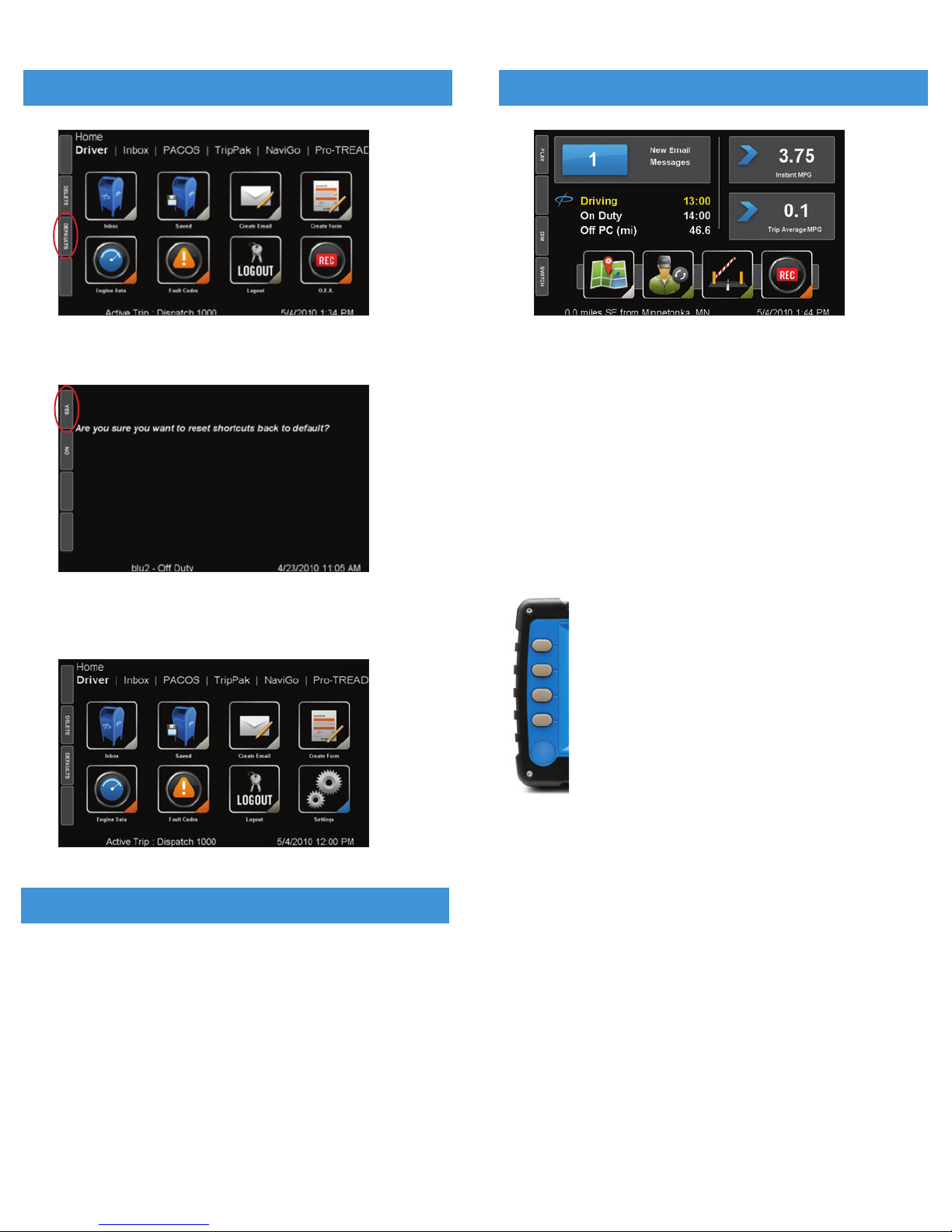
Control bright and dim settings in Safe Mode screen using the
hard or soft button.
By default, BLU’s screen brightness is at the maximum brightness
level. For this reason, the DIM soft button is visible on the Safe
Mode screen.
Unless previously adjusted in the BLU Settings screen or from
a previous Safe Mode change, this setting in Safe Mode dims
from the maximum down two more levels. Once BLU reaches
the dimmest setting, then the soft button becomes a BRIGHT
key, and when selected brightens the screen until the maximum
brightness level is reached.
The brightness setting set from the Safe Mode screen holds as
the setting in the BLU Settings screen once Safe Mode is no
longer active.
SAFE MODE MESSAGING
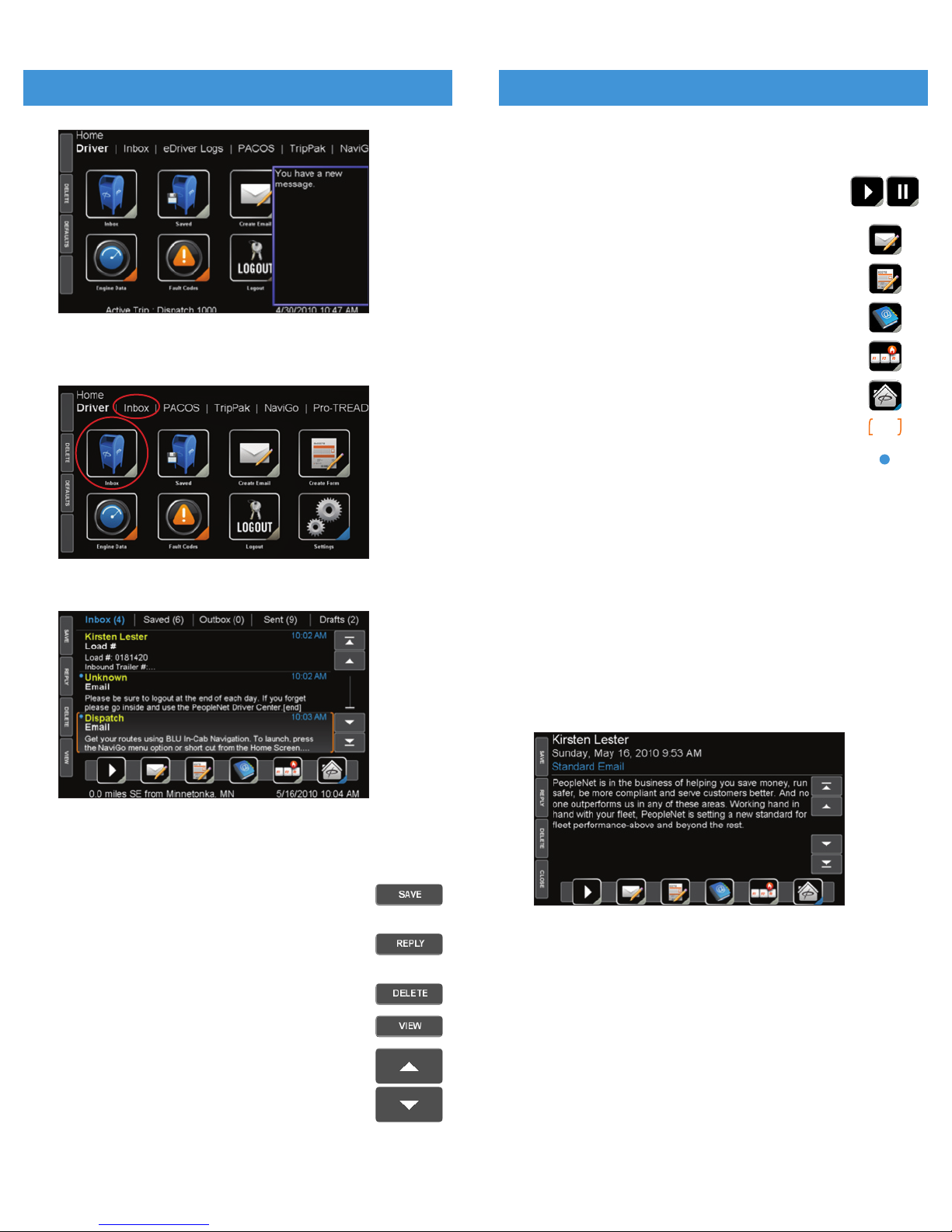
For additional hands-free safety in the cab, play messages from
BLU Safe Mode while driving.
If BLU has any new unread messages in the Inbox before or
while the truck is moving and Safe Mode is active, then the new
message quantity displays in the on-screen New Message
Indicator box, and the PLAY function is made available.
1. Select PL AY by pressing the topmost hard button.
2. BLU plays the oldest unread message from the Inbox.
NOTE: Only new messages are read oldest to newest from
the Inbox.
NOTE: Messages that have already been read from the Inbox
or any other mailbox will not be available in Safe Mode.
3. PAUSE is available using the same top most hard button
on BLU at any time a message is being played.
4. Select the PAUSE hard button at any time and resume
when ready by reselecting PLAY.
5. Once a message has been played completely through,
the message becomes available for REPLAY.
6. Select the REPL AY hard button, which is the
second hard button from the top to replay the
message that was just completely.
7. Once the next new message has been played completely,
then it is available for REPL AY, and so forth.
NOTE: For maximum safety, PeopleNet recommends that drivers
use the hard buttons while the vehicle is in motion.
NOTE: Make sure BLU is not set to Mute before entering Safe
Mode and playing messages.
SAFE MODE
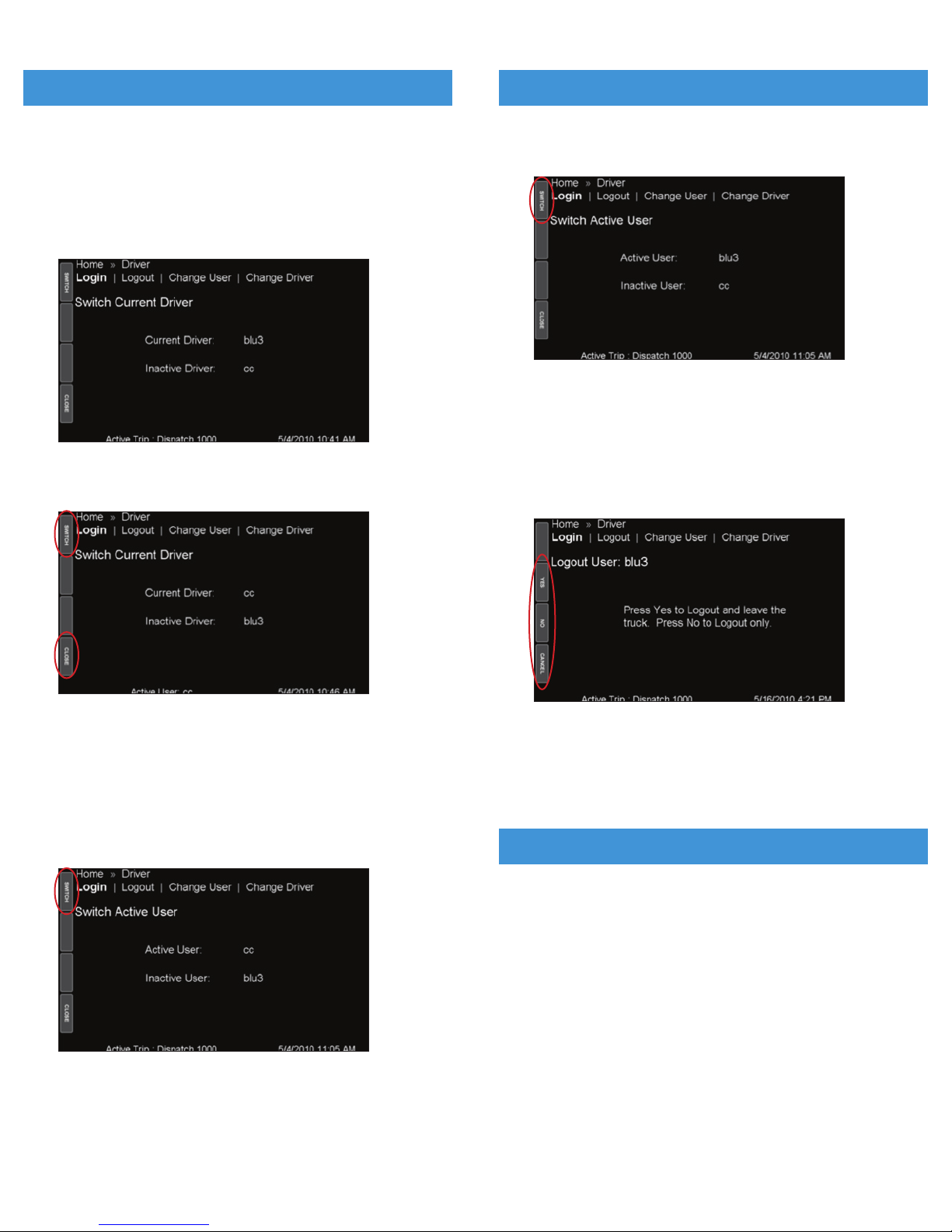
BLU Drivers and Users are differentiated by the applications,
screens, and functions they are associated with.
The Current Driver is the user logged in that is associated with
the PerformX engine data collected by BLU, including miles driven.
For vehicles using eDriver Logs, determination of the Current
Driver is based on the following:
1. The driver in Driving duty status.
2. If no drivers are in Driving status, the Current Driver is the
user that was last in the Driving status.
3. If neither of the above statements is true, the first user to
login into BLU is the Current Driver.
NOTE: Change Current Driver will appear only if there are two
drivers logged in and you are a non-eDriver logs user.
The Active User is considered the user interacting with the
device. For eDriver Logs, the Active User’s information will be
shown when viewing eDriver Logs data, graphs, and Summary
information.
LOGGING IN
BLU starts up automatically with the truck’s ignition switch and
displays the Login screen.
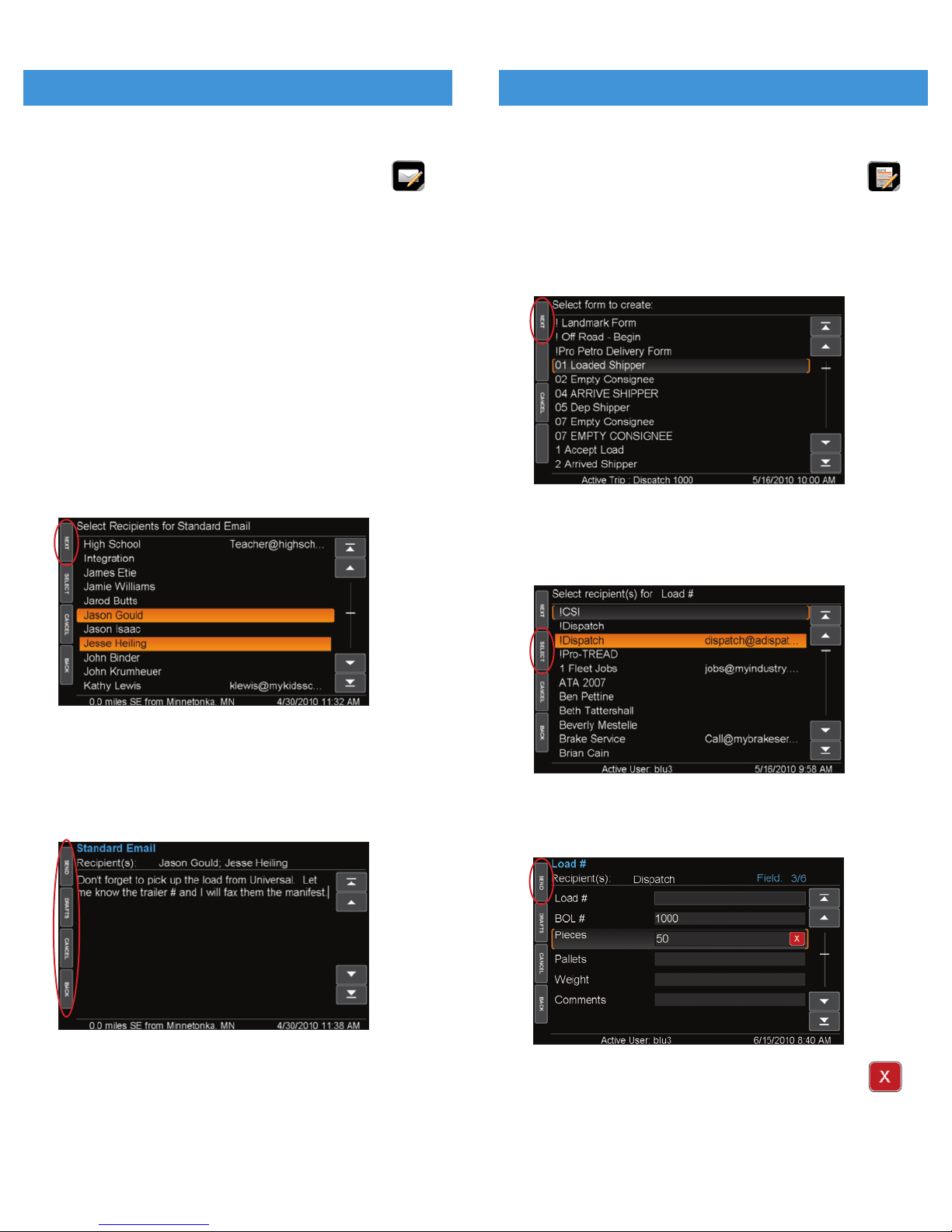
1. If no drivers are currently logged in, the Login screen will appear.
2. If another driver is already logged in, select Driver [Login
in the menu bar to display the Login screen.
3. Enter DRIVER ID AND PASSWORD.
4. Press the DONE button to initiate a data call to receive
driver information.
NOTE: If a second user needs to log in at the same time, press
the NEXT button (not the navigation button) to redisplay
the Login screen. Repeat steps 3 and 4.
DRIVERS & USERS
13