Philips SpeechMike Quick Reference Guide _____________________________________________ 3
Philips SpeechMike Quick Reference Guide
System requirements
•IBM-compatible PC ith Pentium II, 233MHz processor (Pentium III, 500MHz recommended)
•At least 64 MB RAM (128 MB recommended)
•75 MB hard disk space for SpeechMike drivers & soft are
•A self-po ered USB port ith 300mA of output po er (see the Troubleshooting section for details)
•Windo s 98 SE*, Windo s Me*, Windo s 2000 or Windo s XP
* Note: Windo s 98 SE and Windo s Me operating systems are supported for driver installation only!
Installation on Windo s 2000 and Windo s XP systems
Hard are:
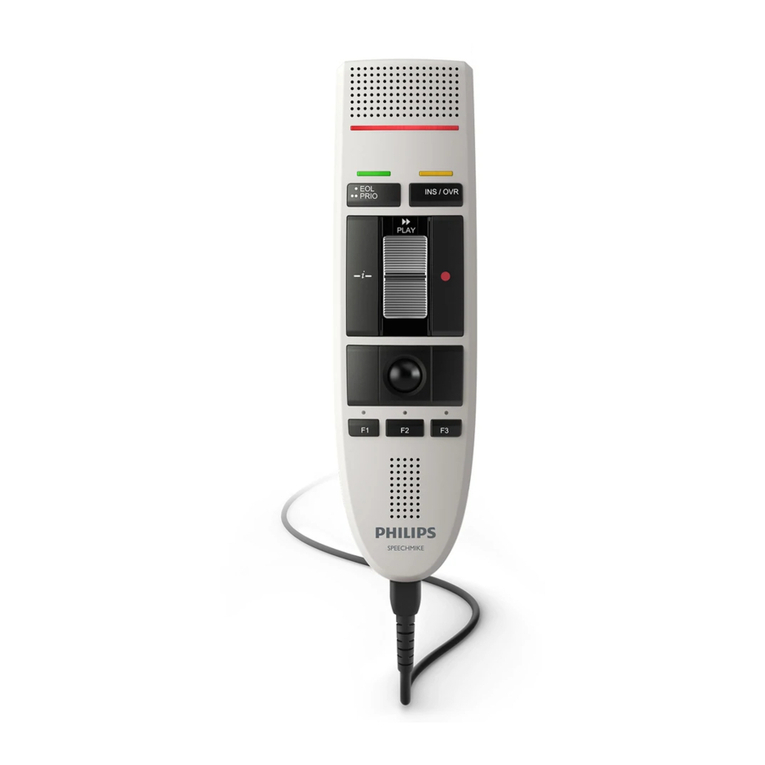
1. Turn on your computer and plug the SpeechMike device into the USB port.
2. The Ne Hard are Found message ill be displayed on your screen shortly.
Note: If this message does not appear, verify hether the USB port is enabled in the BIOS of your
system. See your hard are documentation for details or contact your hard are vendor.
3. Installation ill proceed automatically.
Soft are:
Note: A user must have administrator rights to install the program under Windo s 2000 or Windo s XP.
Contact your system administrator if you need help.
The SpeechMike soft are is delivered on the Driver & Utility CD. When you insert the Driver & Utility CD
into your CD-ROM drive, the SpeechMike setup program is automatically started. Select Install to begin
the installation. If the setup program is not run hen you insert the Driver & Utility CD, start setup
manually by doing the follo ing:
1. Double-click the My Computer icon on the desktop.
2. Double-click the CD-ROM drive icon; you ill be sho n the contents of the CD.
3. Start the program autorun.exe by double-clicking it and select Install.
Installation on Windo s 98 SE and Windo s ME systems
Note: The Windo s 98 Second Edition CD contains the USB drivers for the microphone and
loudspeaker only. The drivers for the LED display and dictation buttons must be installed from the
Driver & Utility CD before connecting the hard are.
1. Turn on your computer and insert the Driver & Utility CD ithout plugging the SpeechMike device into
the USB port.
2. Autorun.exe ill start. If this program is not run hen you insert the Driver & Utility CD, start setup
manually by doing the follo ing:
•Double-click the My Computer icon on the desktop.
•Double-click the CD-ROM drive icon; you ill be sho n the contents of the CD.
•Start the program autorun.exe by double-clicking it.