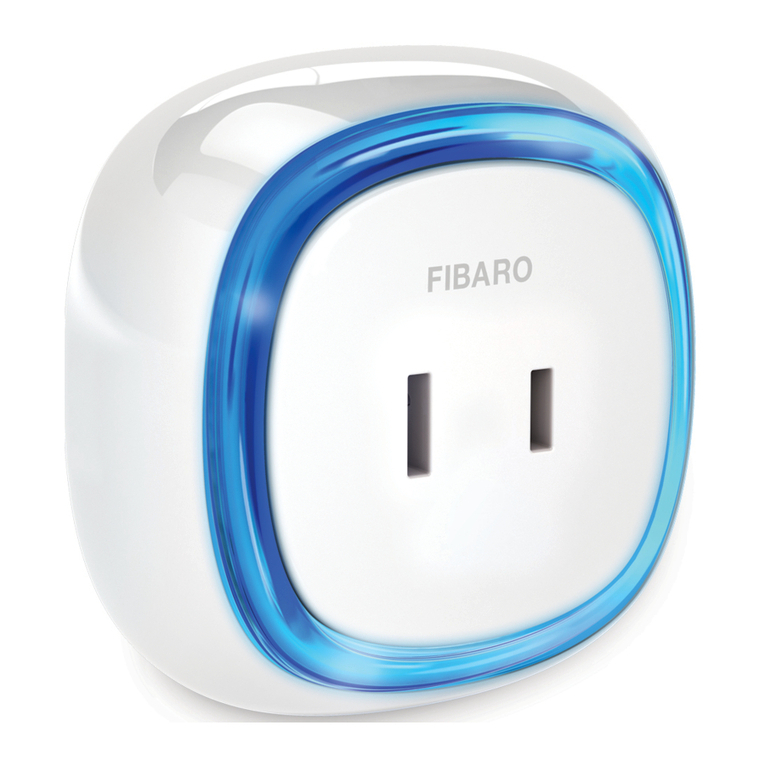
Circle+
ÌPak de Circle+ (te herkennen aan de grijze achterkant), de meegeleverde
installaelijst en een pen.
ÌKies een apparaat in de nabijheid van de computer (niet de computer
zelf), dat u op de Circle+ wilt aansluiten en loop naar het apparaat.
ÌOp de achterkant van de Circle+ zijn twee sckers met een code
bevesgd. Scheur één scker af en plak deze op de installaelijst. Laat de
andere scker zien. Het is mogelijk dat de code al op de installataelijst is
gedrukt.
ÌSchrijf naast de scker op de installaelijst de naam van het apparaat dat
u op de Circle aansluit en het vertrek waarin het zich bevindt.
ÌSteek nu de Circle+ in het stopcontact en steek vervolgens de stekker van
het apparaat in de Circle+. Het aangesloten apparaat zal na enkele seconden
ingeschakeld worden.
Circle(s)
ÌHerhaal de procedure met de resterende Circle(s); scheur de scker los,
vul de installaelijst in en sluit het apparaat aan.
ÌGa terug naar uw computer wanneer alle Circles zijn ingestoken en de
installaelijst volledig is ingevuld.
2. Software installatie
Plugwise Source is de applicae waarmee u op uw computer
verbruiksgegevens van uw apparaten kunt bekijken en schakelschema’s kunt
maken om energie te besparen.
ÌGa naar www.myplugwise.com en download het installaebestand.
ÌStart de installae-wizard door het bestand te openen. Als u Internet
Explorer gebruikt, klikt u op ‘uitvoeren’, als u gevraagd wordt of u het
bestand wilt uitvoeren of opslaan.
ÌDoorloop alle stappen van de installae-wizard, zodat de soware zich
automasch installeert op uw computer.
ÌZodra Source is geïnstalleerd, wordt de congurae-wizard gestart. Ga
dan verder met de stappen die hieronder staan beschreven.
Sck
ÌPlaats nu de Sck in een USB-ingang van uw computer.
3. Congureren van het
Plugwise-netwerk
De Source congurae-wizard wordt automasch geopend na de installae
van de soware. Als er iets mis gaat, kunt u de congurae-wizard zelf
starten door op de snelkoppeling in uw Windows menu ‘Start’ te klikken.
ÌDoorloop de stappen van de congurae-wizard. Iedere stap wordt in
1 21
1. Placing the Circles
Circle+
The Circle+ is the coordinator of the Plugwise network. This feature
only plays a role while installing the network and when new modules
are added. The Circle+ also contains a clock that the other Circles use to
synchronize their me stamps. The Circle+ should always be installed rst
and should always be plugged in within range (30 feet) of the rest of the
Plugwise network, even when no appliance is connected.
ÌTake the Circle+ (recognizable by the scker at the back with a thick
black line at the boom), the included installaon list and a pen.
ÌChoose an appliance, located in the same room as the computer, to
plug into the Circle+.
ÌCarefully tear o the lower code label and sck it in the space on the
installaon list. It is possible that the codes have already been printed on
the installaon list.
ÌWrite the name of the appliance connected to the Circle+ next to the
code on the installaon list, as well as the locaon of the appliance.
ÌPut the Circle+ into the power socket and plug the appliance into the
Circle+.
Circle(s)
ÌRepeat the above procedure for the other Circle(s).
ÌIf Circles are placed close to each other, the Plugwise network
will operate faster. Although Circles can bridge longer distances, it is
recommended that the Circles are placed no more than 30 feet away
from each other.
ÌReturn to your computer when all Circles are connected and the
installaon list is complete.
It is not necessary to install all Circles at once as they can be added later via the
sengs menu. This is further explained in the Source manual.
Some examples of heavy energy users are: refrigerators, water heaters, ovens
and water beds. Most people can save energy on lighng, digital TV tuners,
internet routers and devices with a stand-by feature.
If you want to connect mulple appliances to one Circle, please take the inrush
current of each appliance into account. The inrush current can be many mes
the nominal use current of the appliance.